


Video translator
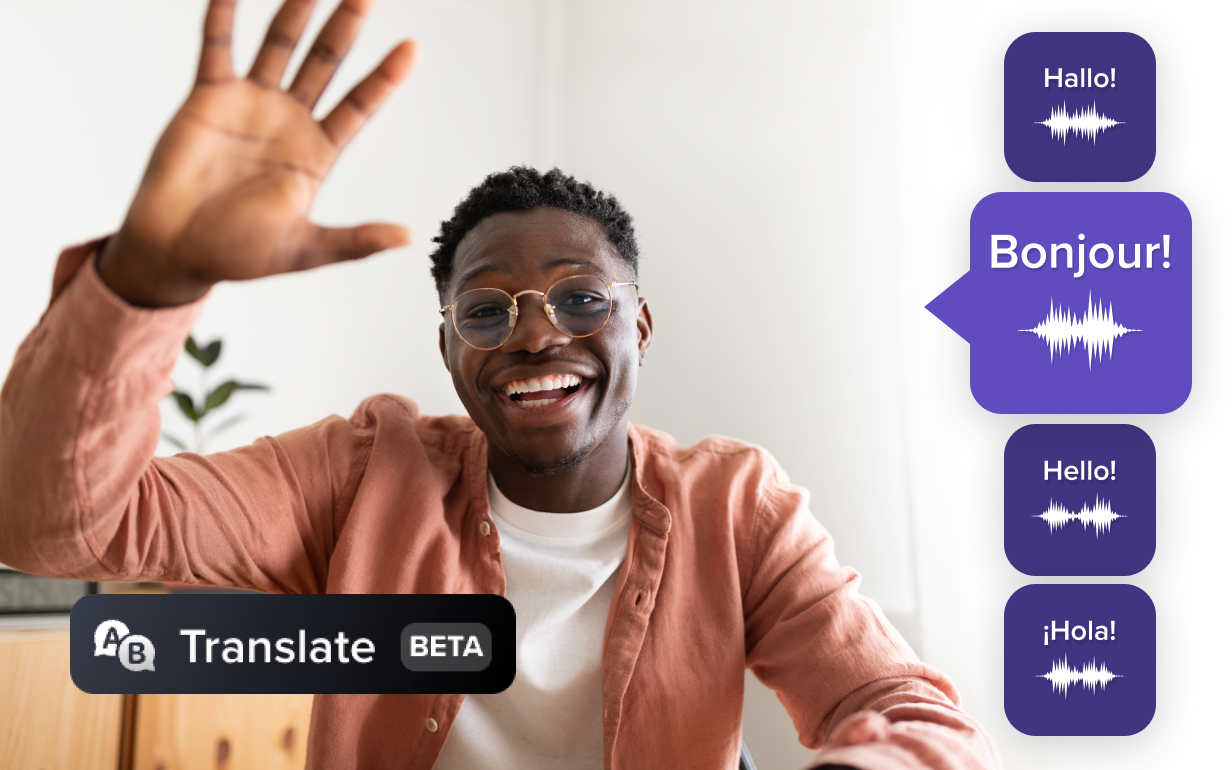
Unlock effortless video translation with Camtasia Audiate. Whether you need to translate video content for multilingual teams or a global audience, Audiate simplifies the process.
TRANSLATE VIDEO IN CAMTASIA
How to translate video with Camtasia Audiate
Making your video content accessible in different languages is easier than ever. Follow these three simple steps to start breaking language barriers:
1
Step 1: Import your file
Paste your script or upload a video file. Audiate automatically transcribes the content in the original language.
2
Step 2: Translate with ease
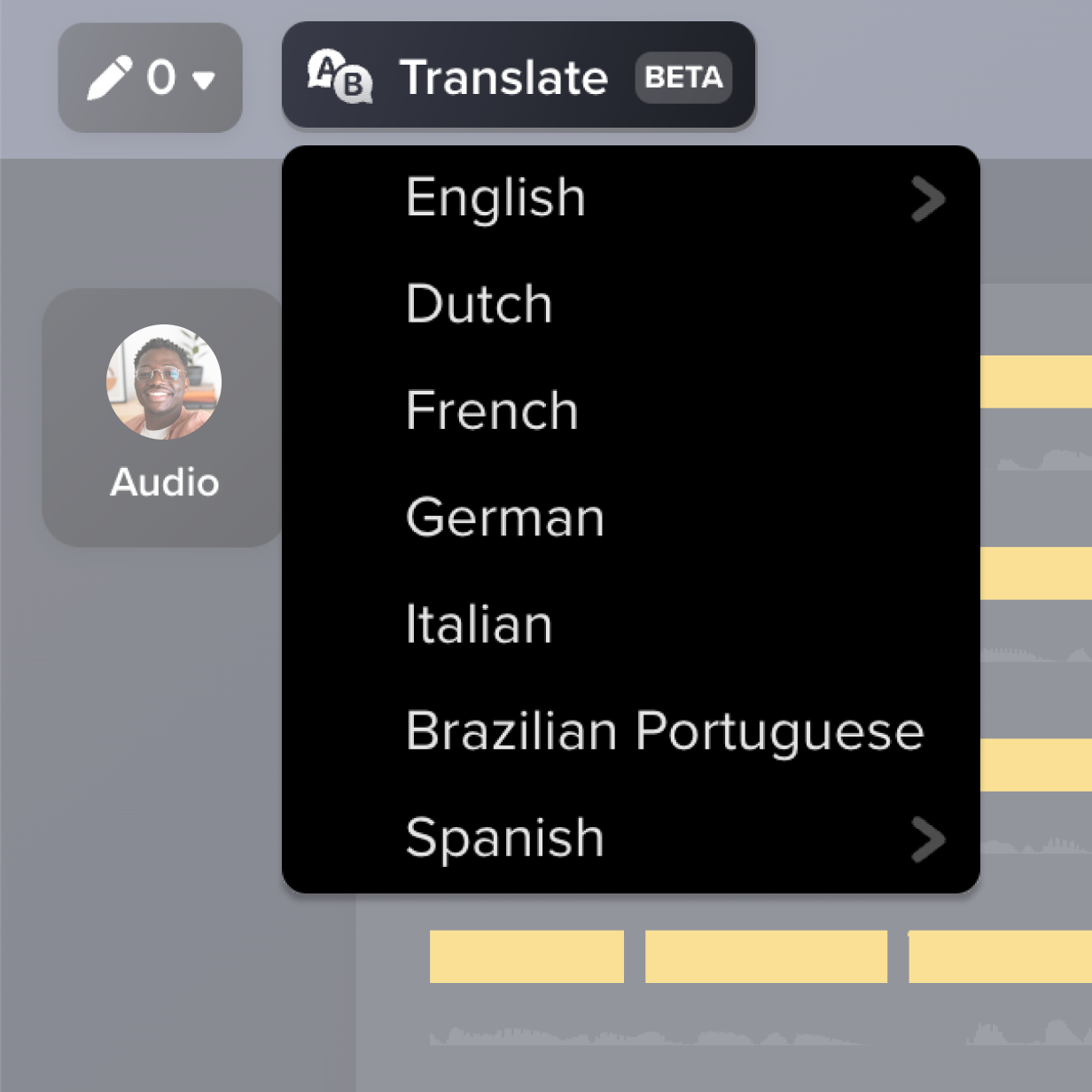
Select your desired language from the translation options. Audiate translates the transcription in no time, ready to be exported. To create a video from the translation, use the Generate Audio feature and generate the new language narration.
3
Step 3: Export your files
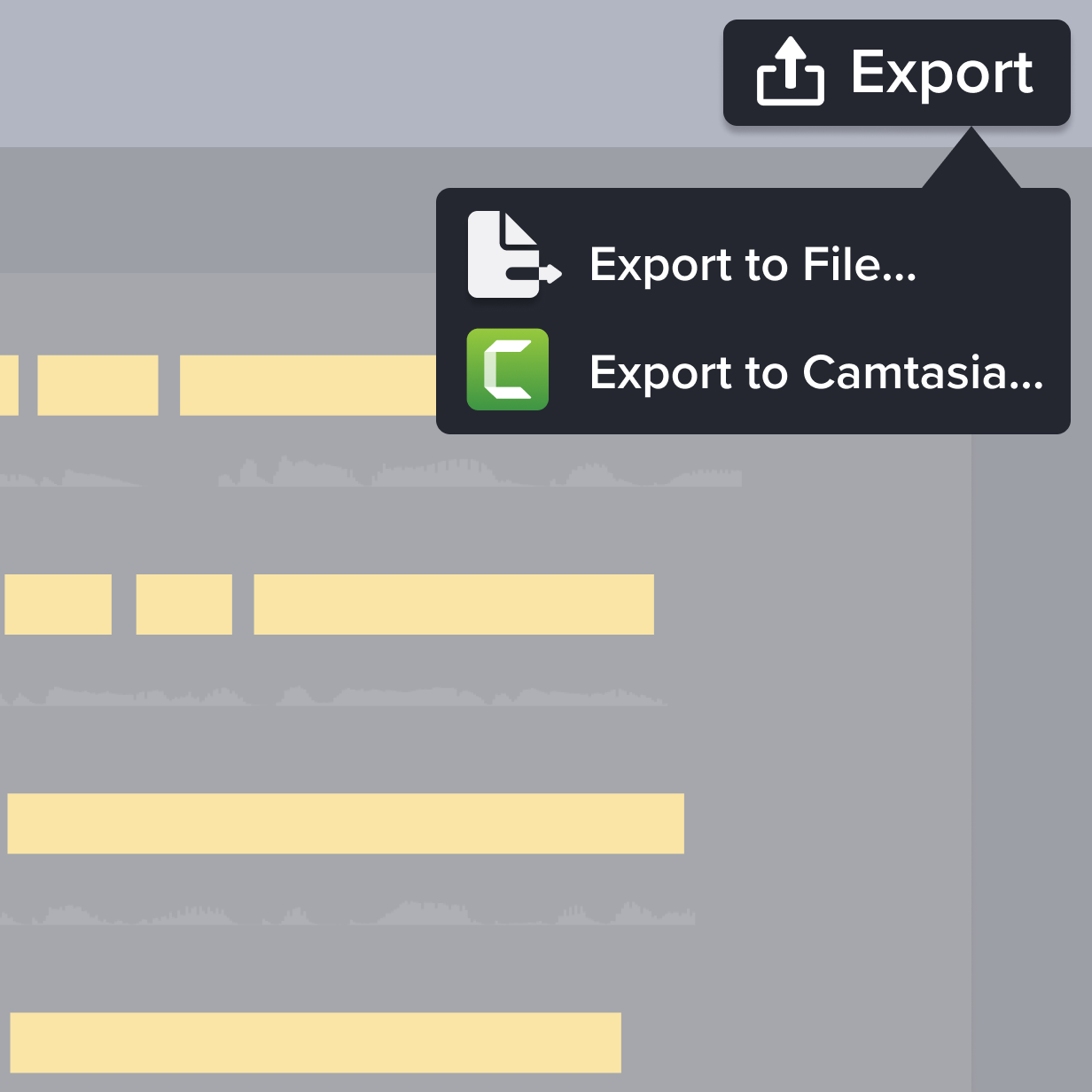
Export your new video with the translated subtitles and narration, or save the translation as a .srt or text file for easy sharing.
Why choose Audiate for video translation
Camtasia Audiate stands out with its fast, easy, and precise video translation capabilities. Here’s why:
Accurate translations and narrations
Audiate allows you to translate videos and audio files into seven languages with precision. Plus, the translated narration syncs with the video.
Multiple export options
Save your translated narration as a standalone audio file, or export it as a video file with the original footage. You can also generate standardized closed captions in the language of your choice.
Seamless integration with Camtasia Editor
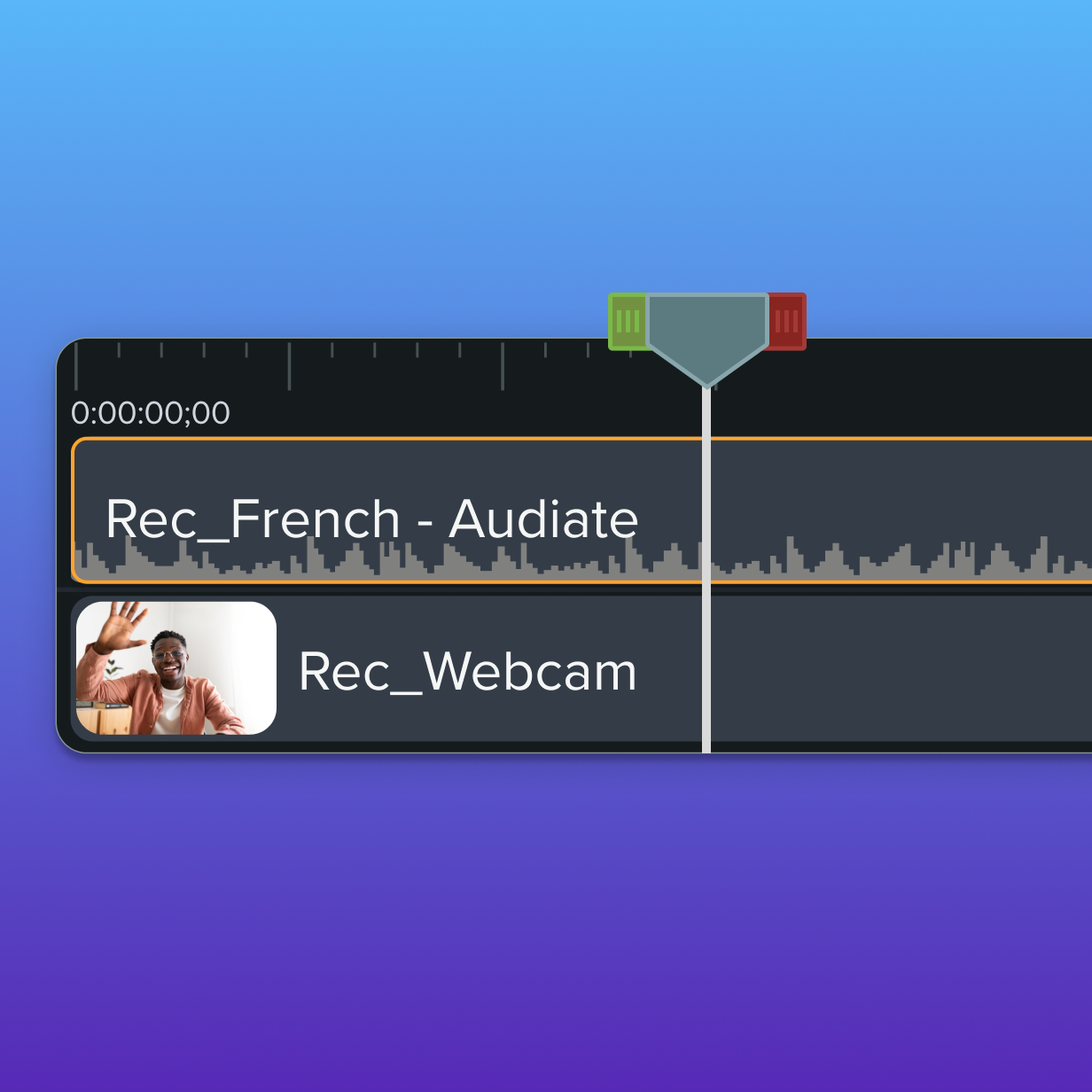
Once you’ve translated your narration, you can easily re-integrate it into your video using Camtasia Editor’s tools, ensuring a polished final product.
Get started with Camtasia Suite

FAQ
Yes! Camtasia Audiate supports translations into English, Dutch, French, German, Italian, Brazilian Portuguese, and Spanish.
Absolutely. You can export translated captions in .srt format, ready to be embedded into your video.
Once your translation is complete, Audiate allows you to export the translated narration. From there, you can sync it to your video using Camtasia.
Yes, you can review and make edits to the transcribed text before proceeding with the translation.
Audiate supports common video and audio file formats like .mp4, .wav, .mp3, and .m4a for both transcription and translation. You can export your video in .mp4, .wav, and .gif formats ready to post on your social media accounts, YouTube channels, or other online video platforms.
With Audiate, translations are nearly instant. After transcription, converting to another language only takes two clicks! The auto translate process is super easy, you just have to watch it to its magic in front of your eyes.
Yes, with Camtasia Audiate’s AI video features, you can translate your video in just a few steps. Plus, you can make the translated transcript come alive with AI voices and Camtasia’s video editing features.
Yes, you can download YouTube videos on your device and upload them to Camtasia Audiate to translate. This process makes accessible video creation easy by making it possible to add subtitles and captions to videos.
Current Camtasia customers have a few options for moving up to the Camtasia Pro plan for avatar generation. Customers on a current Camtasia Essentials or Create subscription can upgrade to Camtasia Pro in their TechSmith account by following these steps.
Camtasia customers on a perpetual license or Legacy Subscription can contact our Customer Care team for assistance moving their license to a Camtasia Pro subscription.Customers with a standalone Audiate subscription can contact our Customer Care team for assistance with converting their existing Camtasia license and Audiate subscription to a Camtasia Pro subscription.
Check out our tutorial that will walk you through everything you need to know.
Still can’t find what you need? Contact us and we’ll help you out.