Guide for Using Snagit Accessibly
Learn how you can navigate Snagit accessibly, including taking a screenshot using your keyboard only and tailoring your experience to how you'd like it.

Learn how you can navigate Snagit accessibly, including taking a screenshot using your keyboard only and tailoring your experience to how you'd like it.
TechSmith is committed to providing inclusive digital experiences for people with disabilities by creating accessible products. This page provides guidance on how to use Snagit with a screen reader, navigating with a keyboard, and more.
For more information on Snagit’s accessibility conformance and exceptions to the information on this page, refer to the most recent Voluntary Product Accessibility Template (VPAT).
Interactive elements such as buttons and links in Snagit include alt text for screen reader access. Onboarding animations also have a text alternative that describes the action and is readable by a screen reader.
Both Snagit Capture and Snagit Editor can be navigated using the Tab (forward) and Shift+Tab (backward) buttons as well as the arrow keys. As you navigate, the items will also have visible focus showing where in the interface you are currently located.
In Snagit Capture, you can use the spacebar and the Enter (Windows) or Return (Mac) key to control the crosshairs and region selection.
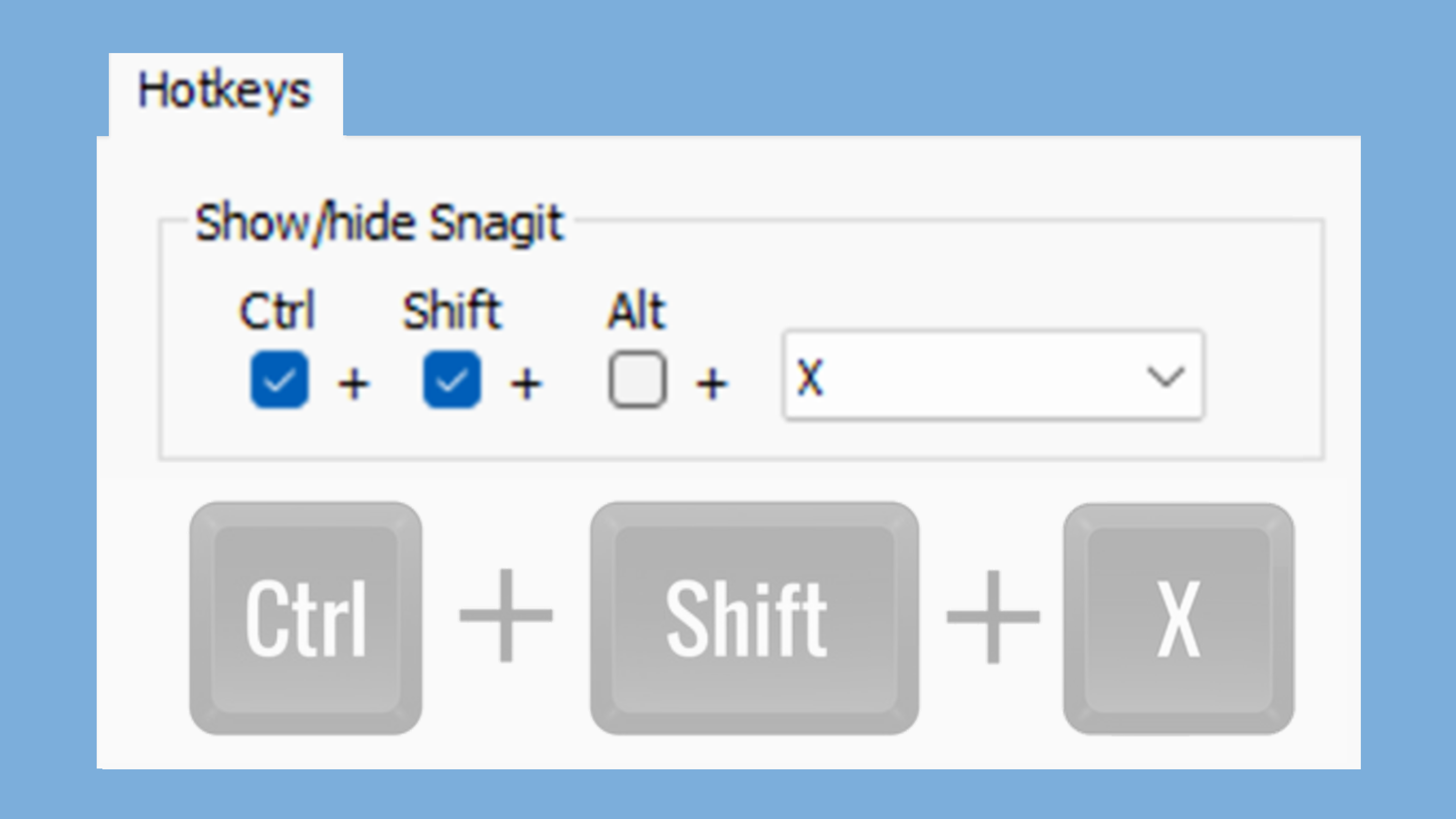
Snagit provides hotkeys you can use to make navigation and editing easier, and you can also assign your own preset hotkeys for certain functions. For information on this, refer to the Snagit Hotkeys Guide.
Want to explore how you can capture an image or video, open it in the editor, and share it to Screencast using a screen reader and navigating by keyboard? Check out this video demo, or read through these steps:
Snagit supports screen magnification with DPI scaling settings. Text size can also be adjusted via your operating system’s scale settings or your monitor’s DPI.
Snagit offers both a light theme and a dark theme, giving you flexibility with brightness when using the software. If you prefer higher text contrast, the dark theme is the way to go.
To switch between the light and dark theme from Snagit Capture, open “File” on the top menu, go to “Capture Preferences,” and adjust the “Snagit Theme” dropdown. From Snagit Editor, open “Edit” on the top menu, select “Editor Preferences,” and adjust the setting from the “General” tab.
Have an accessibility-related question? Submit a request to our Support Team and we’d be happy to assist you!
All Academy Tutorials