TechSmith ®
TechSmith ®

Add Sound Effects to Your Video

Learn how to add sound effects to emphasize onscreen actions.

Camtasia product icon

Sound effects can help keep viewers engaged with your video. Combine sound effects with onscreen text, images, or animations to:

  • Maintain engagement in short-form content, such as YouTube Shorts, Instagram Reels, etc.
  • Convey a feeling, tone, or action. For example, add a cheer sound effect with confetti to express excitement or add a click sound effect to convey a click action.
  • Direct attention to different parts of your video, like pop-up images, text, animation, etc.

Try out these commonly used sound effects or browse the Camtasia Assets to find the perfect sound effect for your video:


Mimic Action
Add the Mouse Click sound effect to mimic a cursor click action. This draws attention to the image or text of the cursor click.


Scene Transition
Add the Swoosh sound effect to create an engaging transition from one video scene to another.


Resource or Product Mention
Add the Cheek Pop (Premium) sound effect to draw attention to the image or text popup. This could be a resource or product, such as a screenshot of a podcast episode, or an image of a book cover.


Celebration
Add the Crowd – Excitement – Medium – Short (Premium) sound effect to create a celebratory and happy tone. For example, add it when you are done with an action to signal it is completed, or add it after good news is shared in your video.
Add Sound Effects

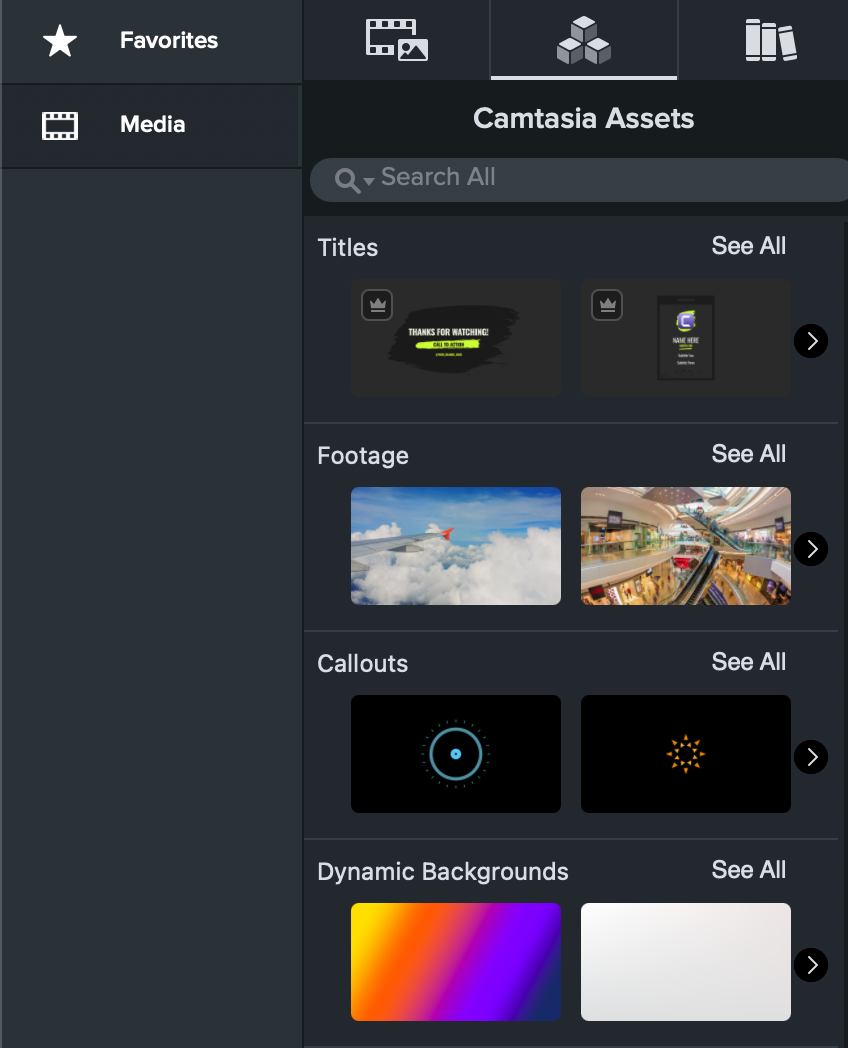
  1. Select the Media tab > Camtasia Assets subtab.
    Camtasia Assets subtab
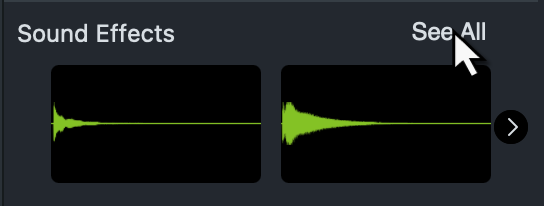
  2. Scroll to the Sound Effects category and click See All.
    See All option for Sound Effects
  3. Search or scroll to find your desired sound effect. Consider searching for keywords based on the specific sound or sound type, such as, pop, click, type, whoosh, riser, etc.
  4. Click and drag the selected sound effect onto the timeline.
  5. To apply additional customizations, complete any of the following:
    • To edit the length of the sound effect, drag the end of the effect on the timeline in or out.
      Drag end of sound effect on timeline track
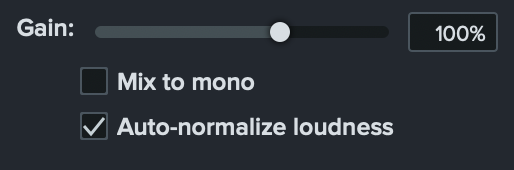
    • To adjust the volume of the sound effect, drag the Gain slider in the Properties.
      Gain Slider

Best Practices

Some things to consider when applying sound effects:

  • Use sound effects sparingly. Too many sound effects can become overwhelming, turn users off, or seem unprofessional.
  • Sound effects can help replicate a sound that’s not in your video. For example, a mouse click when you’re displaying a cursor action.
  • Add sound effects to set the tone of your video.
    • If the video is more laid-back, use more casual sound effects like a text message being sent, typing, or even a punch noise for images.
    • If the video is intense or serious, add dramatic sound effects like risers.
Camtasia Icon Logo

Get Camtasia

Unleash the world’s most powerful screen recorder and video editor.

* Already a Camtasia Editor user? Learn how to update to the latest version.
All Camtasia Tutorials