Open Snagit Editor
- Click Open Editor in the Capture window.

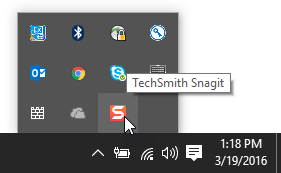
- On Windows, in the Notifications area, right-click the Snagit icon and select Open Snagit Editor.
Snagit Editor Overview
Snagit Editor is packed with options to review, edit, and share your captures. Here are key areas with links to learn more:
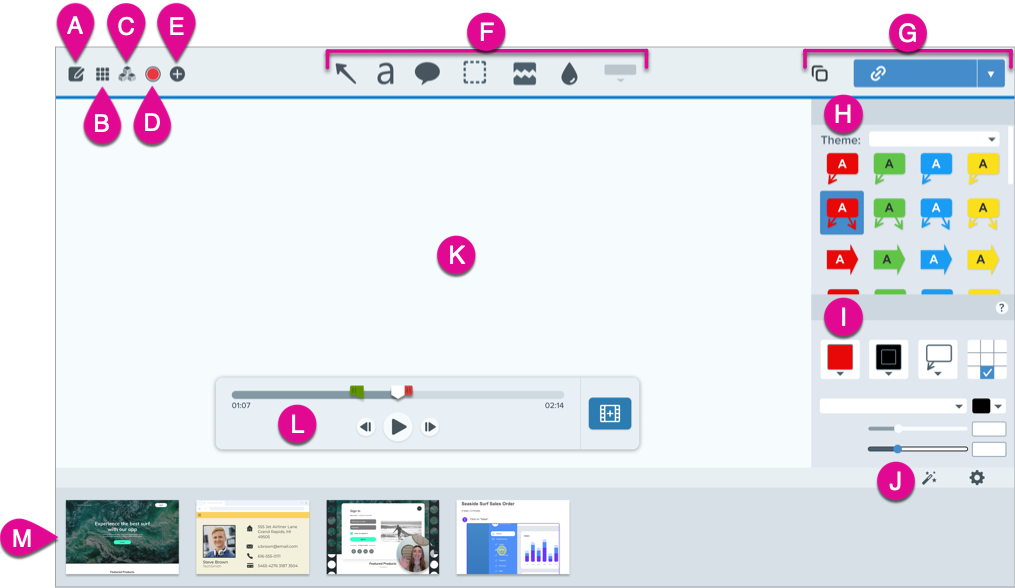
- Editor
Click the Editor tab to switch from the Library to the Editor.
- Library
The Snagit Library stores your capture history, including images, video recordings, and animated GIFs created with Snagit. Find captures by date, source, tags, and more. See Introduction to Snagit Library.
- Assets
Browse, search, and download from over 100 million stamps, photos, themes, and templates for use in Snagit. See Download TechSmith Assets for Snagit.
- Capture
Open the Capture window to access the full range of image, video, and all-in-one capture settings. See Capture Your Screen.
- Create
Click to select from:
- Toolbar
Click to select a tool to annotate, edit, and enhance image captures. Click More to access additional tools. See Snagit Tools.Note: Tools are only available to edit images. To add annotations while recording video, use Screen Draw. To add annotations to already recorded video, share your video to TechSmith Camtasia.
- Share
- Click Copy All to copy and paste the selected image or video into another application.
- Click Share Link to copy a shareable link to your clipboard. See Get a Shareable Link.
- Click the Share dropdown to share to a specific app or save to your computer or cloud location. See Share Captures.
- Quick Styles
Apply or save custom-made tool styles. See Quickly Access Favorite Styles and Tools.
- Properties
Adjust tool properties such as color, font size, or shape to customize the selected tool. See Snagit Tools.
- Effects
Click Effects to view available image effects, such as image border, torn edge, information about the capture, or color adjustment. See Add Effects.
- Workspace
The workspace is the area to preview and edit captures. See Tips for Working with Images on the Workspace.
- Video Playback and Editing
Review, trim, and cut out unwanted segments of your video. Combine multiple clips, create an animated GIF, or save a frame as an image. See Edit a Video.
- Recent Captures Tray
The tray shows the recent image and video captures, as well as other files opened or edited in Snagit Editor. The thumbnail selected in the tray appears on the workspace. See Recent Captures Tray.
Tips for Working with Images on the Workspace
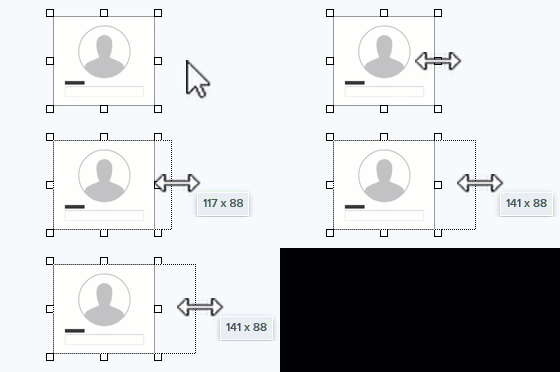
- To create more space to work with an image, drag one of the handles on the edge of the image canvas.
- To round corners, click and drag the yellow diamond handle in the top right corner of the image.

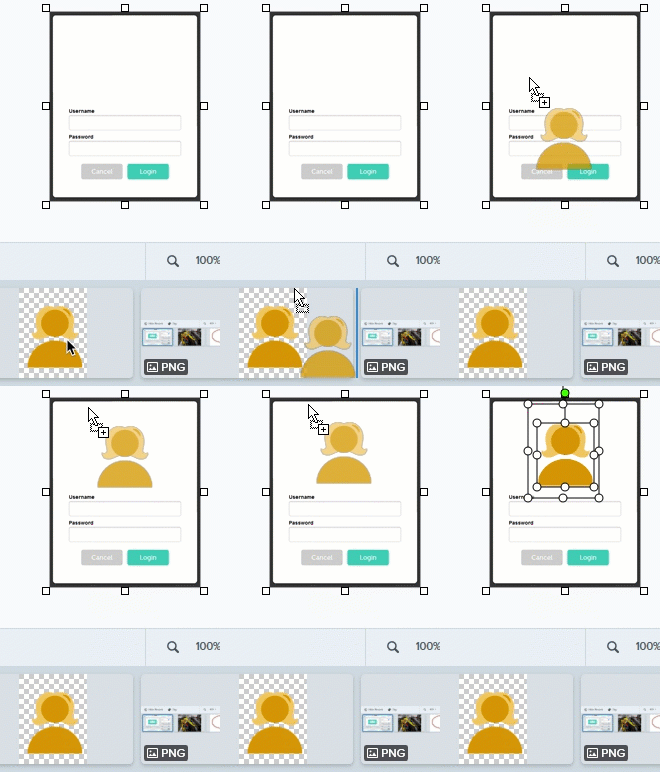
- To combine images, drag an image from the recent captures tray onto the workspace.
- For images with transparency, set the canvas color to transparent. See Remove a Background.
For more options and details, see Edit Captures tutorials.
Get Snagit
The best screen capture software for professionals
All Snagit Tutorials