


Convert your screenshot to PDF
Need to turn your screenshots into perfectly formatted PDFs? Snagit makes it easy. Whether you’re capturing a single image or a long, scrolling webpage, Snagit gives you the tools to create professional-quality PDFs in just a few clicks.
SCREENSHOT TO PDF IN SNAGIT
How to Turn screenshots into PDFs effortlessly
With Snagit, converting your screenshots to PDFs is a breeze. Whether you want to make quick adjustments in the Snagit Editor or save directly as a PDF with a preset, Snagit gives you the flexibility to choose how you work.
1
Step 1: Capture or upload your screenshot
Start by capturing your screen using Snagit’s powerful screenshot tools. Whether it’s a full-screen image, a window, or a scrolling capture, Snagit handles it all with ease. If you already captured your screenshot, no worries, you can upload it right into the editor.
2
Step 2: Edit in Snagit Editor (optional)
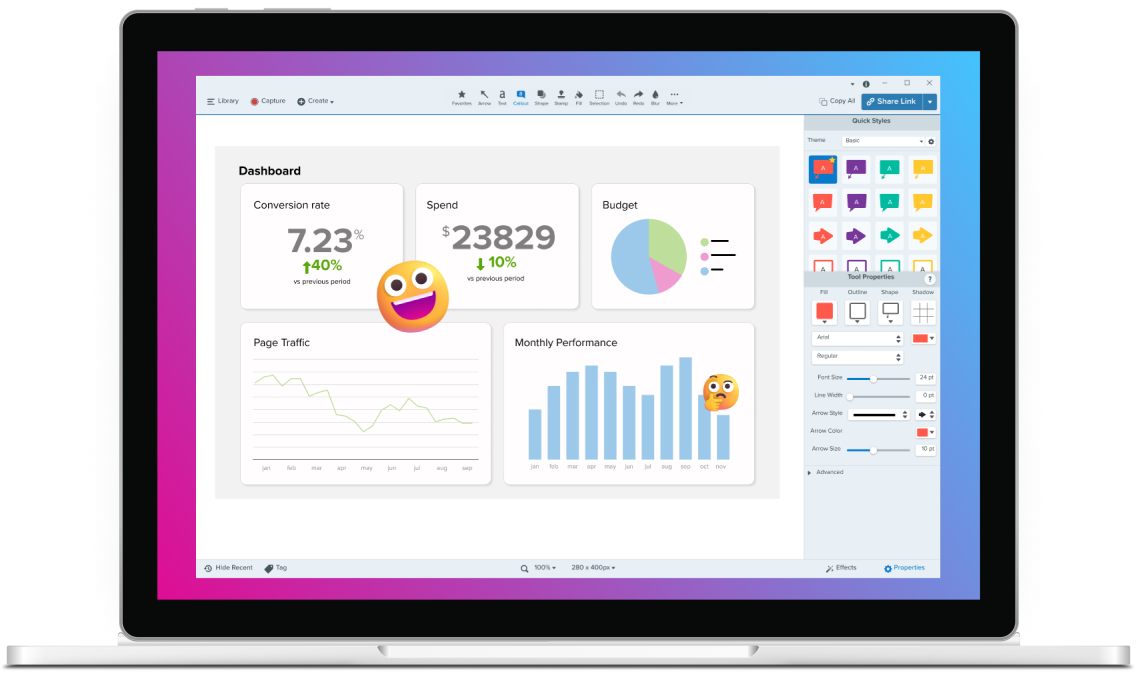
If you need to make adjustments to your screenshot, such as adding annotations or cropping, you can do so in the Snagit Editor. This step ensures your PDF will look exactly how you want it.
3
Step 3: Choose your output settings
Once your screenshot is ready, select either File > Save As or Share > File and save it as a PDF.
Another option is to use a preset to capture and automatically save or share your screenshot as a PDF with a single click.
Why Snagit is the best tool for converting screenshots to PDFs
Snagit makes converting your screenshots to PDFs simple and efficient, giving you the tools to create professional-looking documents every time. Choose from three PDF conversion options that fit your workflow best.
File > Save As
Capture or upload to Snagit and save your file as a PDF using the File menu. This option is straightforward and allows you to save your PDF on your computer.
Create a preset
Are you converting screenshots into PDFs regularly? Then use Snagit’s preset option to quickly capture and save your screenshots as PDFs. Simply set up the workflow as a capture preset, and you’ll be able to take a screenshot and share your captures in just a few seconds.
Screencast link
Instead of just saving your screenshot as a plain PDF, you can share it more interactively with a Screencast link. This makes it easy to share your content with anyone. Just send them the link, and they’ll be able to view and leave comments.
Get started with Camtasia Snagit
FAQ
Yes, Snagit allows you to edit your screenshot in the Snagit Editor before saving it as a PDF. This ensures that your final PDF looks exactly as you want it. After editing, you can convert images to PDF easily.
Absolutely. Snagit offers presets that let you capture and save your screenshots as PDFs with just one click or keyboard shortcut, streamlining your workflow.
By using Snagit’s save and share options, you can convert image files to PDF documents in many ways.
PDFs are preferred because they maintain the formatting and layout of your screenshots, making them ideal for sharing, archiving, or printing. Snagit ensures that your PDFs look just like the original captures, even for long or scrolling content. It is important to keep image formats in mind when creating documentation.
Check out our tutorial that will walk you through everything you need to know.
Still can’t find what you need? Contact us and we’ll help you out.