


Image simplifier
Simplifying images is a great way to focus attention on key elements and remove distractions or sensitive information. Snagit’s image simplifying tools allow you to quickly and easily reduce the complexity of an image, helping you maintain privacy and professionalism while still delivering clear, useful visuals.
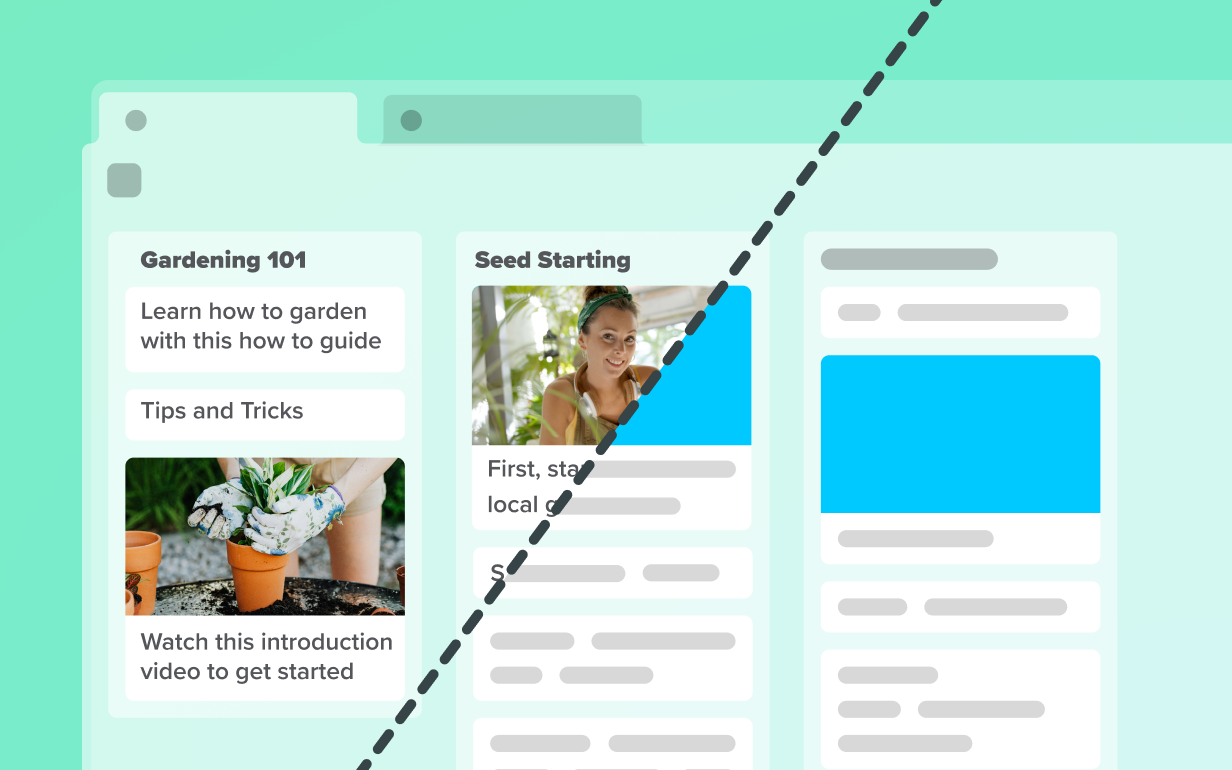
SIMPLIFY IMAGES IN SNAGIT
How to simplify your images
Simplifying an image in Snagit is quick and efficient. Follow these three simple steps to achieve a streamlined, focused visual:
1
Step 1: Import or capture your image
Start by importing the image you want to simplify into Snagit’s editor. Or, you can use Snagit’s powerful capture options to screenshot an image of your screen.
2
Step 2: Auto-simplify and adjust
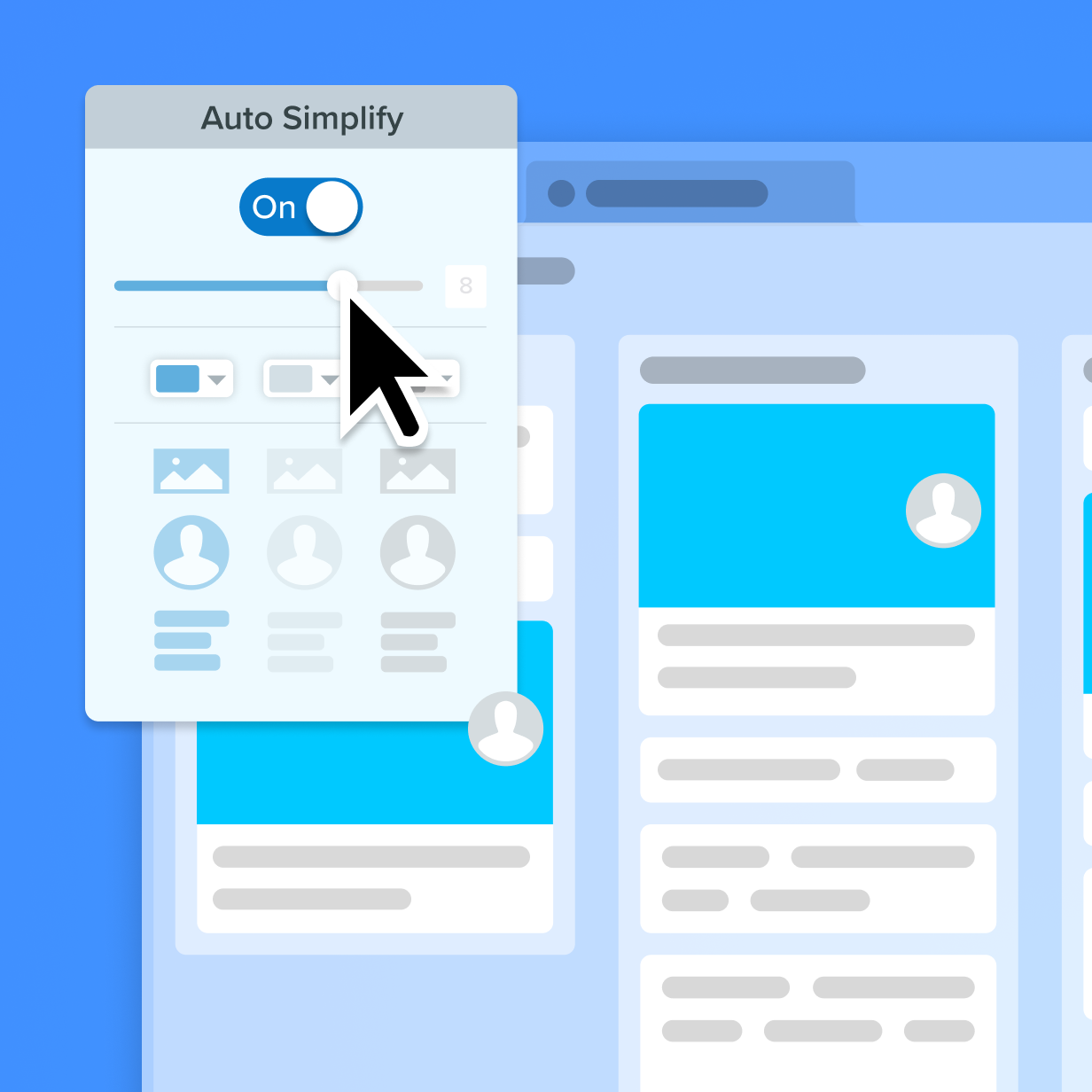
Select Snagit’s Simplify tool, then turn on the “Auto Simplify” option, to automatically detect and simplify key elements in the image. This feature uses smart technology to minimize distractions and highlight the most important parts of your image. Adjust the Detail slider to simplify more or less of the content until it fits your needs.
You can manually tweak the image to fit your needs. Choose custom colors to match your brand palette and use Quick Styles to add or adjust common UI elements like buttons or icons.
3
Step 3: Save and share your simplified image
Once you’ve simplified the image, save it in your desired format and share it with colleagues or clients. Whether it’s being used for training, documentation, or anything else, your image will maintain a clean, professional appearance.
Simplifying images made simple
Snagit’s image simplifier offers several unique benefits, making it the perfect tool for creating clear and professional visuals.
Quick and easy Auto Simplify
Snagit’s Auto Simplify feature makes reducing the complexity of an image fast and easy. You can automatically apply the feature in seconds, while still having the flexibility to manually adjust colors, shapes, and UI elements to suit your project.
Maintain privacy and professionalism
With Snagit’s image simplifier, you can remove or obscure sensitive information before sharing screenshots, ensuring that your visuals remain secure and distraction-free. This is particularly useful when sharing screens for documentation or presentations.
Customize for brand consistency
Snagit allows you to match your simplified images to your brand’s color palette, ensuring a consistent look and feel across all visuals. Additionally, it makes it easy to create UI visuals that can be used across different languages, helping you efficiently manage global projects.
Get started with Camtasia Snagit
FAQ
Auto Simplify is a smart tool in Snagit that automatically reduces the complexity of an image by highlighting key elements and minimizing distractions, perfect for creating focused visuals.
Yes, Snagit allows you to customize the colors of simplified elements to match your brand palette or personal preferences, ensuring consistency across all visuals.
Absolutely! After using Auto Simplify, you can manually adjust the image, including changing colors, adding or removing elements, and tweaking the layout to suit your needs.
Yes, Snagit’s simplifier is perfect for creating UI visuals that can be used across languages, as it allows you to remove text and create clear, universal images that work in any language.
With Snagit’s simplifier, you can easily remove or obscure sensitive information from your screenshots, ensuring that private details are hidden before sharing.
Yes! Snagit is ideal for simplifying images used in documentation, training materials, and presentations, helping you create clear, easy-to-understand visuals.
Check out our tutorial that will walk you through everything you need to know.
Still can’t find what you need? Contact us and we’ll help you out.