









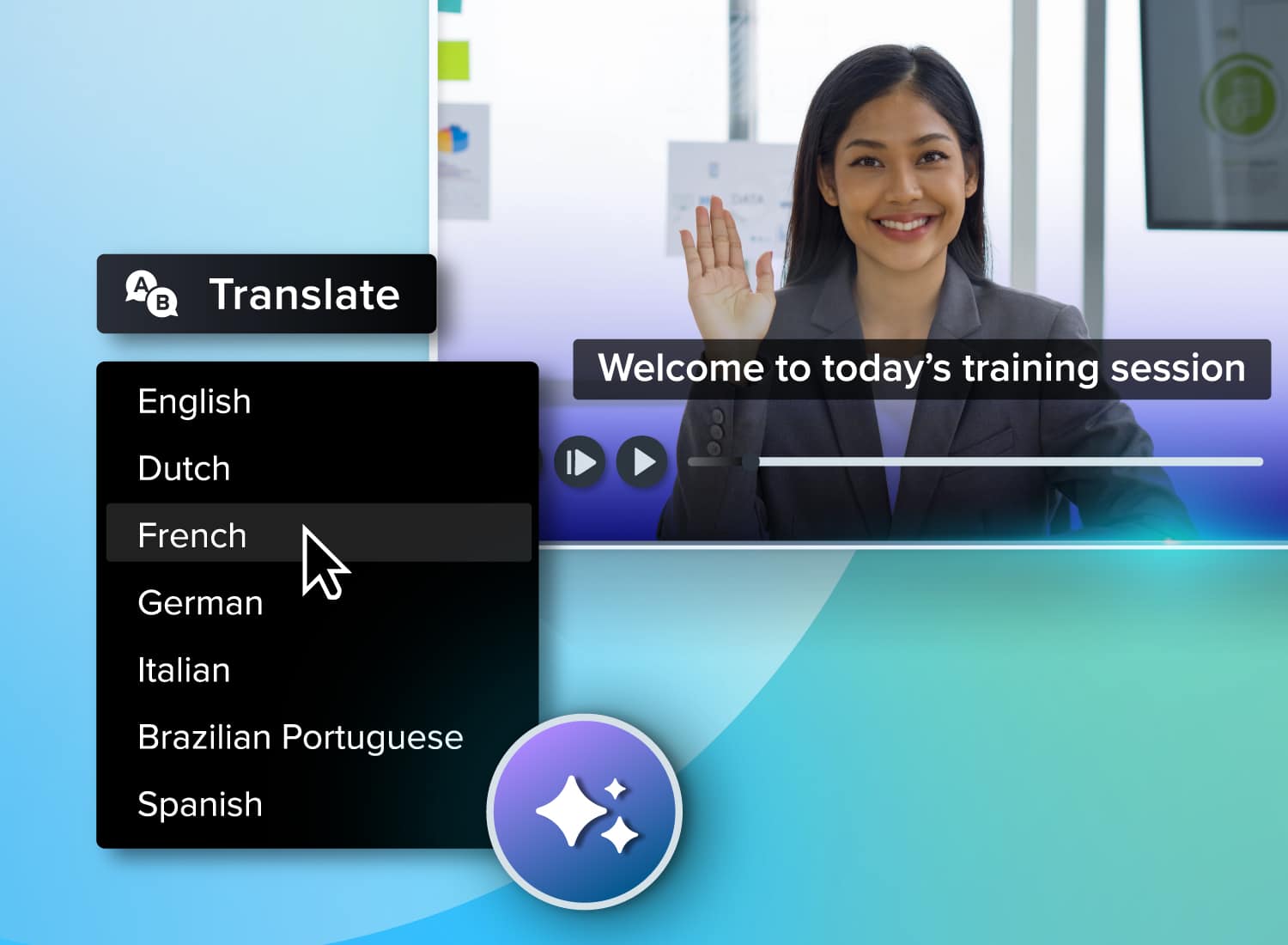
You just finished a software training module that took weeks to script, record, and edit. Now, your global operations team needs it translated for teams in Germany, Japan, and Brazil—and your localization budget is limited.
Traditional video localization often becomes a bottleneck for international learning and development (L&D) teams. Managing training across multiple regions with limited resources usually means choosing between slow, expensive studio re-recordings and clunky subtitles that pull focus away from the training itself.
AI translation helps teams localize faster by replacing slow studio production with an efficient transcript-to-voice workflow. But quality depends on your process. Success starts with an accurate transcript, natural-sounding voices, and updated on-screen visuals.
In this guide, you’ll learn how the AI translation pipeline works, compare dubbing options, and see how Camtasia Audiate supports repeatable multilingual workflows.
Key takeaways
- AI can help L&D teams translate training videos faster by replacing slow studio-based localization steps with a transcript-to-voice workflow.
- Most AI translation workflows follow three steps: transcribe the narration, translate the script, and generate a new voiceover in the target language.
- For training content, AI dubbing, subtitles, and human voiceover each solve different needs for speed, cost, comprehension, and learner experience.
- In screen-recorded training videos, translating the audio is only part of the job because on-screen text, labels, and callouts may still need updates.
- With Camtasia Audiate, teams can edit narration as text, create multilingual voiceovers, and update training videos without re-recording.
Why traditional video localization breaks down at scale
Traditional localization slows global training because every language version requires new talent, scheduling, and editing. It’s also expensive.
For L&D teams, that friction makes it harder to keep training content current. Compliance updates, onboarding changes, and product releases can trigger costly re-recording cycles across every language. If a safety regulation changes or a software feature is updated, your entire multilingual library may need to be refreshed.
Traditional workflows can take weeks and cost thousands of dollars per language. L&D managers have to coordinate translators, book recording studios, hire voice actors, and work with video editors to stitch new audio back into the timeline.
Scale that across five, ten, or fifteen languages, and the process breaks down. This manual effort is why localized content matters, and why traditional localization struggles to keep pace with the demands of modern corporate training.
A recent video localization market report found that 55% of providers face high costs associated with professional localization and post-production. Additionally, 50% of companies are constrained by the limited availability of skilled translators and voice actors.
How AI translation works: the pipeline behind the output
AI translation is a pipeline, not magic. Understanding each stage is key to building a scalable localization process. Rather than treating AI translation as a single step, break it down into automatic speech recognition (ASR), neural machine translation (NMT), and text-to-speech (TTS). This approach helps you improve transcript quality, manage industry-specific terminology, and streamline future updates.
Connecting these stages into a single, repeatable workflow helps e-learning teams outpace standard, feature-only approaches.
Speech recognition converts narration to text
The pipeline begins with automatic speech recognition, which turns spoken narration into editable text. Clean audio, accurate terminology, and speaker clarity shape every downstream translation step. If the ASR engine mishears an industry term or a product name at this stage, that error will cascade through the entire translation process, resulting in an incorrect voiceover at the end.
Neural machine translation converts the transcript to the target language
Neural machine translation converts the approved text transcript into your target languages. NMT works best with short, plain training scripts. This is where teams should review product terms, acronyms, and regulated language.
Modern NMT systems use sentence-level translation to understand context, which performs much better than older, word-by-word machine translation. Even so, cultural nuance and compliance wording may still need human review to ensure the language aligns with local workplace standards.
Text-to-speech synthesis rebuilds the audio in the new language
The text-to-speech step quickly rebuilds the audio layer, reducing studio scheduling and voice talent bottlenecks for multilingual training rollouts.
Newer TTS systems preserve pacing, emotion, and natural emphasis better than older, robotic computer voices. However, teams should still review the generated voice to ensure the pacing, tone, and clarity fit the training topic.
Record once. Deploy globally.
Create your training video in English. Audiate can then translate your edited script and generate a new audio track in Spanish, German, French, and more.
Free Download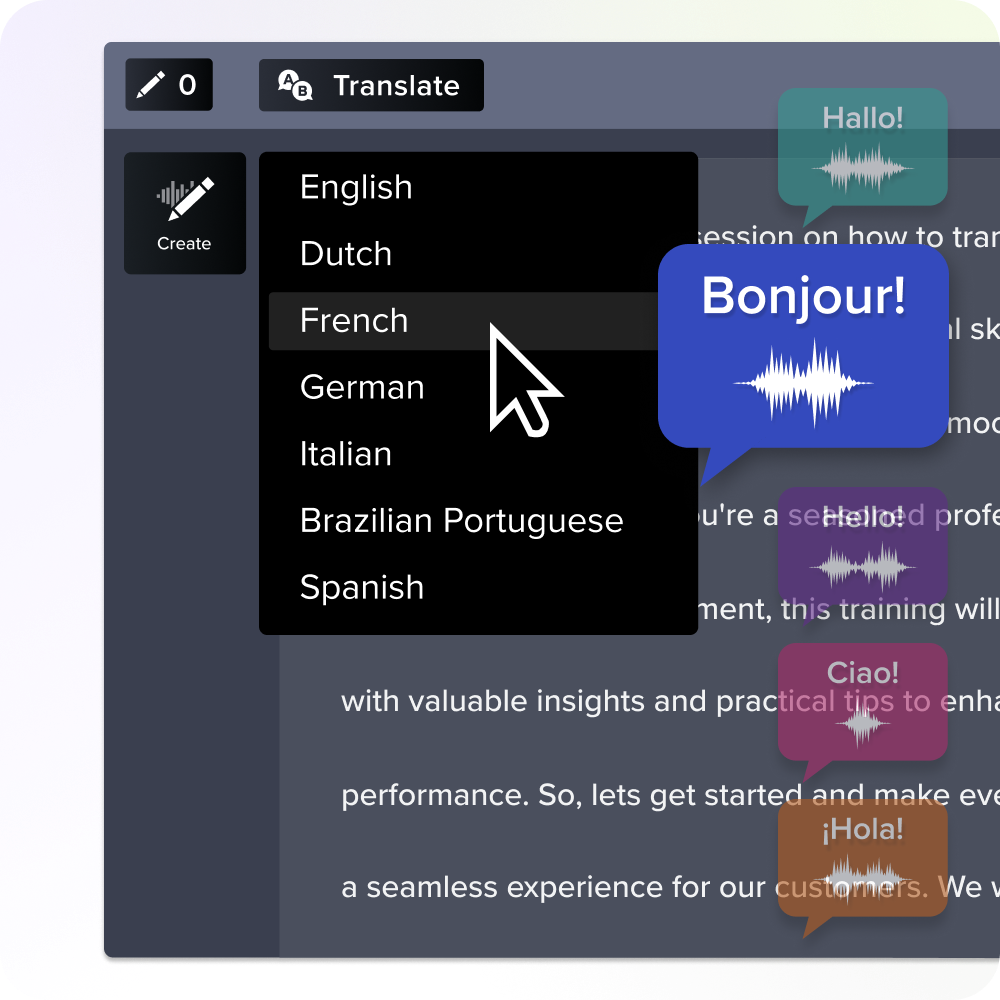
AI dubbing vs. subtitles vs. human voiceover for training content
No single localization format fits every training video. Choosing the best approach means balancing learner comprehension, production speed, development costs, and long-term maintenance.
AI dubbing works well for narrated explainer modules and software walkthroughs where learners need to watch the screen rather than read text. Subtitles are a good fit for budget-sensitive training libraries or videos viewed in loud environments.
Human voiceover remains the best choice for high-stakes compliance topics, executive messages, or sensitive training where emotional tone and legal precision matter most.
| Localization format | Turnaround time | Learner effort | Accessibility | Update burden | Review needs |
| AI dubbing | Hours | Low (Learners listen normally) | High (Supports visual focus) | Low (Regenerate text lines) | Medium (Check pronunciation) |
| Subtitles | Minutes | High (Must read while watching) | High (Great for silent viewing) | Low (Edit text file) | Low (Text-only check) |
| Human voiceover | Weeks | Low (Learners listen normally) | High (Supports visual focus) | High (Requires re-recording) | High (Studio direction) |
When deciding between formats, consider how each option affects learner focus and long-term maintenance. To learn more about how voice quality influences training outcomes, review our guide to AI voices and avatars in training videos.
The on-screen text problem in screen-recorded training videos
Dubbing fixes narration, not the screen. Software user interfaces (UIs), text labels, callouts, captions, and embedded graphics require separate localization work.
Screen-recorded software training usually requires both audio translation and visual text updates. Dubbing the narration alone doesn’t localize interface labels, text callouts, or embedded screenshots visible in the video. If an instructor says “Click Submit” in Spanish, but the button on screen still reads “Submit” in English, it creates a confusing disconnect for the learner.
To keep updates manageable, separate narration, on-screen text elements, and screenshots into organized review lists. By treating the audio and visual text as separate layers, you can update each one independently across multiple languages without cluttering your editing timeline.
Why your transcript is your most valuable translation asset
The transcript is the source of truth for your video project. Cleaning it first makes translation, formatting reviews, AI dubbing, caption generation, and future content updates much easier.
This transcript-first workflow changes how teams approach video localization. Many workflows treat translation as a final step applied to a finished video. By moving the transcript to the beginning of the production process, you treat your training content as an editable language asset.
Approved transcripts improve terminology consistency across global departments, simplify version control, improve caption quality, and speed up re-translation across large multilingual training libraries. Instead of editing finished video files over and over, you can update a single source transcript.
This shift reflects a broader trend across the localization industry. A recent translation services market report found that neural machine translation with post-editing can reduce costs by up to 80% while delivering translated content up to 10 times faster than traditional workflows.
How to translate training videos with AI using Camtasia Audiate
Start your workflow in Camtasia Audiate, where spoken narration becomes editable text. From there, you can translate the script, generate new AI voiceovers, and finish your visual updates in Camtasia Editor.
This three-step workflow gives corporate training teams a repeatable process to save time, minimize re-records, and simplify multilingual updates for frequently updated courses.
Record and edit narration as text in Camtasia Audiate
Camtasia Audiate lets you record narration directly or import existing audio and video files. It automatically transcribes the audio, allowing you to edit it by deleting words on screen rather than scrubbing through audio waveforms.
Before translating, take a few minutes to clean up the script:
- Use automatic hesitation detection to remove filler words like “um” and “uh.”
- Fix technical terminology and spelling errors in the transcript.
- Trim false starts and silences.
- Apply AI background noise removal to improve audio quality.
Generate multilingual voiceovers with Camtasia Audiate’s TTS voices
Once your script is clean, Camtasia Audiate can translate the transcript into your target languages. You can generate multilingual voiceovers using more than 147 voices, including natural-sounding premium options from ElevenLabs. This automated workflow helps teams reduce studio booking costs and turnaround times.
Some newer dubbing systems can sound more natural than older text-to-speech tools. Review the pacing, tone, and clarity of the output to ensure it aligns with your training objectives.
Sync translated audio and update on-screen text in Camtasia Editor
Once your translated tracks are ready, send the project to Camtasia Editor. Because Camtasia Editor records screen captures, camera video, and microphone audio on separate tracks, you can easily replace the original English narration with your new localized audio.
Translated phrases often take longer to say than their English equivalents. In Camtasia Editor, you can adjust timing by extending video frames, moving callouts, or retiming zoom animations to keep on-screen action synchronized with the new audio.
Instant lifelike AI voice over
No voice over? No problem. Audiate generates incredibly life-like voice over right from your script!
Get Audiate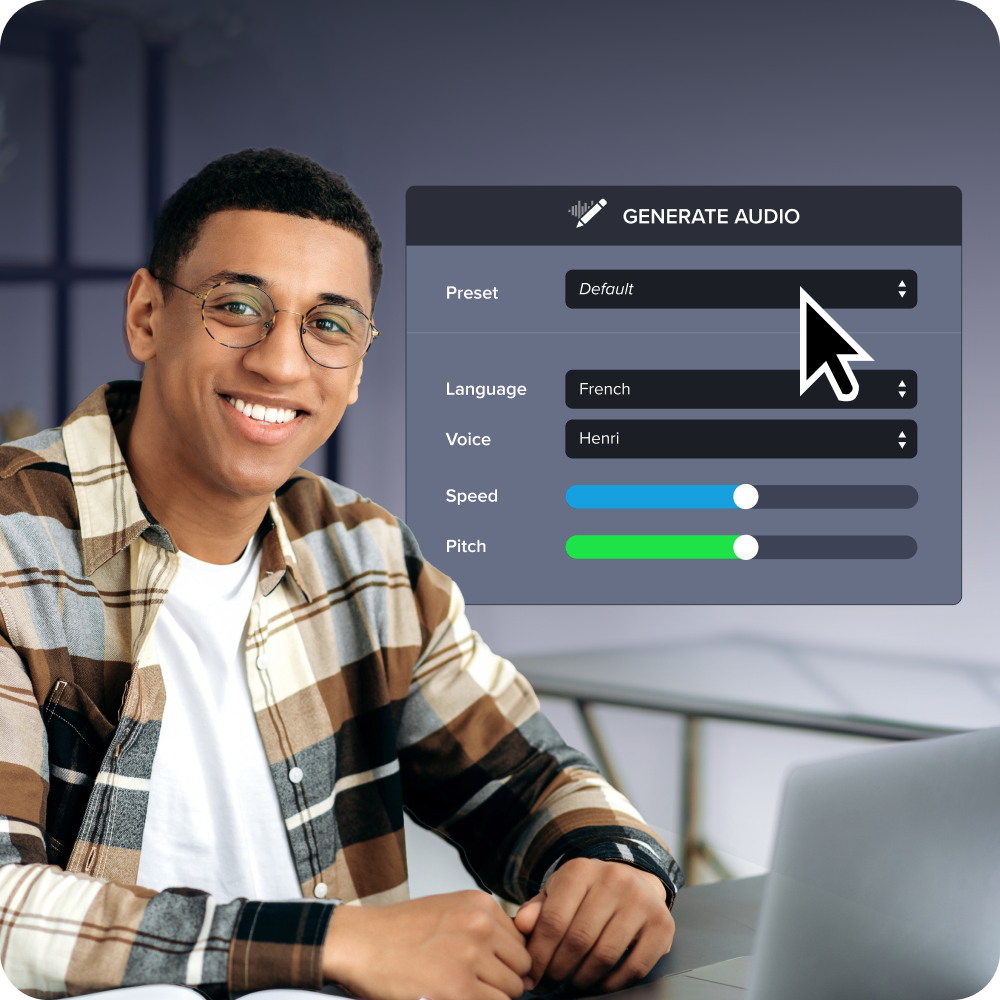
How to handle content updates without re-recording everything
Updates are where AI translation earns its keep. Small script changes shouldn’t trigger full re-recording projects. A repeatable update workflow helps reduce maintenance costs.
- Revise the transcript: Open the original project in Camtasia Audiate and update the transcript.
- Regenerate the affected voice lines: Select only the modified sentences and regenerate the AI voice lines for each required language.
- Swap the new audio into the timeline: Send the updated audio back to Camtasia Editor to replace the original narration.
- Refresh only the changed visuals: Update only the callouts, text layers, or screenshots that correspond to the script changes.
Tracking assets at the sentence level works well for compliance, onboarding, and software training. Making targeted updates reduces localization costs across all target languages and helps keep training materials up to date.
To learn more about balancing automated processes with human editorial oversight during updates, check out our HUMAN framework for AI training videos.
Build a faster, cheaper multilingual training library with AI
AI translation helps L&D teams scale their training reach without scaling localization headcount. By adopting a transcript-first workflow and using the Camtasia Product Suite, you can deliver polished, accessible multilingual training to your global workforce.
As your training library grows, that approach makes it easier to keep every language version accurate and up to date without starting from scratch.
Ready to build a faster, more cost-effective multilingual training workflow? Try Camtasia and see how Camtasia Audiate and Camtasia Editor simplify video translation and updates.
FAQs
Is there an AI that can translate a training video?
Yes, AI video translation typically turns narration into text, translates the transcript, and generates a new voice track in the target language. That may help L&D teams localize courses faster and at lower cost than studio-based workflows. Human review still matters for compliance language, product terms, and culturally sensitive topics.
What is the difference between AI dubbing and subtitles for training videos?
AI dubbing replaces the original narration with translated speech, while subtitles keep the original audio and add translated text on screen. Dubbing may improve comprehension for learners who need to focus on the on-screen workflow, but subtitles remain useful for accessibility, silent viewing, and review.
How do you translate on-screen text in screen-recorded training videos?
Most AI dubbing tools translate narration, not interface labels, callouts, captions, or screenshots that appear inside the recording. For software training, you usually need a second pass to update visual text, so the spoken instructions and the screen stay aligned.
Why is a transcript so important when you translate training videos with AI?
A clean transcript gives you the source script for translation, review, approvals, captions, and future updates. In Camtasia Audiate, you can edit narration as text first, which may reduce cleanup work before you generate multilingual voice tracks.
How do you translate training videos with AI using Camtasia Audiate?
Start by recording or importing narration into Camtasia Audiate, then clean the transcript, remove filler words, and confirm the script before translation. After that, generate AI voice tracks for each language and send the project into Camtasia Editor to sync audio with visuals and update text. If your team updates courses frequently, this workflow may help you ship new language versions without having to re-record all narration.
Share