









The feature ships in three weeks. A product marketing leader already has an internal training recording sitting in a shared folder, recorded so support and sales could learn the new workflow before launch day, and the launch calendar still lists a separate line item: “record product launch video.”
That line item assumes a product launch video is something entirely new: a short video that introduces a new feature, product, or update to viewers who don’t have prior context. It might show what’s new, who it helps, and what to do next.
Plenty of customer education and product marketing teams record a walkthrough the moment a feature is complete, then book a second shoot for the customer-facing version almost automatically. That second shoot isn’t always necessary. It’s often just habit.
This piece gives product marketing and customer education leaders a way to look at a finished training video and judge, honestly, whether it can carry the launch message on its own, or whether it’s missing something a launch audience actually needs. Which edits to make comes later. First, the decision itself.
Key takeaways
- A single recording can serve as the raw material for both an internal training video and an external product launch video, if the recording is planned with both audiences in mind.
- Decisions made before recording, like keeping screen, camera, and audio on separate tracks, determine whether one recording can later split into two distinct edits.
- The full, unedited training walkthrough should exist as its own finished asset before any launch-specific trimming begins.
- A launch cut mainly differs from its training source through shorter runtime, outcome-focused framing, and the removal of internal-only jargon, not through a completely new recording.
- A dedicated, separately produced launch video still makes sense for flagship releases that call for cinematic brand storytelling or investor and press materials outside a workflow demo.
Plan your session before you hit record
Planning the recording for two audiences determines whether your team can create both edits without a second session.
Three choices matter most: keeping your sources on separate tracks, capturing cursor actions cleanly, and flagging the moments where your training and launch cuts will need to diverge.
Record screen, camera, and audio on separate tracks
Camtasia Editor captures screen, camera, system audio, and microphone in one session, then places each source on its own editable track so the training and launch cuts can differ later. That’s the mechanic behind the whole two-video approach, and it’s worth understanding early if you’re new to training video software.
Say the launch cut doesn’t need your trainer’s face on screen. Mute or delete the camera track, and the shared screen footage stays untouched.
Note: Record with Camtasia Editor’s native recorder. The cursor capabilities covered later only apply to footage recorded natively in TREC format, so footage from Camtasia Online won’t get them.
Easily fix cursor shaky actions
Your cursor path doesn’t need to be perfect. Camtasia Editor lets you clean up and reposition native cursor movement after the fact, so a rushed or jittery pass on the original recording won’t force a re-record for either cut.
Once you’re editing, Screentelligence-powered cursor effects can sharpen legibility so trainees and customers can follow the action more easily.
Flag the moments that will diverge later
Some moments in a recording, like an extended troubleshooting step or a quick feature highlight, will need different treatment depending on who watches the final cut. Record those moments as their own short segment instead of folding them into one long take.
Pause for a beat or say something like “marker” out loud right before and after the segment. That gives you an obvious spot to find later, without stopping the recording session.
When you build the training cut, expand that marked segment with more detail.
When you build the launch cut, trim it down or cut it entirely without re-recording.
Looking for professional screen recording software?
From simple screen captures to polished video editing, TechSmith has everything you need to create professional-quality content.
Learn More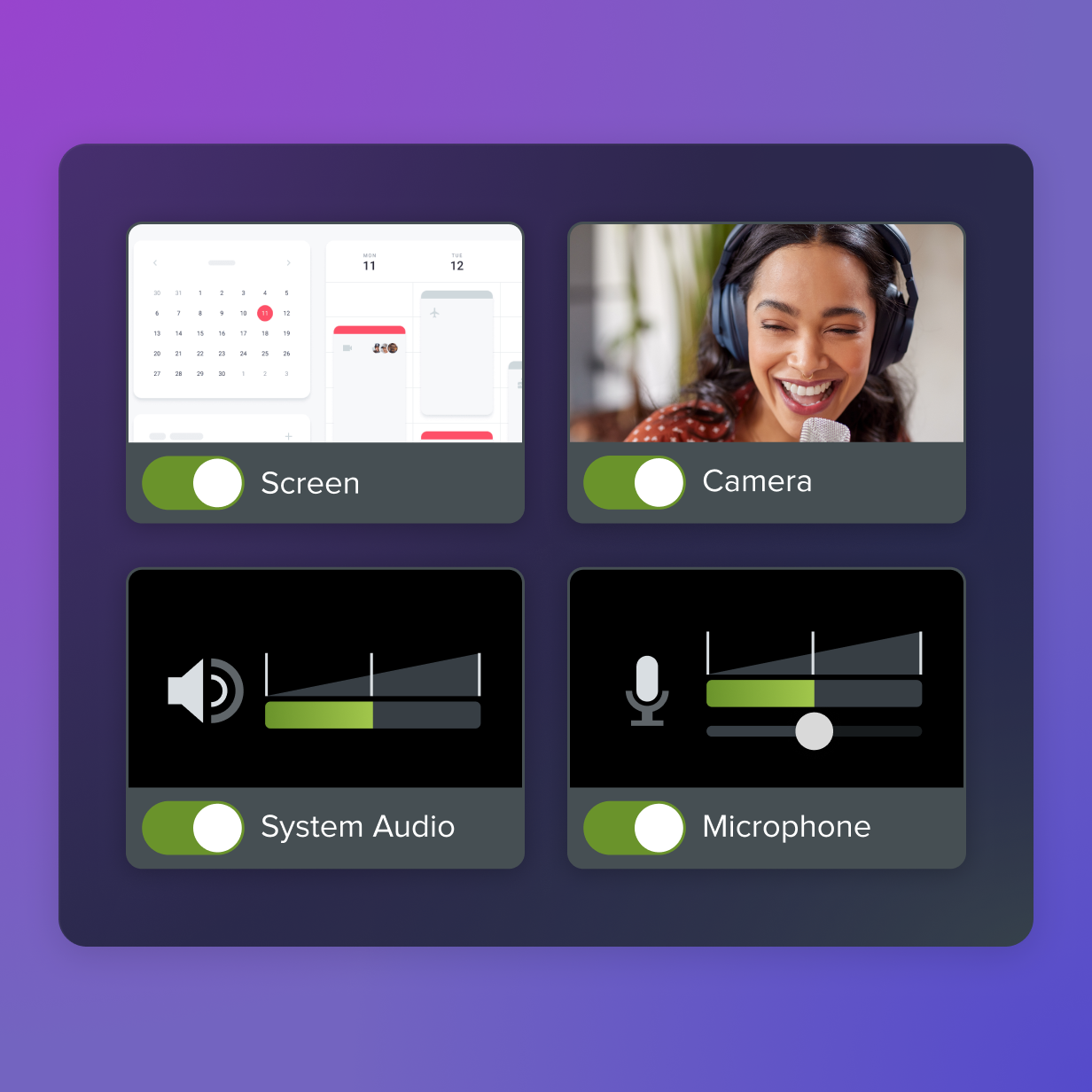
Build the internal training cut first
Finish the complete, step-by-step training cut before you touch a launch edit, since it gives your team a finished instructional asset and the fullest source footage to trim from later.
Clarity here pays off twice. Two out of three employees perform tasks better when they’re shown visually instead of told in text, and they absorb the information 7% faster. So every minute spent on clean explanations and full detail in this cut strengthens both the training use and whatever else gets made from it.
In many cases, the training cut already qualifies as a customer education deliverable.
Decide what changes for the launch cut
The underlying recording can stay the same while its pacing, external framing, and level of detail change for the launch audience. Getting the launch cut right comes down to runtime, brand voice, and internal jargon.
Tighten pacing and shorten the runtime
Pacing should speed up, and runtime should shrink for the launch cut. External viewers want the outcome; they won’t sit through the full procedure.
Start by cutting filler words and dead air. That’s the fastest way to shrink runtime without losing the core message.
A ten-minute training walkthrough of a new feature can become a 90-second launch clip once you delete the step-by-step narration and keep only the lines that describe what the feature does for the customer.
Add brand voice and external framing
The launch cut needs outcome-focused language and consistent customer-facing branding that the internal training version never required. That investment pays off: 58% of B2B marketers rate video as their most effective content type, ahead of case studies and e-books.
If the cut needs a soundtrack, Camtasia Assets offers royalty-free music that matches your other customer-facing content.
If the training narration’s tone doesn’t fit an external audience, Camtasia Audiate can generate a fresh voiceover. But for transparency, be sure to include a disclosure informing viewers that the voice is AI-generated.
Cut internal-only detail and jargon
Cut internal system names, department-specific workflows, and employee-only policy references before any customer sees the launch cut. Customers have no context for that information, and leaving it in only slows them down.
Your training video likely mentions your ticket system, an internal shortcut like “file it through the portal,” or a policy only staff would recognize. Watch the footage again as if you’d never worked at the company. If a line only makes sense to someone who already knows your org chart or your internal tools, cut it.
Keep only what shows the outcome and the next step the customer needs to take.
One screen recording, two videos: A launch video example
A single raw video of a new bulk-export feature can become both a full training walkthrough and a short, branded launch video, without a second recording session.
The training cut keeps every menu click. It shows the user opening the reports dashboard, selecting the date range filter, choosing the export format, and confirming the download, with each step named and explained for someone learning the feature from scratch.
Go from screen recording to polished video
A screen recording is just the start. Camtasia’s editor helps you add the callouts, animations, and edits you need to create a truly professional video.
Free Download
The launch cut starts from that same recording:
- Trim the runtime down to the highlights.
- Open with the finished export landing in a folder instead of the first click.
- Drop internal field names and system references.
- Add your logo, color palette, and a line of outcome-focused narration.
Where Camtasia Editor and Camtasia Audiate take over the rework
Camtasia Editor and Camtasia Audiate handle the rework between the training cut and the launch cut, including cursor legibility, branding, transcript edits, and narration updates.
Each tool takes on a specific task without overriding your call on what belongs in front of each audience.
Screentelligence cursor effects for legibility
Screentelligence-powered cursor effects make on-screen actions easier to follow for trainees and customers seeing the interface for the first time. Add effects like smoothing, drop shadow, highlighting, magnification, and more.
Apply this feature to footage recorded natively in Camtasia Editor in TREC format, and it highlights or smooths native cursor movement so every click stands out against the rest of the screen.
That legibility serves comprehension. A trainee working through the full walkthrough needs to see exactly where you clicked, and a customer watching the launch cut needs the same clarity in far less time.
Looking for professional screen recording software?
From simple screen captures to polished video editing, TechSmith has everything you need to create professional-quality content.
Learn More
Audiate text-based editing for fast re-cuts
Camtasia Audiate lets your team shorten a training walkthrough by deleting transcript text. Delete a sentence in the transcript, and Camtasia Audiate cuts the matching video footage in the same spot.
That turns a full training cut into a tighter launch cut in minutes, instead of an hour of scrubbing back and forth to find the right frame.
According to Wistia, 85% of marketers say videos with AI elements outperform traditional videos. A human editor still reviews the result to confirm accuracy and audience fit.
Apply saved themes for consistent branding
Shared themes and Library assets help multiple contributors produce consistent launch cuts without rebuilding approved styles by hand. Save customized callouts, titles, lower-thirds, and reusable video assets like intros and outros as Library assets, so every trainer or marketer working from a separate recording starts with the same approved look.
This kind of governed reuse matters more as AI tools speed up production. 53% of B2B marketers now use AI tools to generate visual assets, yet only 15% personalize video. Shared Library assets close that gap by making the branded starting point automatic.
When a dedicated launch video still makes sense
A separate production earns its budget in three cases:
- A flagship launch that needs cinematic brand storytelling
- An asset built for press or investors
- A message that depends on human warmth to land
An ordinary feature release doesn’t need that treatment. If the audience just needs to see how something works, your existing training video already has the footage. A quarterly product update fits the re-cut workflow. A company milestone announcement or a sensitive policy shift doesn’t.
One recording, every audience you need to reach
That decision rule holds up across most launches. One deliberate recording in Camtasia Editor, captured with the training audience in mind from the start, gives you both the full walkthrough your support and customer success (CS) teams need and the tighter cut marketing wants for the announcement email or in-app message.
The exception stays narrow. Save a separate production for the flagship story, the press moment, or the investor update where a presenter’s face and voice are doing the persuading.
For everything in between, the fix is simple: Block time for one careful recording session instead of two rushed ones.
That single habit change protects the person who actually knows the feature from doing double-duty as both trainer and marketer, and it keeps branding, pacing, and terminology consistent no matter who edits the footage down.
Need to show your screen?
Skip the downloads. Use Camtasia online to record your screen, camera, and microphone right in your browser for free.
Start Recording
Frequently asked questions
How long should a product launch video actually be?
No fixed running time exists, but the hero cut should stay short and outcome-focused. External viewers have far less patience than a trainee working through a full walkthrough, so tighter pacing matters more here. Shorter teaser clips built for social distribution should run even briefer, focused on a single outcome.
Who should own the product launch video, product marketing or customer education?
Product marketing typically owns the external framing, since they know the outcome-focused language and brand positioning the launch cut needs. Customer education or the trainer who ran the original session should stay involved to confirm the workflow steps are accurate and complete. Building both cuts from one recording naturally keeps these two teams working from the same source instead of duplicating effort.
How is a product launch video different from a standard product demo video?
A product launch video announces what’s new and why it matters, in a tight, outcome-focused format for viewers with no prior context. A demo video usually runs longer and walks through more of the feature set, often for someone already evaluating the product seriously. In a single-source workflow, the demo can stay close to the full training video, while the launch video becomes the more heavily trimmed highlight.
Do I need separate video versions for different channels, like social media and the product page?
Different channels generally call for different length variants built from the same recording, rather than one video stretched across every platform. A hosted product page can support a longer, fuller hero cut, while social feeds need a shorter, faster-paced clip built around one moment or outcome. Camtasia Audiate’s text-based editing makes producing these variants fast, since shortening a cut means deleting words in a transcript instead of re-scrubbing a timeline.
What should I do if the product changes again soon after the launch video goes live?
Minor UI changes don’t necessarily require a full re-record, as long as viewers can still follow the workflow with a quick jump cut. Recording in small, chunked segments during the original recording makes it much easier to swap out just the affected section later. Using simplified UI graphics and consistent custom cursor styling in Camtasia Editor also reduces how often either cut needs rework at all.
Share