









A technical writer documents a software process once, capturing every click and field entry in careful sequence. Then the team asks for a training video. The SOP tool has no way to produce one from that same recording, so the writer records the entire process again from scratch.
That’s the problem SOP software is supposed to solve. These tools are built to capture, document, and maintain the step-by-step instructions a team follows to complete a recurring workflow.
How well they handle the gap between a written guide and a usable video varies widely. This guide tests ten of them against two questions: Does one pass through a process give you both a usable guide and a usable video, and can you keep, edit, and host that video yourself?
Those questions matter more than most feature comparisons. Whether the guide and the video come from one source, and whether you own the video, decides how much rework you do every time the UI changes.
Key takeaways
- Capturing a process and turning that recording into video are two separate capabilities.
- If a guide and a video come from separate recordings, every process change means updating both.
- A video that plays only inside a vendor’s platform can’t be downloaded, hosted, or edited outside it.
- Governance features like approval workflows and version control solve a different problem than turning one recording into several formats.
- SOP software’s real cost shows up in maintenance, so ask what you have to redo when a single step changes.
Why one recording must produce two formats
Having a capture feature and having a video feature isn’t the same as getting both from one recording. Several tools here pass that first test. The next question is whether you can keep what you get.
Ask two things of every tool. Does one pass through the process give you a guide and a video? And is the video a file you can download, edit, and host, or does it play only inside the vendor’s platform?
The maintenance cost makes it concrete. If the guide and video come from one source, a changed step is one update. If they come from separate recordings or separate tools, it’s two updates and two files to track. If the video is locked in the vendor’s platform, you also can’t reuse it in your LMS or help center.
Scribe captures steps but locks video in-platform
Scribe’s browser extension auto-captures every click into a numbered step-by-step guide without any manual writing. It also produces video, but Scribe Movies play back inside Scribe’s platform and update dynamically when the source guide changes. It doesn’t export as a standalone file.
For teams who need a portable, editable video file alongside their written guide, Scribe’s output falls short of that standard.
Tango records clicks but keeps video as an embed
Tango captures clicks automatically into a step-by-step guide and can generate watchable video from those same steps, but Tango describes that video as an embed, not a downloadable file. Tango’s Video Embeds feature, available on Pro and Enterprise plans, converts existing steps into playback with no second recording required.
But the issue shows up at distribution. Tango’s own help center answers “Can I export my Workflow as a video?” by directing teams to embed the video. So plan on hosting the video inside Tango.
SweetProcess captures process but stops at documentation
SweetProcess does capture a live workflow, but what it produces is a written procedure. Its Chrome extension records clicks, keystrokes, and screenshots in real time as you perform a task, then feeds that captured activity directly into a structured written SOP.
You create video in a separate tool, in a separate session.
Trainual records video in-app but hands step capture to partners
Trainual’s in-app recorder captures screen, camera, or both and drops the video into a training page. Its help center doesn’t describe turning that recording into a written guide. Trainual also retired its Trainual Capture browser extension in November 2025 and now points customers to partner tools iorad and Guidde for step-by-step capture.
The help center lists preview, resize, and delete as the ways to manage a recording, and each recording stays inside the page where it was made. If you plan to reuse the video elsewhere, ask whether you can export it as a file.
Whale writes the guide from one recording but keeps video in-platform
Whale comes closer to the one-recording test than most tools here. Its video screen recorder captures your screen and audio, and when you stop recording, Whale’s AI assistant, Alice, writes a numbered step-by-step guide from your narration. You get an embedded video and a written guide from one recording.
The limit is where the video lives. It sits in the Whale card and streams from there, so ask whether you can download it before you plan to host it in an LMS or help center. Whale also has a separate Step Recorder that captures a screenshot at each click, but that’s a different capture path from the video recorder.
Process Street runs checklists with no native capture
Process Street has no native capture mechanism, as it’s built solely for workflow management. Its strength is turning an already-written procedure into an assignable, trackable checklist. Teams can add approval steps, conditional logic, and completion tracking to any procedure they import.
That’s useful for governance and accountability, but the documentation has to exist before Process Street can do anything with it. There’s no built-in way to record a screen, capture a click sequence, or generate a step-by-step guide while performing a task. Teams document the procedure elsewhere first, then bring it in.
Notion organizes SOPs but captures nothing itself
Notion has no native screen or workflow capture. It’s a workspace for organizing content created elsewhere.
You produce every screenshot, step-by-step guide, and instructional video in another tool first, then paste or embed it into a Notion page. Notion receives that content through its workspace and linking features. It doesn’t generate any of it.
If your evaluation criteria include how a tool captures a live workflow and what formats it produces, Notion doesn’t belong in the same comparison as tools that start with live recording.
Loom exports video and drafts guides with a paid AI add-on
Loom gives you a downloadable MP4 from its native screen-and-camera recorder. Its AI workflows can also turn a recording into a written step-by-step guide, but Atlassian lists the AI suite as a paid add-on for Business and Enterprise plans.
Loom generates the guide from the recording’s transcript, so review it before you publish. Ask how you update the video and the guide when a step changes.
Document360 captures content but is built for governance
Document360 includes screen capture, built-in video recording and editing, approval workflows, version control, and multi-tenant portals. It’s built primarily for review, approval, and organization of structured knowledge bases.
That makes it strong when those things matter most. If reuse across formats is also a priority, ask whether one recording can produce both a written article and a video, and whether the video can leave the knowledge base as a file.
Camtasia turns one recording into doc and video
Camtasia Pro takes a process from step-by-step guide to finished video without a second recording.
Camtasia Snagit’s Step Capture records your clicks into an annotated, numbered guide. From the Share menu, that guide goes straight onto Camtasia Editor’s timeline, where transitions, callouts, cursor motions, and image animations apply automatically.
You finish the video in Camtasia Editor and export it as a file you own. (This handoff requires Camtasia Editor 2026.2.0 or later and Camtasia Snagit 2026.3.0 or later.)
When a step changes, that’s two separate edits: update the step in your Camtasia Snagit guide, and separately swap the affected screenshot on the Camtasia Editor timeline before re-exporting the video. Save customized callouts, titles, and lower thirds as library assets and share them by exporting the files, so every video keeps the same look.
Add AI voice narration using Camtasia Audiate, then update it when a process step changes by editing the text instead of re-recording. Camtasia Pro includes AI voice generation, or you can add it with a standalone Camtasia Audiate purchase.
Do AI Voices and Avatars Improve Learning?
Discover what the data reveals about learning outcomes.
Get the Full Report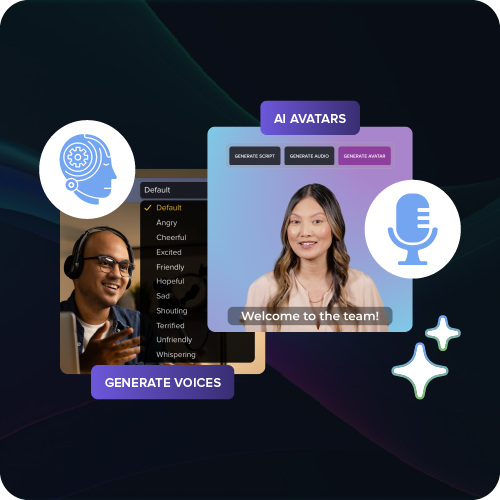
For transparency, be sure to include a disclosure letting viewers know the video uses AI-generated narration.
Where the recording-to-format chain breaks down
The other nine tools fall into four patterns, and the main difference is whether you end up with a video you can edit and host yourself.
- Guide plus in-platform video (Scribe, Tango, Whale): One recording gets you a guide and a watchable video, but the video plays inside the vendor’s platform. Ask whether it can be downloaded.
- Portable video plus an AI-drafted guide (Loom): You get a downloadable MP4, and a paid AI add-on drafts a written guide from the transcript.
- One format or governance-first (SweetProcess, Trainual, Document360): SweetProcess stops at a written procedure, Trainual centers on in-app video and points to partner tools for step capture, and Document360 is built around governance and structured knowledge bases.
- No native capture (Process Street, Notion): Both need the guide or video made somewhere else first.
Camtasia starts from a Step Capture guide and hands it to Camtasia Editor, so the video becomes an editable project you export as a file.
Questions to ask before buying SOP software
Evaluate vendors against three questions:
- How the process is captured
- Where each output can go
- What has to be redone when a step changes
These map directly to the capture mechanism, output portability, and reuse criteria used throughout this comparison. Bring all three to every vendor conversation, and ask each vendor to show the answer live.
Ask about the capture mechanism itself
First, ask whether the tool records the live task automatically as you perform it, or requires you to reconstruct steps manually afterward through screenshots or typed descriptions.
Then, ask whether that single recording session produces both a static guide and a portable video. A recording that feeds both outputs is the baseline.
Ask about output portability and branding
Ask whether the SOP tool’s video output exports as a downloadable file or stays locked as a vendor-hosted embed. If your help center or wiki doesn’t support iframes, an embed is useless.
Then, ask whether you can brand, host, and edit that export independently. A file you own can go into Confluence, SharePoint, or your own CDN, and you can open it in a video editor later. A platform-locked embed gives you none of that flexibility.
Ask about the reuse chain when steps change
The maintenance test is whether one changed process step can be updated once or must be recreated separately in the guide and video. Test this against a real scenario. A creation demo won’t show it.
If a button moves, you want to update one source and have both outputs reflect it. If the guide and video come from separate recordings, you re-record both independently. If they come from one source, ask whether updating one step also updates the other, and whether the video update is an embed refresh or a new export you have to redo.
Count the assets and recording sessions your team would have to revisit, then multiply by how often your software updates.
Make one recording do the work of two
Most SOP tools can capture a process. Fewer let you keep what comes out. Some stop at a written guide or at video, and several turn one recording into a guide and a video that plays inside the vendor’s platform, which limits where you can reuse it.
Camtasia Pro starts with a Camtasia Snagit Step Capture guide, then hands it to Camtasia Editor, where it becomes a video you can edit and export as a file. When a step changes, you just swap in the new screenshot.
Streamline workflows with Snagit Assets
Transform your screenshots with ready-made templates, custom themes, and unique stamps.
Get Started
Frequently asked questions
Can ChatGPT or other AI tools write an SOP from scratch?
AI chat tools can draft generic procedural text, but they can’t record the actual clicks, screens, and steps of a live software process. That matters because SOP software’s core value comes from recording a real workflow. Most teams get better results using AI to polish wording or narration after capture.
Is free SOP software good enough for a growing team, or just a trial gimmick?
Free tiers across SOP software are real starting points, often a browser extension or a watermarked export. They tend to work for a single process or a small pilot, but limits on branding, seats, or exports appear as documentation scales. Camtasia Snagit and other Camtasia applications offer free trials, letting a team test the recording-to-video workflow before committing to a plan.
What should a business expect to budget for SOP software?
SOP software pricing spans a wide range, from free browser extensions to per-seat enterprise licensing with governance features. Cost usually scales with how many people need seats, whether video output is included, and how much approval or governance functionality the platform offers. Budgeting should also weigh whether a documentation-only tool is enough, since platforms that also produce training video are typically priced differently.
Can SOP software replace an existing wiki or knowledge base entirely?
Most SOP-specific tools are built to standardize and execute a written procedure. They aren’t designed to serve as an open-ended documentation library. A general workspace still has a role for storing meeting notes, project plans, and reference material that doesn’t fit a step-by-step format. In practice, many organizations run SOP software alongside a wiki.
How long does migrating existing SOPs into new software usually take?
Migration time depends mainly on format. SOPs already in text or PDF form move faster than binders of paper documents or scattered screenshots. Large libraries, or ones needing re-recording as video, may take a full quarter to convert and validate.
Share