


Motion path animation
Create smooth, intentional movement that guides viewer attention and makes your videos easier to follow. See how animation paths in Camtasia Editor help you highlight key ideas and structure your message visually.

ANIMATE PATHS IN CAMTASIA
How to animate motion paths in your videos
Creating motion paths in Camtasia Editor is straightforward and flexible, making it easy to add intentional movement that leads viewers through your content.
1
Add the Motion Path effect
Apply the Motion Path effect to text or images to begin building a custom path animation.
2
Draw the Motion Path and adjust settings
Create a custom path animation and refine how objects move along the path. Camtasia automatically creates keyframes as you work, giving you control over timing and direction while keeping the process efficient.
3
Preview and refine your animation
Preview the animation and adjust the pacing or path option as needed. Continue fine-tuning your video or export to the final version.
Elevate your videos with precise animation paths
Motion path animations help focus attention and present processes and ideas with greater clarity. Instead of relying on basic animations or static visuals, you can direct viewers exactly where to look, making workflows and step-by-step tutorials clearer and more intuitive.
Easy creation and editing of motion paths
Use the built-in tools to position images and refine path movement quickly. Camtasia Editor makes it easy to adjust motion as your video evolves, so you can design workflows and instructional segments that keep viewers oriented without starting over.
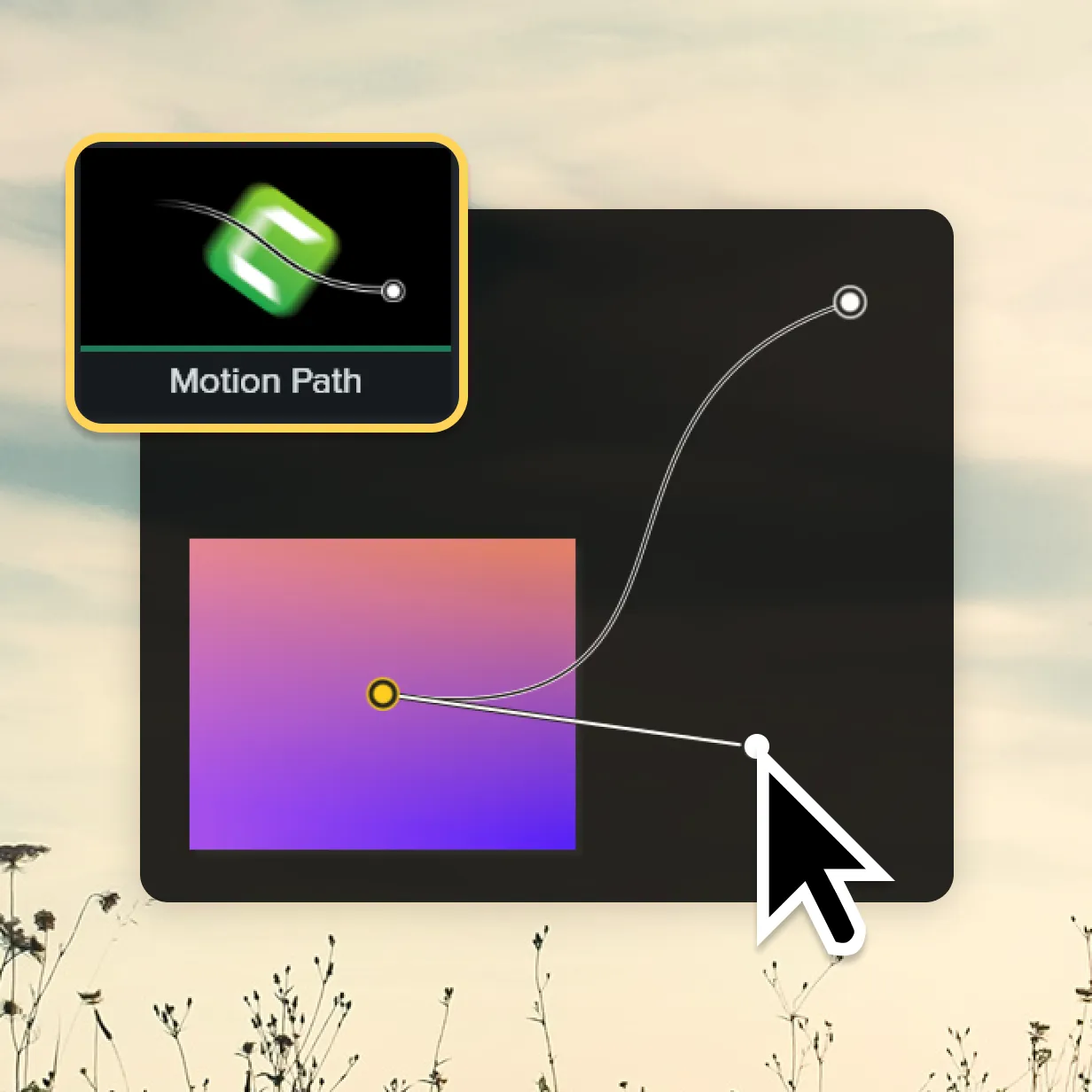
Precise control over object movement
Control pacing and movement to match the flow of your explanation and emphasize what matters most. Slow down motion paths to spotlight an idea or image, such as the most important step in a tutorial. Speed up motion paths to keep demonstrations concise and visually engaging.
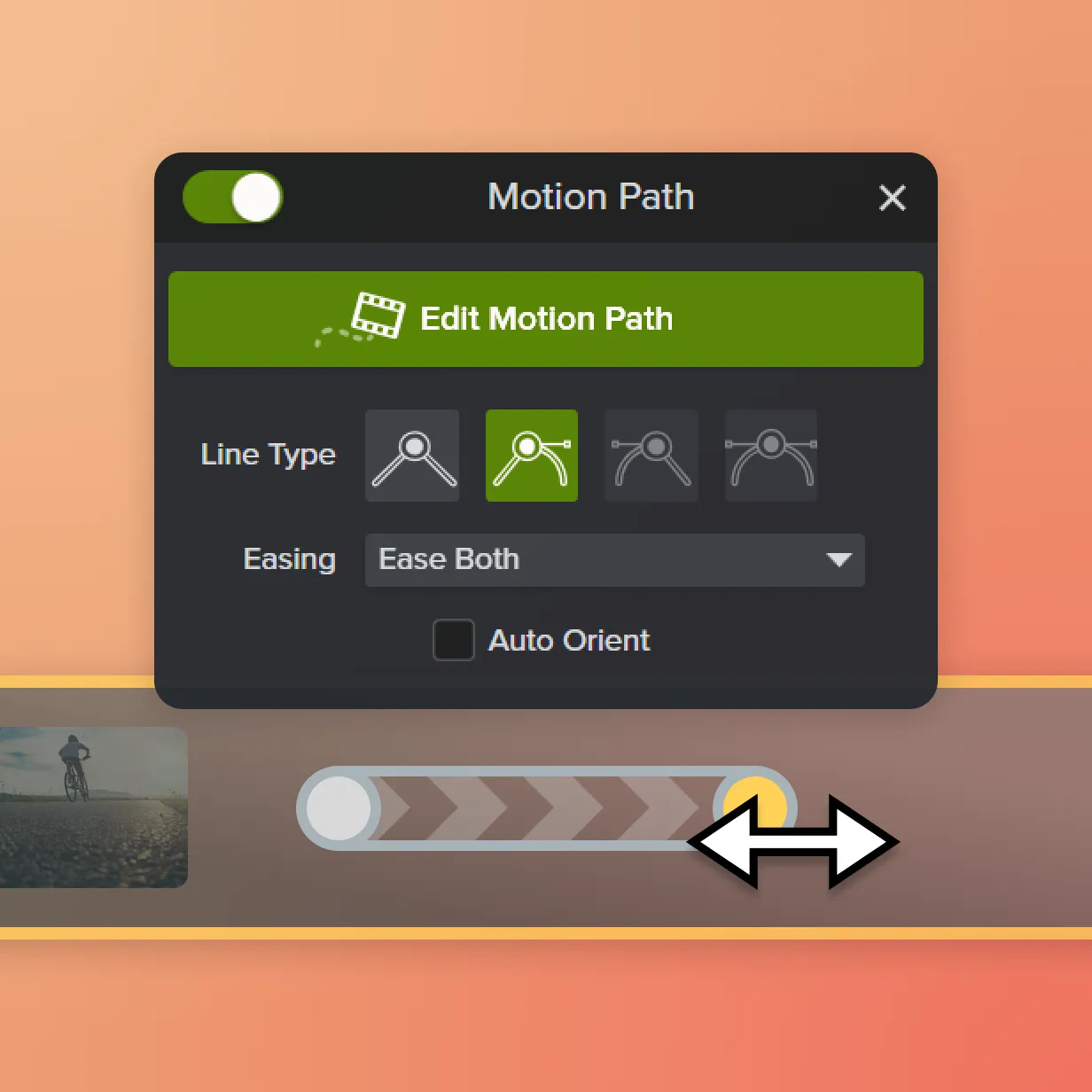
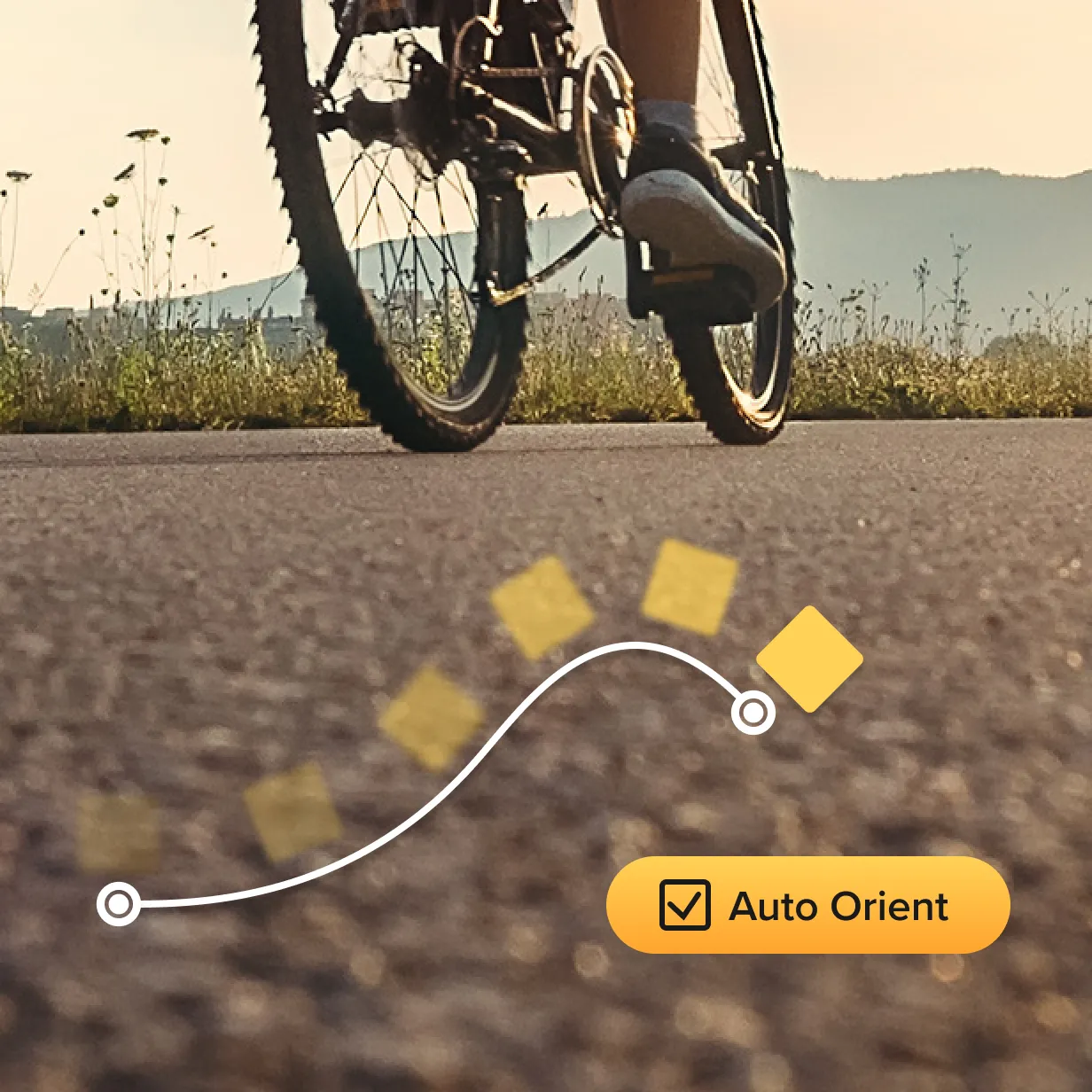
Auto-orientation for smooth animations
Align each object with the direction of movement using auto-orientation, helping animations look natural and polished. Whether it’s title text or product imagery, you can maintain smooth, consistent motion throughout your video.
Get started with Camtasia Editor

FAQs
Motion path animation is a way to control how objects move across the screen by defining a specific path. Instead of simple preset animations, it allows you to animate objects smoothly and intentionally from one point to another.
Camtasia Editor’s motion path animation lets you create and adjust movement paths directly in your video timeline. This gives you precise control over how elements move without requiring complex animation tools or manual keyframing.
Motion path animation is useful when you want to guide viewer attention, demonstrate a process, or create smoother transitions between visual elements. It’s especially effective in training videos, product demos, and explainer content where clarity matters.
No. Motion path animation in Camtasia Editor is designed to be accessible for beginners while still offering flexibility for advanced users. You can create professional-looking motion without needing prior animation experience.
Basic animations apply predefined movement effects, while motion path animation lets you define the exact route an object follows. This makes motion feel more intentional, natural, and tailored to your content.
Check out our tutorial that will walk you through everything you need to know.
Still can’t find what you need? Contact us and we’ll help you out.