


Trim a video
Camtasia makes video trimming effortless and precise. As the best video trimmer on the market, Camtasia gives you the power to fine-tune your recordings with frame-level accuracy.
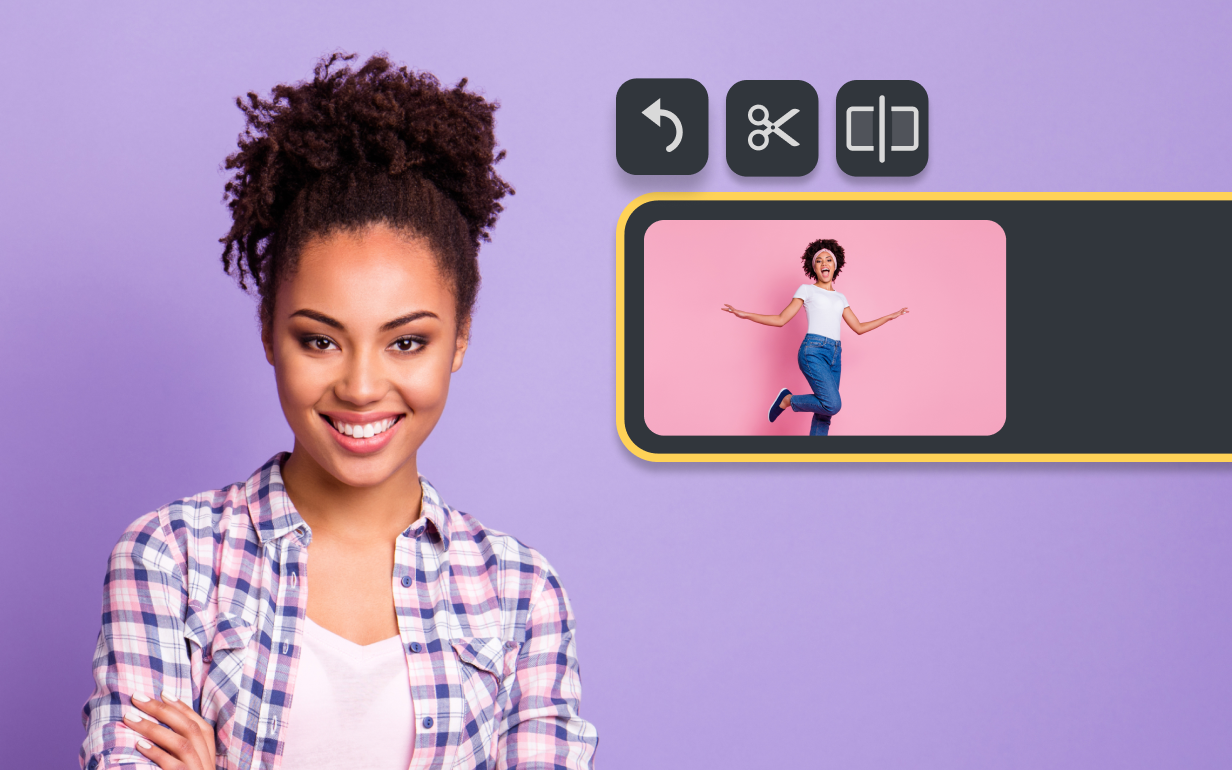
TRIM A VIDEO IN CAMTASIA
How to trim a video with Camtasia
Trimming videos in Camtasia is straightforward and designed to save you time. Follow these three simple steps to trim your video:
1
Step 1: Select the clip to trim
Import your video into Camtasia and drag it onto the timeline. Click on the clip you want to trim to highlight it, and you’re ready to start editing.
2
Step 2: Adjust the trim handles
Drag the trim handles at the beginning or end of the clip to remove any unwanted sections. Whether it’s cutting out pre-recording chatter, video setup, or mistakes at the end, Camtasia allows you to remove these parts with precision.
3
Step 3: Preview and finalize your trim
Once you’ve adjusted the trim handles, play back the trimmed section to ensure it’s perfect. If you’re happy with the result, simply continue editing or export your video. If not, you can always drag the handles back to restore any trimmed content—thanks to Camtasia’s non-destructive editing.
Why Camtasia is the best video trimmer
Camtasia isn’t just any video trimmer. It’s a powerful tool that provides you with flexibility, accuracy, and ease of use, ensuring your content is exactly how you want it.
Frame-level precision
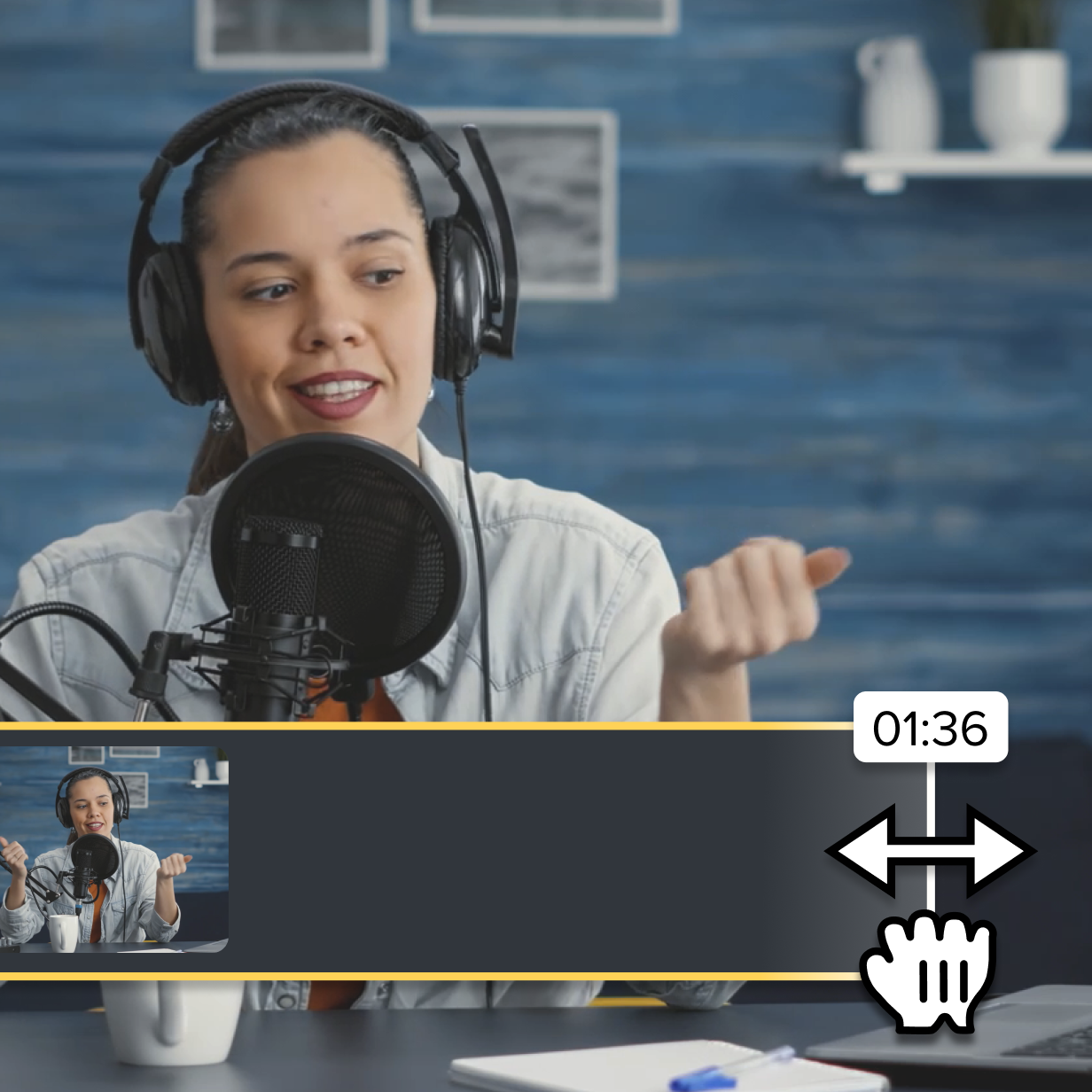
Trimming with Camtasia gives you control down to the individual frame, allowing you to make precise cuts. This level of accuracy ensures that your video includes only the content you want, without any unnecessary filler.
Effortless editing, no perfect setup needed
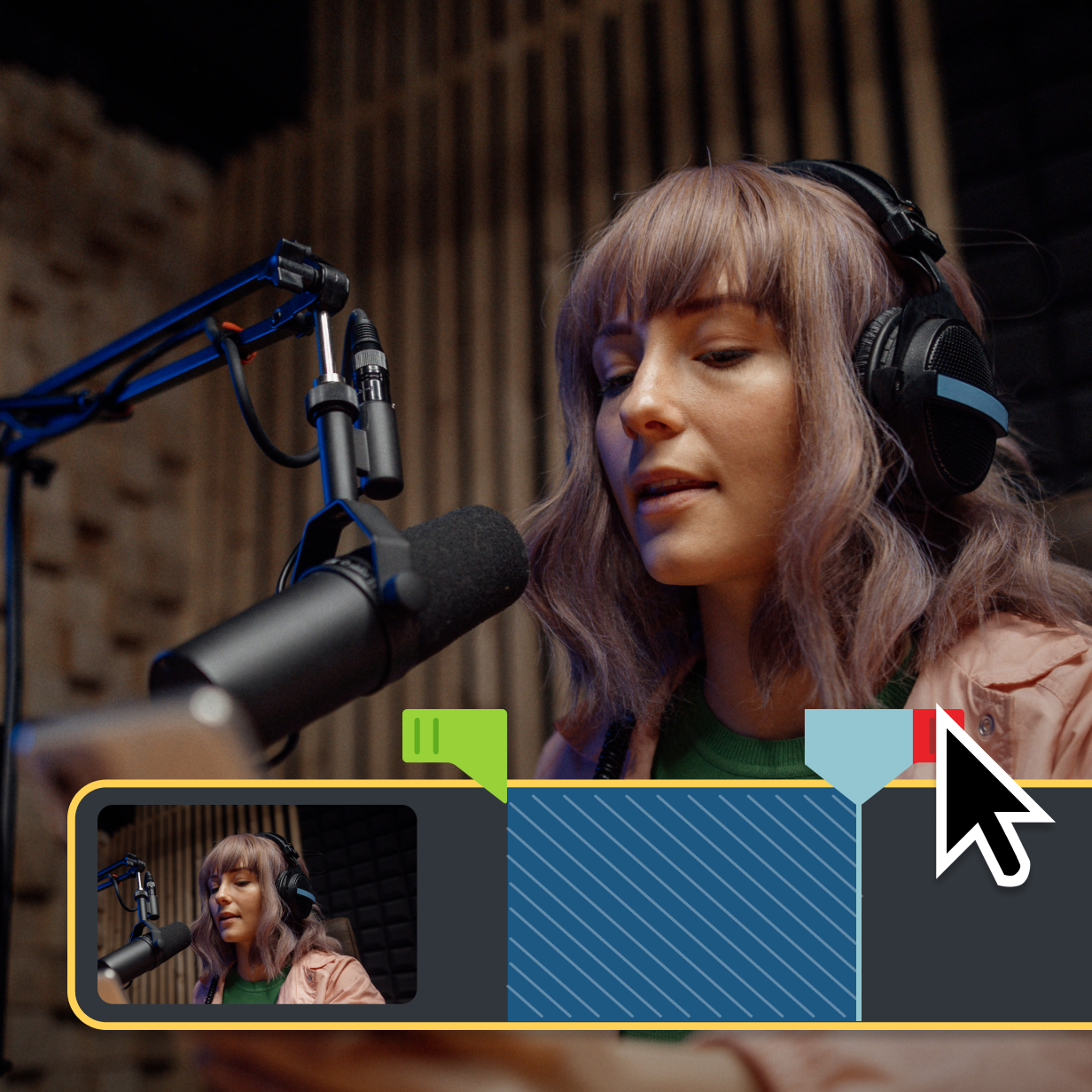
Don’t worry about capturing the perfect take every time you hit Record. With Camtasia, you can trim out unwanted sections easily, letting you freestyle your recording sessions. Whether it’s removing pauses between sentences or cutting out mistakes, trimming helps you craft a seamless narrative.
Non-destructive editing
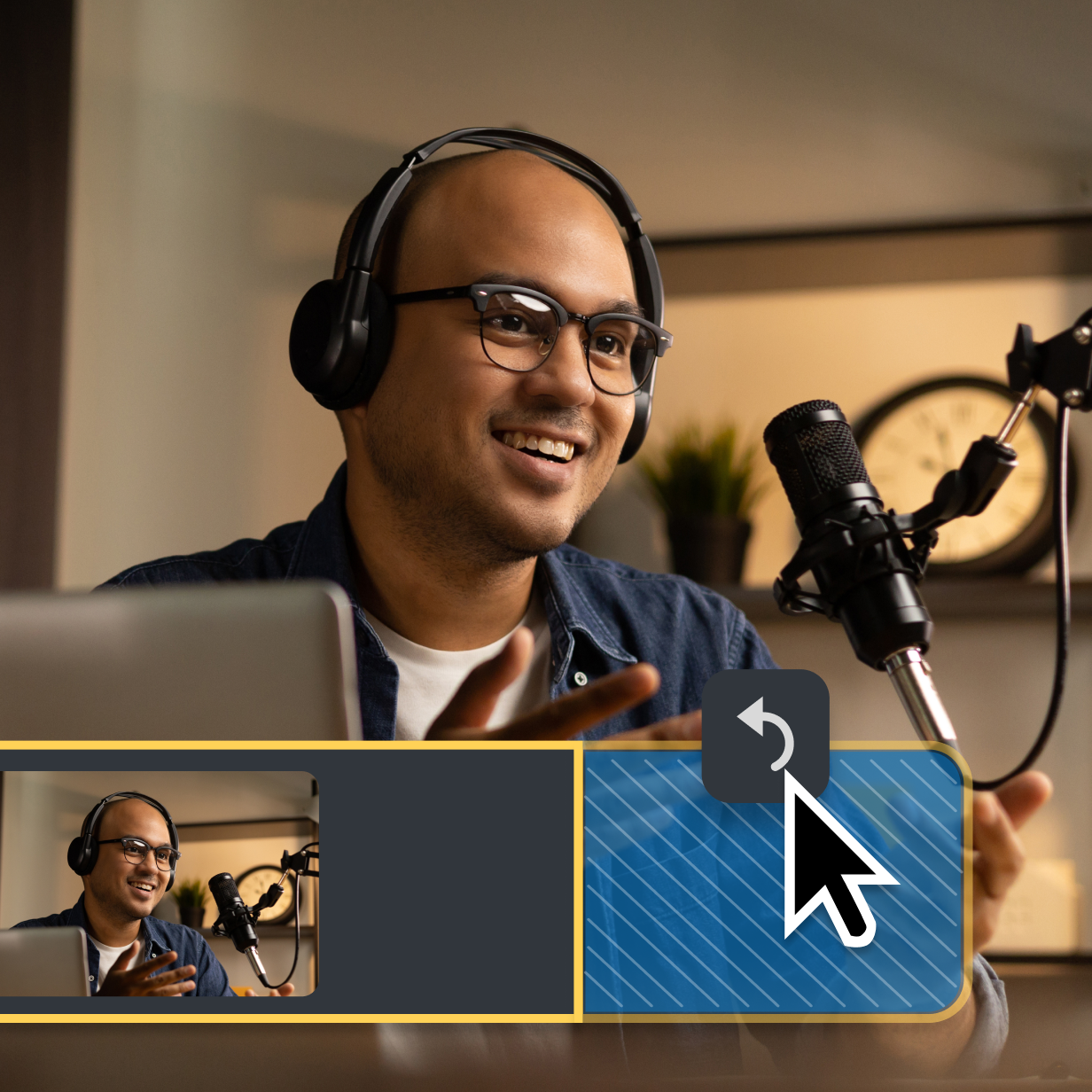
One of the best features of Camtasia is its non-destructive editing. When you trim out sections, they’re not gone forever. Simply drag the ends of the media on the timeline to bring back any trimmed content. This gives you the flexibility to make adjustments even after the initial trim.
Get started with Camtasia Editor

FAQ
Absolutely! Camtasia’s non-destructive editing allows you to restore any trimmed sections by dragging the clip’s edge back on the timeline. Camtasia is a video cutter fit for beginners and professionals.
Not at all! Camtasia makes frame-level trimming simple and intuitive, ensuring you can make precise edits with ease.
Yes, you can trim multiple clips in Camtasia by selecting them on the timeline. However, for the best results, trimming each clip individually ensures the highest level of precision.
Yes. After you’ve edited your video to fit your desired length and video quality, you can export your video clips in different video formats to wherever you need. Or, you can upload your video to your desktop, ready to be shared to anywhere from your team to social media.
Yes, you can cut or trim a part of a video in Camtasia’s video editor. They make it quick and easy to create anything from complicated projects to simple videos.
Check out our tutorial that will walk you through everything you need to know.
Still can’t find what you need? Contact us and we’ll help you out.