









Edit Voice Recordings for Training Videos
Need to remove filler words or clean up narration in training videos without having to start over? Camtasia Audiate lets you edit voice recordings directly alongside your video, so you can tighten pacing, fix mistakes, and improve clarity without re-recording an otherwise solid take.
Why do raw voice recordings slow down training production?
Raw voice recordings often require time-consuming cleanup before they’re ready to publish, leaving trainers and L&D teams spending more time fixing narration than building the lesson.- Manual cleanup eats time. It’s common to spend 20 or more minutes cleaning a single take in a separate tool, removing “ums,” pauses, repeated words, awkward silences, and room noise before the audio is ready to use.
- Fragmented tools slow production. Jumping between separate apps to edit narration, export files, and reimport audio breaks your workflow and creates a production bottleneck.
- Teams avoid editing valuable SME recordings. When subject matter experts or executives deliver a strong explanation with minor mistakes, teams often re-record instead of edit because they’re worried about ruining the original take.
How does Camtasia help you edit voice recordings?
By combining recording, narration editing, and caption generation in one place, Camtasia eliminates fragmented workflows while keeping trainers in control of every change.
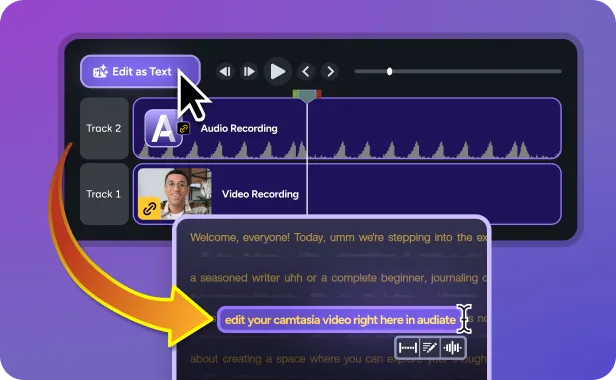
Edit narration by editing text
The Camtasia Audiate-linked workflow transcribes your narration into editable text, so you can delete words, sentences, or pauses without working in a waveform. Because narration stays on its own track, these edits don’t affect your screen recording.

Remove filler words and hesitations with AI assistance
AI identifies distractions like “ums,” “uhs,” repeated words, and hesitations, then suggests edits for you to review. You decide what stays and what goes, helping trainers create clearer instructions without overediting.

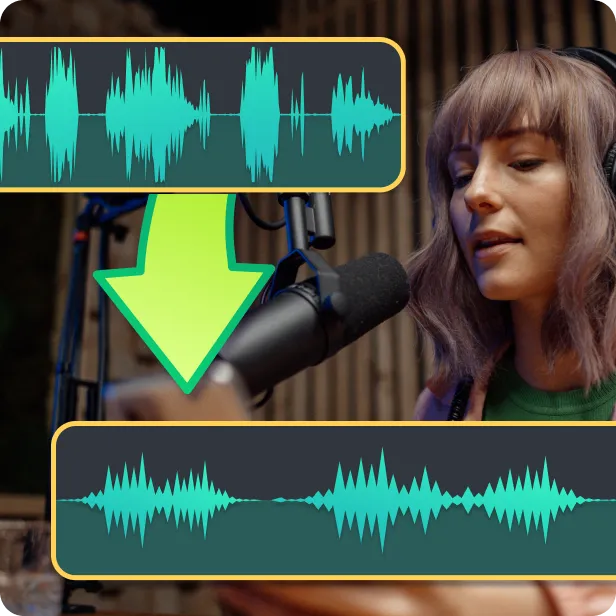
Reduce background noise without rebuilding your project
AI-assisted noise removal helps minimize room noise so learners can focus on your content instead of distractions — without having to re-record your narration.

How do you go from a raw voice recording to a finished training video?
With Camtasia Audiate, you can use one connected workflow for recording, narration editing, and caption creation. Keeping the process in one platform reduces exporting and reimporting, simplifies revisions, and helps L&D teams publish training content faster.

Capture your screen and narration
Record your screen capture and narration in Camtasia Editor in one step.

Edit by transcript
Send the narration track to Audiate and edit the recording by making changes directly in the transcript.

Review and refine
Review and apply AI-assisted suggestions to remove hesitations, filler words, and background noise while deciding which edits to keep.

Caption and publish
Return to the Camtasia Editor timeline, generate captions from the same transcript, review them for accuracy, and export your finished training video.
Create training videos faster with an integrated workflow built for trainers and L&D teams
