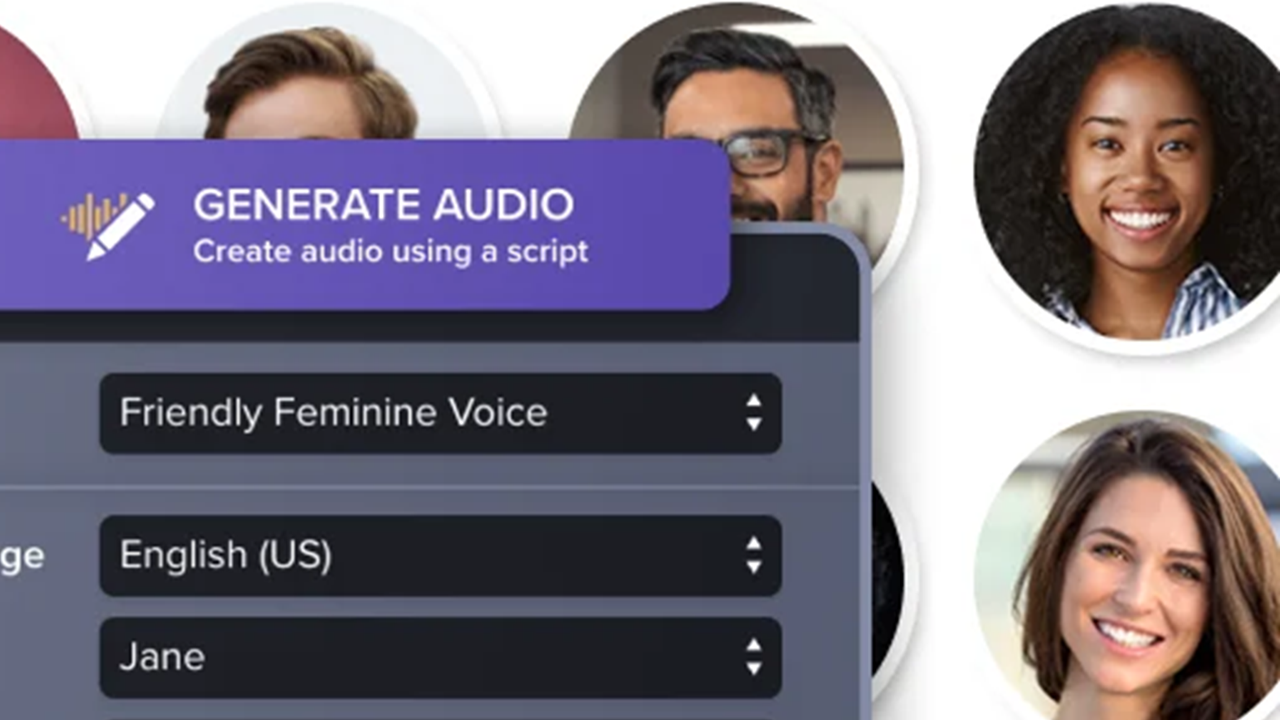
AI-generated speech can sometimes stumble with unique terms such as company and product names. Add these words to Audiate’s pronunciation dictionary to ensure correct, consistent pronunciation.
Export and share the dictionary with others at your company or on your team.
Add Words to the Pronunciation Dictionary
- In Camtasia Audiate, select Settings > Manage Pronunciations.
- In the Pronunciation Dictionary dialog, click + Add Word.
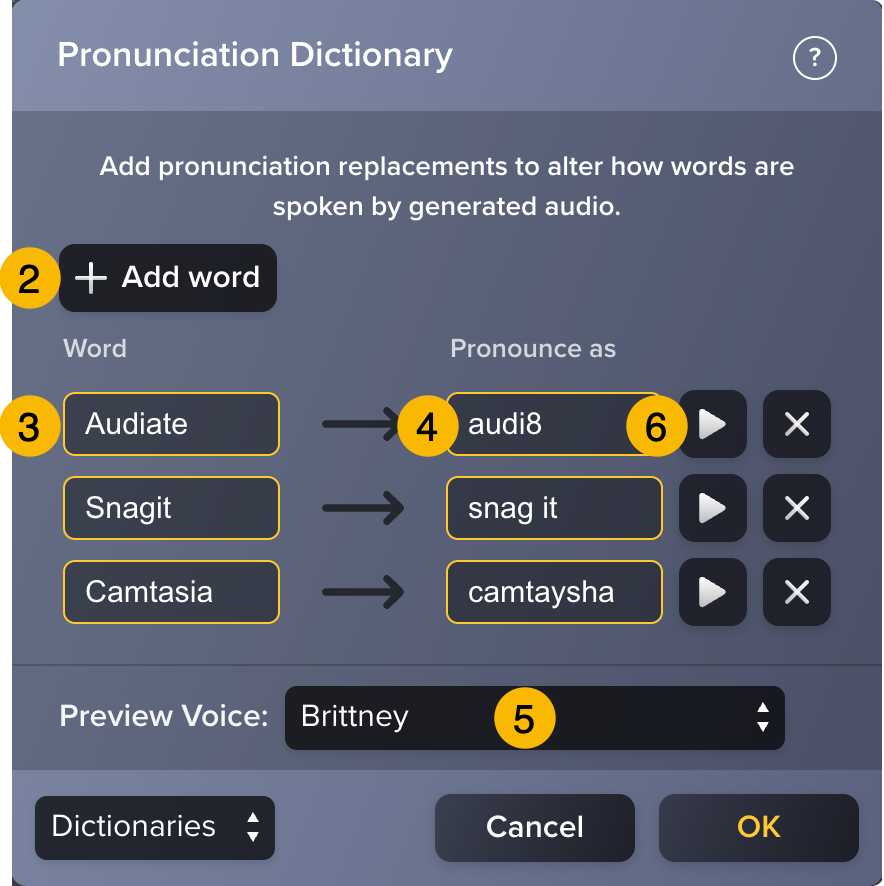
- In the Word field, enter the word or name as it appears in the transcript.
Example: “Camtasia”Note: Enter single words only. For multi-word names or phrases, add each word individually.
- In the Pronounce as field, enter the word as it sounds when spoken.
Example: “camtaysha”
- Select an option from the Preview Voice dropdown.
- Click the
 Play button next to the pronunciation to preview it.
- To adjust the pronunciation, try different spellings or combinations of existing words and repeat as needed. See Tips.
Example: “camptAsia” or “camped Asia”
- When you are finished, click OK.
- Regenerate audio to apply the custom pronunciation:
- Click Generate.
- Select the Generate Audio tab.
- Optional: To regenerate audio with the same voice for all scenes in the project, enable the Apply to entire project toggle.
- Click Generate Audio.
Note: Coming soon! Audiate will automatically regenerate audio in your current project as you add words to the pronunciation dictionary.
Tips
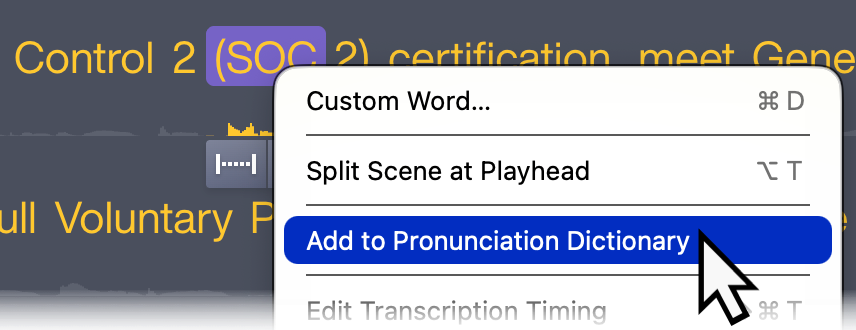
- To add a word directly from your script to the dictionary, highlight the word in the script, right-click (Windows) or Control-click (Mac), and select Add to Pronunciation Dictionary.
- To separate sounds in a word, add spaces or hyphens in the Pronounce as field.
- Variation in pacing and accents between voices can affect pronunciation. Preview with the voice you intend to use in your video, or preview multiple voices to check for consistency.
- For heteronyms in the script (names or words that are spelled the same but may be pronounced differently), enter the preferred pronunciation directly in the script.
- Audiate applies custom pronunciation to variations on the words in your dictionary.
- For example, custom pronunciation for “Camtasia” will also be applied to “Camtasia’s”.
- To prevent pronunciation from being applied to variations, add the variation words as separate entries to the dictionary.
- The dictionary is not case sensitive. For example, “Camtasia” pronunciation will also apply to “camtasia” or “CamTasia”.
- The following punctuation marks are not accepted in either the Word or Pronounce as fields:
- . (period)
- , (comma)
- ? (question mark)
- ! (exclamation mark)
- : (colon)
- ; (semicolon)
- … (elipses)
Share Dictionaries with Team Members
Export your dictionary and share it with team members to ensure consistent pronunciation across multiple video projects.
Export and Share
- In the Pronunciation Dictionary dialog, click Dictionaries.
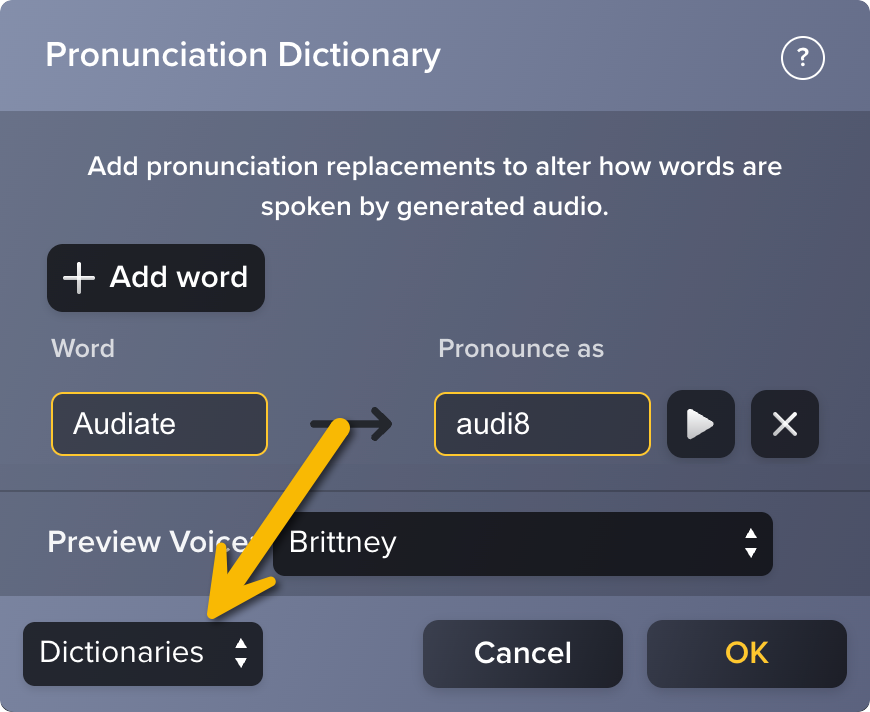
- Select the Export Dictionary option.
- Select a file name and location for the dictionary, and click Save.
The dictionary is saved as a .json file.
Import a Dictionary
- In the Pronunciation Dictionary dialog, click Dictionaries.
- Select the Import Dictionaries option.
- Locate and select the .json file.
- Click Open.
Note: If you have an existing dictionary, Audiate asks if you want to merge or replace it with the new dictionary. To maintain multiple separate dictionaries, first save your existing dictionary before importing the new one. Re-import your original dictionary as needed.
All Audiate Tutorials