Translate Your Script, Audio, and Captions
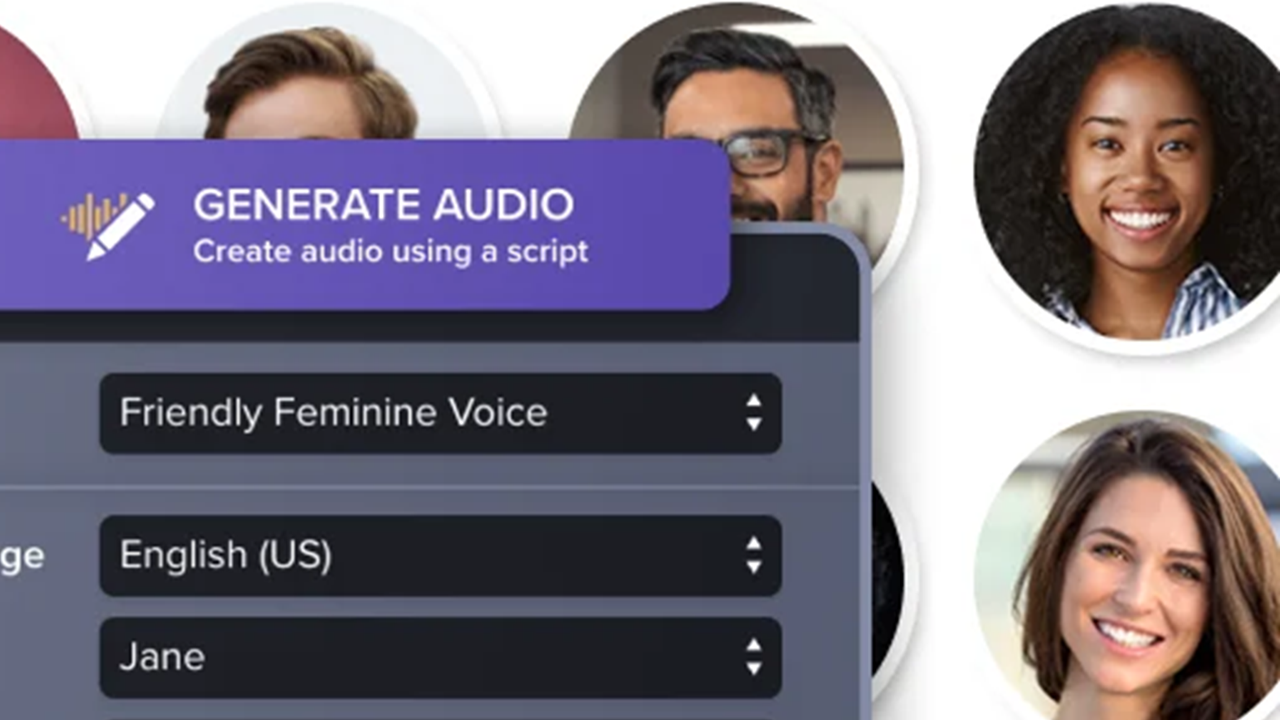
Learn how Camtasia Audiate can translate your video script to generate audio, AI avatars, and captions in other languages.

Learn how Camtasia Audiate can translate your video script to generate audio, AI avatars, and captions in other languages.
Camtasia Audiate automatically translates your script to help you reach more audiences quickly. Use Audiate translation to:
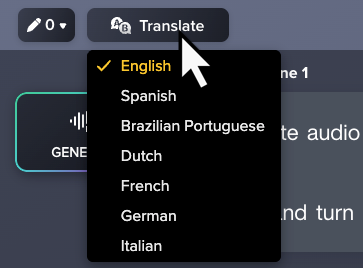
Audiate currently supports translation for the following languages and dialects:
Note: Translation is available with subscription to Camtasia Audiate or Camtasia Pro.
To translate a script in Audiate:
After translation, you can:
Tip: Review the translated script
AI can make mistakes, so it’s recommended to review translations before exporting or generating audio.
Audiate’s text-to-speech turns your translated script into audio with a selection of realistic AI voices.
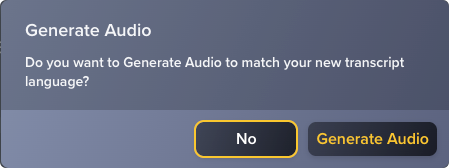
If the original project included audio, Camtasia asks if you want to generate audio to match the new language:
If the original project did not include audio, or to generate audio for the first time:

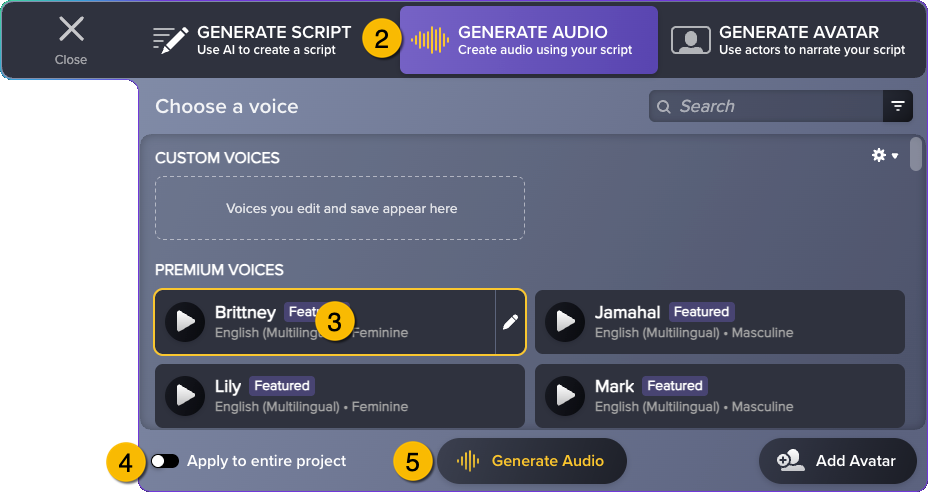
To export the translated audio, select File > Export > Export Audio.
Generate an AI video avatar with natural, lifelike expressions to present the translated audio.

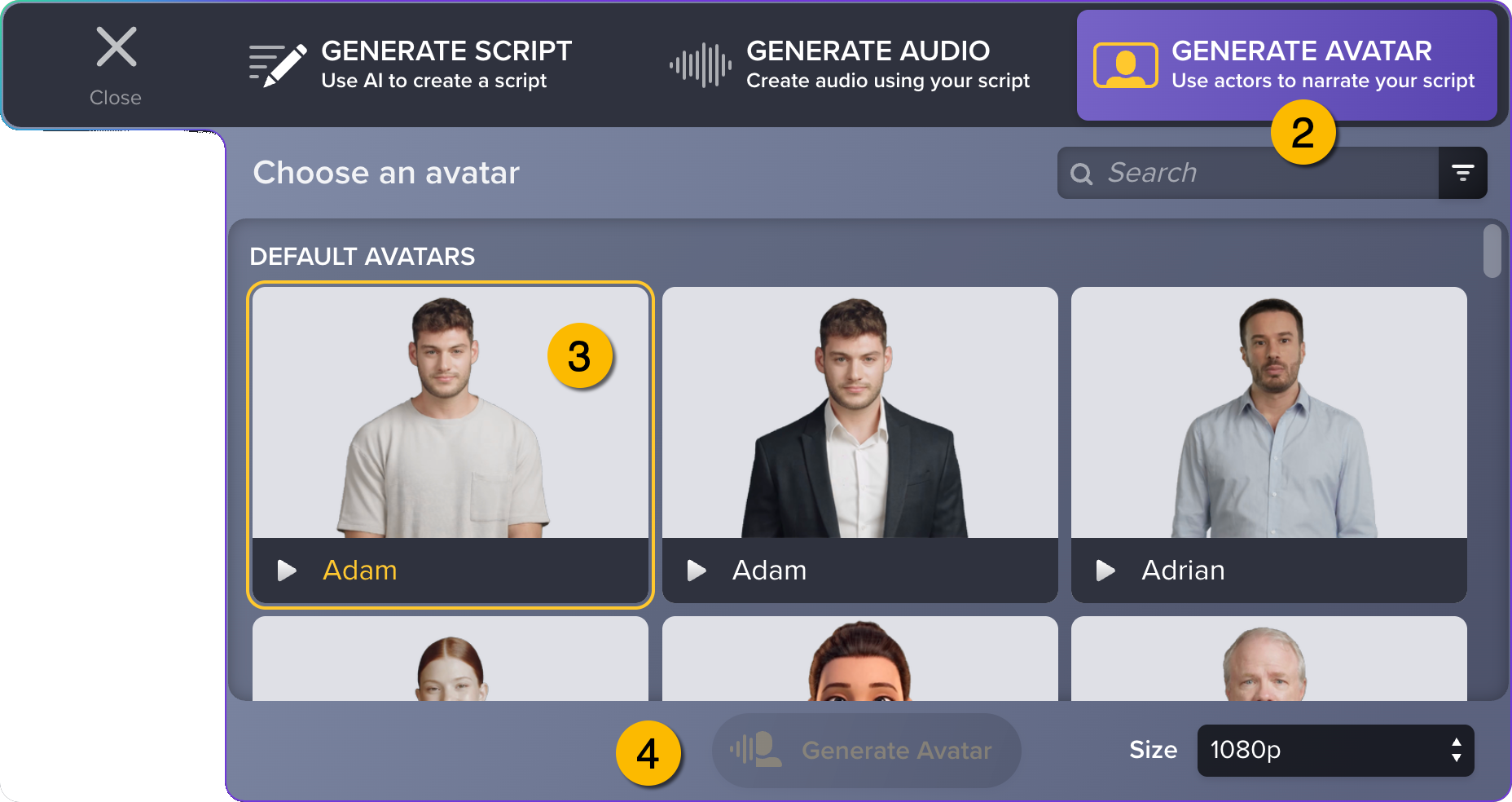
To learn more, see Generate AI Avatars.
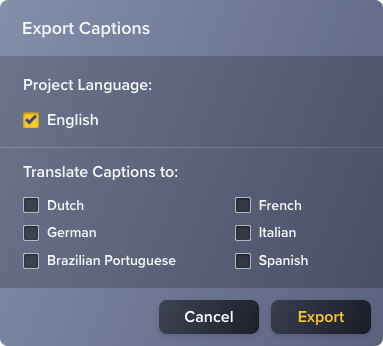
Audiate can instantly generate translated caption files (.srt) in one or more languages.
Upload .srt files with your video to a hosting service, such as Wistia or YouTube, so that viewers can select closed captions in the language of their choice.
To generate and export translated captions:
Tip: Review the translated captions
AI can make mistakes, so it’s recommended to review generated content before sharing. You can open, review, and edit .srt files with a text editor such as Notepad or TextEdit.