What’s New in Camtasia Editor
Learn about the new features and improvements in Camtasia Editor.



Learn about the new features and improvements in Camtasia Editor.

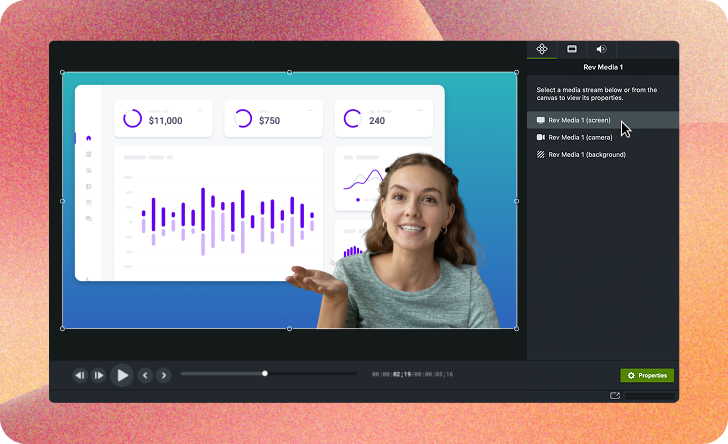
Adjust Rev Media on the Canvas
Quickly make adjustments to screen, camera, and background without unpacking Rev media. Now you can position the camera or screen recording within a layout on the canvas or customize the background and effects in the properties.
See Basic Edits After Recording and Position Media on the Canvas.

Generate Dynamic Captions
Simply drag the dynamic caption style onto the timeline to generate captions for Rev media.
See Add Dynamic Captions.
Text-based editing is now only a button click away and available for free to all Camtasia Editor users. The Edit as Text button sends your media to Camtasia Audiate to edit as text and clean up your audio with professional-grade effects. 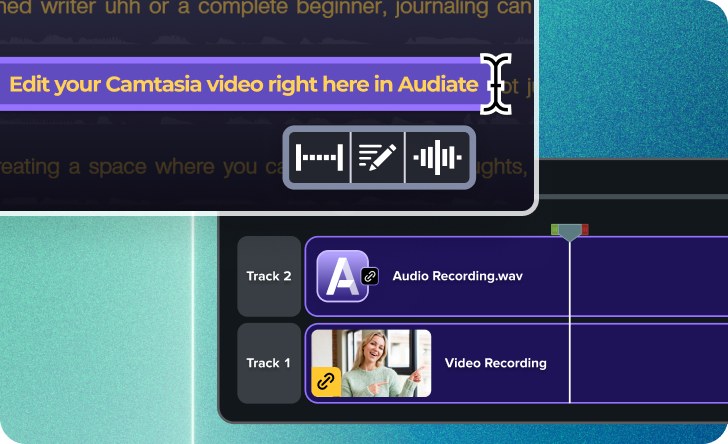
See Speed Up Editing with Camtasia Audiate.
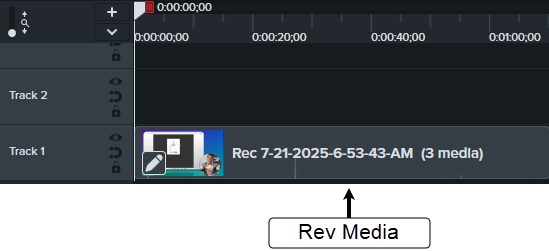
Rev Media
Camtasia packages your recorded streams (screen, camera, and audio) into Rev media on the timeline. This simplified media package allows you to speed up editing by applying layouts and quick effects in Rev.
Split the Rev media on the timeline to apply different looks to sections of your video.
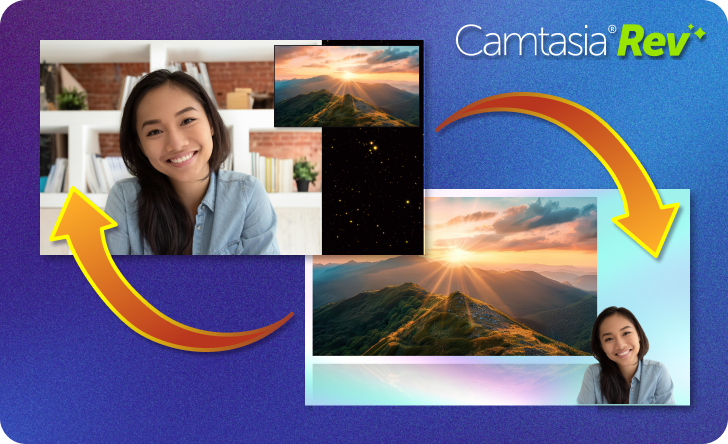
Looks & Layouts
After recording, apply one of our professionally-designed layouts and effects to your recording in Camtasia Rev. Find the perfect look based on your content. Choose from screen focused, camera focused, or balanced layouts.

Apply SmartFocus for Automatic Zooms
Automatic zooming and panning is easier than ever! Apply the SmartFocus screen effect in Camtasia Rev.
Camtasia now offers the option to switch between a light or a dark application theme.
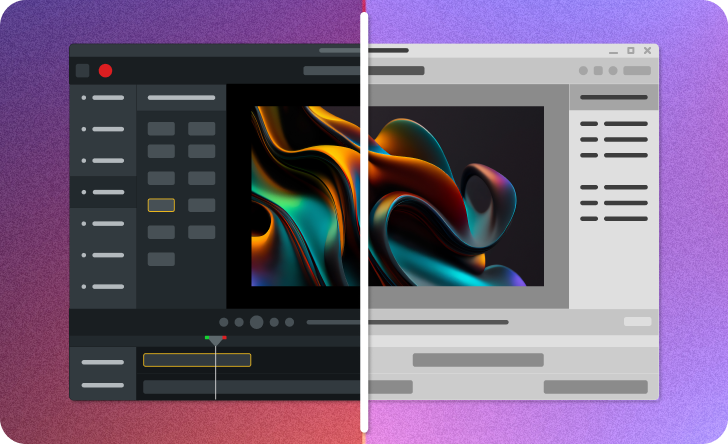
Isolate your screen and audio recording to a single window or application without the distraction of anything else popping in to steal the focus.
See Camtasia Recorder Overview.
Automatically add zoom and pan animation points based on size and context of screen recordings with SmartFocus. See Zoom In to Focus Attention.
Isolate your voice with precision, removing unwanted sounds while keeping your voice crisp and clear.

You can apply AI Noise Removal in Camtasia Rev or in the Camtasia editor:

Cursor Isolation
Isolate your cursor from the background it was recorded on, letting you easily swap out content without having to re-record your mouse actions.
See Add Cursor Effects.

Gradient & Negative
Instantly highlight your cursor movements in more ways with the new Gradient and Negative cursor effects.
See Add Cursor Effects.

Lens Effect
Emphasize your cursor movements with the Lens Effect, which enlarges details around your cursor as if it’s being viewed through a magnifying lens.
See Add Cursor Effects.

Zoom Click Effect
Zoom in on your cursor clicks to let your audience see your actions up close.
See Add Cursor Effects.

Burst Click Effects
Make your cursor pop with a variety of new Burst click effects.
See Add Cursor Effects.

Cursor Motion Blur
Provide a blur effect to cursor movement to create a more visually engaging appearance.
See Add Cursor Effects.

Kinetic Cursor
Add momentum to cursor movement to appear as if it is being pulled and pushed across the screen.
See Add Cursor Effects.

Elevate Cursor
Bring your cursor to the front of the screen over other onscreen effects like callouts and annotations.

Static Noise
Recreate the classic static interference reminiscent of disrupted TV signals or worn VHS tapes.

CRT Monitor
Make your recording look like it’s on an old tv or monitor, complete with scan lines, chromatic aberration, and a curved appearance.

Torn Edge
Make your video look like it was ripped out of a book. Easily adjust the depth, roughness, and intensity for a distinctive handcrafted look.

Add dynamic captions to automatically transcribe audio on the timeline into customizable onscreen caption text. Perfect for social media videos!
You can adjust the timing and edit words to ensure a perfect sync between your voice and transcription. In version 2025, we expanded editing for dynamic captions including the addition and removal of words and spaces.
See Add Dynamic Captions.
See your camera feed in a picture-in-picture window while recording, providing flexibility to move and adjust later without permanently burning it into the recording.

Create engaging, professional-quality videos featuring lifelike AI avatars with Camtasia Pro.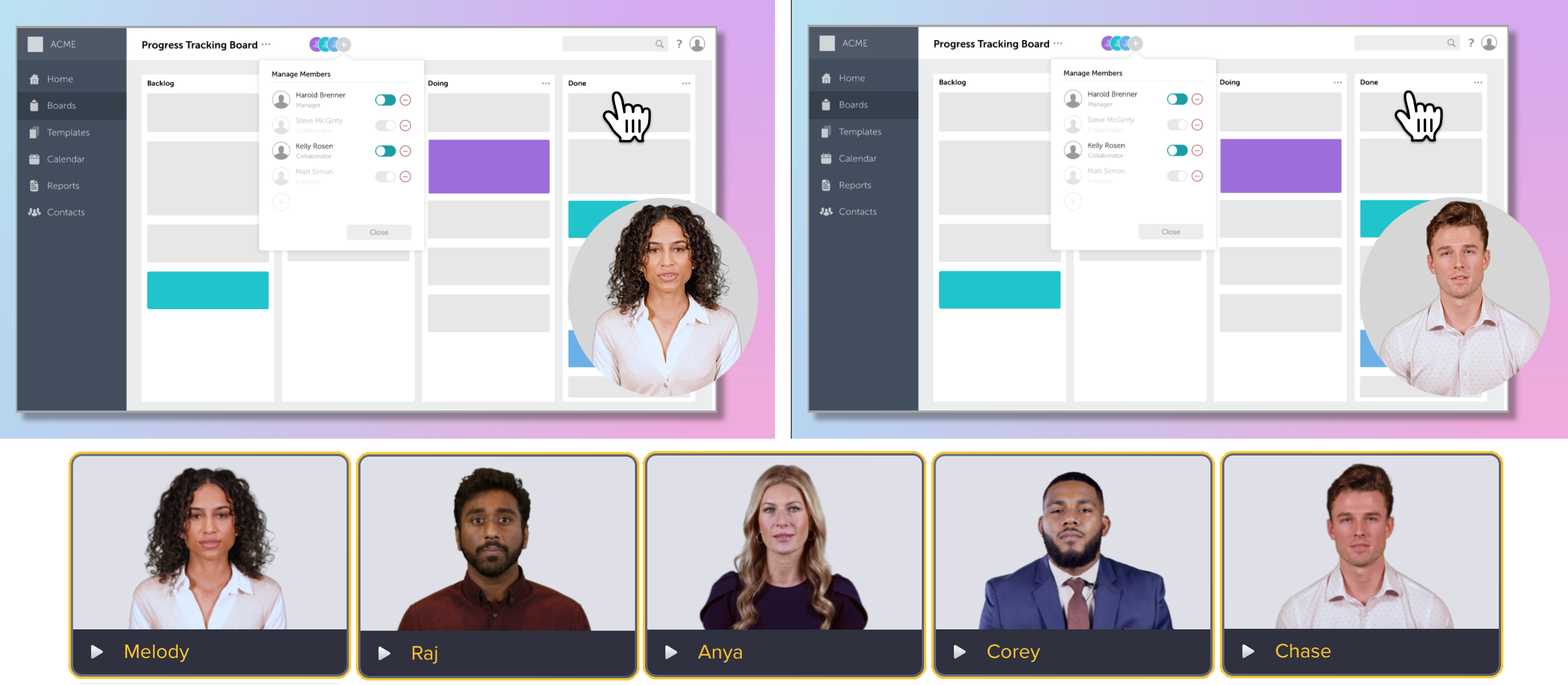
See Generate AI Avatars.
To see the complete list for what’s new in Camtasia Editor, see the product changelog.
Unleash the world’s most powerful screen recorder and video editor.
* Already a Camtasia user? Learn how to update to the latest version.