Generate AI Avatars
Learn how to generate an AI video avatar synced to your voice-over or generated audio.

Learn how to generate an AI video avatar synced to your voice-over or generated audio.
Generate AI video avatars with lifelike, natural expressions synced to your script or audio. These virtual presenters automatically narrate your script for you, eliminating hours of studio production time.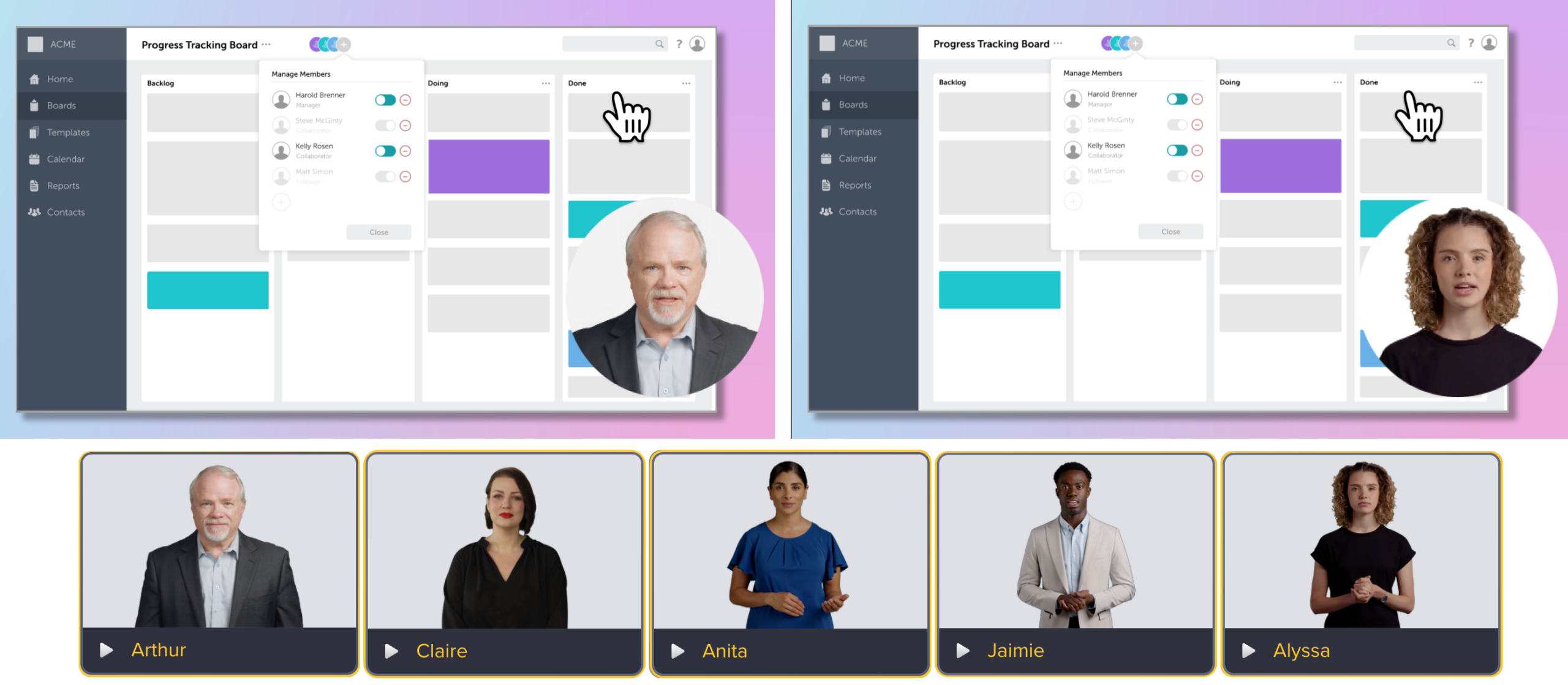
Note: Avatar generation is available with a subscription to Camtasia Audiate or Camtasia Pro.
Considerations for when to use AI avatars in your videos:
To learn more about audience perception of AI avatars, including when to use AI avatars vs. when to use human presenters, see our research findings: Do AI Voices and Avatars Improve Learning? Here’s What the Data Says.
The video below showcases a few of the AI avatars available in Camtasia Audiate. In this example, the creator selected a different AI avatar to act as the video’s virtual trainer based on the locale and language for each of their target markets.
Note: Legacy avatars were retired on July 17, 2026. Legacy avatars still appear in existing projects. To regenerate or make changes, however, select a new avatar. See New Avatars Arrive as Legacy Avatars Approach Retirement.
Your Camtasia Audiate project must contain audio, either a voice-over recording or generated from a script, to generate an avatar. Complete any of the options to add the audio content:
Note: Avatar generation is limited to audio content five minutes or less. For longer content, split audio into shorter scenes and generate an avatar for each scene. See Scene-Based Editing in Import & Edit a Video.
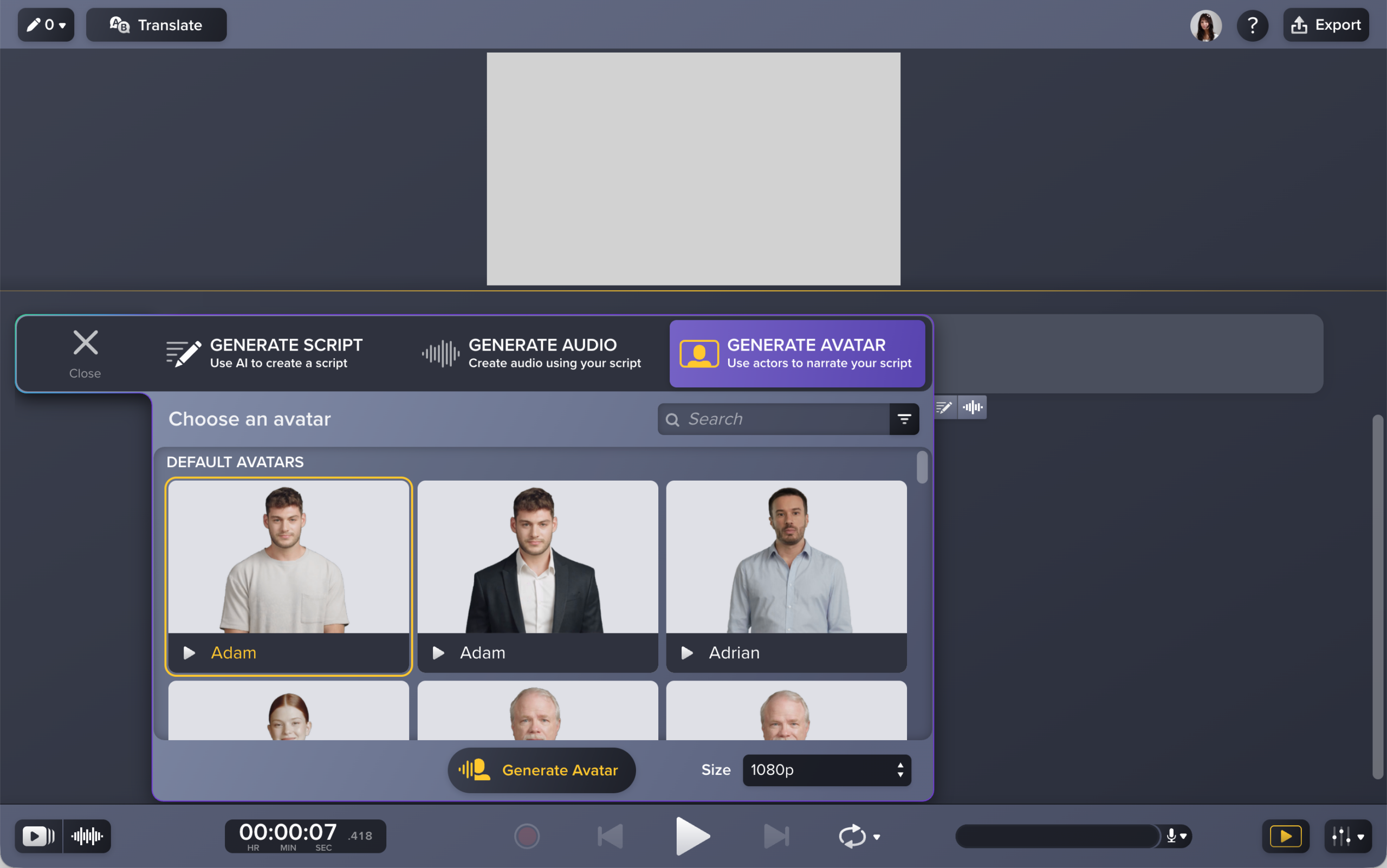
 Filter button.
 Play button next to the avatar name.
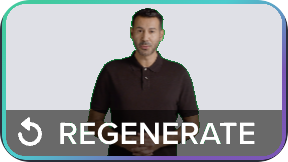
A progress bar appears while Audiate generates the AI avatar based on the recorded or generated audio. You can choose another avatar or regenerate the audio and avatar at any time:
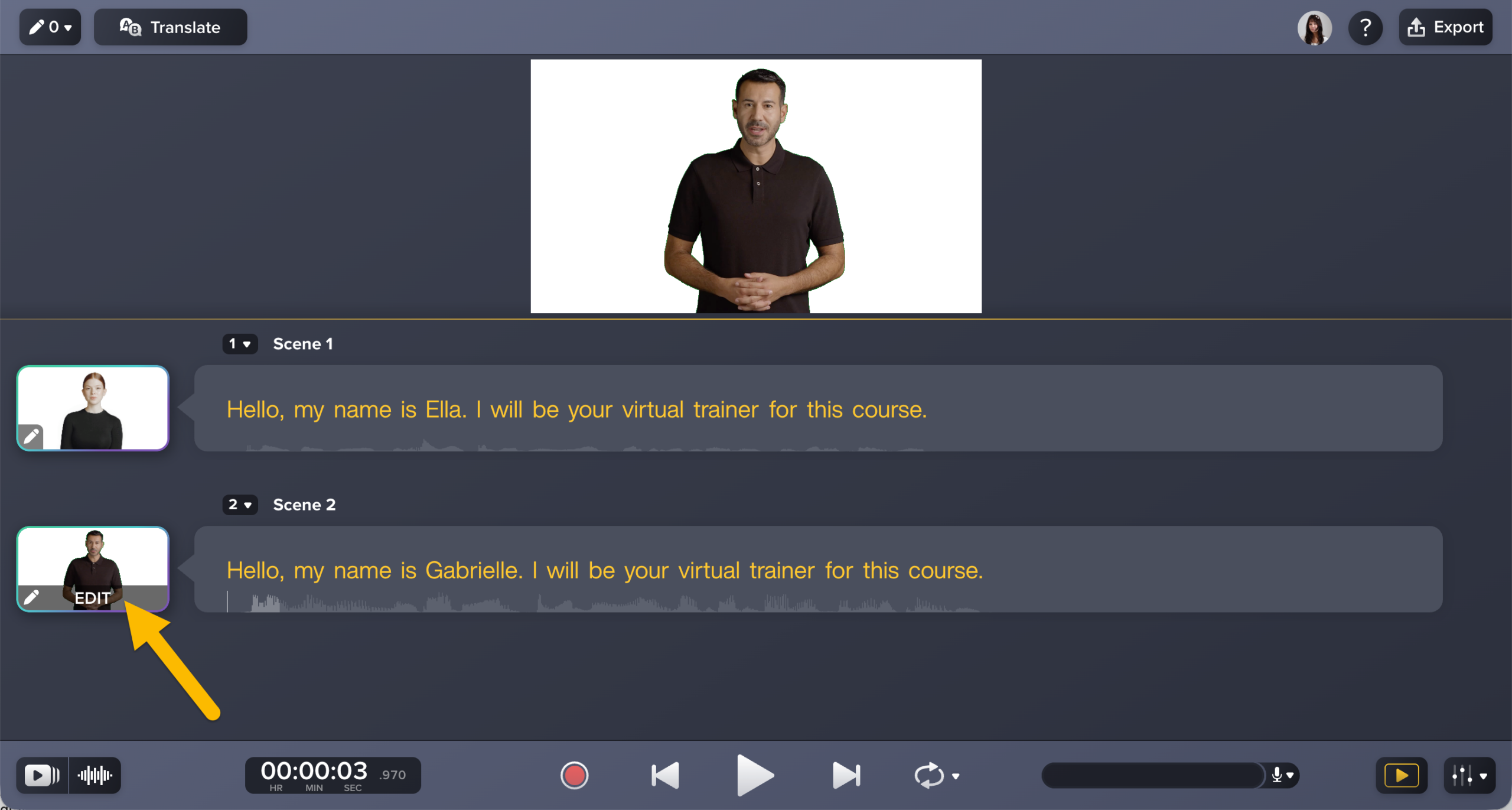
Tip: Use multiple avatar presenters to add variety and keep your video engaging.
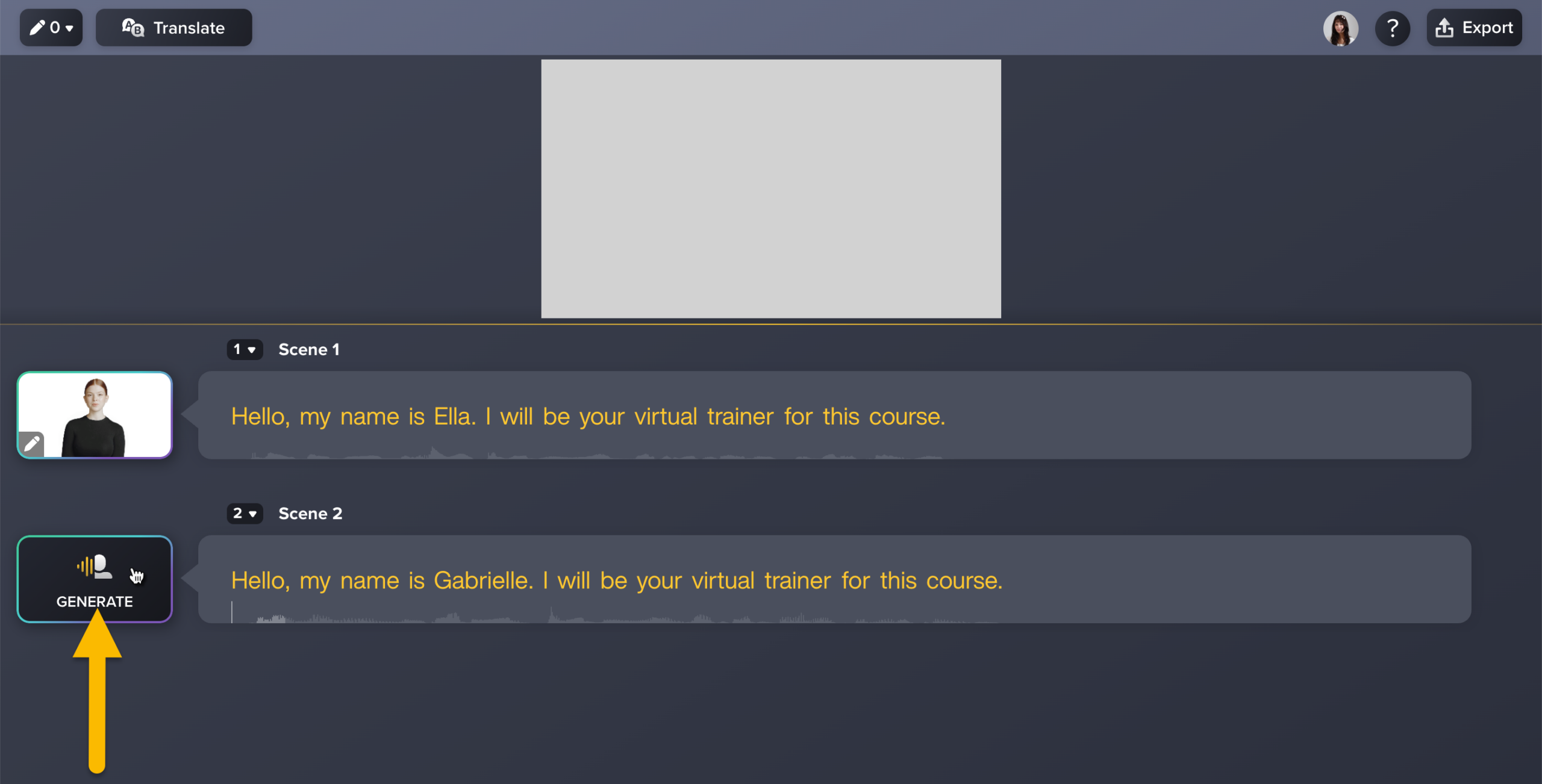
Split a project into multiple scenes to generate different AI voices and avatars to present your content. To split a project into multiple scenes, see Scene-Based Editing in Import & Edit a Video.
Note: You must have Camtasia Editor version 2024.1.0 or later to export avatars into a Camtasia Editor project.
Send your generated video avatar to Camtasia Editor to combine with other media in a video project.
For example, for the most effective instructional videos, we recommend combining screen recording with an avatar to create a picture-in-picture video layout.
“Across all formats, AI avatar videos were rated professional and rewatchable, but avatar picture-in-picture produced the strongest learning retention for screen-based instruction.”
–Do AI Voices and Avatars Improve Learning? Here’s What the Data Says
In Camtasia Editor, you can change the scale of the avatar and add a Mask visual effect to create this picture-in-picture layout. See Position Media on the Canvas and Add an Avatar, Webcam, or Icon in 4 Ways to Visualize Your Audio.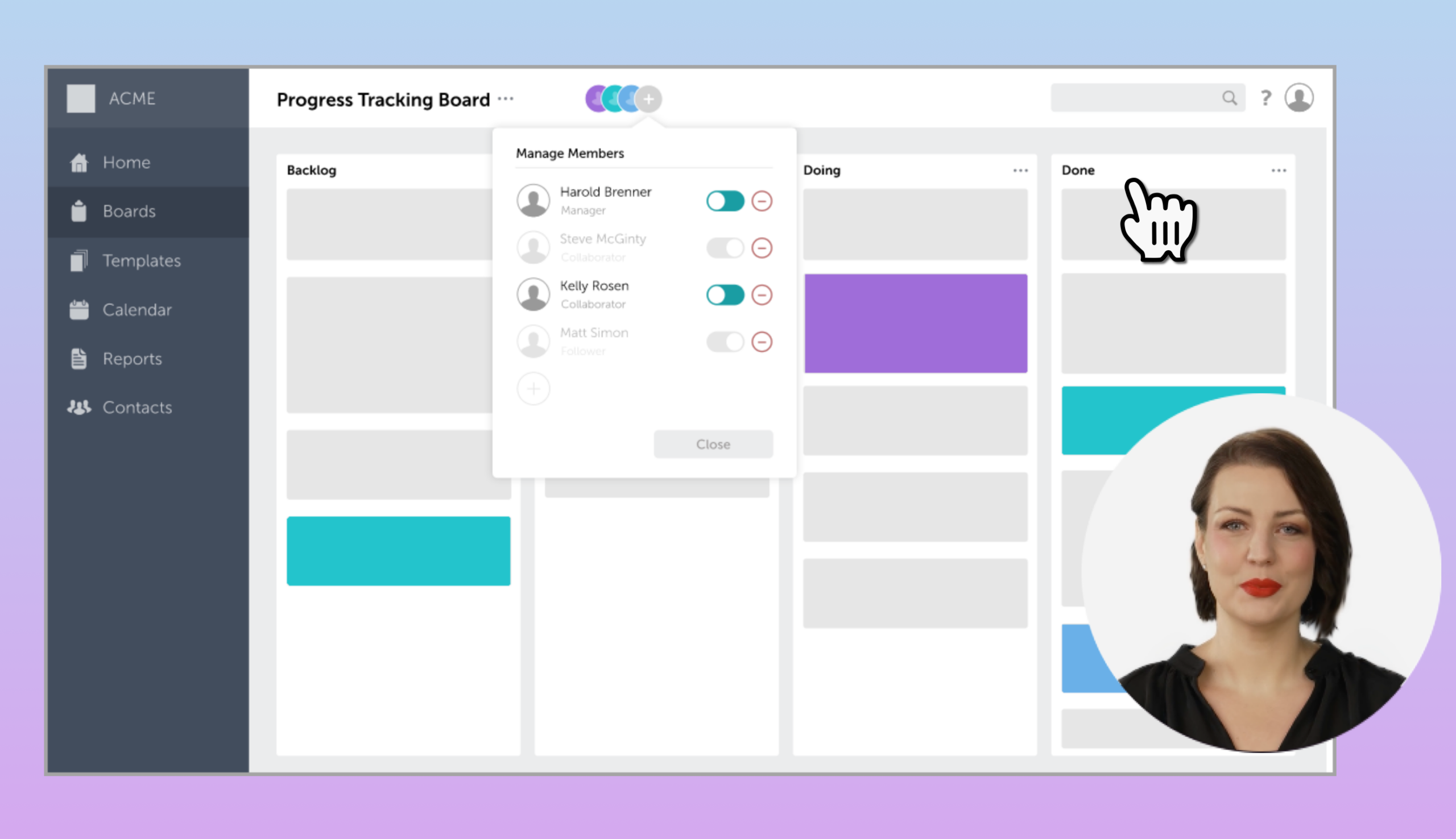
To export to a new or existing Camtasia Editor project, select Export > Export to Camtasia and choose the desired settings to send the audio, captions, and avatar video.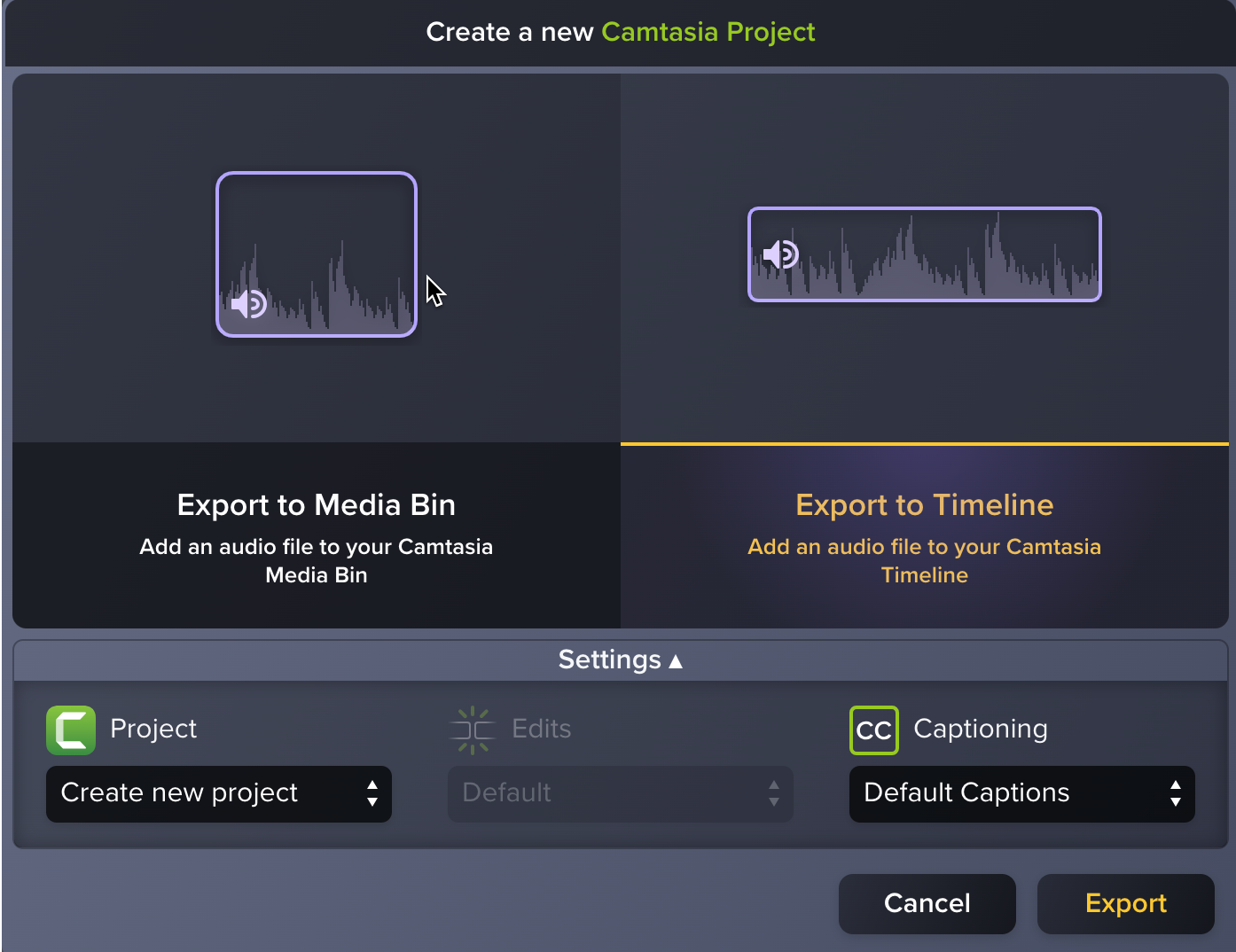
Note: To learn more about how TechSmith leverages AI technology, see Third-Party AI Technology Used in TechSmith Products.