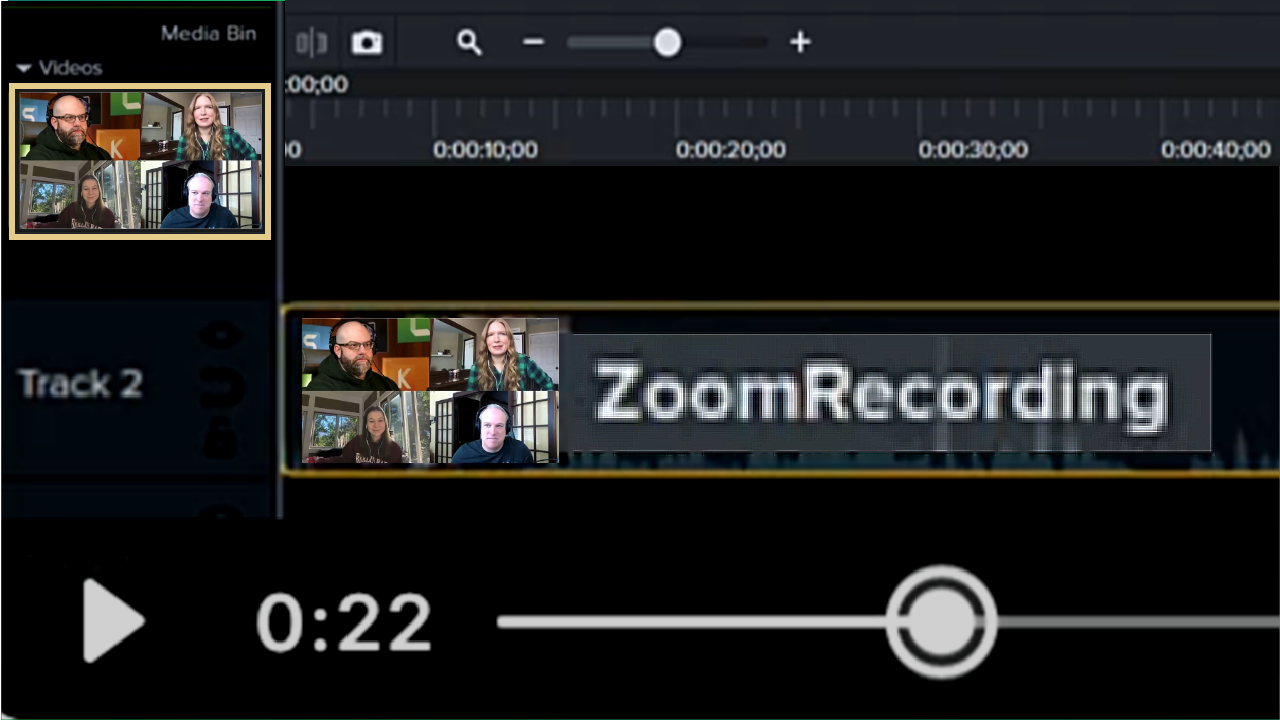
Access Your Zoom Cloud Recordings in Camtasia Editor
Learn how to connect your Zoom account to import and edit Zoom cloud recordings in Camtasia Editor.

Learn how to connect your Zoom account to import and edit Zoom cloud recordings in Camtasia Editor.
The Camtasia Editor app makes it simple to turn your meetings, webinars, and training sessions into polished, professional videos.
The app connects directly to your Zoom cloud recordings from within the Camtasia Editor. Instead of working with a single, flat video file, the integration imports your Zoom recording with the speaker audio, speaker view, and shared screen content all on separate tracks.
This multi-track import gives you complete editorial control:
Once your edits are complete, you can easily share your video as a local file (MP4) or send it directly to popular destinations like YouTube and Screencast.
To access your Zoom recordings to edit in Camtasia Editor:
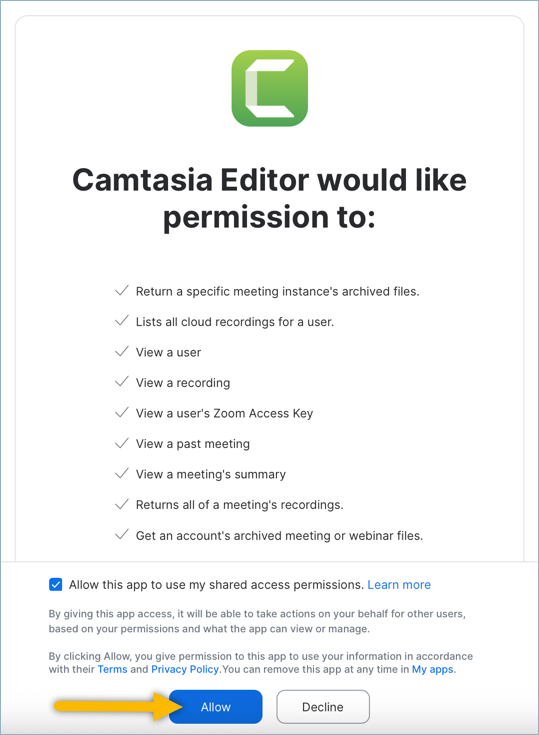
To learn how to import and edit Zoom recordings in Camtasia Editor, see Edit Zoom Recordings.
To sign out and disconnect access to Zoom recordings in Camtasia Editor:
Before recording a Zoom meeting, it is recommend to select the following settings to provide the most flexible editing options in Camtasia Editor:
In your Zoom account, select Settings > Recording > General tab.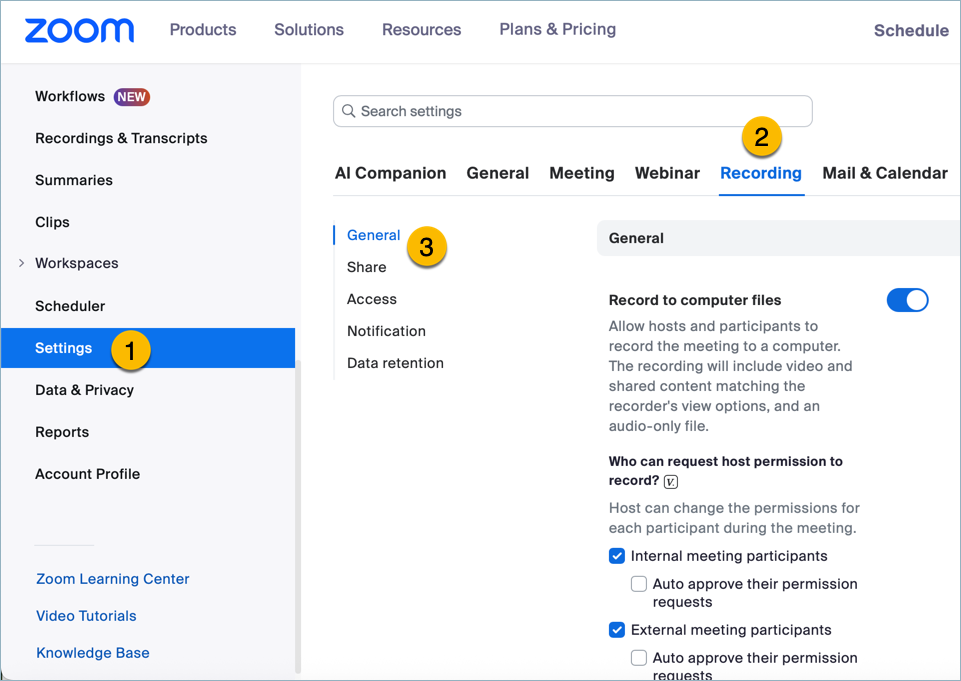
In the Cloud recording setting section, enable the Record active speaker, gallery view and shared screen separately checkbox and click Save. 
To learn how to add Zoom Marketplace apps and manage user access as an admin, see the Zoom support article.
Note: For additional help or troubleshooting, visit our help center or submit a ticket to our Technical Support team.
Unleash the world’s most powerful screen recorder and video editor.
* Already a Camtasia Editor user? Learn how to update to the latest version.