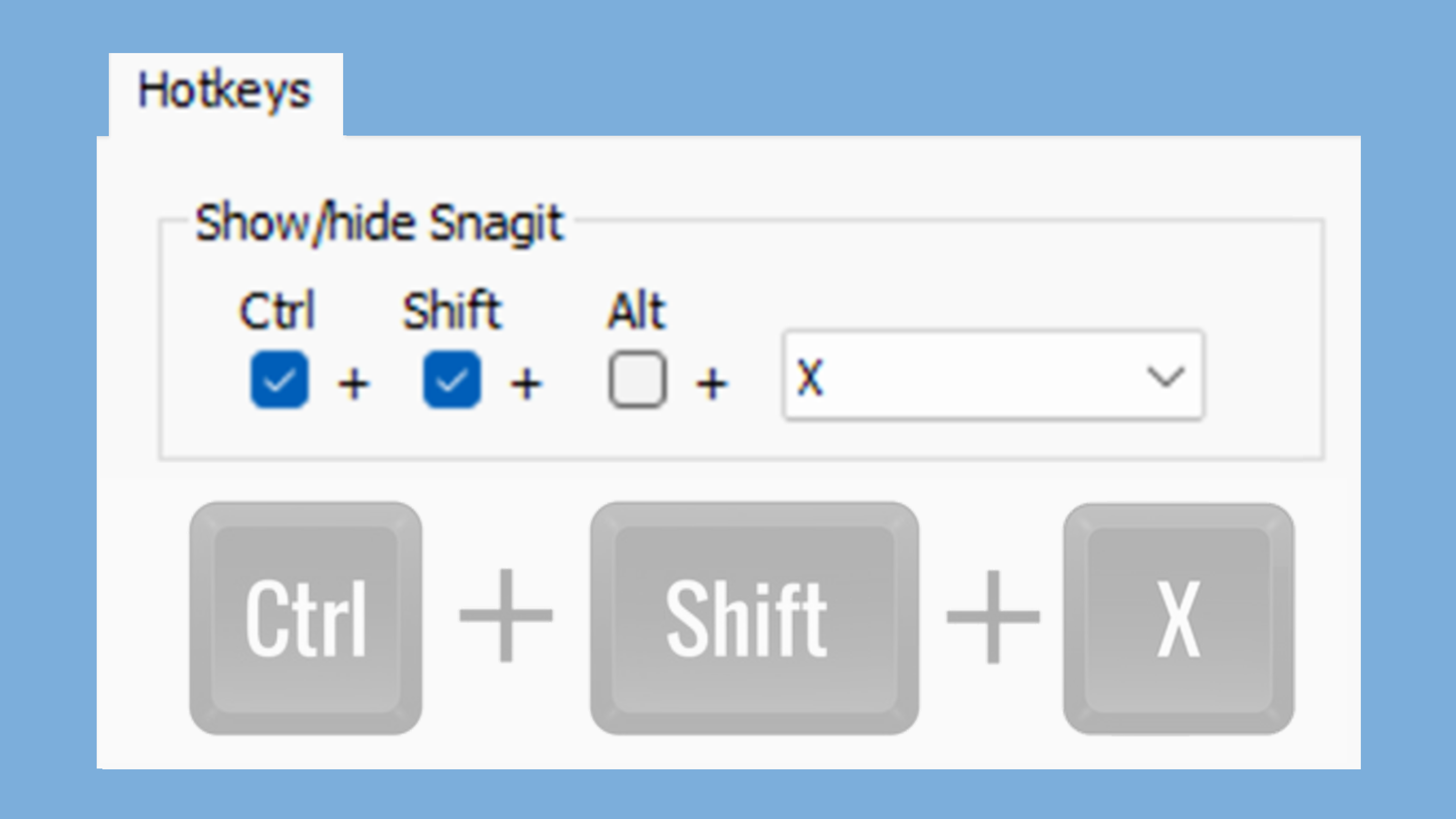
Snagit Hotkeys Guide
Quickly reference the shortcuts in Snagit and learn how to customize the capture shortcuts.

Quickly reference the shortcuts in Snagit and learn how to customize the capture shortcuts.

Tip: Change the capture hotkey in the Capture window.
The default global capture hotkey is Print Screen (Windows) or Control+Shift+C (Mac). To change the capture hotkey, in the Capture window click the shortcut field under the Capture button. Press the desired key combination on the keyboard. To learn more, see Snagit Capture Hotkeys.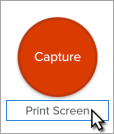
Note: Snagit shortcuts are tested on a QWERTY keyboard. Some shortcuts may not work with the keyboard you use. To configure your own shortcuts for your keyboard, see Customize Shortcuts.
| Option | Windows | Mac |
|---|---|---|
| Capture – Uses the current settings in the Capture Window | Print Screen | Control+Shift+C |
| All-in-One Capture | – | Control+Shift+O From the All-in-One toolbar:
|
| Image Capture | – | Control+Shift+S |
| Mission Control Capture (Mac) | – | Control+Shift+M |
| Expose (Window) Capture (Mac) | – | Control+Shift+W |
| Menu Capture | – | Control+Shift+E |
| Repeat Last Capture | To set a shortcut for this option, select Capture window > File > Capture Preferences > Hotkeys tab. | Control+Shift+R |
| Video Capture | – | Control+Shift+V |
| Create Video from Images | Ctrl+Alt+V | Option+V |
| Next Image (Video from Images) | Right Arrow key | Command+] |
| Previous Image (Video from Images) | Left Arrow key | Command+[ |
| Video Selection Guides | G | G |
| Start Recording | Shift+F9 | Control+Shift+Spacebar |
| Pause/Resume Recording | Shift+F9 | Control+Shift+Spacebar |
| Stop Recording | Shift+F10 | Control+Shift+V |
| Swap Picture-in-Picture and Fullscreen Webcam | – | Control+Shift+F |
| Enter/Exit Draw Mode | Ctrl+Shift+D | Control+Shift+D |
| Select Arrow Screen Draw Tool | A | A |
| Select Square Screen Draw Tool | S | S |
| Select Step Screen Draw Tool, Restart Step Numbering | 1 | 1 |
| Magnifier | M | M |
| Cancel Capture | Esc | Esc |
| Show/Hide Capture Help | F1 | H |
| Capture Fullscreen | – | F |
| Capture Multiple Regions | – | Hold the Command key |
| End Multiple Image Capture | Right-click screen | – |
| Automatic Scrolling Capture | When Scrolling Arrows are present:
| When Scrolling Arrows are present:
|
| Move Crosshairs 1 Pixel | Arrow keys | – |
| Capture 1:1 Aspect Ratio (Square) | Hold the Shift key | – |
| Region (16:9 Aspect Ratio) | Click and drag to select an area on the screen. Hold the Ctrl key to lock the selection to a 16:9 aspect ratio. | – |
| Region (4:3 Aspect Ratio) | Click and drag to select an area on the screen. Hold the Ctrl+Shift key to lock the selection to a 4:3 aspect ratio. | – |
| Take a Capture | Enter | – |
| Start a Region Selection | Shift+Enter | – |
| Exit Snagit Capture | Ctrl+Shift+X | Command+Q (Also closes Editor and quits Snagit) |
Tip: Create other keyboard shortcuts with Presets.
Create a keyboard shortcut for each of the different captures you commonly take. See Save Capture Settings as Presets.
| Option | Windows | Mac |
|---|---|---|
| Open Editor | – | Command+Shift+E |
| Full Screen On / Off | – | Fn+F |
| Open Preferences | – | Command+comma |
| Hide Snagit | Ctrl+Shift+X | Command+H |
| Hide Other Applications | – | Option+Command+H |
| Quit Snagit | – | Command+Q |
| Exit Snagit Editor (Windows) / Close Editor Window (Mac) | Alt+F4 | Command+W |
| New Image | Ctrl+N | Command+N |
| New from Clipboard | Ctrl+Shift+N | Shift+Command+N |
| Create Image from Template | Ctrl+Alt+T | Option+Shift+T |
| Apply Template / Combine in Template | Ctrl+Alt+C | Option+Shift+C |
| Create Video from Images | Ctrl+Alt+V | Option+V |
| Open File | Ctrl+O | Command+O |
| Find Capture | – | Command+F |
| Reveal Selected Capture in Library | – | Shift+Command+L |
| Close File | Ctrl+F4 Ctrl+W | Shift+Command+W |
| Close All | – | Option+Command+W |
| Save | Ctrl+S | Command+S |
| Save As | Ctrl+Shift+S | Shift+Command+S |
| Save As Stamp | – | Control+Option+Command+S |
| Save All | – | Option+Command+S |
| Rename | F2 | – |
| Page Setup | – | Shift+Command+P |
| Ctrl+P | Command+P | |
| Duplicate File | Ctrl+Shift+D | Shift+Command+D |
| Delete File (Windows) / Move to Trash (Mac) | Ctrl+Delete | Command+Delete |
| Share Link | Ctrl+Shift+L | Option+Command+L |
| View Editor | – | Command+1 |
| View Library | – | Command+2 |
| View Assets | – | Command+3 |
| Show Effects/Properties | – | Command+4 |
| Show/Hide Sidebar | Command+5 | |
| Show/Hide Recent Captures Tray | – | Option+Command+T |
| Next Capture in Tray | Right Arrow key | Command+[ |
| Previous Capture in Tray | Left Arrow key | Command+] |
| Pin/Unpin Capture in Tray | Ctrl+Shift+P | Control+Shift+P |
| Edit Tags | – | Control+Command+T |
| Open Share History | – | Option+Shift+S |
| Show Spelling and Grammar | – | Command+Colon |
| Show Emojis and Symbols | – | fn+E |
| Option | Windows | Mac |
|---|---|---|
| Undo | Ctrl+Z | Command+Z |
| Redo | Ctrl+Y | Shift+Command+Z |
| Cut | Ctrl+X | Command+X |
| Copy | Ctrl+C | Command+C |
| Copy All | Ctrl+Shift+C | Option+Command+C |
| Paste | Ctrl+V | Command+V |
| Paste in Place | – | Shift+Command+V |
| Paste and Match Style | – | Option+Shift+Command+V |
| Duplicate Object | Ctrl+click (Move, Stamp, Step tools) | Hold the Option key while dragging the object. |
| Delete Object | Delete | Delete |
| Select All | Ctrl+A | Command+A |
| Deselect All Objects | Ctrl+D | Command+D |
| Invert Selection | Ctrl+Shift+I | Shift+Command+I |
| Select All Objects | – | Option+Command+A |
| Bring Forward | Ctrl+Shift+F | Command+Up Arrow key |
| Bring to Front | – | Option+Command+Up Arrow key |
| Send Backward | Ctrl+Shift+B | Command+Down Arrow key |
| Send to Back | – | Option+Command+Down Arrow key |
| Group | Ctrl+Shift+G | Shift+Command+G |
| Ungroup | Ctrl+Shift+U | Shift+Command+U |
| Grab Text | – | Shift+Command+O |
| Draw a Perfect Square or Circle More or Draw an Object in a Line | Hold the Shift key while dragging. | Hold the Shift key while dragging. |
| Draw Over Objects | – | Hold the Option key while dragging. |
| Canvas Snapping On / Off | Ctrl+Semicolon | Command+Semicolon |
| Crop to Canvas | – | Command+K |
| Trim | – | Shift+Command+X |
| Flatten | Ctrl+T | Shift+Command+T |
| Flatten All | Ctrl+Shift+T | Control+Shift+T |
| Actual Size | Ctrl+0 | Command+0 |
| Zoom to Fit | – | Shift+Command+0 |
| Zoom In | Ctrl+Plus key | Command+Plus key Option+scroll down |
| Zoom Out | Ctrl+Minus key | Command+Minus key Option+scroll up |
| Resize an Image | – | Shift+Command+R |
| Rotate | – | Command+R |
| Switch between Tool and Color Picker | Ctrl | – |
| Option | Mac Shortcuts |
|---|---|
| Play / Pause Video Playback | Spacebar |
| Jump to Next Frame | Right Arrow key |
| Jump to Previous Frame | Left Arrow key |
| Jump to Beginning | Command+Return |
| Jump to End | Shift+Command+Return |
On Windows, shortcuts are assigned to the first ten positions in the Snagit Editor toolbar. Press Ctrl+1 through Ctrl+9 to select the tool in that position.
| Option | Mac Shortcuts |
|---|---|
| Favorites | Control+R |
| Arrow and Line | Control+A |
| Text | Control+T |
| Callout | Control+D |
| Shape | Control+U |
| Stamp | Control+I |
| Fill | Control+F |
| Move | Control+V |
| Selection | Control+L |
| Blur | Control+B |
| Simplify | Control+Y |
| Magic Wand | Control+W |
| Crop | Control+C |
| Cut Out | Control+X |
| Pen | Control+P |
| Highlighter | Control+H |
| Step | Control+S |
| Eraser | Control+E |
| Magnify | Control+M |
Complete the following to view the keyboard shortcuts available for customization and to make changes:
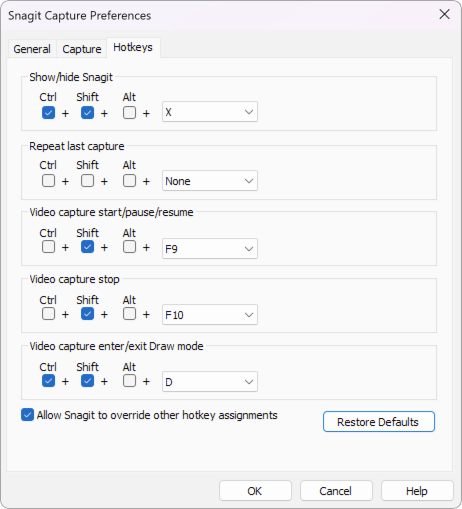
Click Restore Defaults to reset to the default shortcuts.
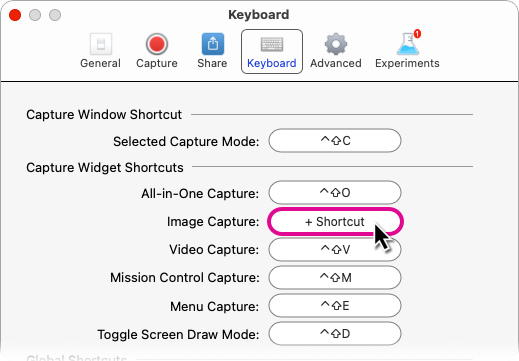
 to cancel the change.
 to delete the assigned shortcut.
Shortcuts are saved automatically.
Click Restore Shortcuts to reset to the default shortcuts.
The best screen capture software for professionals
* Have Snagit 2024 or earlier? Check out our previous version help.