


Combine images into PDF
Combining images into a single PDF is a great way to create professional-looking documentation, guides, or reports. Snagit makes this process fast and easy with its intuitive templates and editing tools.
DO COMBINE IMAGES INTO PDF IN SNAGIT
How to combine images into a PDF
Combining multiple images into a PDF in Snagit takes just three simple steps:
1
Step 1: Capture or import your images
Start by capturing the images you need using Snagit’s screenshot tools or import existing images from your computer. Once your images are in Snagit’s editor, you’re ready to begin the process of combining them.
2
Step 2: Arrange images and apply a template
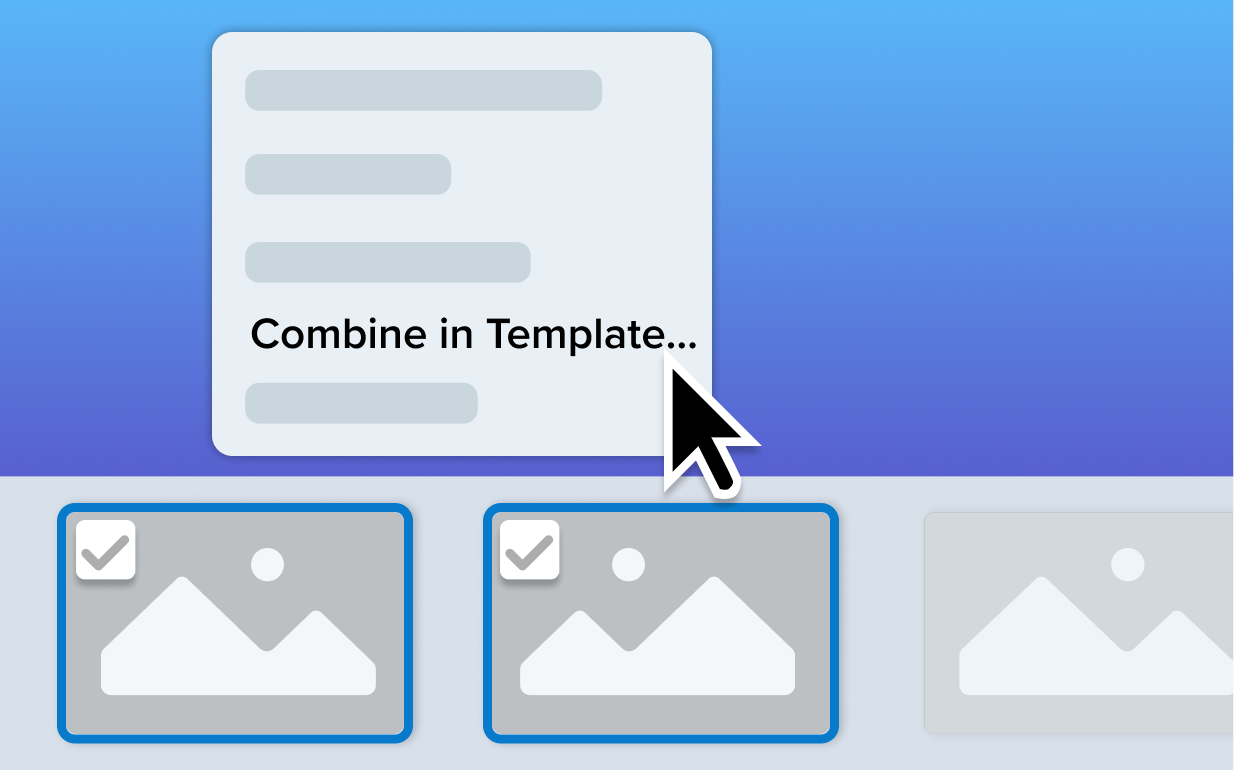
Select the images you want to combine and choose one of Snagit’s professionally designed templates. The templates let you easily drag and drop your images, add captions, and include explanatory text without needing to spend time on layouts. You can also edit the images, add annotations, and adjust the layout to fit your needs.
3
Step 3: Export your images as a PDF
After arranging your images and making any necessary edits, click to export your project as a PDF. Snagit ensures your combined images look professional and are ready to share, print, or download.
Combining images is easy with Snagit
Snagit provides several unique advantages that make it the best tool for combining images into a professional-looking PDF.
Pre-designed templates for fast documentation
Snagit’s easy-to-use templates are perfect for users who need to quickly create documentation that looks professional. With headers, footers, step numbers, and customizable elements, Snagit’s templates eliminate the hassle of setting up layouts from scratch.
Powerful annotation and editing tools
Snagit offers a variety of annotation tools, allowing you to add captions, descriptions, arrows, and highlights to your images. This helps you create clear, well-organized PDFs that combine visuals and text for better communication.
Effortless sharing and accessibility
Once your images are combined into a PDF, you can easily share it through email, print, or a content-hosting platform for others to download. The PDF format ensures your documentation is stable, accessible, and easy to share with others.
Get started with Camtasia Snagit
FAQ
Yes! Snagit allows you to add captions, descriptions, and other annotations to your images before combining them in the template. This ensures your PDF is informative and well-organized.
Snagit offers a variety of professionally designed templates that help you arrange your images in a polished, visually appealing layout for image comparison, step-by-step guides, timelines, and more. These templates include headers, step numbers, and customizable text areas.
Absolutely! Snagit includes powerful editing tools that allow you to adjust, annotate, and enhance your images before combining them or saving the PDF.
Yes, Snagit makes it simple to share your PDF through email, cloud storage, or print. You can also download the PDF for easy distribution.
Yes, while Snagit’s templates offer quick, ready-to-use layouts, you can also customize the layout, including the placement of images, captions, and text, to suit your specific needs.
Yes! Just import your images and start your conversion. Convert JPG to PDF, or multiple files into a single PDF. Your original file can be a JPG image, no matter the file size, and you can turn that file into a single PDF file.
Yes. You can import different image file formats and then export them to PDF or other file format, individually or in bulk with Snagit’s Batch Export Wizard. Snagit is an easy-to-use images-to-PDF converter.
Check out our tutorial that will walk you through everything you need to know.
Still can’t find what you need? Contact us and we’ll help you out.