


Combine images
Need to combine two images or more into one? Snagit makes it easy to merge your visuals quickly, whether you’re creating professional guides or sharing content with colleagues.

How to combine images in Snagit
Combining multiple images in Snagit is fast and simple. Here’s how you can merge multiple images in just three steps:
1
Step 1: Select and edit your images
Capture the images you want to combine using Snagit, or drag and drop images from your computer into Snagit’s workspace. Snagit supports various file formats, so you can easily bring in images from your folders. Use Snagit’s editing tools to add annotations, or highlight important sections.
2
Step 2: Combine images in a template
Select the images to combine, then select the Combine in Template option. Pick from a variety of pre-built templates to make your combined image look professional. Drag and drop your images in the template into the order you want.
3
Step 3: Finalize the combined image
Add titles and captions and adjust the sizes of the images. Then save, share, or export your final image to any platform, including email, Slack, or Teams.
Combine images – and much more – with Snagit
Snagit offers more than just basic image merging—it gives you the tools to create dynamic, professional visuals with ease. Here’s why Snagit is the best option for combining images:
Drag-and-drop simplicity
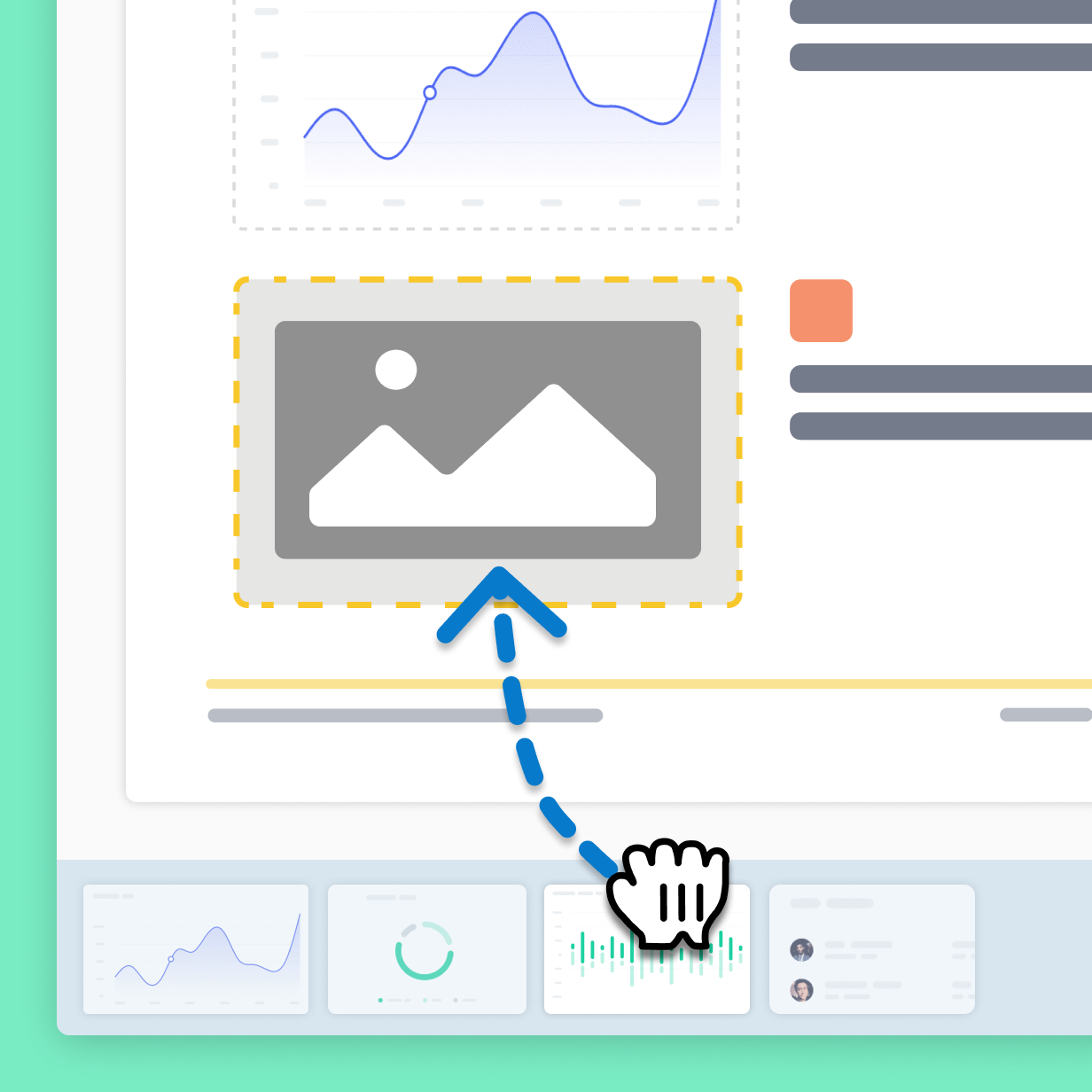
Snagit allows you to easily drag and drop images from your screen captures or computer folders directly into the workspace, making the process fast and intuitive.
Professional templates
Instantly make your combined images look polished with Snagit’s pre-built templates. Whether you’re creating instructions or showcasing a comparison, Snagit helps you present your content in the best way.
Seamless sharing
Once you’ve combined your images, Snagit makes it easy to share them. Export your final image in a single, shareable file to platforms like email, Slack, OneDrive, and more.
Get started with Camtasia Snagit
FAQ
Yes! Snagit allows you to combine both captured images and files from your computer. Simply drag and drop your images into the Snagit workspace.
No, Snagit supports a variety of file types. You can drag and drop your images as they are, and Snagit will handle the rest.
Absolutely! Snagit offers a range of pre-built templates to help you create professional-looking combined images quickly and easily.
Yes, Snagit allows you to resize, reorder, and annotate your images even after they’ve been combined. You can also add highlights, callouts, captions, and more.
Once your images are combined, Snagit makes it easy to share via email, Slack, Teams, OneDrive, or export them as a single file in a variety of formats.
No, there’s no limit to how many images you can combine in Snagit. You can merge as many images as you need into a single, shareable file.
Yes! Snagit’s intuitive interface lets you drag and drop images right onto the Snagit canvas to combine them. This is great, for example, if you want to add a logo to another image or quickly create a basic before and after image comparison.
Check out our tutorial that will walk you through everything you need to know.
Still can’t find what you need? Contact us and we’ll help you out.