Share Link
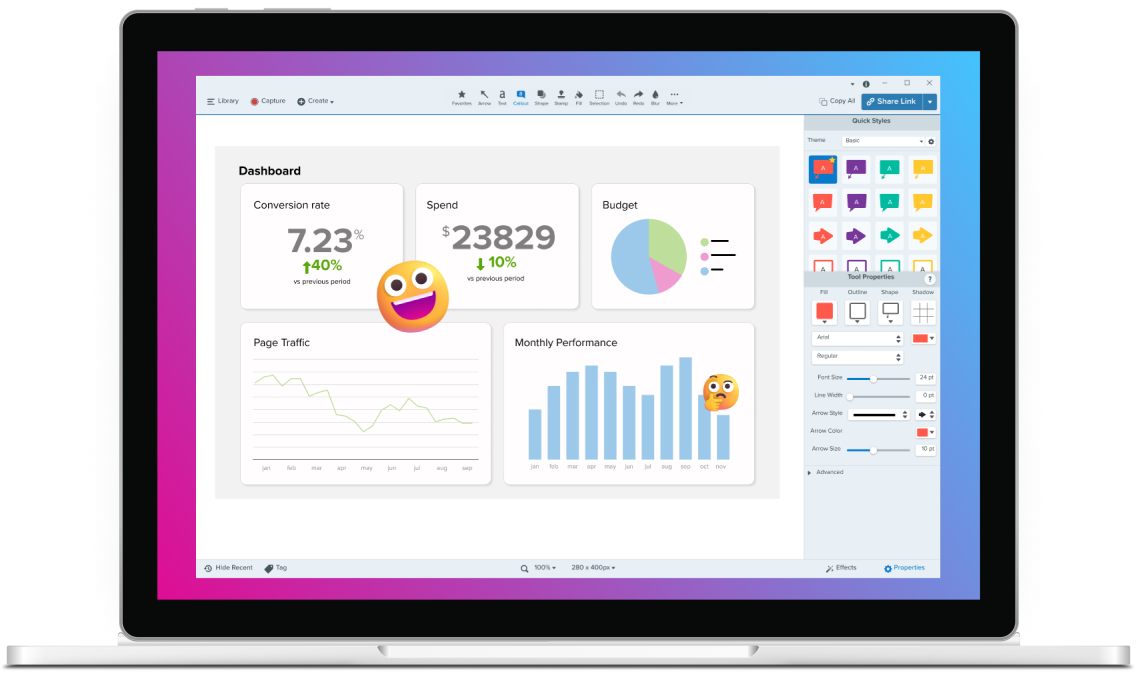
Snagit makes sharing fast and effortless – with a single click, automatically host images and videos on Screencast or use the share button to send your captures directly to your preferred destination.
SHARE USING SNAGIT
How to customize your export destination
Easily tailor your export experience by selecting a preferred destination for your captures ensuring your work is always exactly where you need it.
1
Select Customize Toolbar
Click the “More” dropdown on the top menu, then select “Customize Toolbar” to access the share destination options.
2
Drag share destination to toolbar
Choose your preferred share destination, then drag and drop it to your toolbar to create a convenient button for easy sharing.
3
Share with one click
When you’re ready to share your image or video, click your new share destination button and Snagit will automatically send it to your chosen location.
Why Snagit is the best tool for enterprise
Snagit enhances team communication and collaboration, helping teams work more effectively in a fast-paced digital landscape.
Customizable Share Link (Enterprise only)
Enterprise users can now share images and videos with a single click to OneDrive for Business (Windows) or Google Drive, making collaboration faster and IT-compliant.
Share instantly
Share your video or image anywhere with a link or send it directly to the apps you use every day. Snagit makes collaboration with video fast and frustration-free.
Share & collaborate with Screencast
Screencast allows for easy team collaboration without adding another meeting to your calendar. Comment, react, and share feedback right on the image or video.
FAQ
While there is no completely free version of Snagit, there is a fully-functional free trial. That means you can try the paid version, free for 15 days.
Sharing your screen recordings with Snagit is both simple and versatile. In a single click, a link is automatically copied to your keyboard and ready to share with anyone. You can easily upload your screen captures and recordings to popular apps such as YouTube, Google Drive, and Dropbox.
You can install your license on up to two computers for a single user. For example, you can install on a desktop and a laptop or at home and at work.
If your computer stops working or you buy a new one, you can reinstall the software you purchased. You are allowed to have the software installed on up to two computers at the same time.
Volume discounts are available starting at 5 licenses or more. The more licenses you buy, the lower the price.
Learn more about volume pricing.
A screen capture tool lets you take a picture (or video) of what you see on your screen.
There are a lot of built-in programs and free tools to capture your screen. But, if you need to take a lot of screenshots and want more flexibility and robust tools, Snagit is the best screen capture and screen recording software.
- Access for everyone: Unlimited installs for your current employees, as well as growth up to 10%, if your headcount increases.
- Locked-in pricing: No unexpected price increases. Lock in your price for the next three years and pay annually or in full.
- Deployment resources & support: Gain access to resources that make Snagit and Camtasia easy to deploy in any environment and a dedicated Customer Success Manager and Account Manager available at all times for onboarding, ongoing training, and support.
- User onboarding: Every user under a site licenses agreement gets access to software certification courses and dozens of free, ungated tutorials that can be integrated into your own LMS.
Any team, department, or organization with approximately 100 employees or more is eligible for a site license.
Still can’t find what you need? Contact us and we’ll help you out.