


Video screenshot
Taking screenshots from videos can be tricky, especially when you’re trying to capture an exact frame. Snagit makes this simple and flexible with its precise video playback and capture tools. Whether you’re explaining a process or highlighting a key moment, Snagit allows you to freeze frames and capture high-quality images from videos, so you can share, edit, and annotate them quickly.
TAKE A VIDEO SCREENSHOT IN SNAGIT
How to take a video screenshot
Capturing a screenshot from a video is fast and easy with Snagit. Follow these three steps to get the perfect shot:
1
Step 1: Open the video in Snagit
Start by opening your MP4 video in Snagit’s Editor or recording a video with Snagit.
2
Step 2: Freeze the frame you want to save
Drag the playhead on the timeline to quickly fast-forward through the video. Then move frame-by-frame to the exact image using Snagit’s Next Frame and Previous Frame buttons or your left and right arrow keys.
3
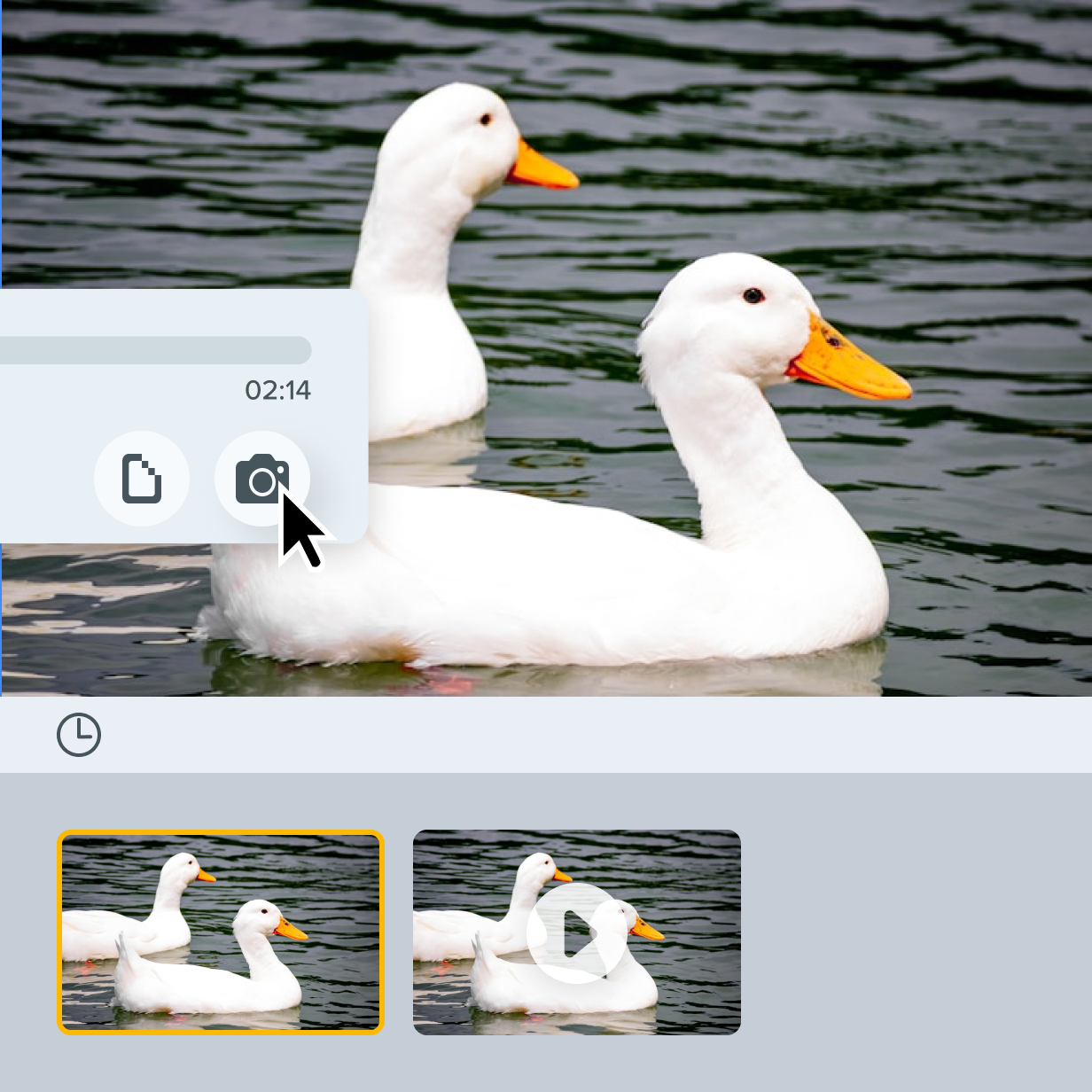
Step 3: Click the camera icon
Click the camera icon below the timeline to save the video frame as a still image. The image opens in Snagit Editor, ready for you to annotate, apply edits, and share the image as needed.
Snagit makes video screenshots easy
Snagit provides several key benefits that make it the best tool for capturing video screenshots.
Precise and easy-to-use tools
With Snagit’s playback tools, you can quickly scrub through video or precisely navigate frame-by-frame to easily find the exact screenshot you need from an MP4 video. There’s no need to pause and unpause the video repeatedly—Snagit handles it for you.

Seamless access to images
The images you save from a video are immediately available in Snagit’s recent captures tray or library, so you can reuse them without searching through multiple files. This allows for efficient organization and reuse of content across projects.
Screenshot videos in other apps and browsers
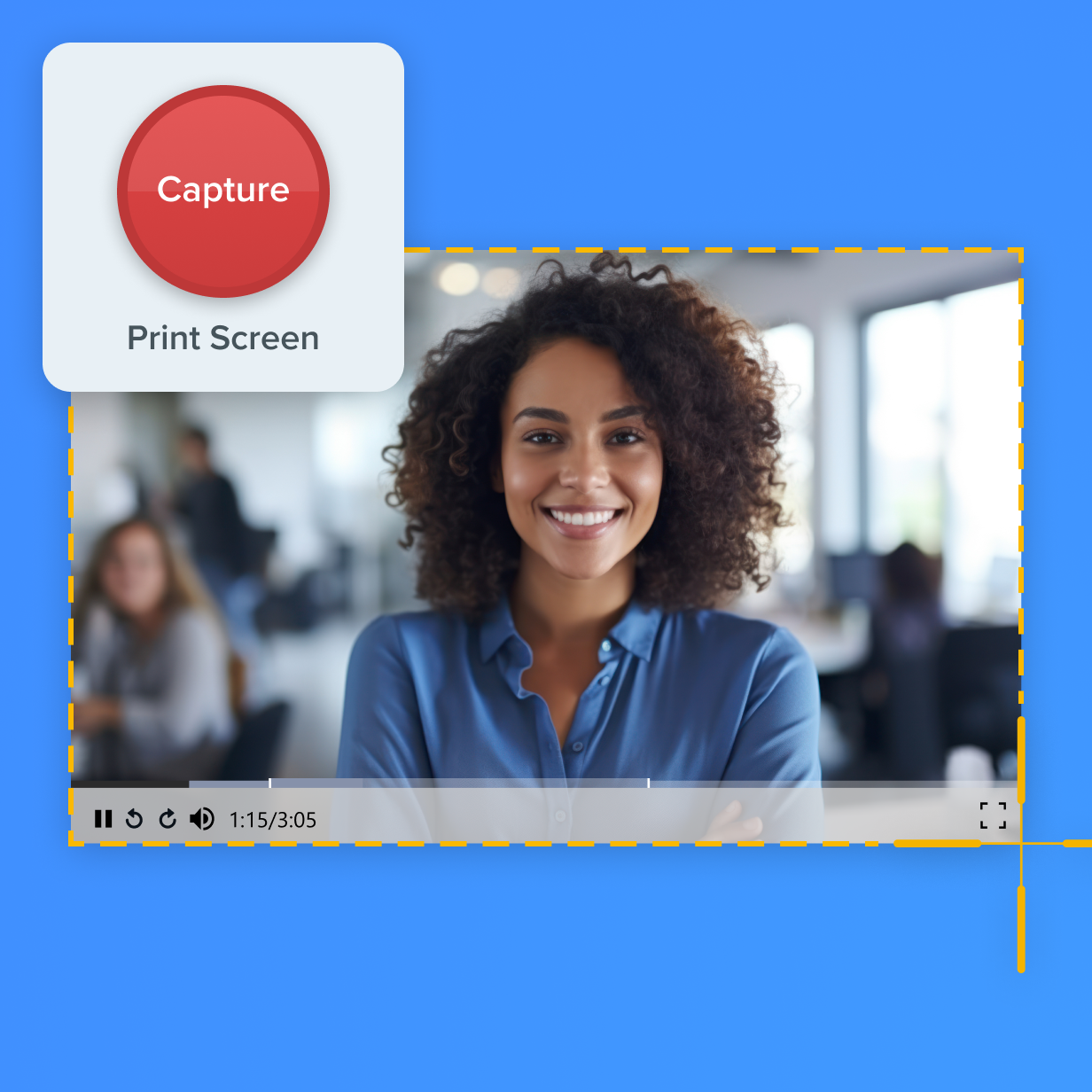
Need to screenshot a video in a browser or another app? Snagit’s lightning-fast capture hotkey freezes the frame for you, so you can take a screen capture at the exact moment you need without having to pause the video.
Get started with Camtasia Snagit
FAQ
If you’re wondering how to take a screenshot of an MP4, MOV, or animated GIF, Snagit’s Save Frame as Image button has you covered. For other video formats, play them as you would in another app or browser, then use Snagit’s lightning-quick, built-in hotkeys to capture an image as the video plays.
Snagit’s video playback tools let you navigate frame-by-frame through an .mp4, .mov, animated GIF, or video recorded with Snagit. For other videos, Snagit’s capture hotkey freezes the frame instantly when you press it, so you can easily capture the exact moment you need from any video.
Yes! Snagit’s built-in hotkeys let you quickly screenshot without having to pause the video. You can take a screen capture of a full screen or only the size of your video.
Your screenshots are available in the tray of recent captures or in your Snagit library, making it easy to save your screenshots.
Yes, Snagit allows you to capture as many screenshots as you need from a single video. You can capture each frame separately and then edit or annotate them as required.
Yes, Snagit can capture screenshots from local video files like MP4s or from a web browser, giving you full flexibility no matter the source.
Snagit is a screenshot software that you can download onto your computer. Instead of relying on built-in screenshot tools, Snagit offers a professional and reliable solution for taking video screenshots.
Check out our tutorial that will walk you through everything you need to know.
Still can’t find what you need? Contact us and we’ll help you out.