









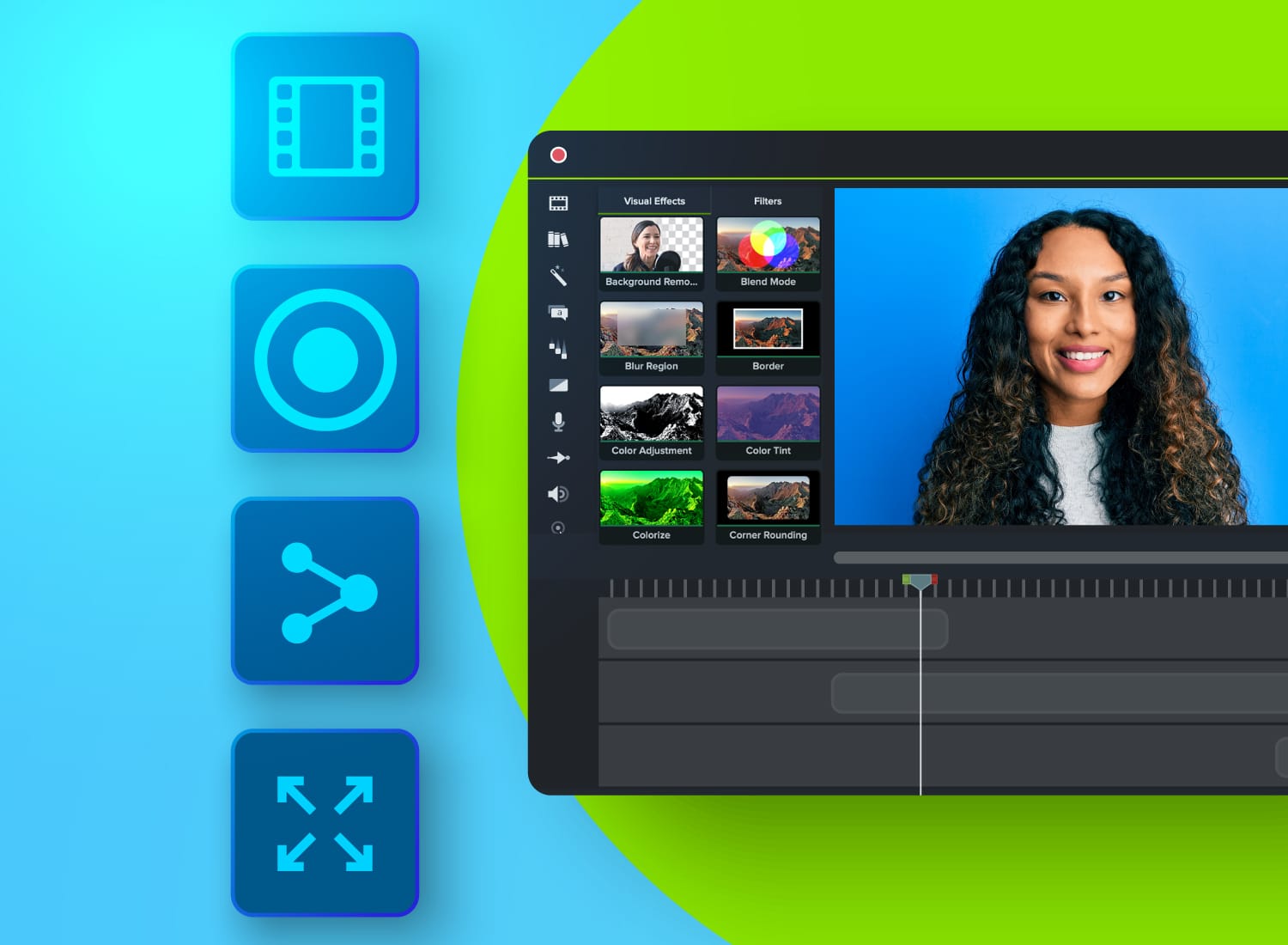
Your team needs new software tutorials recorded, onboarding clips updated, and stakeholder sign-off by Friday, but the current tool chain slows down every one of those steps. That’s the problem the best training video software actually solves: not just recording, but capturing, editing, reviewing, and scaling training content in one repeatable workflow instead of forcing teams to stitch together disconnected tools.
Most Learning and Development (L&D) teams feel that friction directly. A corporate trainer maintains onboarding videos for remote new hires across multiple start dates. The recording tool is one product; editing happens elsewhere, and stakeholder approvals bounce through email with comments like “fix that part around the middle.” Every update takes longer than it should.
This evaluation framework cuts through that. By the end, you’ll have six concrete criteria to apply to any tool you’re considering, a clear picture of where quick-capture recorders stop being enough, and a confident recommendation you can take to stakeholders based on workflow fit, not just feature lists.
Key takeaways
- The best training video software supports the full workflow: capture, edit, review, and reuse training content without forcing teams into disconnected tools.
- For L&D teams, a true training video tool goes beyond quick recording by making screen tutorials easier to polish, update, and standardize.
- AI features help non-video professionals cut editing time, clean up narration, and produce clearer training videos with less manual work.
- When stakeholders need to approve training content, purpose-built video review tools make feedback faster and more actionable than email threads.
- In many cases, the best training video software pairs a free, low-friction recording option with a more powerful editor for scalable production.
Why training video software matters for modern L&D teams
Training video software gives L&D teams one repeatable workflow for recording, editing, reviewing, and reusing training content so instruction stays clear, current, and consistent across teams.
Without it, every step slows down. Consider an instructional designer who owns compliance training across three departments. Each department’s videos live on a different drive, edits require reopening files in different tools, and a single policy update means tracking down and re-exporting a dozen separate files.
One connected system fixes this: faster ramp time, consistent instruction, and far less rework.
The shift to asynchronous, video-first learning
Video-first learning fits modern L&D because learners watch the same walkthrough on their own schedule and replay any step they missed. A distributed software onboarding module lets new hires across time zones complete the same training without coordinating a live session.
Recent research on video use at work confirms this momentum is still building, though flexibility alone doesn’t guarantee employees actually watch it. Pairing async video with tactics that keep employees engaged is what turns access into completion.
What separates a training video tool from a general video editor
General video editors handle cuts and transitions. Training video tools combine purpose-built features like cursor enlargement, screen capture, accessibility features, structured review cycles, and reusable project files that survive content updates.
Consider a technical writer who needs to update a software walkthrough after a UI change. With a purpose-built training tool, they swap the affected clip and republish. With a general editor, they often rebuild from scratch.
That difference is what L&D buyers should test first.
How to evaluate training video software: Six criteria that matter
Most comparison pages blur quick-capture tools and full production platforms, which makes buying harder than it should be. An instructional designer evaluating a lightweight recorder, a general editor, and a purpose-built training platform for recurring software training needs a clearer framework than most comparison pages offer.
Evaluate any tool against these six criteria:
- Screen recording quality and capture flexibility
- Video editing power for non-production professionals
- AI features that reduce editing time
- Review and stakeholder approval workflow
- Brand consistency and team-scale governance
- Pricing model and free entry points
Screen recording quality and capture flexibility
Separate capture tracks make a recording fixable later. When a trainer records an Enterprise resource planning (ERP) walkthrough with screen, webcam, microphone, and system audio on independent tracks, a script change means re-recording only the narration, not the entire demo.
Look for tools that support at least 1080p capture, simultaneous camera and screen input, and per-track control. That combination separates updateable training assets from recordings you have to fully re-record.
Video editing power for non-production professionals
Trainers don’t need film school skills. They need editing tools that get out of the way. In a trial, test three things: trim dead space, add a callout, and highlight a click path. If you can do all three without help, the tool fits.
An L&D manager standardizing onboarding intros across departments can lock in templates and callout styles once, then apply them consistently across every module without needing a specialist.
AI features that reduce editing time
The most productive AI tools for L&D work quietly in the background by cleaning audio, generating captions, and automating visual emphasis — so you spend less time on mechanics and more time on content.
SmartFocus in Camtasia Editor automatically adds zoom and pan animation points based on your recording context, so you never place them manually. Camtasia Editor also includes Camtasia Rev, which automatically organizes the video and screen content in a professional layout.
In Camtasia Audiate, an instructional designer can delete filler words from a compliance narration directly in the transcript without timeline scrubbing.
Any AI-generated voice output must be clearly labeled as AI-generated.
Go from screen recording to polished video
A screen recording is just the start. Camtasia’s editor helps you add the callouts, animations, and edits you need to create a truly professional video.
Free Download
Review and stakeholder approval workflow
Vague feedback slows approvals. When HR, compliance, and a product subject matter expert (SME) each email separate notes on the same onboarding draft, no one knows which frame a comment refers to.
Time-stamped comments solve this directly. Reviewers flag the exact moment that needs a fix, so you open the edit at the right frame instead of guessing.
That specificity reduces revision cycles and speeds sign-off for everyone involved.
Brand consistency and team-scale governance
When multiple creators contribute to a training library, quality drifts fast without shared standards. A multi-person L&D team producing recurring product training across departments needs a shared starter template, a defined caption standard, and a file naming convention locked in before a second creator joins the workflow.
Set these three rules first:
- One branded intro template
- One caption style
- One folder naming pattern
Every video that follows stays consistent without anyone rebuilding the structure from scratch.
Pricing model and free entry points
Match your pricing tier to your current creation volume and team size, not to where you hope to be in two years. A solo trainer can start with a free entry point to pilot browser-based recording with no commitment, then move to Camtasia Plans for individual access to the full toolset. Departments that need governance, shared templates, and structured review across multiple creators typically require seat-based business licensing instead.
Fragmented tools carry hidden expenses. As approvals, rework, and content updates grow, the full cost of employee training rises when creators juggle disconnected apps. One connected plan prevents that drift before it starts.
Quick-capture tools vs. professional training video editors
These two tool categories solve different problems. A manager sending a quick process walkthrough to their team needs speed. An L&D team building reusable onboarding modules needs polish, accessibility, stakeholder approval, and content that holds up six months from now.
Quick-capture tools optimize for communication speed. Professional training editors optimize for comprehension, governance, and reuse. Choose based on whether your content needs to last.
When lightweight recorders are enough
A lightweight recorder is the right call when speed matters more than polish. If the content will be watched once, needs little revision, and skips approval or branding requirements, a quick-capture tool is sufficient.
A team lead recording a two-minute walkthrough of a small process change with no edits, no sign-off needed, and sent the same day fits this category well.
One-time use, minimal editing, no approvals? A lightweight recorder works just fine.
When your team needs a purpose-built L&D production platform
When training videos must be polished, accessible, approved, and easy to update repeatedly, a quick-capture tool is no longer enough. A quarterly compliance module needs consistent branding, closed captions, and a clear approval trail, then must be updated when policy changes without a full re-record.
These requirements map directly to the six evaluation criteria covered earlier, from capture quality and editing control to AI efficiency, review workflow, governance, and pricing. If your training assets must last and teach clearly, a purpose-built platform is the practical choice.
The full training content lifecycle: Record, edit, share, and scale
Most tools handle one or two stages of training production. The best training video software covers all four: record, edit, share, and scale.
Consider a new-hire software tutorial. A trainer captures the workflow, edits for clarity, shares a draft for HR and compliance review, then stores the approved version in a reusable library. Most tools drop out before step three.
Capture: Starting with screen recording that fits your workflow
Match your recording method to the job before you open any tool. For a same-day update, browser-based capture in Camtasia Online gets a five-minute how-to recorded and shared without any installation.
For a cornerstone onboarding demo you’ll revise repeatedly, record in Camtasia Editor with separate tracks for screen, microphone, and camera so you can fix narration later without re-recording everything.
Edit: Turning raw recordings into polished training content
Raw recordings become easier to follow when you remove friction first. In Camtasia Editor, trim dead space, reduce background noise, and emphasize cursor movement so learners can track the action without effort.
Add captions and callouts to direct attention at critical moments. In a product demo showing a small settings menu, a simple callout arrow tells learners exactly where to look without straining or rewinding.
Each edit serves comprehension first, not aesthetics.
Build your next training video with Camtasia
Record your screen or camera. Then, use the video editor to add polish and clarity.
Learn More
Share and review: Getting stakeholder feedback without the email chain
Frame-specific comments shorten approval cycles because reviewers point to the exact moment that needs a fix, not a vague paragraph in an email.
This matters most during compliance checks, HR sign-off, and SME validation, where revision accuracy is critical. A compliance reviewer can flag a single outdated step at the exact timestamp, rather than writing a long description that an editor must decode.
Pair time-stamped comments with structured sharing through Screencast so every reviewer’s feedback stays attached to the right moment in the video.
Scale: Maintaining brand consistency across a growing video library
Reusable systems are what let training content scale. Before adding more creators, build a shared template package in Camtasia Editor that includes a branded intro, lower-third titles, caption style, and standard callouts.
Consider an onboarding library updated by trainers across five departments. Without shared templates and a naming convention, every video looks different. With them, any trainer can publish a consistent module without rebuilding the structure from scratch.
Defined review steps and shared storage keep that consistency as the library grows.
Camtasia is the best training video software for L&D teams
For L&D teams that produce training regularly, Camtasia covers the full workflow in one connected suite: quick capture, polished editing, structured review, and repeatable scale.
Consider a team building new-hire onboarding modules, job aids, and reviewed software tutorials simultaneously. With Camtasia, every asset moves through the same capture-to-approval pipeline without switching platforms or losing version control.
That connected workflow is the practical advantage no single-purpose tool can match.
Camtasia Online: The free, no-install starting point
Camtasia Online gives teams a fast, free way to record their screen directly in the browser without any download. That removes the biggest barrier for first-time recordings.
An instructional designer who needs to capture a quick software tip for an internal knowledge update can open Camtasia Online, record, and share within minutes without waiting on IT to approve an install.
Early recordings stay within the Camtasia suite, making the path to fuller editing and review straightforward as production needs grow.
Camtasia Snagit: Capturing and annotating screenshots for step-by-step guides
Not every training deliverable is a video. Standard operating procedures (SOPs), job aids, and quick-reference sheets often rely entirely on screenshots, and Camtasia Snagit handles that side of the workflow.
Use Step Capture in Snagit to automatically number each click in a sequence, then add arrows and callouts to direct attention. A technical writer can build a one-page software reference sheet that matches the onboarding video’s visual style without switching tools.
Camtasia Audiate: AI voiceover, transcription, and text-based editing
Audiate removes audio editing as a specialist task by letting trainers clean narration and revise scripts directly from a transcript.
A trainer updating a policy explanation can delete filler words and rewrite a paragraph in the transcript view. Camtasia Audiate automatically adjusts the audio without timeline scrubbing.
AI-generated voiceover is available for faster turnaround, but any audio must be clearly labeled as AI-generated before sharing with learners.
If you can edit a doc, you can edit a video
Stop fearing the timeline. Camtasia Audiate transcribes your recording so you can edit your video just by editing the text.
Free Download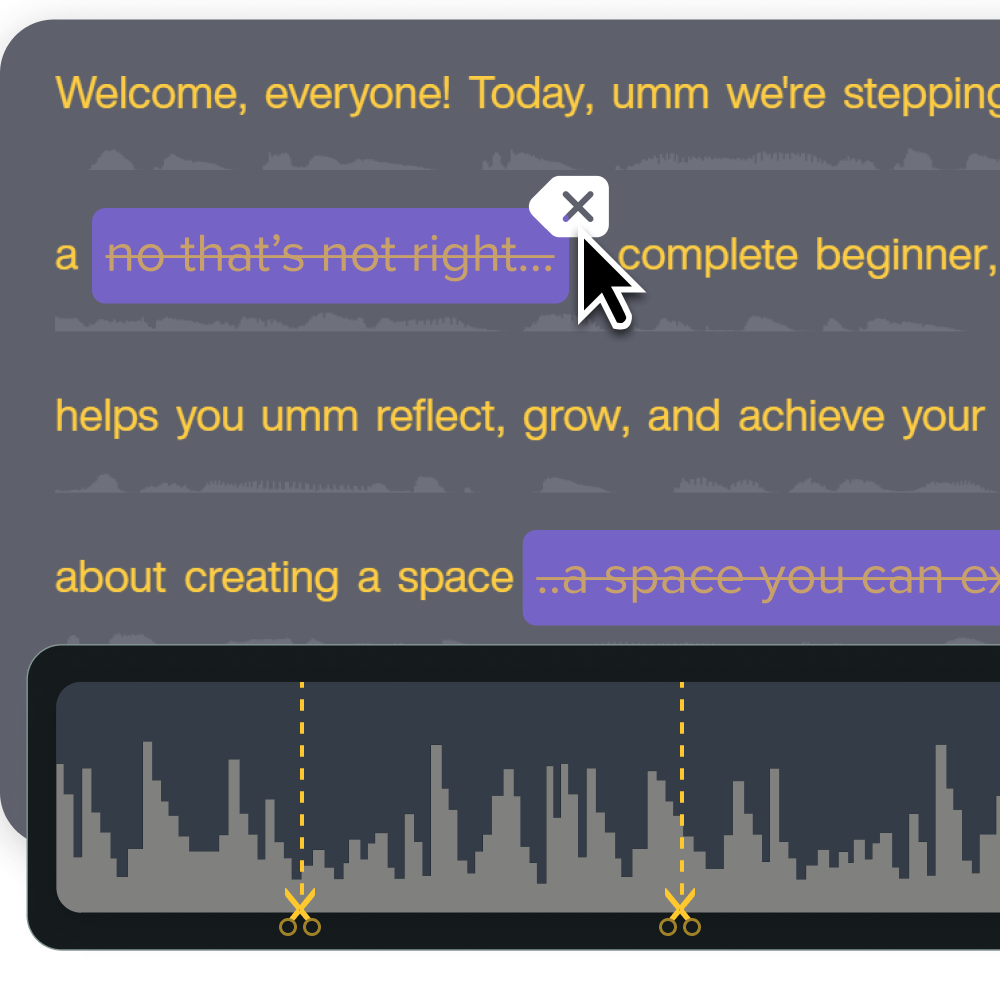
Camtasia Editor: Professional video creation for non-video professionals
Camtasia Editor gives trainers full timeline control without requiring video production expertise. In a single project, you can record multitrack inputs, trim dead space, add captions, and export polished, training-ready content to share. Features like SmartFocus mean a trainer with no editing background can still produce a demo that draws attention to exactly the right part of the screen without learning keyframe animation.
When a UI changes mid-cycle, an L&D manager can open the existing onboarding module, re-record only the affected screen segment, drop it onto the timeline, and publish without redoing the entire module.
Screencast: Purpose-built video review and sharing for teams
Screencast gives L&D teams a structured review layer that most training tools skip entirely. Instead of chasing feedback across email threads, reviewers leave time-stamped comments directly on the video.
Consider a demo-based learning module reviewed simultaneously by a marketer, a product SME, and a trainer. Each person flags specific moments, and the team resolves every edit in one thread without version confusion or missing context.
Screencast doesn’t stop at approval, either. Once a video is published, it shows watch time and view data, so you can see whether the training is actually landing with learners, not just whether it cleared review. For more on measuring how learners engage with training videos, see this breakdown.
Upload your draft to Screencast and share a single review link to start.
Start building better training videos with Camtasia today
Teams that train regularly need a connected workflow, not a stack of disconnected tools. Switching between a recorder, an editor, and email threads for approvals adds friction at every stage, and that friction compounds as a training library grows from a single course to enterprise-wide coverage.
Camtasia is built around that connected workflow. It pairs fast browser-based capture in Camtasia Online, screenshot documentation in Camtasia Snagit, full-featured recording and editing in Camtasia Editor, AI voiceover and transcription in Camtasia Audiate, and time-stamped review in Screencast — one system, from your first recording to your largest training library.
Start your free trial of Camtasia Editor and build your first complete training workflow today.
FAQs
What is the best training video software for L&D teams?
For most L&D teams, the best training video software supports the full workflow of recording, editing, review, and reuse instead of handling only one step well. Camtasia stands out because Camtasia Editor covers polished production, Camtasia Online handles fast browser-based capture, and Screencast keeps feedback attached to exact moments in the video. That combination fits recurring training work better than relying on a basic recorder or a general video editor.
What should I look for in the best training video software?
Start with screen recording quality, simple editing, caption support, and review tools that fit your approval process. For software training, features like multitrack capture, cursor effects, and SmartFocus can save time and make steps easier to follow. If several people create content, look for templates, brand controls, and a sharing system like Screencast instead of generic file links.
When is a lightweight screen recorder enough for training videos?
A lightweight screen recorder is enough when you need a quick update, a short coaching clip, or a one-off walkthrough that doesn’t require much editing or a review cycle. Browser-based tools like Camtasia Online work well at this stage because they remove setup friction and make it easy to record fast. Once your team needs cleaner edits, accessible captions, branded output, or stakeholder approval, you’ll usually outgrow that simpler setup.
What software can I use to create new hire training videos?
Use software that makes it easy to update role-specific steps without rebuilding every video from scratch. A connected workflow is useful for new hire training because teams often need both quick walkthroughs and more polished cornerstone modules, plus a clear review path for managers or compliance reviewers. Tools that combine recording, editing, and structured feedback are a strong fit because they reduce rework as processes change.
Which app is best for making teaching videos at work?
The best app for workplace teaching videos depends on whether you’re creating a fast lesson or a polished training asset. Camtasia Online works well for browser-based recording, while Camtasia Editor fits recurring courses, software demos, and lessons that need tighter editing. If you need AI-generated voiceover, transcription, or avatars, use Camtasia Audiate, and note that avatar and voice output is AI-generated.
Share