









You’ve written the script for your training video, but recording narration means blocking out studio time, fighting background noise, and doing five takes because you stumbled over the word “onboarding” every time.
To generate an AI voice, you enter a written script into a text-to-speech tool, select a synthetic voice, adjust its delivery, and generate spoken narration in minutes instead of hours. Camtasia supports the process from script to finished video: Camtasia Audiate generates and refines the narration through text, then sends it to a Camtasia Editor timeline.
That combination gives anyone producing tutorials, onboarding modules, or compliance refreshers a more efficient workflow. You can turn a script into natural-sounding narration, choose a voice suited to your learners, and sync it with your video without editing a traditional audio waveform.
Key takeaways
- Generating an AI voice starts with a clear script, since punctuation and pacing shape how natural narration sounds.
- Camtasia Audiate turns a written script into narration through a guided process: write, choose a voice, preview, and export.
- Matching a voice’s naturalness, accent, and language to your learners can make training narration feel more credible.
- Text-based editing lets you remove filler words and correct mistakes without rerecording a full take.
- Responsible AI voice use means securing consent before cloning a person’s voice and disclosing AI-generated narration when appropriate.
What is AI voice generation?
AI voice generation uses text-to-speech technology to turn a written script into spoken narration. Instead of recording every line yourself, you select a synthetic voice that reads the approved text aloud.
That narration works anywhere a trainer needs spoken instruction, including software tutorials, recurring compliance refreshers, and onboarding modules that introduce new hires to internal tools.
You already have the approved text sitting in a document, so you don’t need to schedule a new recording session. Before opening a voice tool, define the learning use case and confirm the script is final. If you’re mapping out a full AI training video, settling those two details first can prevent unnecessary revisions later.
Generating AI voice in Camtasia Audiate
Camtasia Audiate creates narration-ready audio in three steps: prepare the script, configure the voice, and review the result. Follow the steps in order, then send the finished narration to Camtasia Editor.
- Write or paste your script into Audiate.
- Choose a voice and adjust delivery settings to match your audience.
- Preview, generate, and export the narration once it sounds right.
Capture screenshots of each stage with Camtasia Snagit for training documentation. For a closer look at how standalone voiceover tools compare with integrated workflows, see this guide to creating AI voiceovers for training videos.
1. Write or paste your script
Short sentences and clear punctuation help the narration sound natural because the AI voice uses the script’s structure as a pacing guide. Commas signal brief pauses, while periods mark full stops. Long, run-on sentences can produce narration that feels rushed or flat, regardless of which voice you pick.
Open a new project in Camtasia Audiate and add your script in one of three ways: type it directly, paste existing text, or use the built-in AI script generator to draft a starting point. If a sentence sounds rushed or breathless when read aloud, break it into two shorter sentences.
Before generating audio, read the script aloud yourself. Confirm that the text is accurate and sounds natural when spoken. A quick review now saves you from regenerating narration later.
Instant lifelike AI voice over
No voice over? No problem. Audiate generates incredibly life-like voice over right from your script!
Get Audiate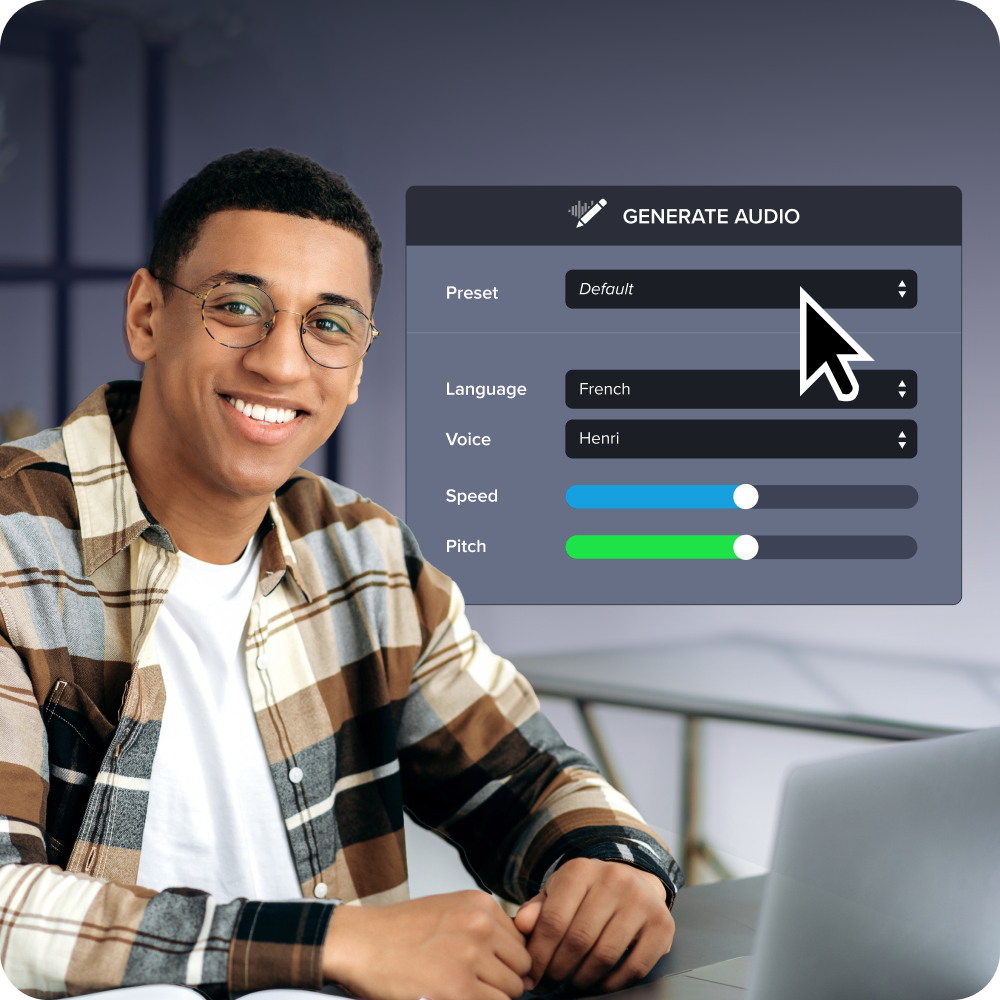
2. Choose a voice and adjust delivery
Select a voice whose language, accent, pacing, and tone make the instruction easy for learners to follow rather than choosing the one that sounds most polished in isolation. In Camtasia Audiate, filter voices by language or region, then narrow by tone until you find a speaker that fits the training context.
Camtasia Audiate includes more than 100 text-to-speech voices, including premium options on eligible plans. Compare several voices using the same script excerpt so you’re judging their delivery rather than differences in wording.
Once you’ve picked a voice, adjust its pacing and tone to fit your audience. Slow the pace during technical software walkthroughs, where viewers need time to follow along on-screen.
Note your settings for any related training modules. Consistent pacing and tone across a course helps learners feel like they’re following one instructor.
3. Preview, generate, and export
Preview the full narration before you finalize it so you can fix pronunciation, pacing, and emphasis problems before they reach your video timeline.
Play the generated voice track from start to finish and listen for rushed pauses, flat emphasis on key terms, or a mispronounced product name. Catching those issues during the preview takes a minute. Catching them after the narration is aligned with screen recordings and callouts means returning to adjust the affected section.
If something sounds off, revise the script text or delivery settings, then regenerate the narration. Only move forward once the voice passes your listening check.
Once the narration sounds right, send it to Camtasia Editor to continue building out your project.
Choosing the right AI voice
The best training voice combines natural delivery with credible language, accent, and terminology suited to your learners. Test candidates against a representative script excerpt rather than a polished demo clip. Include pauses, emphasis, names, acronyms, and technical terms in that excerpt. For a broader look at evaluating AI video tools, see this guide to AI video generator tools.
Naturalness, accent, and language fit
A suitable training voice handles pauses, emphasis, and rhythm naturally while using a language and accent that feel credible to your learners. Test this directly: Play a two- to three-minute passage from your actual script and listen for choppy pauses, unnatural stress on important words, or a rushed pace that buries key steps.
A short sample may not reveal these problems. Listen across several minutes of continuous narration and note any point where you need to replay a phrase to understand it.
Match the voice’s language and accent to your learners, and confirm the voice library covers every region where you provide training. As a starting point, pick a warm, approachable voice for tutorials and onboarding, and a more formal, measured voice for compliance or policy content.
Pronunciation for technical terms
Test technical terms before final generation, since acronyms, product names, possessives, and jargon often trip up AI voices. A voice that sounds natural in plain sentences can stumble when it reaches an internal system name or uncommon abbreviation.
- Preview each difficult term on its own rather than waiting to catch it during a full narration pass. Type the word into a short test sentence in Camtasia Audiate and generate a preview so you can hear how the voice handles it.
- If the pronunciation is off, adjust the spelling in your script to guide the voice toward the correct sound. Breaking a term into phonetic chunks, adding hyphens, or spelling out an acronym letter by letter can help.
- Test the revised spelling again and continue adjusting it until the output sounds right, especially for names learners will hear repeatedly.
- Confirm the corrected term also sounds accurate in the language selected for the project. A term that sounds right in English may need a different phonetic adjustment in a translated version.
Editing AI narration by text
Camtasia Audiate lets you edit narration through the transcript instead of searching through a waveform. You can remove unwanted words, correct generated narration, and review the corresponding audio from the text.
Removing filler words instantly
Camtasia Audiate can find and remove common filler words like “um” and “ah” from recorded narration in one pass, so you don’t have to find and cut each instance from the audio timeline manually.
Before applying the cleanup, review the detected instances in the transcript. Confirm each flagged word is a filler and not part of a term you want to keep, then apply the removal and listen through the narration to check for unnatural gaps.
This works best on recorded narration, where filler words can occur naturally during a take. Non-native speakers and anyone prone to frequent filler words get a faster path to cleaner audio without having to rerecord.
Fixing mistakes without rerecording
Fix a narration mistake or late script change by updating the affected transcript text and regenerating that passage instead of rerecording the full take. If you receive a terminology update or a policy change after the narration is generated, open the transcript, find the outdated phrase, and replace it with the corrected wording.
Regenerate that passage so the AI voice speaks the new text, then listen closely to where it meets the surrounding narration. Check for mismatched pacing, an abrupt tone shift, or a pause that feels too short or too long at the edit point.
This targeted approach works well when a script changes late in production and rerecording isn’t practical. Confirm the revised passage still aligns with the visuals before moving on.
Syncing narration with your Camtasia Editor timeline
A linked Camtasia Audiate and Camtasia Editor workflow keeps narration edits tied to specific timed points in the project, so you don’t have to replace and resync audio manually every time the script changes. Once you finalize narration in Camtasia Audiate, send it to a Camtasia Editor project, where it appears on the timeline as timed content rather than a flat audio file.
From there, align your screen recordings, callouts, and captions with the narration track. Place annotations where the voice refers to a specific step, and adjust clip timing so the on-screen actions match what learners hear.
When a later revision comes in, return to Camtasia Audiate to update the transcript rather than cutting the timeline directly. Then double-check the affected section in Camtasia Editor before exporting.
Using AI voice responsibly and accessibly
AI voice generation speeds up narration, but it doesn’t replace a trainer’s judgment or a final human review before content ships. Secure consent, provide appropriate disclosure, and complete an accessibility review before publishing AI-narrated training content.
Confirm authorization for any voice modeled on a real person, decide what disclosure your audience needs, and document that decision. Finally, review captions, transcripts, and translations for accuracy and consistent terminology.
Voice cloning, consent, and disclosure
A stock synthetic voice doesn’t represent a specific person, while a cloned voice is built from an identifiable individual’s recordings and requires that person’s clear authorization before use. Camtasia Audiate’s voice library consists of stock synthetic voices selected from a catalog, rather than clones generated from a user’s personal recordings.
If you’re using a separate tool to clone a real voice for narration, get written permission from that person before generating or publishing anything with it. This applies whether the voice belongs to a colleague, executive, or public figure.
Disclose AI-generated narration when your audience or company policy expects it. A short line in the video description or an on-screen note reading “Narrated with an AI voice” gives viewers context without disrupting the training content.
Multilingual and accessibility review
Every AI-narrated training video needs a human review of captions, transcripts, and localized audio before publication. Automated output provides a strong first draft rather than a finished, accessible product.
Run this check before publishing:
- Read the generated transcript against the script and flag any incorrect words.
- Confirm names, acronyms, and product terms match across narration and captions in every language version.
- Time the narration against on-screen steps so captions don’t outrun what viewers see.
- Listen for pacing gaps that leave too little time to read a caption before the next action starts.
A multilingual training module may repeat the same product name or acronym across several language tracks. If the term changes in one version, the terminology may no longer match between the narration and captions.
Have a fluent speaker of each target language review the tone and terminology before release. That reviewer can catch whether the phrasing sounds natural to a native speaker.
Start creating polished training narration today
Camtasia Audiate closes the gap between generating an AI voice and producing polished training videos. Write your script, generate the narration, edit the transcript, and send it to Camtasia Editor to align it with your visuals.
AI voice generation isn’t included in the free Camtasia plan, so confirm your plan or standalone Camtasia Audiate purchase includes the feature.
Start your free trial of Camtasia Audiate and see how the script-to-video workflow fits your next training project.
Frequently asked questions
How do I generate an AI voice from text?
Open Camtasia Audiate and write or paste your script, then select an AI voice that fits your audience and language. Adjust the available pacing and tone controls, preview the narration for pronunciation or rhythm problems, and generate the final audio. You can then send the narration to a Camtasia Editor project to align it with your video.
How can I make an AI voice sound more natural?
You can make an AI voice sound more natural by using short sentences, clear punctuation, and delivery settings that match how your audience needs to follow the material. Preview a representative passage and listen for pauses, emphasis, rhythm, accent, and mispronounced technical terms. Revise the script or settings and test again before finalizing the narration.
Can I create an AI clone of my own voice?
Camtasia Audiate provides a library of stock AI voices rather than cloning a voice from your own recordings. If you use another tool that supports voice cloning, obtain clear consent before modeling anyone’s voice and disclose the use of AI-generated narration when appropriate. This distinction helps learners determine whether they are hearing a general synthetic voice or one modeled on a real person.
Can I generate an AI voice for free?
AI voice generation in Camtasia Audiate is not available on a free plan. Voiceover generation is available through eligible Camtasia Create and Pro plans or a standalone Camtasia Audiate purchase, and access to premium ElevenLabs voices may depend on the purchased plan. Confirm current plan details before choosing a voice for production.
How do I add AI narration to a training or tutorial video?
Add AI narration to a training or tutorial video by generating and refining it in Camtasia Audiate, then sending or syncing it to a linked Camtasia Editor project. In Camtasia Editor, align the narration with screen recordings, callouts, captions, cursor effects, and other instructional visuals. If the script changes, return to the transcript, update the affected passage, and verify that the revised audio remains synchronized with the video.
Share