









A customer education lead opens the onboarding library to grab a video for a support ticket and finds the screenshots don’t match the product anymore. Half the library references buttons and menus that no longer exist. No one on the team can say who owns fixing it.
Those recordings, the short screen walkthroughs that guide new customers through setup and first use, are customer onboarding videos. Once a team has built dozens of them, they stop being just content and become a library that needs ongoing structure to stay useful.
The problem is a growing library: disorganized, outdated, hard to search, and unowned by anyone on the team. Categorization, clear ownership, and a maintenance cadence turn that pile back into a library your team can trust.
Key takeaways
- Stale, duplicate, and orphaned videos are three distinct failure modes that quietly erode an onboarding library’s usefulness.
- A cluttered onboarding video library often points to a gap in structure and categorization, not a lack of quality content.
- Tagging onboarding videos by feature, journey stage, and user role together builds a more resilient library than relying on a single taxonomy.
- Naming a specific owner and clear update triggers, like a feature release or UI rename, keeps onboarding videos from quietly going stale.
- Review onboarding videos on a cadence tied to product releases to catch outdated content before customers run into it.
Audit your onboarding video library first
Audit every existing onboarding video before you change a category, tag, or folder. You can’t fix a structure until you know what’s broken inside it.
Findability is one of the core variables TSIA uses to evaluate customer education experience, specifically how easily customers find the content they want when they want it. This audit is how you measure where your library currently stands.
Start by building one spreadsheet that lists every video in the library. Then check that list for three problems: stale videos, duplicate videos, and orphaned videos.
Find stale videos
A stale onboarding video shows a UI, feature, or workflow that no longer matches the product your customers use. That mismatch shows up as outdated screenshots, renamed buttons, deprecated features, or steps that skip a screen customers now see.
Staleness piles up faster than most teams expect. XaaS products often ship updates every few weeks, a pace that outruns manual video review almost immediately.
Not every change warrants pulling a video, though. If a button moved slightly or the color scheme changed but customers can still follow along and complete the task, leave it in the library.
Find duplicate videos
Duplicate videos form when contributors independently cover the same customer task without checking what’s already in the library. One trainer records a walkthrough for a feature, then six months later, someone on another team makes a similar video because they didn’t know the first one existed.
During your audit, group videos that teach the same feature or outcome. Compare each one for accuracy, structure, and production quality.
A library with three competing walkthroughs for the same feature sends customers down three different paths and erodes trust when the steps don’t match. A library with one canonical version gives every customer the same clear answer. Keep the strongest video, archive the rest, and remove the competing versions from the active customer path.
Find orphaned videos
An orphaned video has no assigned category, tag, or owner, so no one can find it unless they already know it exists.
These videos won’t show up if you just browse folders. Orphaned content surfaces through metadata and tagging, not folder structure, no matter how small or large the library is.
Search your video platform directly for untagged and uncategorized assets. Use its filtering or search controls to pull up anything missing a category, tag, or owner field, rather than clicking through folders hoping to spot gaps.
Once you find one, assign the missing metadata and an owner, or pull it from the active library entirely.
Your findability problem is structural, not a content problem
Customers often can’t find useful onboarding videos because the library’s categories and navigation are unclear, not because the videos themselves are weak.
Information architecture problems and navigation problems are two different things, and each needs its own fix. Confusing category names or a structure that doesn’t match how people think is an information architecture problem. Getting lost after landing in the right area is a navigation problem.
Test which one you have. Ask a coworker who doesn’t use the library regularly to find a specific onboarding video, and watch where they stall.
Do they pick the wrong category up front, or do they land in the right area and then get stuck clicking around? The first points to a categorization problem. The second points to navigation. That result should guide every fix that follows, starting with how you categorize videos.
Build a categorization model for your videos
Categorize each onboarding video across feature area, journey stage, and user role instead of forcing it into one folder. Build a set of tags that travels with the video wherever it lives, so one walkthrough can surface under several searches at once.
Apply all three tags to every asset: feature area, then journey stage, then user role. For the same approach applied to internal training libraries, check out this guide to training video library management.
Build your next training video with Camtasia
Record your screen or camera. Then, use the video editor to add polish and clarity.
Learn More
Group videos by feature area
Group onboarding videos by feature area when your product has stable, clearly defined modules that customers and internal teams already use to navigate it. Tag each video with the same labels your product’s own navigation or settings menu uses, not a description you invent for the library. If your support team already talks about “Reporting,” “Integrations,” or “User Permissions,” those are your tags.
This works best as the primary tag when feature boundaries don’t shift often. Support agents, trainers, and customers all think in those terms already, so the tags match how people search.
Watch for drift. When a feature gets renamed or merged into another module, update the tag right away, and route that update through whoever owns the library.
Group videos by journey stage
Journey-stage tags help customers find what to do next without requiring them to know the product’s feature names.
Define three to five controlled stages and stick to them across every contributor. Setup, first value, and expansion cover most onboarding paths without splintering into dozens of overlapping labels.
This model works best when it drives what customers actually see. Use those stage tags to surface videos in your help center search results and inside the product itself, so the video that appears matches where the customer is in their onboarding journey.
Group videos by user role
Add role tags when your product serves distinct user types, like admins, end users, and IT stakeholders, who each need a different onboarding path.
Treat role as a secondary tag, not your main hierarchy. Layer it on top of feature area or journey stage instead of replacing either one. A video tagged “Reporting, setup, admin” is easier to find than one sorted by role alone.
Without that layer, an admin setting up permissions has to sort through the same list an end user sees, wading past videos meant for a different job. Apply role after the primary tag is set.
Combine tags, and each customer sees only the videos built for their role, which keeps completion rates up and cuts the “this isn’t for me” drop-off.
Standardize naming and tagging conventions
A fixed naming pattern and controlled tag vocabulary keep onboarding videos searchable no matter which folder, drive, or platform they live in. Consistent metadata makes an asset library findable at scale, wherever the file lives.
Name each file in the same fixed order: product area, feature, audience, and version or date. For example: billing_invoice-export_admin_2025-03.
Limit tags to a short, approved list instead of letting contributors type free-text labels. Free-text tagging creates near-duplicates like “setup” and “getting started” that split your search results.
If your team wants consistent project structure built into the source file itself, Camtasia Editor’s templates standardize branding and layout for every new video. Teams can share project files, templates, and themes directly, so each contributor starts from the same foundation.
Apply this pattern to every customer setup and first-use video first, since these get searched most often during a new customer’s first week. For the full framework behind organizing your broader video library, read up on maintaining your video knowledge base.
Assign ownership for video updates
Assign the library to a customer education lead, and require product subject matter experts to flag videos whenever a release, redesign, rename, or support issue affects the instructions. Ongoing asset maintenance works best as a standing responsibility, not a project, not something that kicks off after problems accumulate.
Set concrete triggers for review instead of relying on someone to remember.
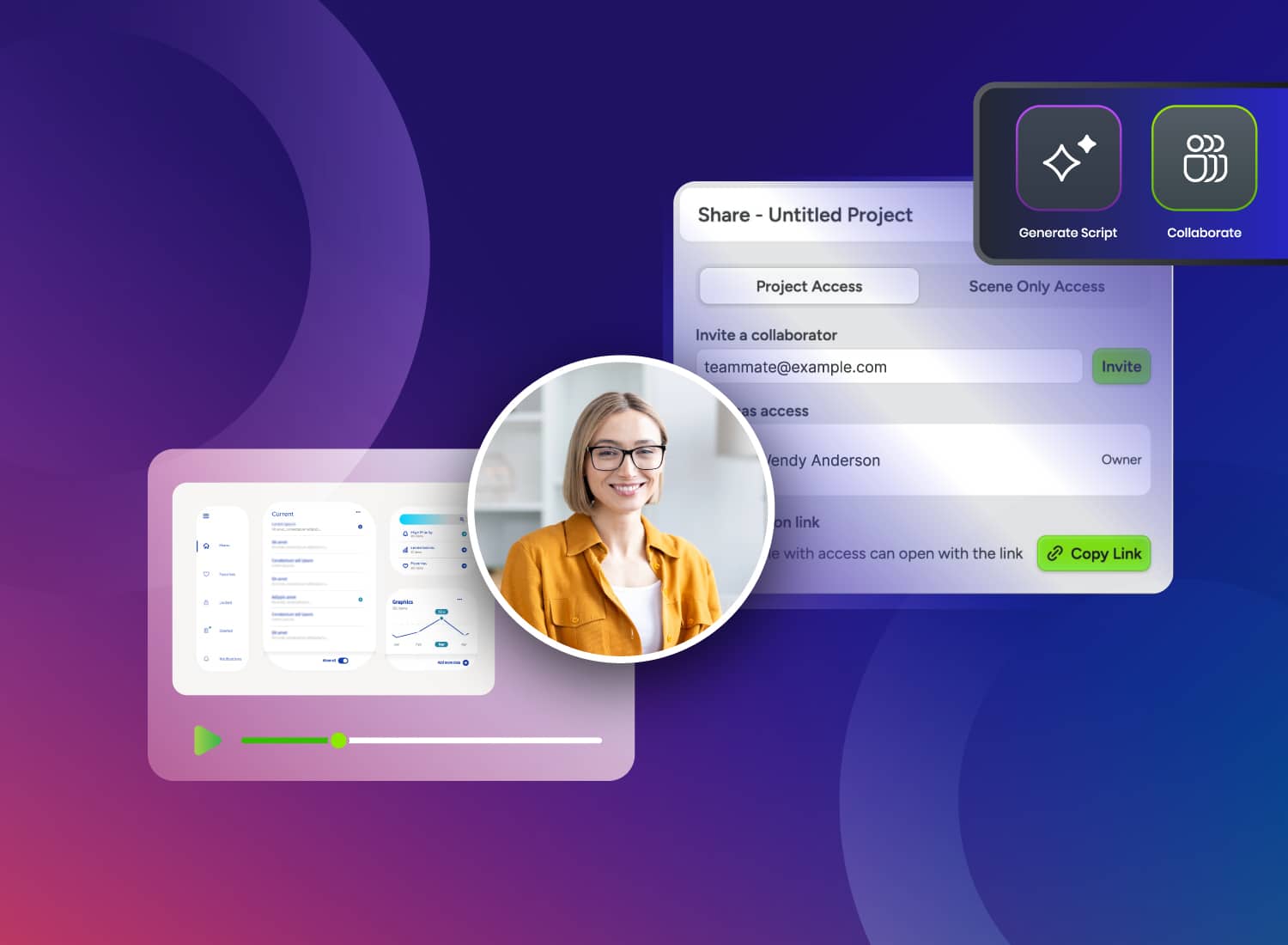
Route flagged videos through Camtasia Screencast so stakeholders can leave comments on the draft before it goes live. Once the fix is approved, use Screencast’s Replace Media function to swap in the corrected file without changing the link, so help center articles, onboarding emails, and in-app guides keep working.
Crystal-clear screen recording
Why settle for blurry screen content? Camtasia Editor’s screen recorder captures everything at up to 4K!
Free Download
Tie your review cadence to product releases
Tie onboarding video reviews to your product’s release calendar so the team checks affected videos before customers see outdated instructions. A fixed generic schedule, like reviewing quarterly no matter what, misses the gap between when a feature changes and when your videos catch up, and customers often find that gap before you do.
After each major release, pull up your library and check only the videos tagged to the affected feature area. Run through a short checklist:
- Does the UI still match?
- Do the steps still work?
- Are any callouts pointing at something that moved?
Update-friendly design shrinks this work over time. Simplified UI graphics in Camtasia Snagit and editable cursor control, and short, chunked recording segments in Camtasia Editor mean you’re patching one clip instead of touching the whole video.
A minor UI tweak rarely needs a full re-record. If the workflow still holds, swap in updated footage and use a jump cut.
Treat your video library like a living system
Whether this library keeps working comes down to ownership. A team of three can’t personally answer every customer question, but a video library that’s audited, tagged by product area, and assigned to named owners lets that same small team support thousands of customers without adding a single headcount. That’s the case for treating this work as an investment in capacity, not a housekeeping task.
Pick your three most-viewed onboarding videos this week. Confirm they still match the current product, and write down who’s responsible for checking them again at the next release. Educational videos consistently rank among the most engaging content, which is exactly what makes keeping them current worth the effort.
Camtasia Editor won’t manage that ownership calendar for you, but it does make the updating itself fast: swap a screen, adjust a callout, refresh the narration, and move on.
Instant lifelike AI voice over
No voice over? No problem. Audiate generates incredibly life-like voice over right from your script!
Get Audiate
Frequently asked questions
How many onboarding videos does a team need before setting up formal organization?
There’s no strict number of onboarding videos that triggers the need for formal organization, but most teams feel the pain around 20 to 30 videos. That’s roughly when contributors start duplicating topics and customers can’t find the right walkthrough anymore. Building categorization and ownership rules early, even for a small library, saves a much larger cleanup project later.
What’s the difference between a customer onboarding video library and a customer academy?
A video library is a collection of individual onboarding videos organized by tags or folders for self-serve access. A customer academy is a more structured learning portal that sequences those videos into formal courses, tutorials, and certifications with a defined path. Most teams start with a library and evolve toward an academy once onboarding content covers enough of the customer journey to warrant guided paths.
How long does it typically take to clean up an outdated onboarding video library?
Cleanup timeline depends heavily on how large your onboarding video library is and how many videos need a full re-record versus a quick update. Teams that use update-friendly video design, such as simplified UI graphics and short, chunked recording segments, can often replace a batch of outdated tutorial videos in weeks rather than months. That efficiency gain is why update-friendly video design pays off during cleanup, especially when most videos only need minor edits instead of a full re-record.
Should outdated onboarding videos be deleted or archived once they’re replaced?
Archiving outdated onboarding videos is usually the safer default. A deleted video can’t be recovered if a replacement has an error or a compliance question comes up later. Move outdated videos to a clearly labeled archive tag, remove them from active search results, and keep only the current version findable to customers.
How do we know if reorganizing our onboarding video library actually improved findability?
Track how often customers search for a topic in your onboarding video library and land on the wrong or outdated video. A drop in that number signals the new structure is working. Watch support ticket volume tied to onboarding questions too, since a meaningful decline suggests customers are finding answers through the library on their own.
Share