









A support leader tallies the month so far: the same onboarding workaround, walked through live by the same subject-matter expert (SME), four separate times. Each walkthrough eats 15 minutes of that person’s day and resolves nothing for the next employee who hits the same wall next week.
That pattern is what happens when institutional knowledge lives in one person’s head instead of in a video knowledge base: a searchable library of screen recordings, walkthroughs, and explainer videos, indexed with transcripts and metadata, that lets employees or customers resolve issues on their own instead of opening a support ticket.
For a support or knowledge management leader deciding whether to fund one, video’s ability to help people self-serve isn’t in question. What matters is whether the deflected tickets, the protected SME hours, and the shorter ramp-up time add up to enough value to justify the build, and by how much. That’s the case a leader needs to bring to finance.
Key takeaways
- A video knowledge base’s deflection value grows when you multiply average ticket cost by tickets deflected per video.
- Subject-matter experts are the scarcest resource behind any video knowledge base, not the video production itself.
- A video knowledge base thrives on capturing one SME explanation once, then distributing it across teams and languages.
- The best candidates for a video knowledge base are recurring tickets that repeatedly drain subject-matter expert time.
- A video knowledge base loses deflection value fast once outdated steps push old repeat tickets back into support.
The capture once, distribute everywhere model
Capture once, distribute everywhere works by having a SME record an explanation once, a team edit it once, and that single asset then answer the same recurring question across departments, languages, and support channels.
Each stage of that chain maps to a specific job. Camtasia Editor brings the SME’s screen, camera, and audio together in one recording session, split into tracks for editing.
From there, Camtasia Audiate handles translation and voice work so the same explanation reaches teams in different languages without a second recording. Camtasia Screencast then hosts and centralizes the finished asset so anyone who needs it can find it in one place, instead of asking the SME again.
This works because video handles complexity that text struggles with. A 2025 review found that well-designed video can demonstrate complex processes more effectively than static text or images alone, which is why a well-captured process video keeps deflecting tickets long after the SME moves on.
Go from screen recording to polished video
A screen recording is just the start. Camtasia’s editor helps you add the callouts, animations, and edits you need to create a truly professional video.
Free Download
SME time as your scarcest resource
SME time, not video production, is the scarcest resource in a video knowledge base because every repeat live explanation drains expert hours that a single capture could eliminate for good.
A senior engineer who explains the internal deployment process to every new hire is an example. Multiply that 30-minute walkthrough by every new hire for a year, and the engineer has spent hours re-teaching something they’ve already taught.
Recording that walkthrough once turns it into a reusable asset, and video training supports knowledge sharing in a way live repetition can’t. Camtasia Audiate’s AI-assisted editing and voice tools cut post-capture cleanup work by trimming filler and tightening narration, so the engineer’s judgment stays intact while their time is spent once instead of every quarter. This cleanup runs on an AI-generated transcript, so review the edited narration before publishing.
A rough formula for deflection value
A rough video knowledge base deflection value equals average ticket handling cost multiplied by tickets deflected per video, multiplied by the number of videos in your library.
It’s simple by design, so you can defend it to stakeholders without a spreadsheet full of assumptions.
The sections below break down each input, walk through a worked example with sample numbers, and show you how to swap in your own support data to get a figure you can use.
Three inputs behind the formula
The formula requires three inputs: cost per ticket, tickets deflected per video, and the number of videos in your library.
- Cost per ticket is your average handling cost for a single support interaction, pulled from your help desk platform’s reporting.
- Tickets deflected per video is the number of support requests a single how-to video prevents, which you can estimate from a drop in related tickets after publishing or from search and view data in your knowledge base.
- Number of videos is simply your current library count, or the count you’re planning to build toward.
For cost per ticket, don’t rely on a single blended number. According to MetricNet and HDI benchmarking data, cost per ticket varies significantly by channel, with self-help the cheapest and walk-up support the most expensive. Anchor your starting estimate to the channel your video would most likely deflect, typically a standard support-ticket or email interaction, then replace it with your own numbers as soon as you have them.
A worked example with sample numbers
A worked example multiplies clearly labeled sample values — ticket cost, tickets deflected per video, and video count — into one estimated savings total for your video knowledge base. Plug in your own numbers once you have them, but here’s how the math works with sample figures.
Sample numbers:
- Your team’s average ticket handling cost is $15.
- A single well-made video deflects five tickets a month.
- Your library has 20 videos in active rotation.
Estimated savings:
- Multiply $15 by 5 tickets, and each video is worth $75 per month in deferred support costs.
- Multiply $75 by 20 videos, and the library is worth an estimated $1,500 a month.
Every number in this sequence, $15, 5, and 20, is a sample value chosen to make the math easy to follow. They’re placeholders, not a claim about what your organization will see.
What matters is the formula itself; you supply the numbers from your own data.
Custom adjustments for your own data
The formula only turns into a decision-useful estimate once you swap the sample numbers for your own average handling cost and your own observed deflection data. Illustrative figures show you how the math works, but they can’t tell your organization whether a video knowledge base is worth the investment.
Start by pulling your average handling cost per ticket from your support desk reporting. Most help desk platforms already track this figure, so look for it in your existing dashboards.
Next, compare ticket volume for a specific issue in the weeks before a video was published against the weeks after. That difference is your observed deflection rate, not a guess borrowed from someone else’s numbers.
Once you have both figures, rerun the formula using your own cost per ticket and deflection rate in place of the sample values. The result reflects your support operations, making it the number to bring to stakeholders.
Spotting repeat tickets worth capturing
A ticket is worth capturing on video when it recurs frequently and eats up meaningful SME time every time someone answers it live. Frequency alone doesn’t justify production time. Neither does complexity alone. You need both.
Pull your support ticket log and sort by topic. Flag any question that shows up multiple times per month. That’s your candidate list.
For each candidate, estimate the SME time cost per repeat answer. A question that takes an expert two minutes to type isn’t worth a video. A question that takes 15 minutes of screen-sharing to walk someone through a multi-step process, every time it comes up, is the kind of ticket that drains SME hours you could be protecting.
Once you have your list, split it by visual complexity. Multi-step workflows with a lot of on-screen motion belong in video. Simple, one-line answers belong in a quick text reply or a live conversation. This guide on self-service versus live customer support can help you draw that line.
Protecting and multiplying your deflection value
A video knowledge base protects and multiplies its calculated deflection value by keeping captures up to date, extending them to broader audiences, and making every answer searchable. The deflection value only holds while a capture remains accurate, findable, and usable by the people who need it. Losing any one of those qualities lets old tickets creep back into your queue, and the value you calculated erodes.
Three mechanisms protect that value: fast, isolated edits, AI-assisted translation, and searchable captions and transcripts.
Fast edits protect your original capture
Fast, isolated edits protect a video’s ongoing deflection value, since a stale capture stops deflecting and its original tickets start reappearing. The moment a button moves or a menu changes name, a video that once answered a question starts creating new ones.
Camtasia Editor’s separate tracks let you swap out a single outdated segment without affecting the surrounding narration or re-recording the whole thing.
A few habits make this faster:
- Keep your editable project file on hand, not just the exported video, so you can reopen the timeline months later.
- Record in small chunks tied to individual steps, so one change means one clip swap.
- Save styled callouts or titles as a Library asset you can export and share with teammates, so patched sections still match.
- Use Camtasia Snagit’s Step Capture to build or refresh a quick static guide alongside the video.
AI translation multiplies reach across languages
AI-assisted translation through Camtasia Audiate multiplies one capture’s deflection reach across languages without a full re-record. Once your team has reviewed and finalized a capture in English, Camtasia Audiate can translate the script and generate voice narration in another language from that same source material.
This avoids scheduling a bilingual presenter. Subject-matter review still belongs to a human. Have someone who knows the process, and ideally the target language, check the translated script for accuracy before you publish.
Record once. Deploy globally.
Create your training video in English. Audiate can then translate your edited script and generate a new audio track in Spanish, German, French, and more.
Free Download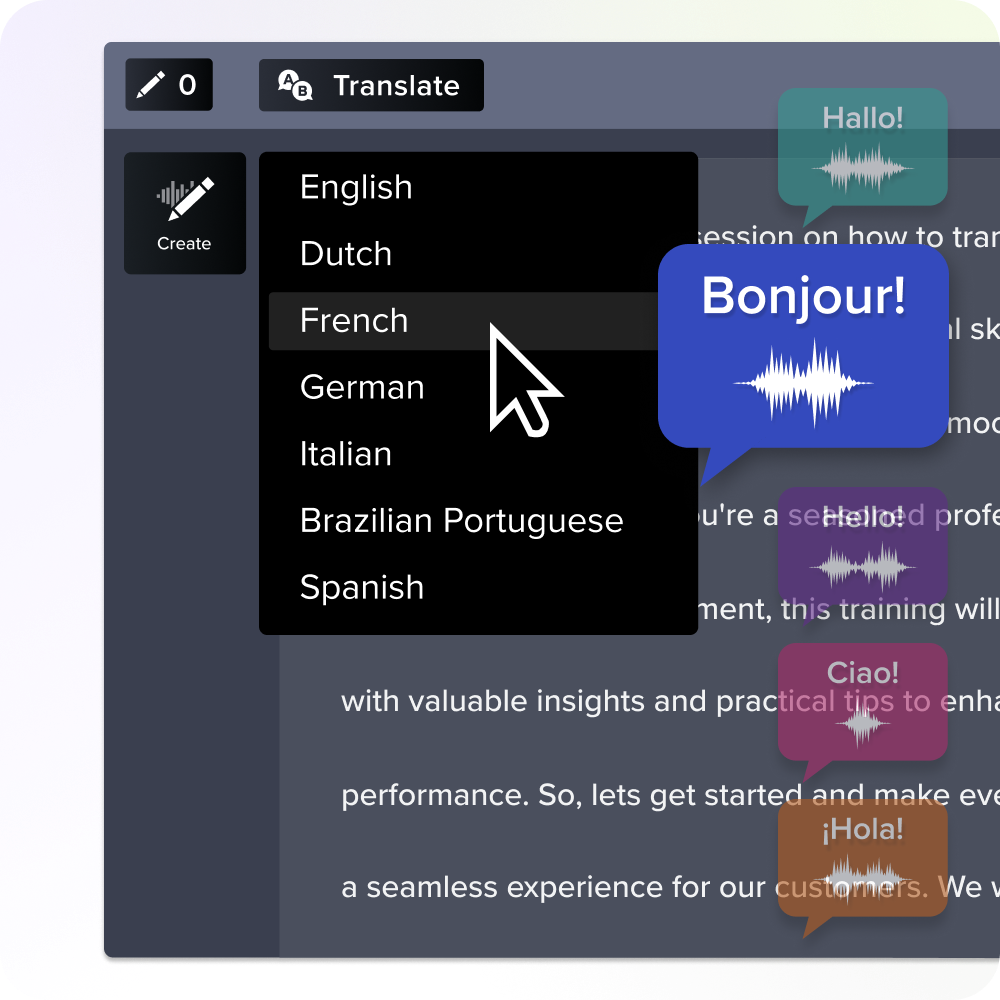
Perceptions of translation quality can vary by language direction, but a 2025 Journal of International Marketing study found that viewers’ intention to engage was unaffected by translation method in both experiments. That’s a reasonable basis for treating AI translation as a genuine way to multiply a capture’s deflection value across languages.
Note that translated voice narration produced through Camtasia Audiate is AI-generated audio and should be reviewed before publishing.
Captions and transcripts make every capture searchable
Searchable captions and transcripts increase deflection by helping users find the step they need before they open a ticket. Without them, a viewer has to scrub through a five-minute recording, guessing where the answer sits based on the timeline thumbnail. With a transcript, that same viewer searches for a word like “reset” or “export” and jumps straight to the moment it’s spoken.
That text layer does more than help someone scan for a phrase. Captions also make the capture accessible to viewers with visual or auditory impairments, or those watching without sound, and the transcript doubles as metadata your search tool can index alongside the video itself.
None of that helps at scale if every capture lives in a different folder or chat thread. In Camtasia Screencast, auto-captioning keeps transcripts attached and searchable across the whole growing collection.
Estimate your own deflection value today
Every recurring ticket a SME walks through live is time they’ll never get back, and most support leaders know exactly which questions keep coming back. The formula in this piece puts a number on that cost so you can bring it to finance with something defensible: ticket volume, SME time per answer, and a realistic deflection rate for the questions video can actually handle.
Start with your three or four highest-frequency tickets. Pull your average handling cost from your help desk platform, estimate how many of those tickets a single video could deflect in a month, and run the formula. The result won’t be perfect, but it doesn’t need to be. It needs to be close enough to justify the first few captures, at which point your own deflection data takes over from the estimate.
The first video is the hardest one to get approved. Once a single capture is live and you can show a measurable drop in related tickets, the next one is much easier to greenlight.
Try Camtasia Editor free and start with the ticket that costs you the most to answer live.
Go from screen recording to polished video
A screen recording is just the start. Camtasia’s editor helps you add the callouts, animations, and edits you need to create a truly professional video.
Free Download
Frequently asked questions
How many videos should we start with when building a video knowledge base?
No universal number exists, but many teams start with a handful of videos, often three to five, built around their highest-frequency repeat tickets. Starting small lets you test the deflection-value formula against real ticket data before committing to a larger production schedule. Once you confirm a video is actually reducing repeat contacts, you can scale the library toward your next tier of recurring issues.
Should video replace written knowledge base articles, or work alongside them?
Video works best alongside written articles rather than replacing them, since text still handles simple, non-visual questions like policy details or single-parameter changes efficiently. Video adds the most value for multi-step, interface-heavy tasks where a customer needs to see exact clicks, timing, and visual states to succeed. A video knowledge base should target that specific gap, not attempt to convert every existing article into a recording.
How long does it typically take for a video to pay back its production cost through deflected tickets?
Payback speed depends mostly on how often the underlying issue comes up. A video tied to a daily repeat question can offset its production cost within weeks, while lower-frequency issues take longer to pay back. Running the deflection-value formula against your own ticket volume gives a more realistic payback estimate than any general benchmark.
Is a video knowledge base worth building for a small support team, or only for large organizations?
Team size matters less than ticket volume and cost per ticket. Even a small team can see meaningful savings if a handful of repeat issues eat up significant SME time. The deflection-value formula scales down as easily as it scales up, since it’s built from your own numbers rather than a fixed enterprise benchmark.
What’s the difference between a video knowledge base and just posting how-to videos to a shared drive?
A video knowledge base is structured and searchable, with every video indexed by transcript and metadata. A folder of unorganized recordings on a shared drive lacks that structure, so viewers must already know which clip holds the answer. Centralized hosting through Camtasia Screencast, with built-in auto-captioning, keeps that growing library searchable as it scales.
Share