Edit a Scene
Learn how to customize video scenes in Camtasia Online.

Learn how to customize video scenes in Camtasia Online.
Camtasia Online makes it easy to make your video professional and engaging. Apply predesigned looks, animated backgrounds, transitions, and more with just a few clicks.
After adding your content to a project, complete any of the following edits to scenes.
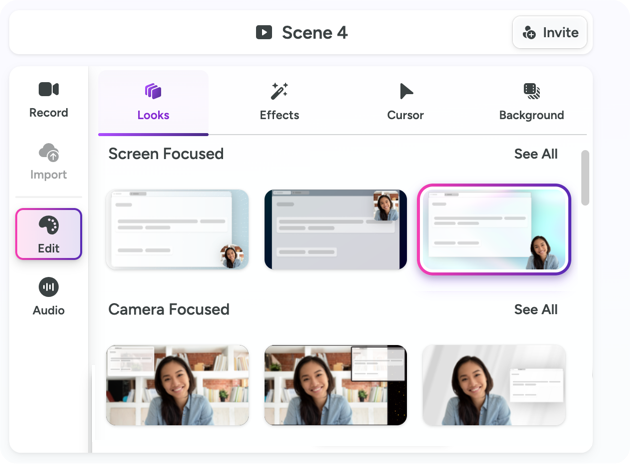
Click to select a scene in the video project and complete any of the following customizations on the Edit tab:
Looks
Choose from one of our professionally-designed layouts to instantly transform any content into a professional-looking video.
Click the Customize button for even more layout options and to save customized looks for future use.
Titles
For generated videos, Camtasia Online automatically creates a title for each scene.
It is not currently possible to edit generated titles in Camtasia Online beta. To edit or add new titles, send the project to Camtasia Editor to continue editing.
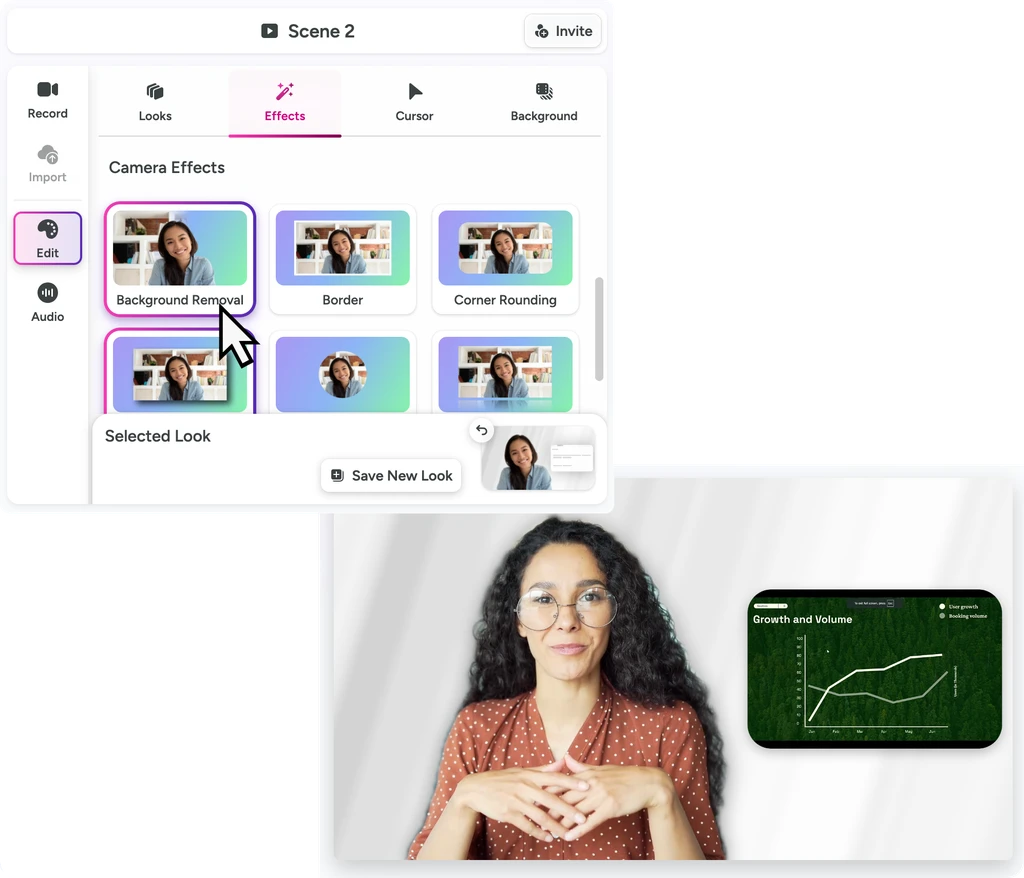
Effects
Apply visual effects, such as corner rounding, background removal, or drop shadow. Click an effect to turn it on or off.
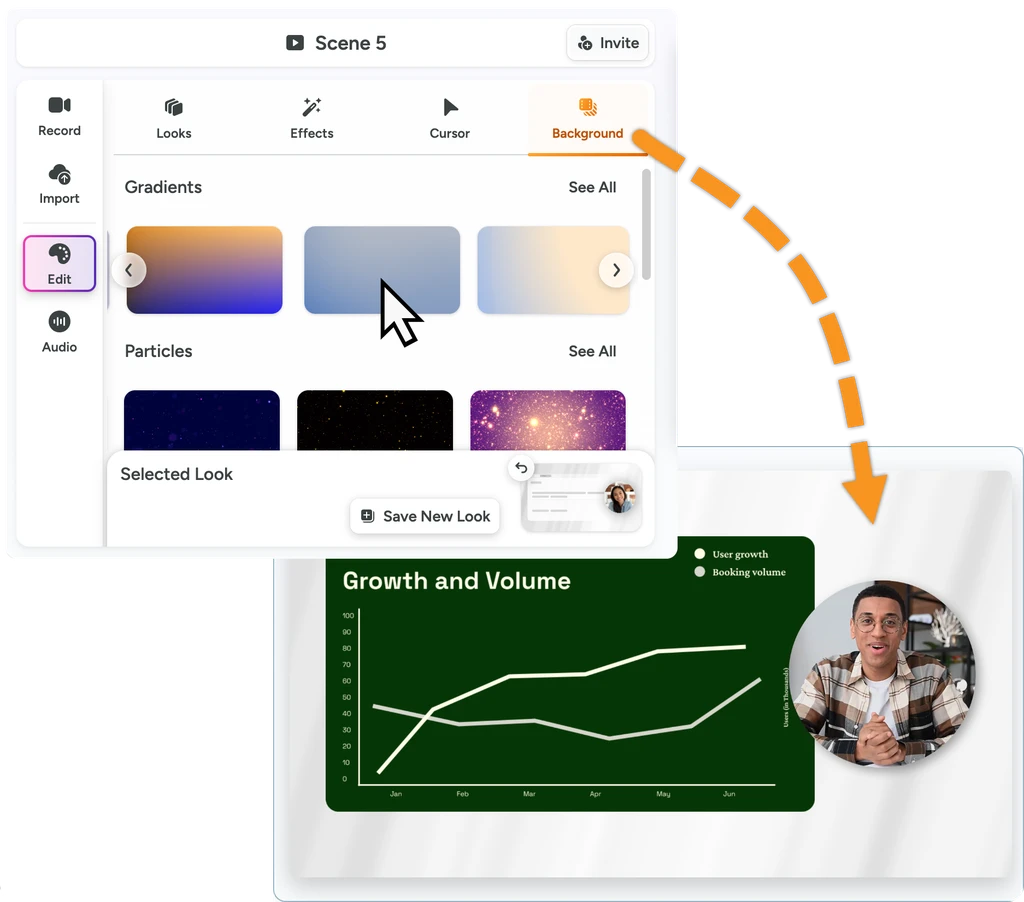
Backgrounds
Choose a dynamic background. Click to select and preview various style backgrounds to get the perfect look for a scene.
Tip: Save a custom look for future use.
As you make changes on the Edit tab, Camtasia Online updates the selected look. Click the Save New Look button to add the custom look to My Looks for future use.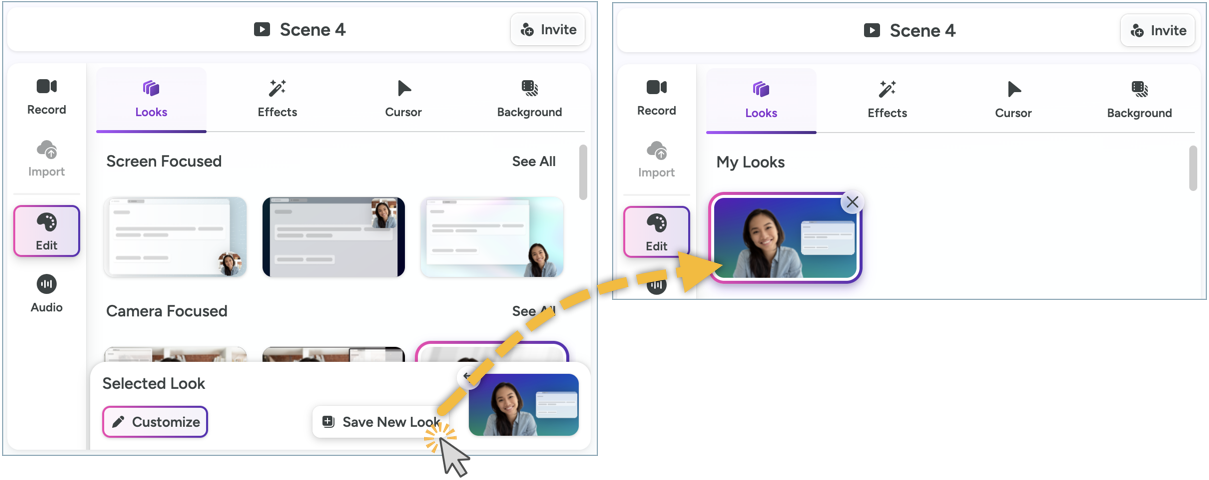
The cursor helps viewers follow along in a video by highlighting key actions and focus areas. Apply cursor effects to emphasize the cursor to support your video message and improve viewers’ comprehension.
To learn more about cursor edits and cursor metadata, see Cursor Edits.
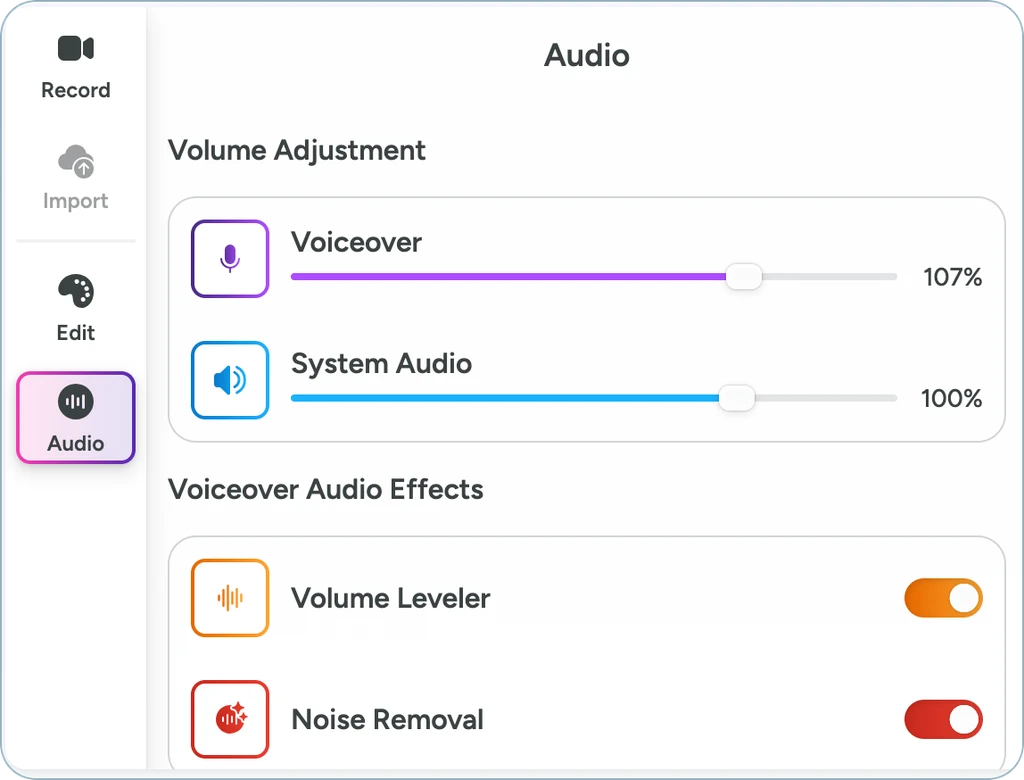
Audio is key in creating quality, professional videos that keep viewers engaged.
Voiceovers add a human element to video, helping explain ideas, guide viewers, reinforce key messages and make content more engaging and accessible. The audio quality can also impact your viewers’ experience and trust in your content.
Apply audio effects to improve the audio quality and audio levels across scenes.
After importing your scene content, you can record a voiceover, and optionally your camera, to enhance the content or provide a personal touch to a scene.
See Record a Scene.
Trim
Trim the beginning or end of each scene to remove unwanted or unnecessary content.
Camtasia Online preserves the original. You can adjust the trim points at any time.
Split a Scene
Split a scene into two separate scenes to trim or apply different looks and effects to each section.
Camtasia Online creates a new scene with the split content.
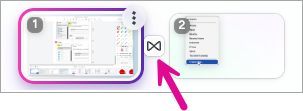
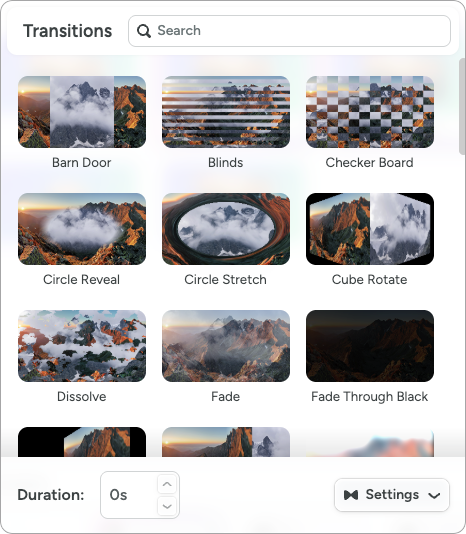
Choose from dozens of options to ease the transition between scenes or to add an artistic visual effect.