Generate a Video
Learn how to automatically generate an engaging video from a set of images.

Learn how to automatically generate an engaging video from a set of images.
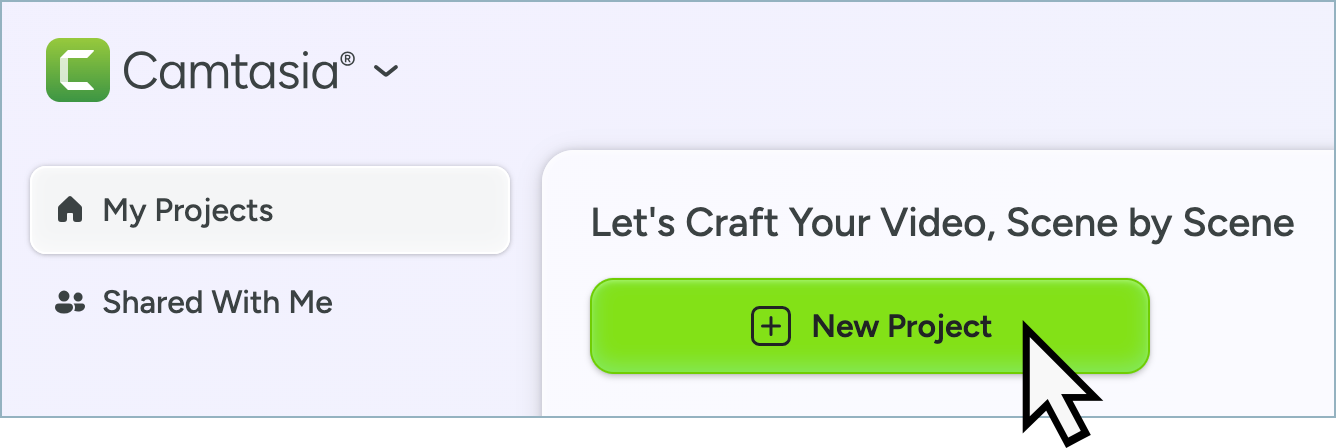
Camtasia Online simplifies video creation. Generate an engaging video from a series of screenshots or images. The ready-to-share video includes:
Generate tutorials, product demos, presentations, trainings, and so much more!
Add up to 20 images to turn into a generated video.
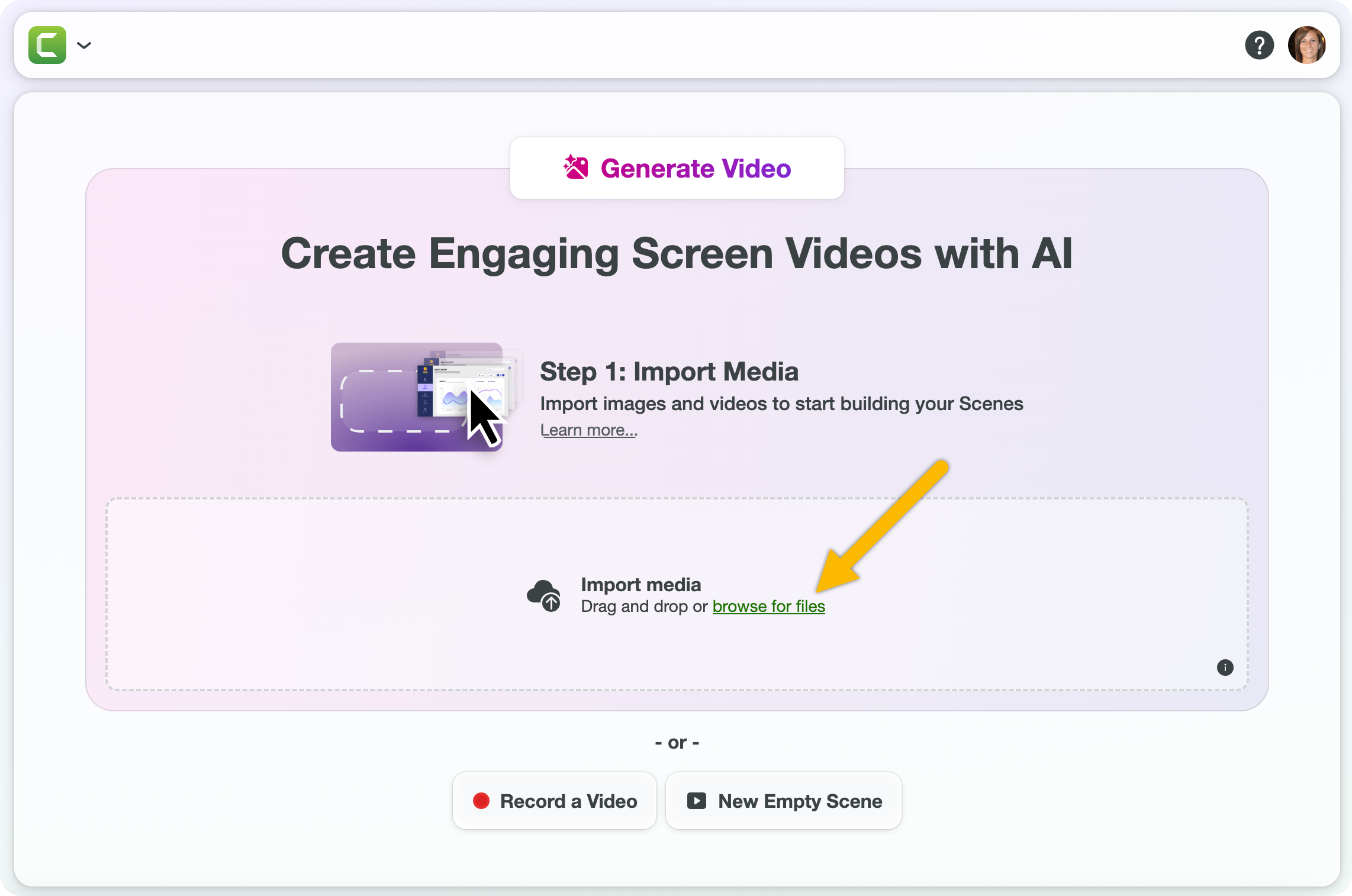
Continue to Enter a Prompt or Choose a Video Recipe.
Note: Generating a video from imported video files or Snagit Step Capture is currently not available. You can still import these files into a video project by clicking the Continue without AI option. See Import Media to Build Your Video.
Next, provide information about the video you want to create.
Choose a video recipe or enter a custom prompt. Camtasia Online offers five prompts based on common video types: Tutorial, Product Demo, Bug Report, Presentation, and Share Knowledge. 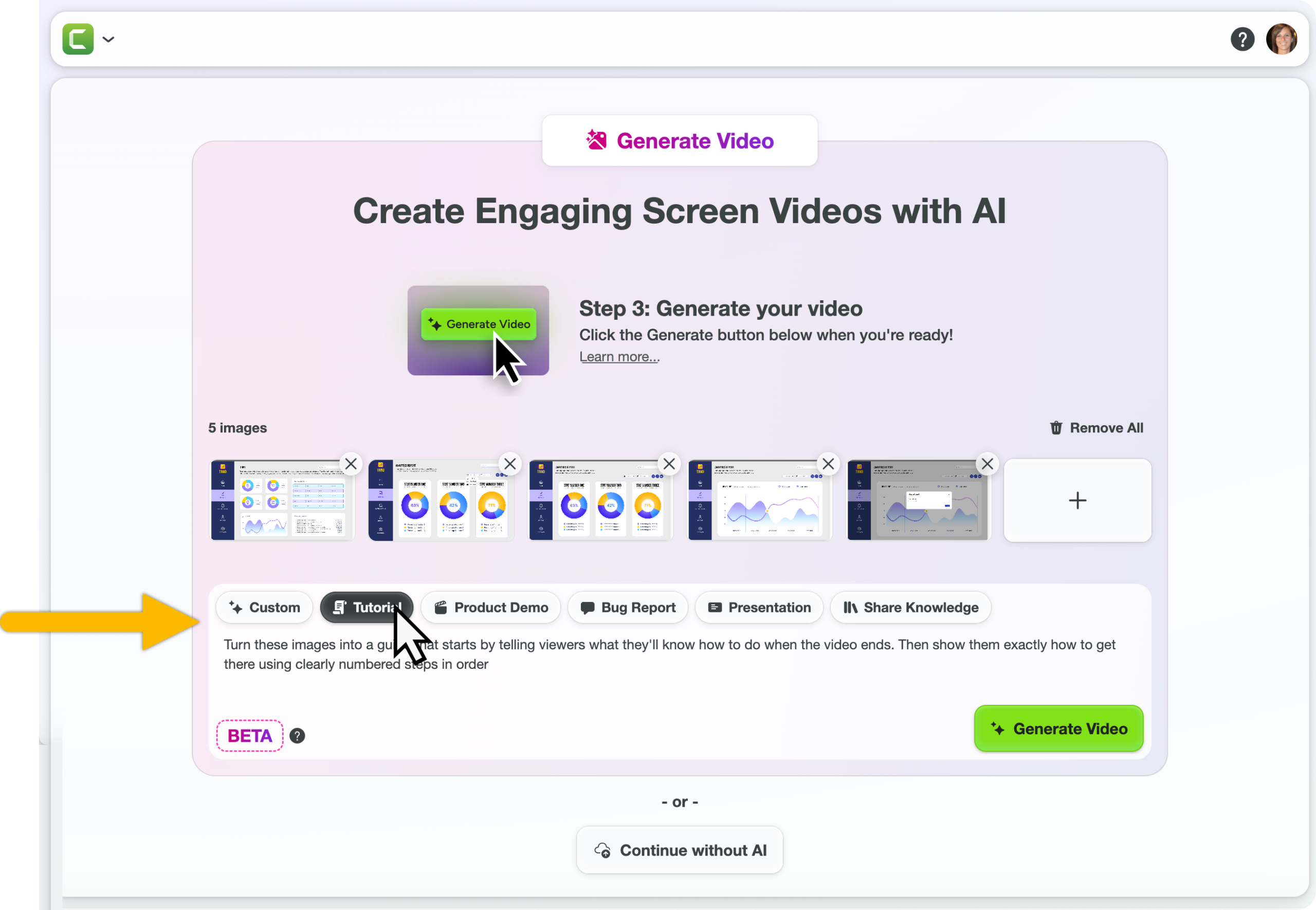
To improve the video output, you can customize the premade video recipes by typing additional information into the prompt field, such as tone, audience, and goals.
Need help getting started? Download our sample screenshots and choose a video recipe to try it for yourself. See Download Sample Content.
Continue to Generate the Video.
Once you’re ready to create your video, click the Generate button. 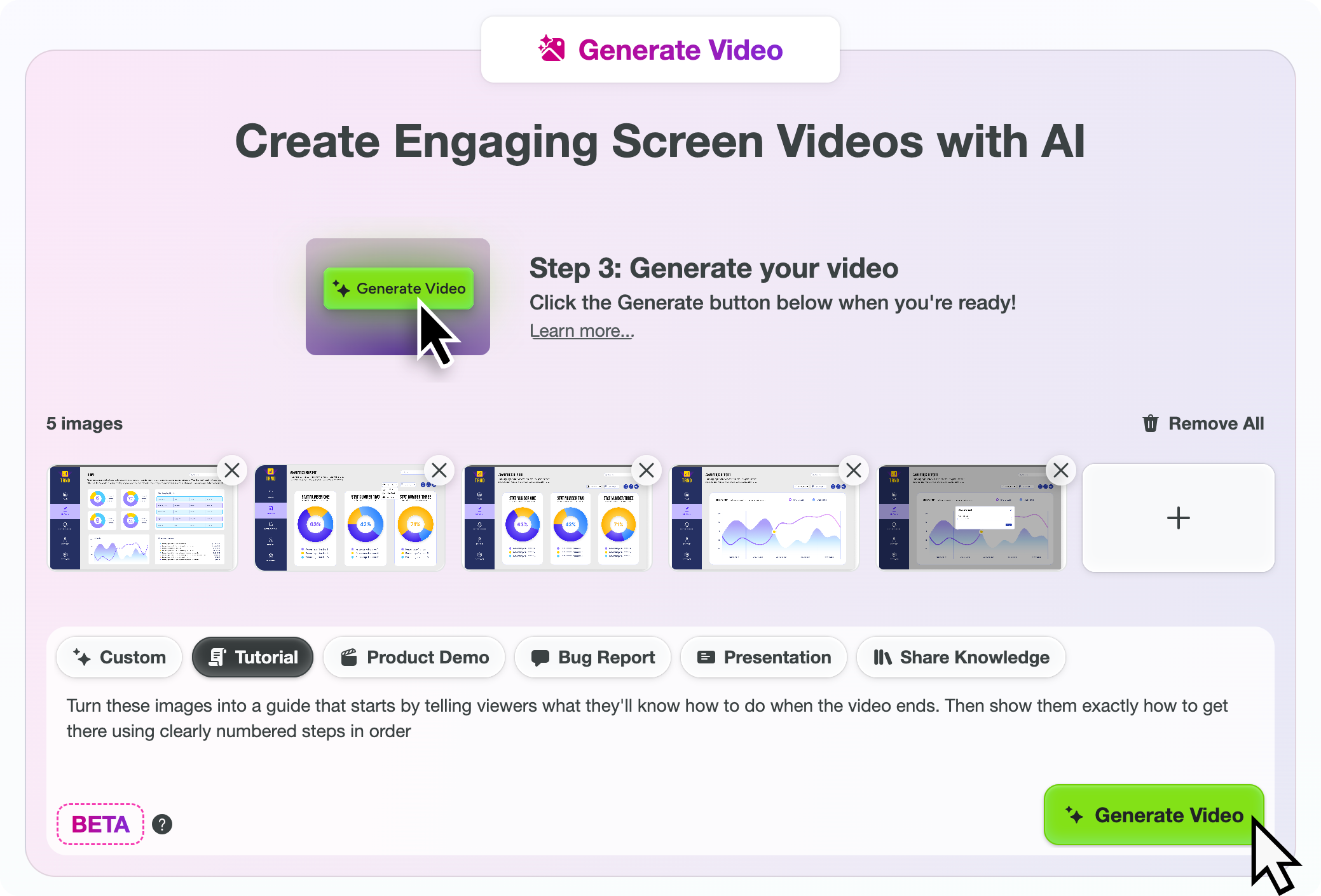
Camtasia Online opens the generated video in a new project, and includes titles, an AI voiceover, animations, and cursor effects. 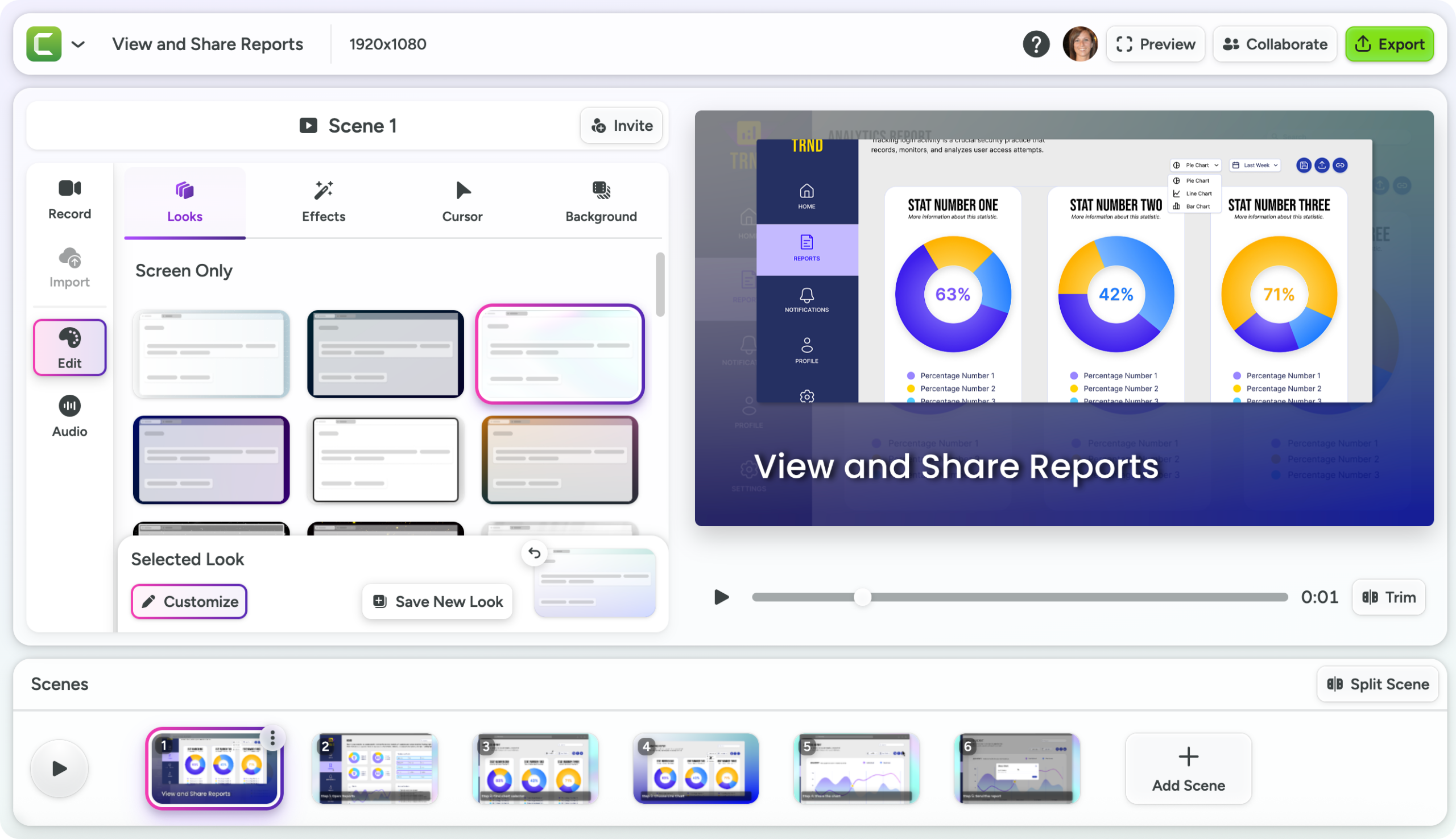
After generating your video, complete any of the following next steps:
For best results, follow these tips for images to use in the generated video: