After recording your scenes, take the next steps with your video.
In the Export menu:
- Click Open in Camtasia Editor to send your video to Camtasia on the desktop to continue editing and export your final video. Learn More
- Click Export to Screencast to get a shareable link to gather feedback or quickly share your video with others. Learn More
Edit & Export Videos in Camtasia Editor
Send your video to Camtasia Editor on the desktop to continue editing and export your final video. Camtasia Editor has many additional features and video enhancements that are not available in Camtasia Online, including:
- Cut out mistakes
- Add transitions between scenes
- Provide additional context with callouts or text, or blur sensitive content
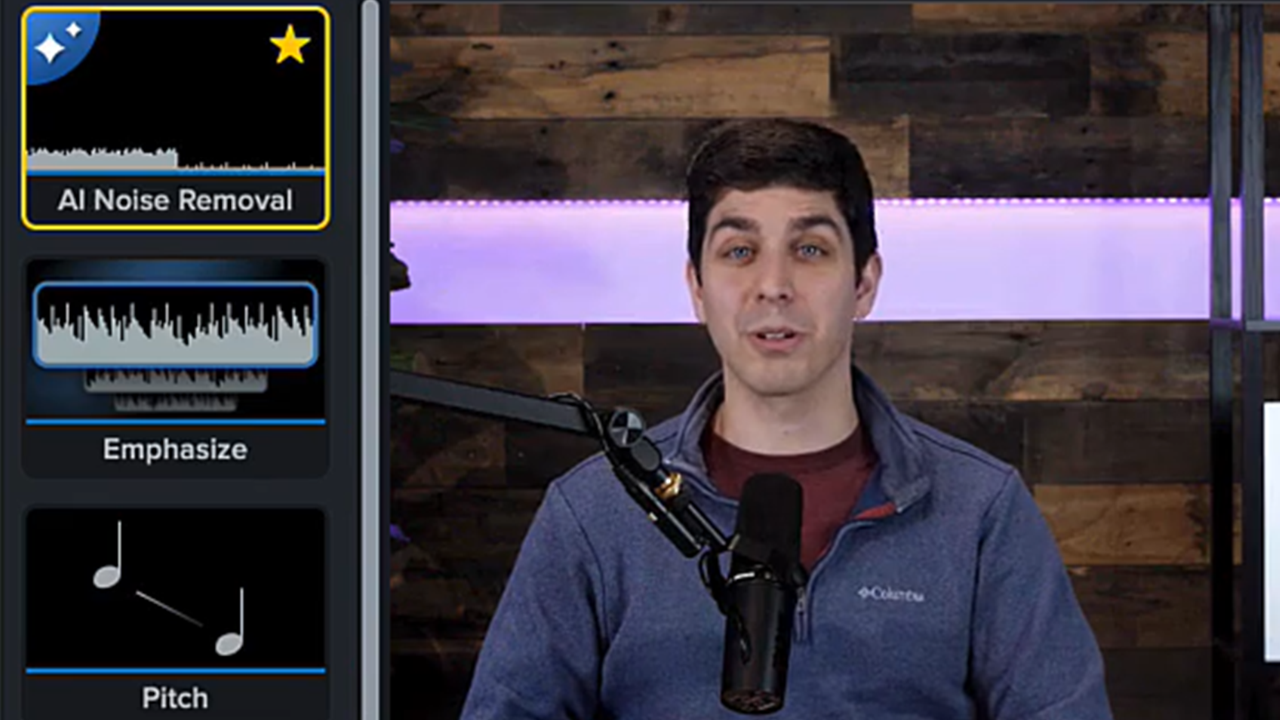
- Apply AI noise removal
- Add titles, music, and more from our free assets
- Generate speech-to-text transcription and captions
- Record 4K content or import additional media
See Recommended Edits for Camtasia Online Videos.
Send Video Project to Camtasia Editor
View Steps for Chrome
- Click the Export button.
- Click Open in Camtasia Editor.

If you do not have the latest version of Camtasia Editor installed, click the Download Camtasia Editor button for a free download. Camtasia Online requires Camtasia Editor version 2025.0.1 or later to edit projects.
- Camtasia Editor opens the project with your scenes added on the timeline.
Share Videos & Get Feedback in Screencast
Click Export to Screencast to get a shareable link to gather feedback or quickly share your video with others. Screencast is great for online collaboration and feedback.
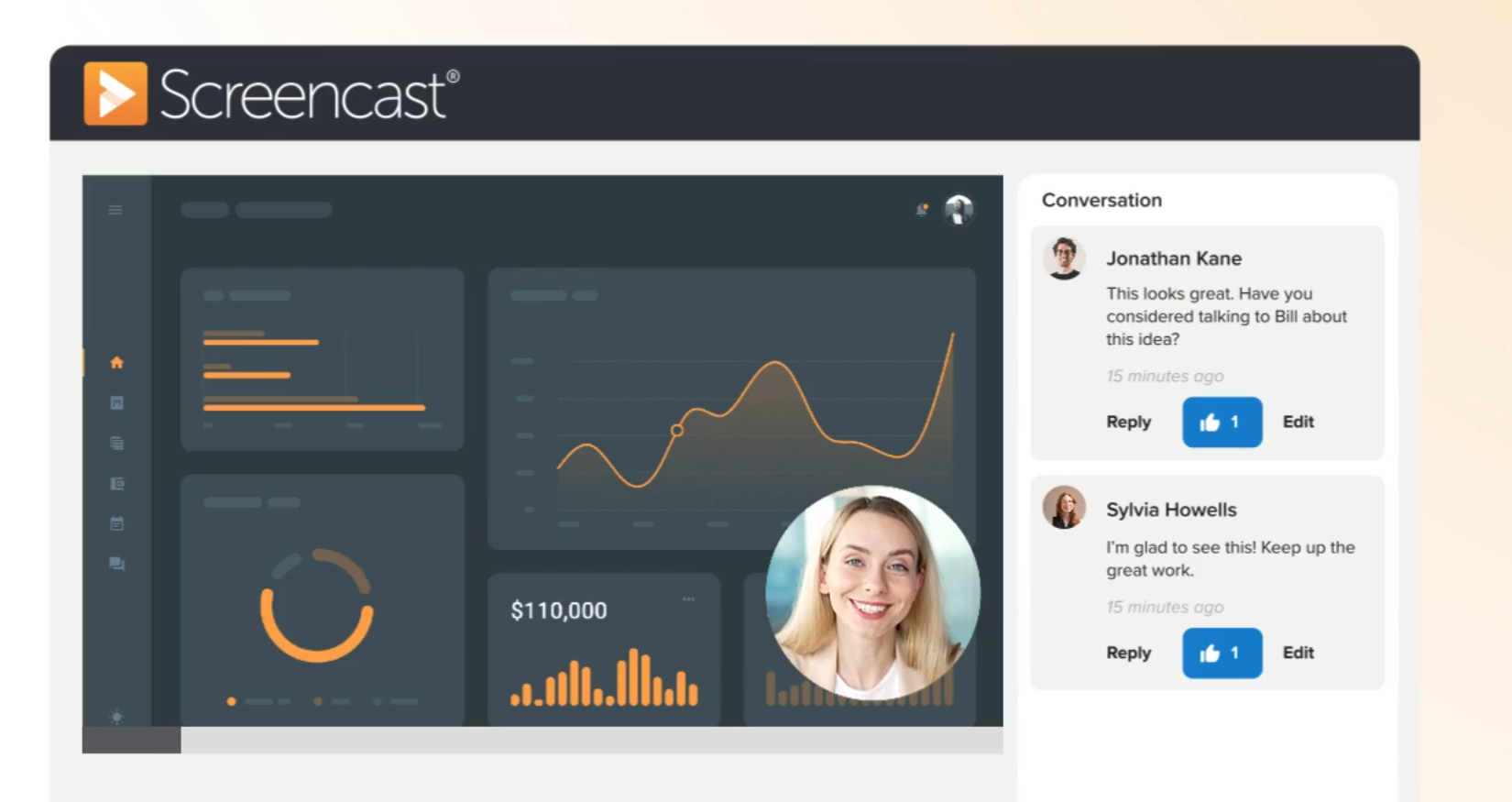
Your TechSmith account automatically gives you access to store up to 25 videos on Screencast for free. Or subscribe to Screencast Pro to upload unlimited videos and access additional features. Learn more about our Screencast account tiers.
Check out some of the benefits of sharing your content to Screencast:
- Conversations & Reactions
Ask questions, provide feedback, and make decisions with comments, annotations, and emojis at specific times in a video. Your viewers can engage with your content without setting up an account. See Manage Conversations.
- Collections
Keep group projects on track with shared collections where your team can contribute content. See Collections.
- AI-Assisted Titles, Descriptions, and Chapters (requires Screencast Pro)
Save time and let Screencast automatically generate information useful to your audience. See Set Context Quickly with AI-Assisted Titles and Descriptions and Add Video Chapters.
- Auto-Generate Captions for all Videos (requires Screencast Pro)
Make your videos more accessible and easy-to-follow with AI-generated captions. Screencast automatically transcribes and generates captions for any videos uploaded to Screencast Pro accounts. See Add Captions in Screencast.
Note: You can also share videos to Screencast from Camtasia Editor. To learn more about Camtasia Editor’s export options, see
Export and Share Your Video.
All Camtasia Online Tutorials