Camtasia Online makes it easy to build videos from the content you already have. Bring together media from a variety of sources, giving you the flexibility to choose a workflow that works best for you and your collaborators.
You can import:
- Images or presentation slides (PNG or JPG)
- Videos (MP4)
- Content or recordings from Subject Matter Experts (SMEs)
- Multitrack videos recorded in Camtasia Snagit
- Snagit Step Captures
- Content generated by the Camtasia ChatGPT plugin
Import a set of images and use AI to automatically generate a video with voiceover, titles, cursor enhancements, and animations.
Or, import your content (images, videos, and Snagit Step Captures) without AI to build the video scenes and customize the content yourself or with collaborators.
From Your Computer
Import images (PNG and JPEG) or videos (MP4) from your computer into a new Camtasia Online project.
View Steps
- Open Camtasia Online.
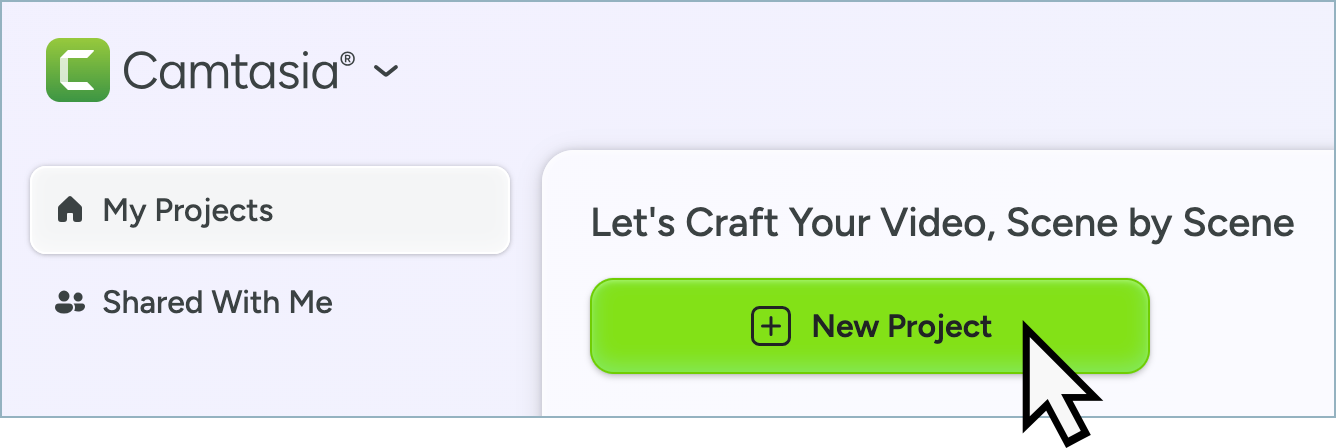
- In the Project Library, click New Project.
- Click the browse for files link to select the media (PNG, JPEG, or MP4) to upload and click Open. Control+click (Windows) or Shift+click (Mac) to select multiple files.
Note: Generating a video from imported video files is currently not available. You can still import these files into a video project by clicking the Continue without AI option.
- To generate a video from images, choose a video recipe or enter a prompt and click Generate. Or, click Continue without AI.
Camtasia Online imports the media as scenes in a new video project.
From Camtasia Snagit
Images, MP4 Videos, or Step Captures
- In Snagit, click to select the media to import from the recent captures tray or library. Shift+click to select multiple captures.
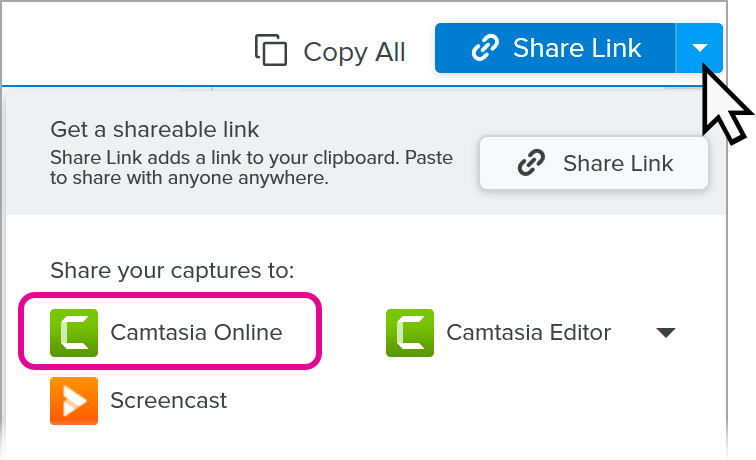
- Click the Share Link dropdown and select Camtasia Online.
- Camtasia Online opens in a web browser. Select a project from the dropdown or select Create New Project. See Camtasia Online Supported Web Browsers.
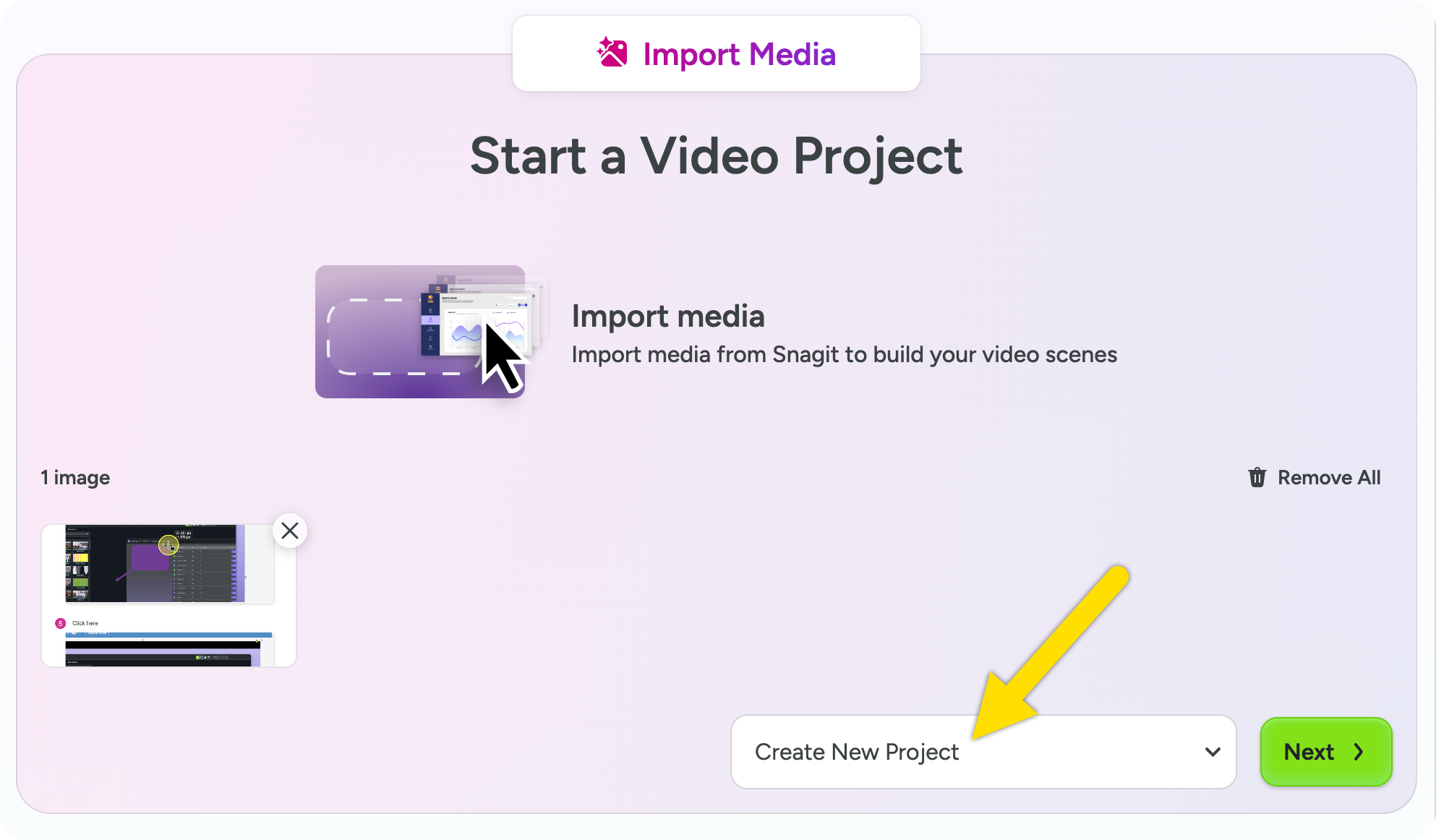
- Click Next.
- To generate a video from images, choose a video recipe or enter a prompt and click Generate. Or, click Continue without AI.
Camtasia Online imports the media as scenes in the selected project.
Multitrack Video Recorded with Camtasia Snagit
Recording multitrack video from Snagit allows you to choose from various layouts for your screen and camera recording and to apply separate screen and camera effects.
- Open Camtasia Snagit.
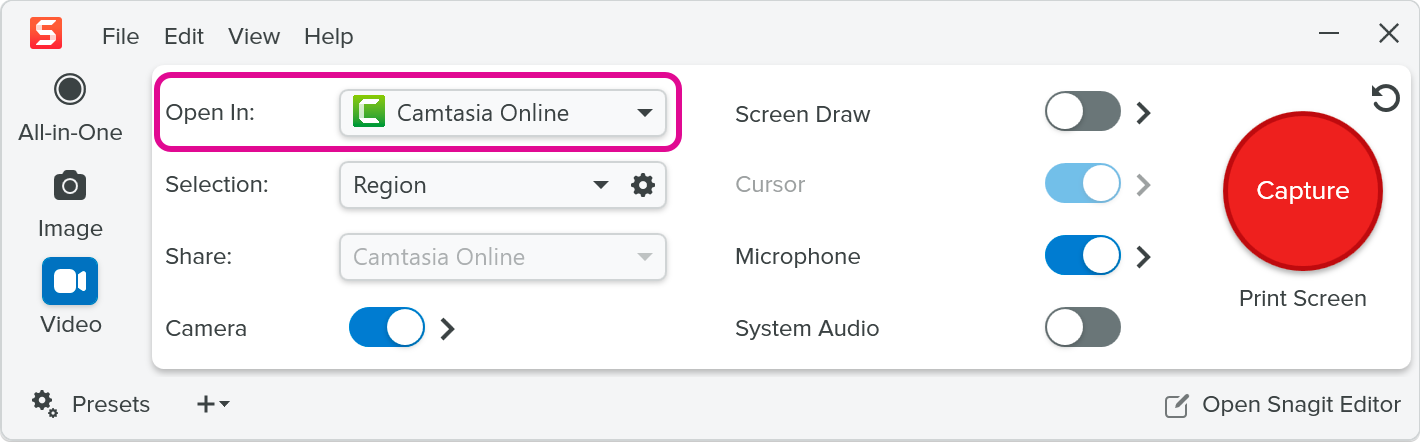
- On the Video capture tab, select Camtasia Online from the Open In dropdown.
- Adjust the other video capture settings, click Capture, and record your video.
- When you finish recording, Camtasia Online opens in a web browser. See Camtasia Online Supported Web Browsers.
- In Camtasia Online, select a project from the dropdown or select Create New Project.
- Click Next.
Camtasia Online imports the media into the selected project. Videos over 5 minutes are split into multiple scenes.
Get Snagit
The best screen capture software for professionals.
From ChatGPT
View Steps
- In a conversation in ChatGPT, access the Camtasia plugin by typing @Camtasia or by clicking the + button and selecting Camtasia. To add the Camtasia plugin, see this Camtasia Plugin for ChatGPT support article.
- To add screenshots for each step, complete one of the following:
- Drag and drop images into the prompt field.
- Click the + button and browse to select the images.
- Type a prompt to describe the how-to video you want to generate. For example:
- Create a walkthrough video using the uploaded screenshots on how to generate a report.
- Create an instructional video from these screenshots showing how to set up two-factor authentication.
- Click the Send Prompt button to generate the video storyboard.
- The storyboard opens. Review the storyboard and complete the desired edits.
- Once you’re satisfied with the storyboard, click Generate Video.
The generated video scenes open in a new project in Camtasia Online.
Import content (images, videos, and Snagit Step Captures) to build scenes in your video project.
From an Open Camtasia Online Project
Import images (PNG and JPEG) or videos (MP4) from your computer into an open Camtasia Online project.
- Open Camtasia Online.
- In the Project Library, select the project.
- Click to select an empty scene or click the Add Scene button.
- Click the Import tab.
- Click the browse for files link to select the media (PNG, JPEG, or MP4) to upload and click Open.
From a Video Collaborator
- Invite a collaborator to a scene or the entire video project. See Collaborate on a Video Project.
- In the shared project, the collaborator should complete the following:
- Click to select the assigned scene or an empty scene.
- Click the Import tab.
- Click the browse for files link to select the media (PNG, JPEG, or MP4) to upload and click Open.
From Camtasia Snagit
Import images, videos, and Step Captures from Camtasia Snagit.
- In Snagit, click to select the media to import in the recent captures tray or library. Shift+click to select multiple captures.
- Click the Share Link dropdown and select Camtasia Online.
- Camtasia Online opens in a web browser. Select a project from the dropdown. See Camtasia Online Supported Web Browsers.
- Click Next.
- To generate a video from images, choose a video recipe or enter a prompt and click Generate. Or, click Continue without AI.
Camtasia Online imports the media as scenes in the selected project.
All Camtasia Online Tutorials