In Camtasia Editor, select File > New Project from Template.
The Template Manager opens. Select a template and click New from Template.
Note: Some templates are designed to swap in images rather than video. To find a template designed specifically for video content, look for “This is your scene” in the template thumbnail or preview.
The template opens as a new project. Select File > Save As to save the video project file (.tscproj for Windows or .cmproj for Mac).
If the placeholder is in a group, click the icon on the timeline to open the group. Media within the group appear on separate tracks, and the group name displays in a tab above the timeline. To learn more, see How to Use Group Tabs.
To replace video content in a template, select the Media tab and drag a recording from the Media Bin, Assets, or Library subtab onto the original media or placeholder on the timeline. When a green outline appears around the media or placeholder, release your mouse button.
A menu appears with the replacement options. If the new media is a different duration than the media or placeholder, select one of the following options:
Ripple Replace: Shift all clips on the track to the right to insert space for the entire duration of the new media.
Replace with Clip Speed: Increase the playback speed of the new media to fit the duration of the placeholder.
Replace From End: Trim the new media to fit the duration of the placeholder. If the new media is longer, the beginning of the clip is trimmed to fit the duration.
Replace From Start: Trim the new media to fit the duration of the placeholder. If the new media is longer, the end of the clip is trimmed to fit the duration.
A group is created with the name of the new media. If you need to adjust the scale or other media properties to fit the template:
Click the icon to open the new media group.
Select the media on the timeline.
Make any necessary adjustments in the Properties panel.
Click the icon on the group tab above the timeline to close the group.












 icon on the timeline to open the group. Media within the group appear on separate tracks, and the group name displays in a tab above the timeline. To learn more, see How to Use Group Tabs.


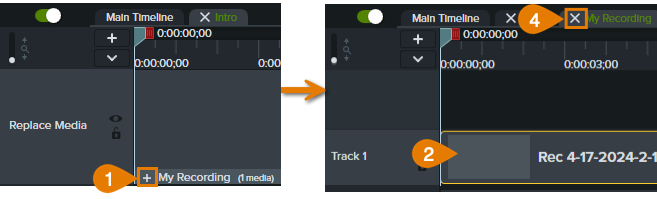
 icon on the group tab above the timeline to close the group.

 button.
 and select Rename Template.