Manage Content as a Team
Learn how to create a Team Library for specific individuals to access and contribute content securely.

Learn how to create a Team Library for specific individuals to access and contribute content securely.

Create a Team Library to securely share and manage media with specific people, for example to share project updates or meeting recordings. Team Library members can:
Both Collections and Team Libraries allow you to share sets of media with others to view.
Team Libraries allow you to manage content collaboratively and to share more securely:
To learn about Collections, see Share in Collections.
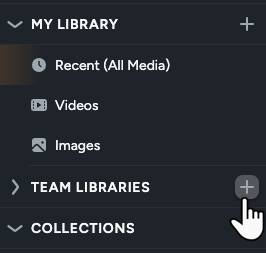

The new library appears in the left sidebar under Team Libraries.
Note: Users with free Screencast accounts can create one Team Library with up to 5 members. Users with Screencast Pro accounts can create up to five Team Libraries with up to 300 members.
To become a member, invitees must accept the invitation from one of the following:
Invitees are required to sign in or create a TechSmith account. Once they accept the invitation, their status changes from “Pending” to “Contributor”.
Both Managers and Contributors can add and remove other members:
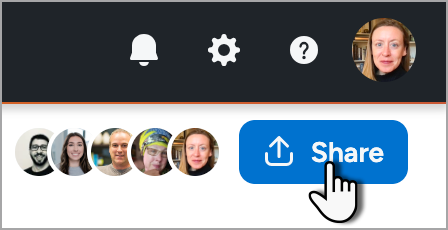
 icon next to the person you want to remove.
Note: If you remove a member, any content they added remains in the Team Library but they will no longer have access to view or manage it.
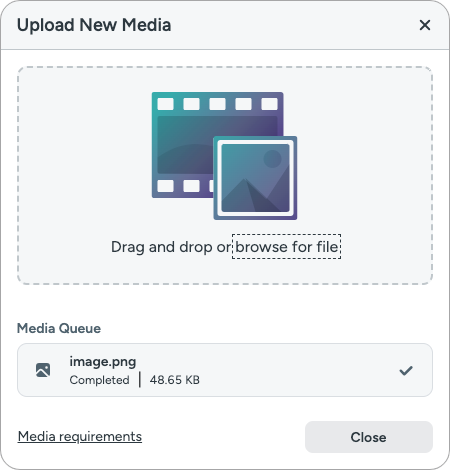
Upload an image or video from your computer or mobile device to a Team Library.

Move individual or multiple pieces of media from your library into a Team Library.
 icon on the media and select Move.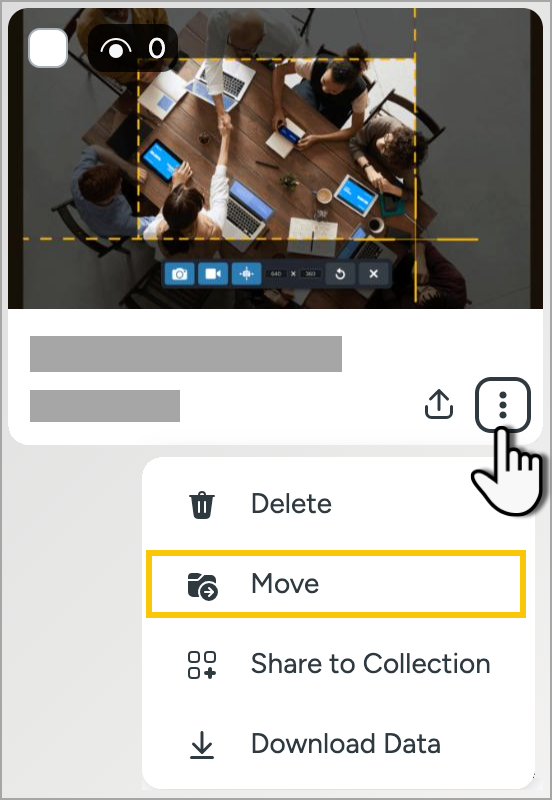
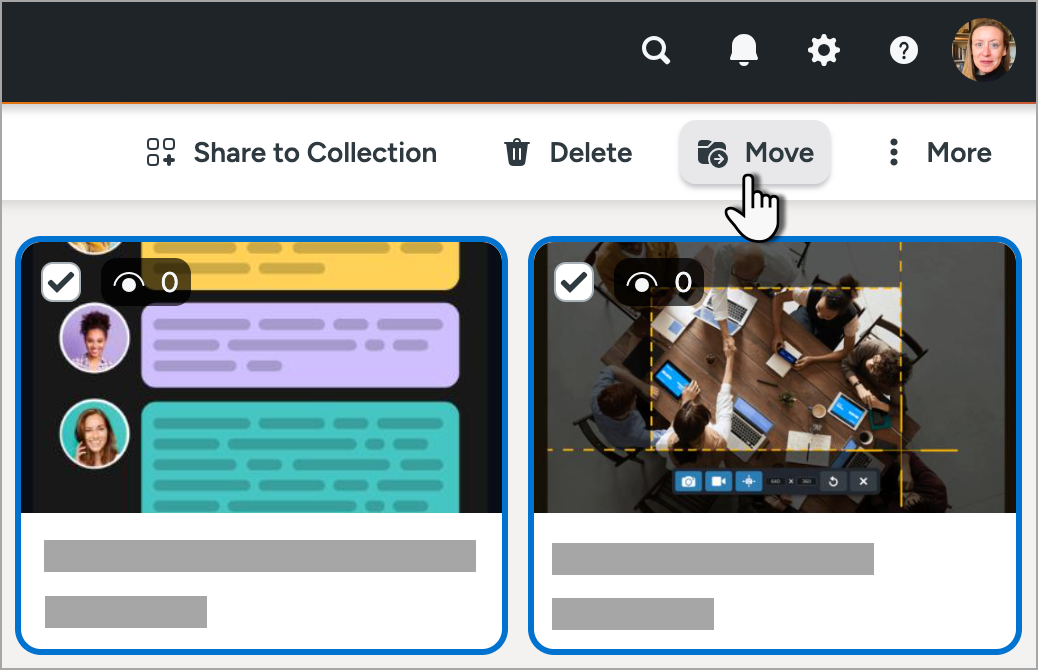
Media is removed from your personal library and appears in the Team Library.
Create folders to organize content in your Team Library.
 icon next to a Team Library and select the Add Folder option.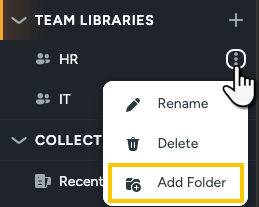
Note: You can move a folder and all of its content to a different Team Library or to your personal library.
icon on the media and select Move to Trash.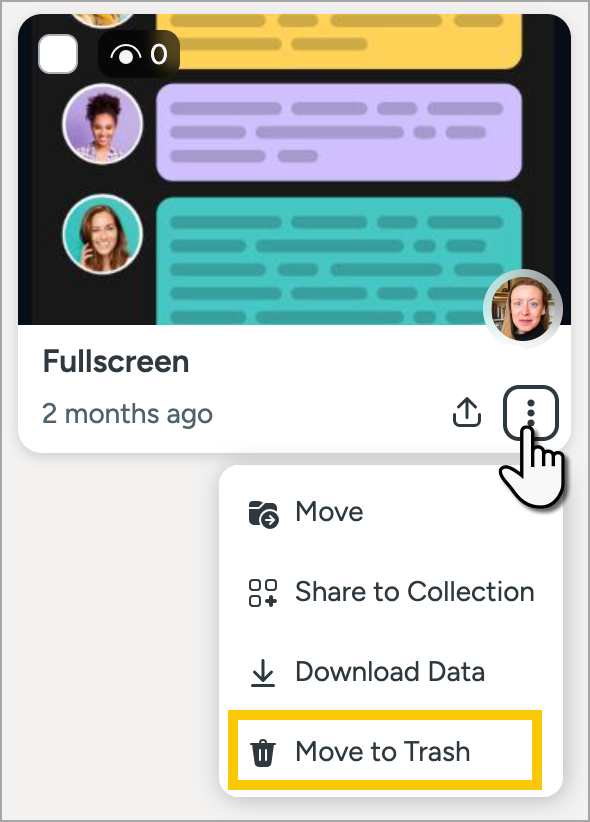 icon next to the folder and select the Move to Trash option.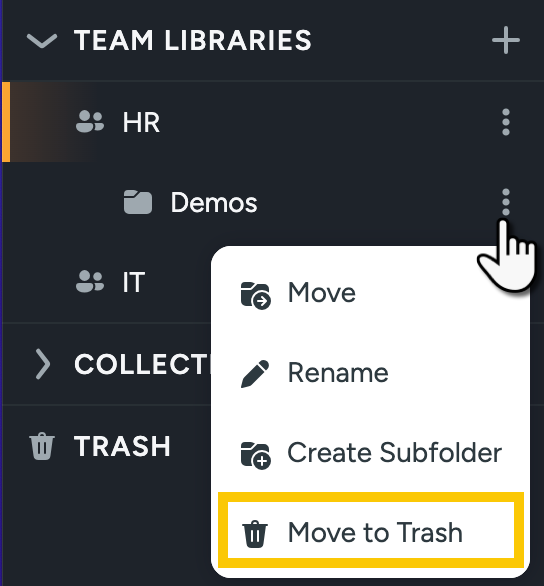
The folder and all of its content are moved to the Trash. Media in the Trash is permanently deleted after 30 days.
Note: The Trash remembers what Team Library and folder media was deleted from. If you Restore Media from the Trash, the media and its folder move back to the Team Library from where it was deleted.
When media is deleted from a Team Library, any member of the Team Library can view the item in the Trash within 30 days and restore it.
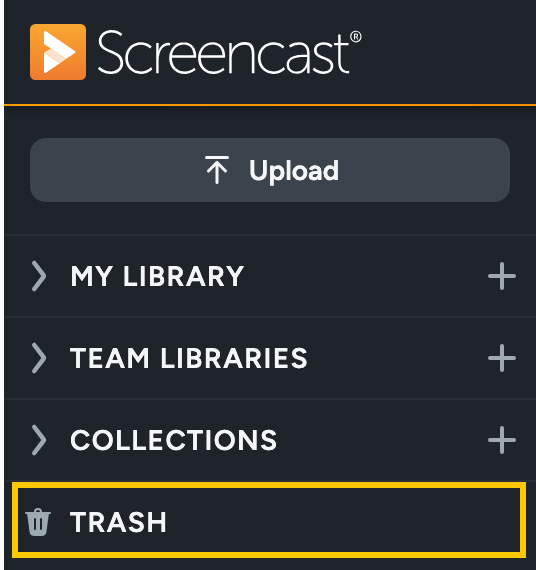
 icon for the media you want to restore and select Restore.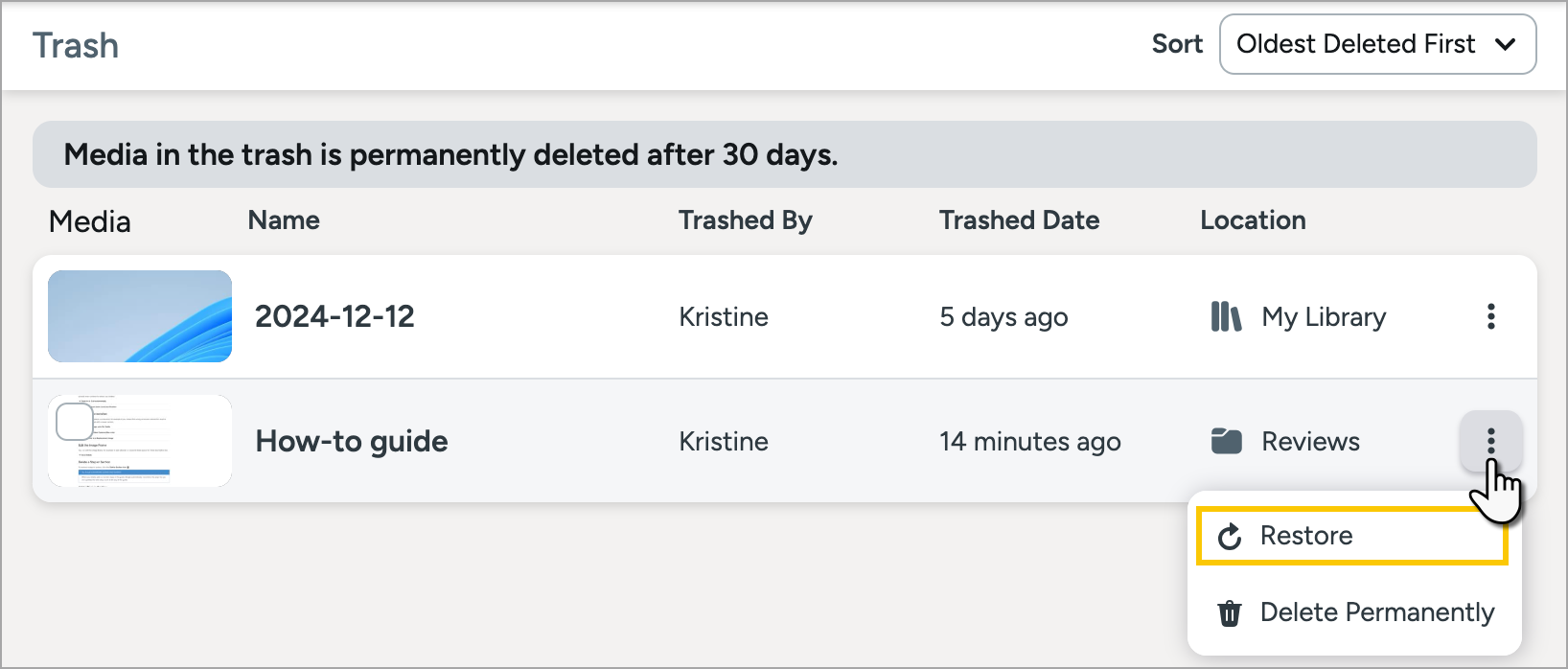
Media is returned to the Team Library from which it was deleted.
The manager of a Team Library can delete the library, which also permanently deletes all media in the Team Library.
icon next to the library and select the Delete option.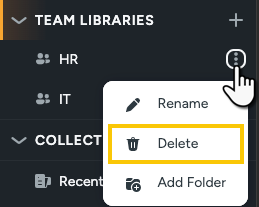
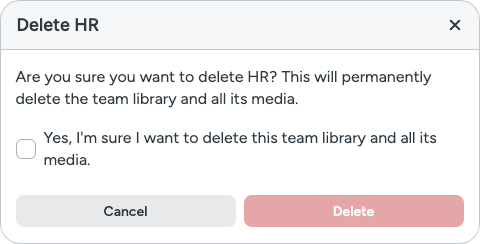
Note: When you delete a Team Library, the team and all of its content is permanently deleted and cannot be restored. To avoid deleting the content, move the content from the Team Library to your personal library before you delete the Team Library. Follow the same steps as moving media from your personal library to a Team Library. See Add Media from Your Personal Screencast Library.
Collections can be viewed by anyone with the link, but Team Libraries provide more secure sharing:
Team Libraries also allow members to manage content collaboratively.
When content is moved to a Team Library, it is removed from the original owner’s library. Any member of the Team Library can view, edit, delete, or move content into their own library.
Only the Manager, the person who created the Team Library, has access to delete it. Contributors have access to view, add, edit, move, or delete content in the Team Library.
Only the person who creates a Team Library can be the Manager.
It is not possible to remove a Manager from a Team Library. In this situation, we recommend that a member creates a new Team Library and moves all the content to the new Team Library.
You can invite someone who does not have a TechSmith account to join a Team Library, but they will be required to create one when they join.
Users with free Screencast accounts can create one Team Library with up to 5 members. Users with Screencast Pro accounts can create up to five Team Libraries with up to 300 members.
When selected media is deleted from a Team Library, it is moved to the Trash for 30 days. Any member of the Team Library can view and restore media from the Trash within 30 days. See Restore Media from the Trash.
The Team Library and all of its content are deleted immediately.