CHANGELOG

What’s new in Snagit?

Turn on your auto-updates because our team is always cooking up something fresh.

Filter posts

Clear filters

Release Type

Operating System

Tags

February 2026

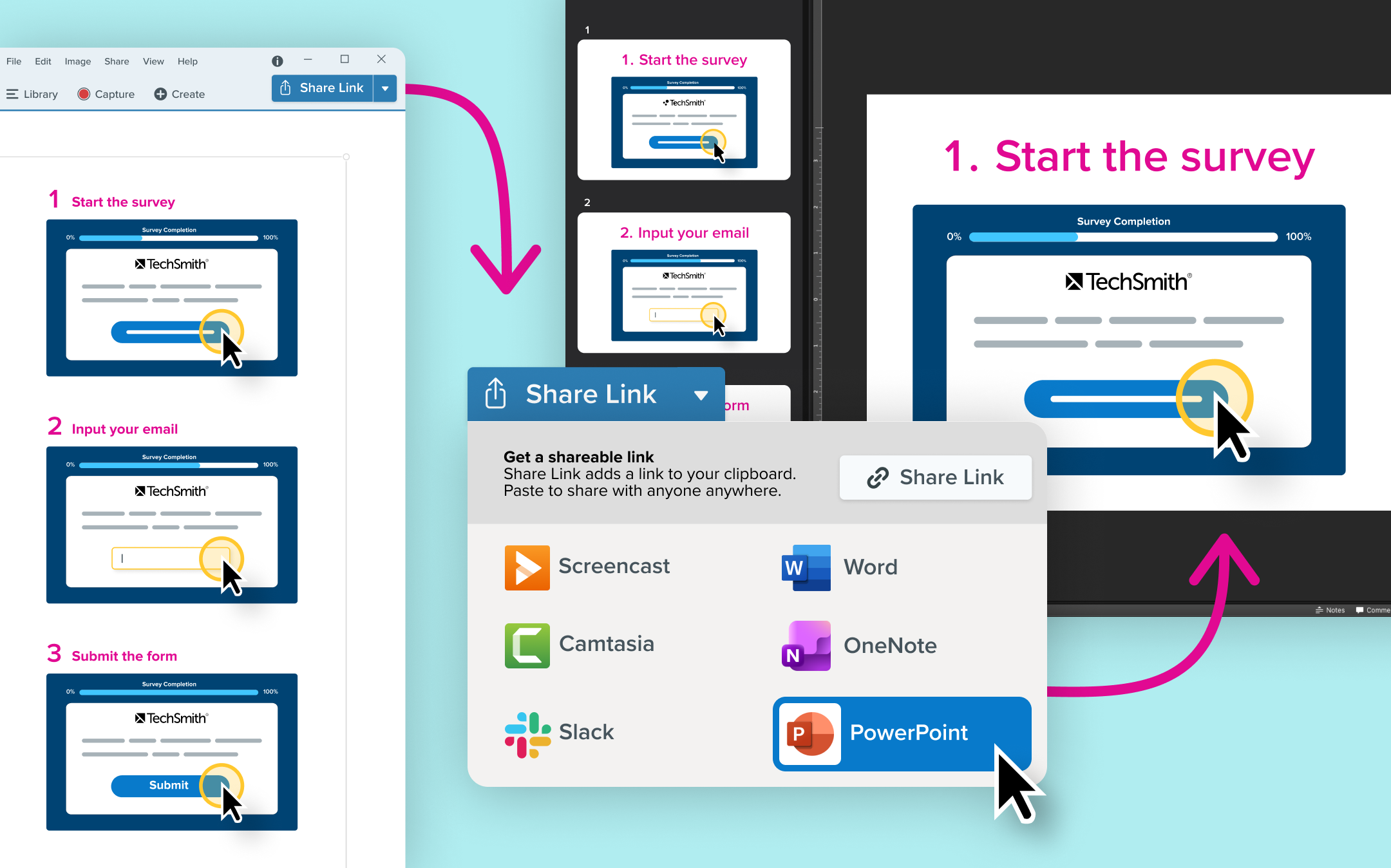
An Step Capture is open in the Snagit editor. The share drop down indicates Power Point is selected. Next to it is an image of the steps open as slides in a PowerPoint slideshow.

Share step captures to PowerPoint

Export Step Captures straight to PowerPoint, with each step automatically turned into an editable slide.

Turn your how-to guides into videos, presentations, or supplimental training materials by sharing your Step Capture to PowerPoint. Export step-by-step captures directly into editable slides, making it easier than ever to build SOPs and training materials.

  • Send each step as its own PowerPoint slide
  • Keep text fully editable for quick updates
  • Adjust layouts using familiar PowerPoint tools
  • Record a video over your PowerPoint for video+guide 1-2 punch.
  • Ready to try it for yourself?
    View Tutorial
    Snagit
    WindowsMacOS
    Screen CaptureEditing
    2026.1.0
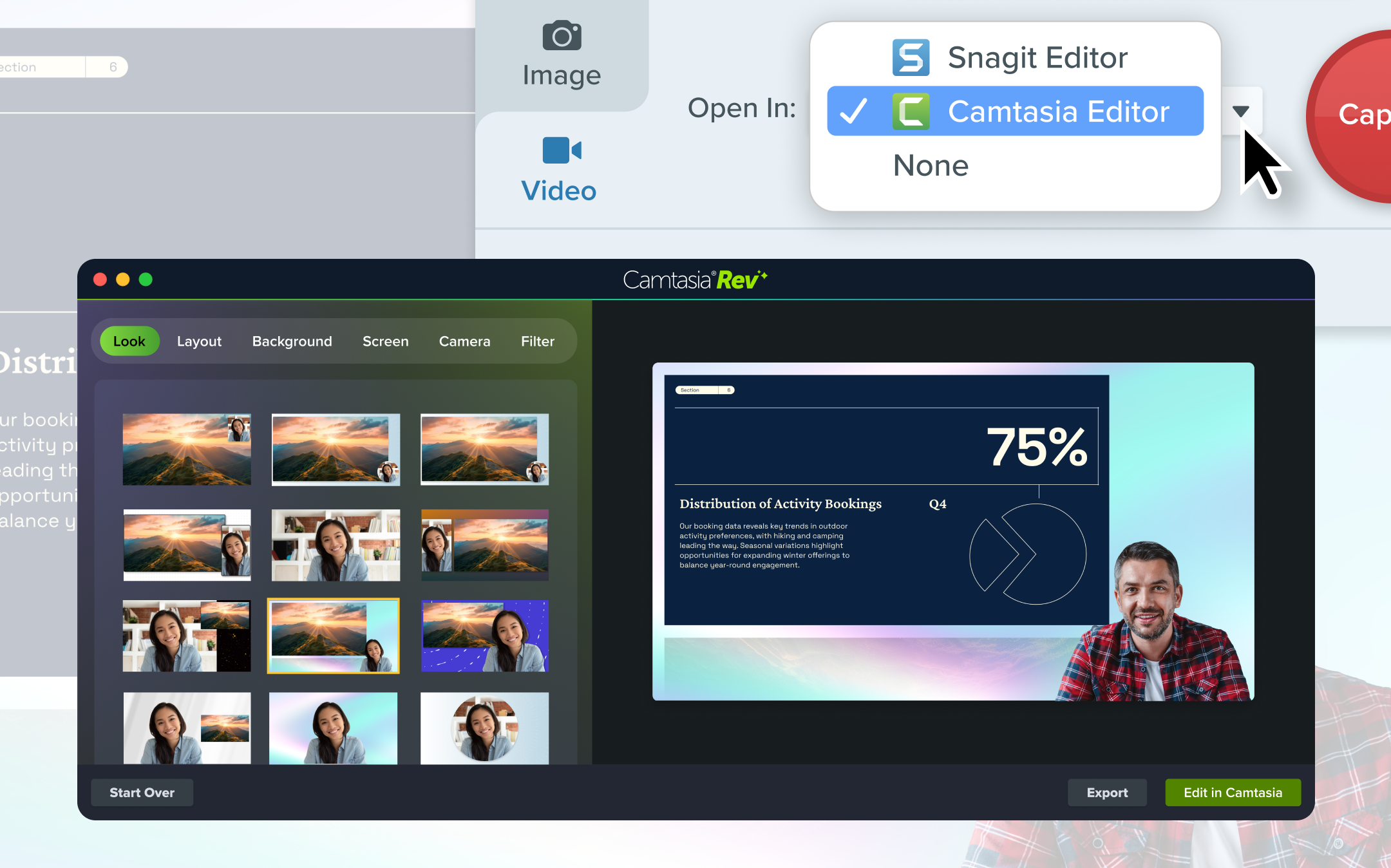
    A cursor selecting "Camtasia Editor" from the "Open In" menu. An image of a video in the Camtasia Rev editting interface is also shown.

    Open Recordings in Camtasia Editor

    Using Snagit, open your recordings directly in Camtasia Editor for full control and polished video editing.

    When starting a recording in Snagit you can select “Open in Camtasia Editor ” to instantly bring your video into Camtasia’s Rev workflow for flexible, professional-quality editing.

  • Capture separate tracks for screen, webcam, and cursor
  • Apply Looks to create polished videos faster
  • Edit with full timeline control in Camtasia Editor
  • Easily graduate from quick clips to high-impact training content
  • Note: Exports from the Camtasia Editor may include a watermark in some plans.

    Ready to try it for yourself?
    View Tutorial
    Snagit
    WindowsMacOS
    Screen RecordingEditing
    2026.1.0

    October 2025

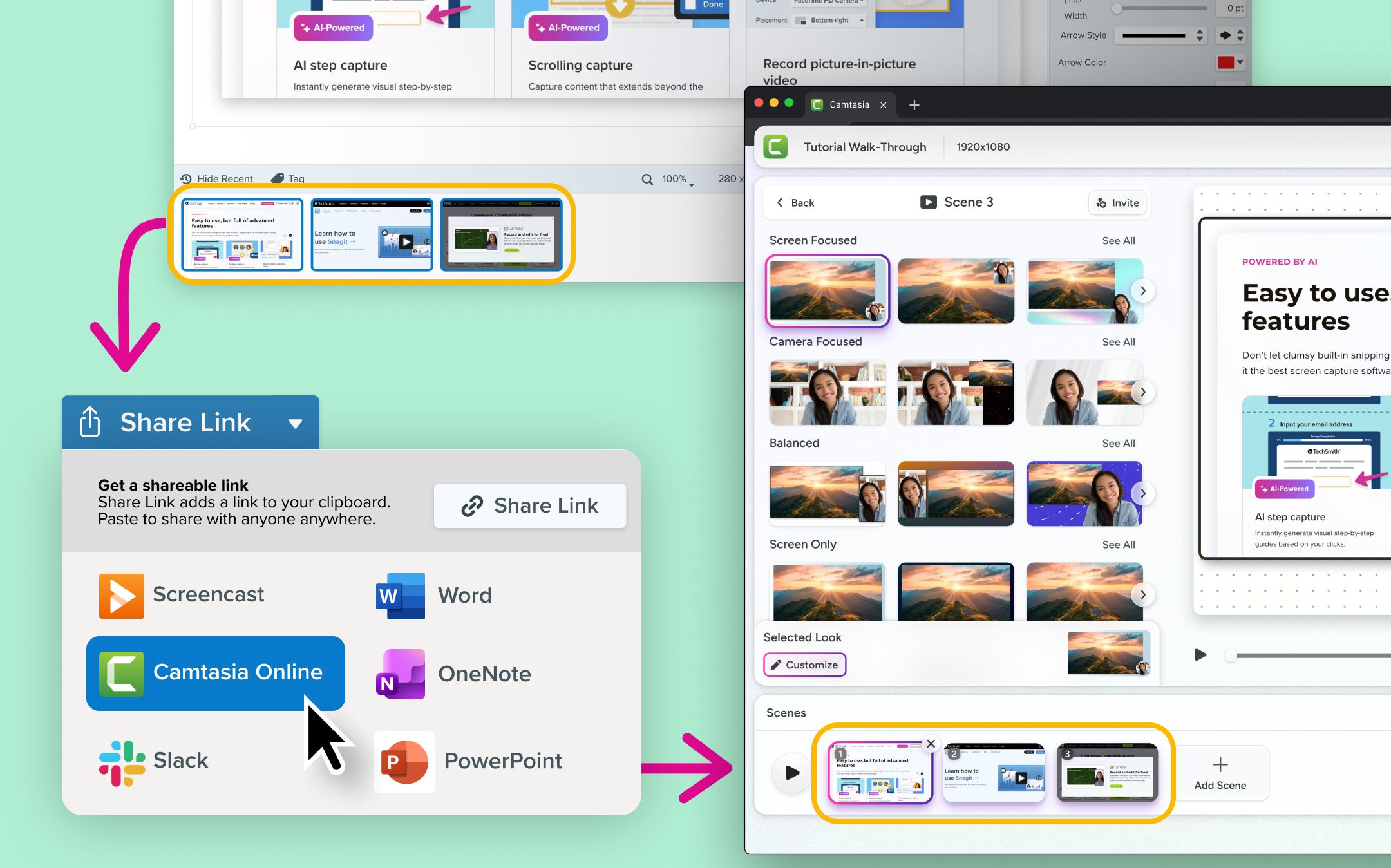
    An series of images are selected in the Snagit tray. The share drop down indicates Camtasia Online is selected. Next to it is the same images open in the Camtasia Online timeline.

    Share images to Camtasia Online

    Send screenshots to Camtasia online to record over them, add polish, and share instantly.

    Create a video from images with the new Share imagage to Camtasia Online workflow. Send images from your Snagit library into Camtasia online, record a quick camera overlay, and create a more engaging, polished message in seconds.

  • Import each image as its own scene automatically
  • Record camera video over your screenshot for added context
  • Apply Looks for instant professional polish
  • Share a link for fast feedback and async collaboration
  • Snagit
    WindowsMacOS
    Screen CaptureEditingCollaboration
    2025.4.0

    February 2025

    A woman speaking into her computer with an overlay of an audio waveform graphic

    Record clearer audio with background noise removal

    Snagit’s Background Noise Removal filters out hums, chatter, and other distractions in real-time, so your recordings stay crisp and clear.

    Not every recording environment is perfect—background hums, chatter, and other distractions can make videos harder to hear. With Snagit’s Background Noise Removal, you can instantly clean up your audio and keep the focus on what matters.

    This feature is enabled by default and works in real-time during recording. Just toggle it on in the Capture Window or Ready Recording toolbar, and Snagit will automatically filter out unwanted sounds like fans, clicks, barking dogs, or background conversations.

    Why background noise removal is a game changer:

  • Unwanted noise is distracting. Snagit automatically removes hums, chatter, and other interruptions.
  • A clear voice keeps viewers engaged. Background noise reduction makes videos easier to understand.
  • Editing shouldn’t be extra work. Snagit cleans up your audio during recording, so there’s no need for post-production fixes.
  • Now, you can record anywhere without worrying about your surroundings.

    Snagit
    MacOSWindows
    Screen RecordingAudioAI
    2025.0.0
    A users online profile with sensitive data automatically blurred.

    Instantly redact sensitive information from screenshots

    Snagit’s new smart redact feature automatically detects and removes sensitive information from screenshots, saving you time and ensuring privacy.

    Screenshots often contain sensitive details that need to be removed before sharing. But manually searching for and redacting information is tedious and time-consuming. Snagit now automatically detects and redacts the following types of information in just a few clicks:
    Addresses

  • Credit card numbers
  • Dates
  • Emails
  • Faces
  • IP Addresses
  • Phone numbers
  • Social security numbers
  • URLs
  • You can toggle specific data types on or off and choose between redaction, blurring, or pixelating to fit your needs.

    💡 Ways to use smart redact:

  • Quickly remove confidential employee or customer details from screenshots
  • Ensure sensitive data doesn’t appear in training or support materials
  • Hide account numbers, customer info, or internal systems when showcasing software
  • Whether it’s customer support teams, consultants, or business analysts, anyone who frequently shares screenshots with clients, colleagues, or the public will love how smart redact removes the guesswork and speeds up their workflow.

    Ready to try it for yourself?
    View Tutorial
    Snagit
    MacOSWindows
    EditingAI
    2025.0.0
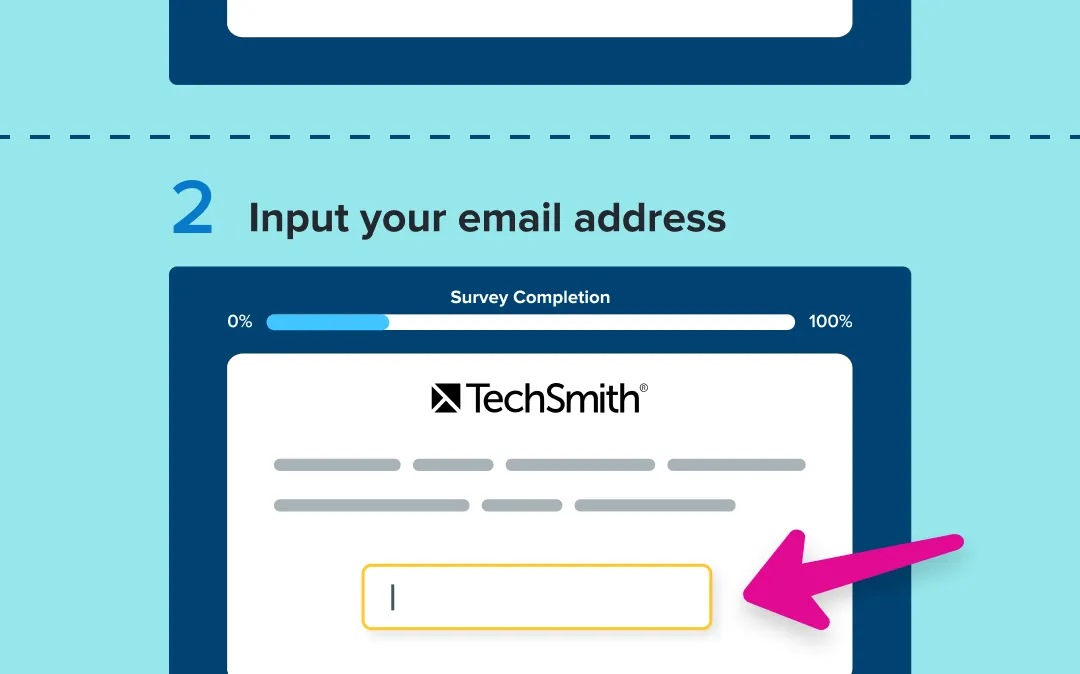
    Step 2 of a how-to-guide is shown with an arrow instructing the view where to input their email address.

    Instantly turn clicks into step-by-step guides

    Snagit’s new step capture feature automatically turns your clicks into step-by-step guides, making process documentation faster and easier than ever.

    Showing someone how to do something just got faster and easier with Snagit’s new step capture feature!

    Instead of manually taking screenshots and assembling them into a guide, Snagit can automatically create a clear, step-by-step guide for you. Just select step capture as your image selection type and click through the process as you normally would. Snagit automatically captures each click and instantly generates a guide, complete with numbered steps.

    Why step capture is a total game changer:

  • Capturing and organizing screenshots manually is time-consuming. Step Capture automates the process as you click.
  • Missing a step can cause confusion. Automatic click logging ensures accuracy.
  • Consistent formatting makes guides easier to follow. Step Capture keeps everything structured and professional.
  • Videos can be hard to browse. Step-by-step visuals make instructions clearer and easier to reference.
  • 💡 Ways to use step capture:

  • Create onboarding guides for new employees
  • Document IT troubleshooting procedures
  • Give your co-workers or clients easy-to-follow steps for completing a task
  • Step capture takes the tedious work out of documenting a process, giving you more time to focus on what really matters.

    Ready to try it for yourself?
    View Tutorial
    Snagit
    MacOSWindows
    Screen CaptureAI
    2025.0.0
    Snagit pop-up notification indicating the share destination has been changed to Google Drive.

    Seamlessly share with one-click enterprise cloud integration

    Enterprise users can now share images and videos with a single click to OneDrive for Business or Google Drive, making collaboration faster and IT-compliant.

    Snagit now offers one-click sharing to OneDrive for Business (Windows only) and Google Drive, making it easier than ever for enterprise users to store and share images and videos in IT-approved locations. This streamlined feature reduces steps and ensures smoother collaboration while keeping data secure.

    💙Why you’ll love this update:

  • Simplify sharing with a single click—no more extra steps or manual uploads.
  • Stay IT-compliant by using enterprise-approved cloud storage.
  • Improve workflow efficiency by eliminating file type and size limitations.
  • Enterprise admins can configure this feature within the Snagit Deployment Tool, allowing users to generate shareable links directly to OneDrive for Business or Google Drive.

    No more workarounds—just fast, seamless sharing.

    Snagit
    MacOSWindows
    CollaborationIT and Security
    2025.0.0

    November 2024

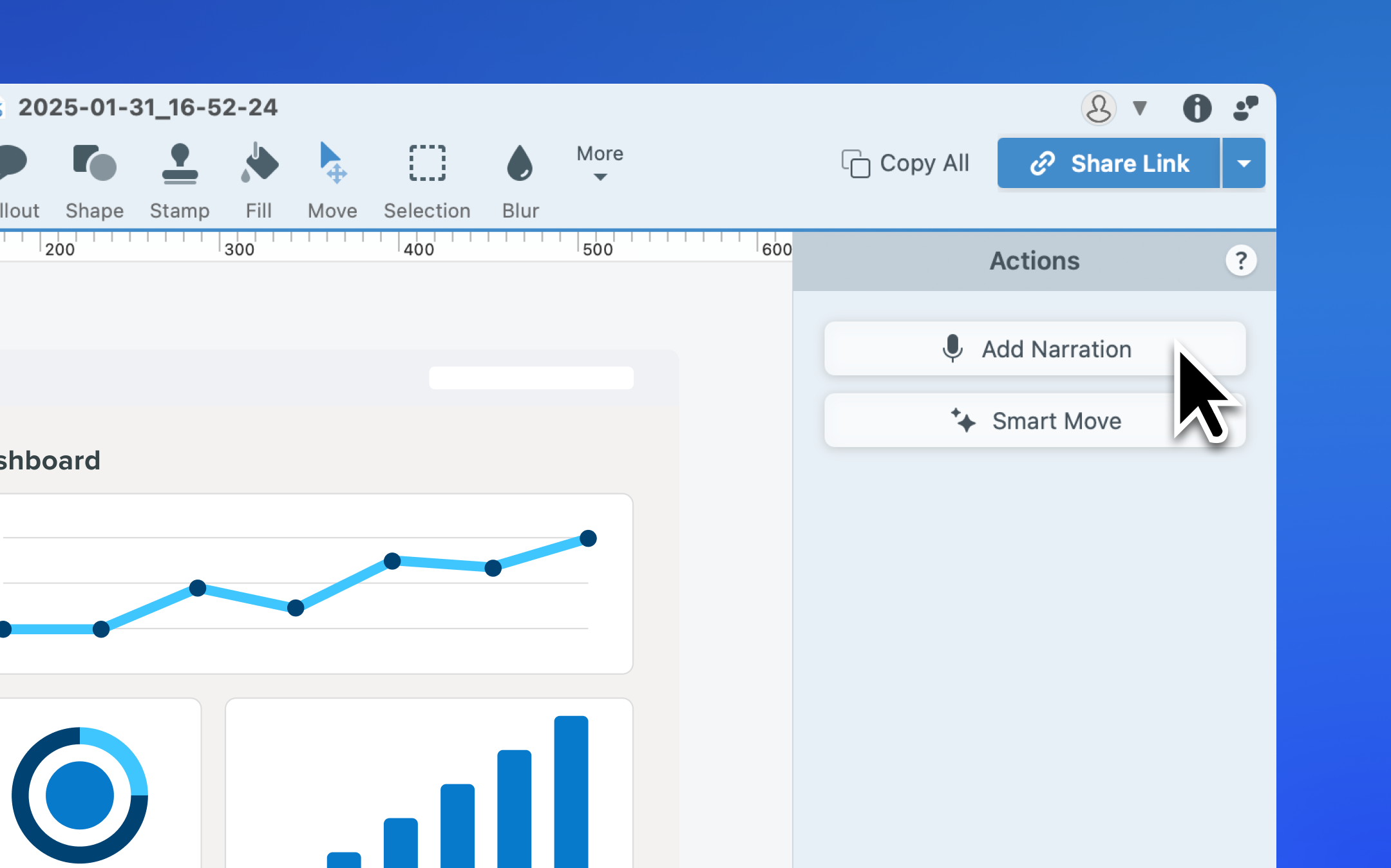
    The Snagit editor is open, with a cursor hovering over the "Add Naration" button.
    Add Narration to Your Images

    Record audio over images and create engaging videos or slideshows.

    Snagit now includes an Add Narration button under the Move tool, allowing you to record microphone audio over one or more images in your Recent Captures Tray. Create explanatory videos, slideshows, or narrated tutorials directly in Snagit—no extra tools required.

    💡Ways to use the add narration feature:

  • Turn static images into engaging videos with voiceovers.
  • Simplify the process of creating narrated tutorials or presentations.
  • Add clarity and context to your captures with personalized audio.
  • Click the Add Narration button to start transforming your images into dynamic, narrated content!

    Snagit
    MacOS
    Audio
    2024.4.0
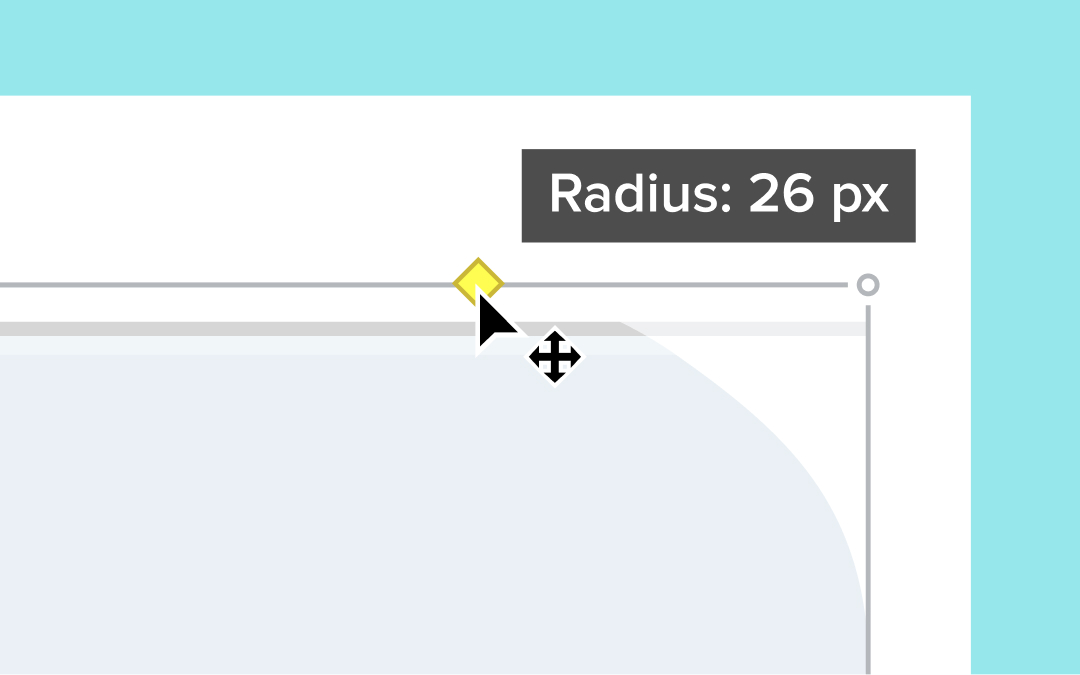
    A cursor clicks and drags to round the corner of an image.

    Customize Your Images with Rounded Corners

    Snagit now makes it simple to round image corners and customize your visuals.

    Snagit now makes it easy to round the corners of your images directly in the Editor. Simply hover over the canvas to reveal the yellow diamond handle in the top-right corner. Click the handle to apply a default 20-pixel rounding and drag to adjust the amount to fit your style.

    💡 Ways to use rounded corners:

  • Add a modern, polished look to your images.
  • Customize visuals to match your branding or design aesthetic.
  • Quickly apply rounded corners without using additional design tools.
  • Try out the new handle in the Editor canvas and give your images a fresh new touch!

    Snagit
    MacOS
    Editing
    2024.4.0
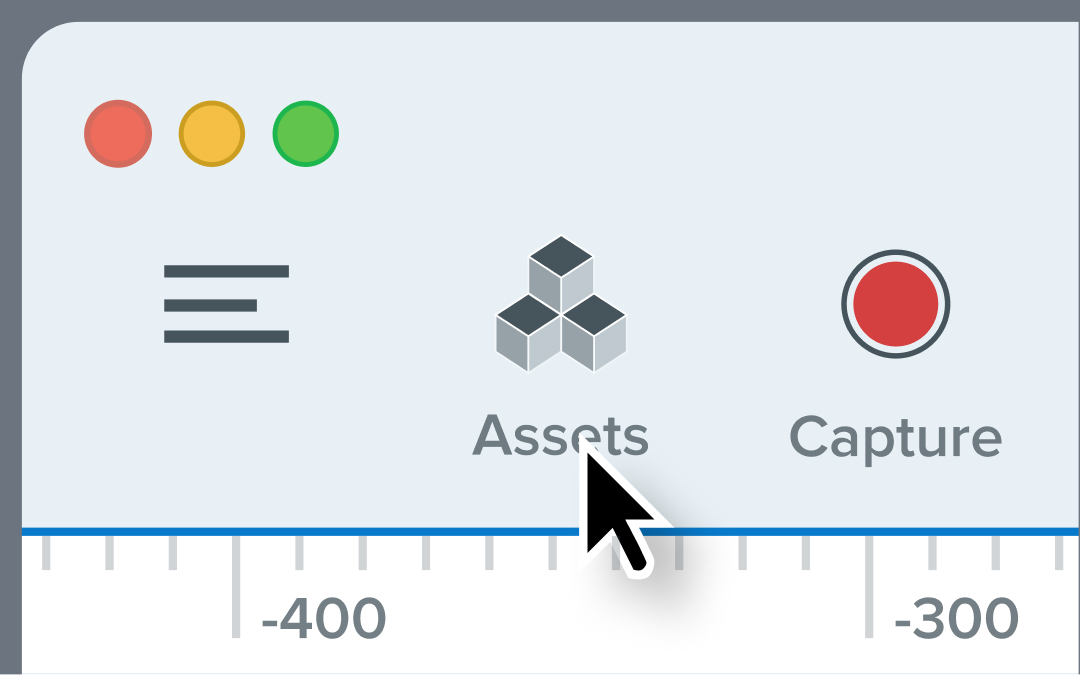
    A cursor clicking on the Assets button in Snagit.

    Explore Stamps, Templates, and More with the New Assets Button

    Access TechSmith Assets for Snagit directly from the new Assets button to browse and import creative resources.

    Snagit’s Editor toolbar now includes an Assets button that opens the Assets for Snagit website. Easily browse and import stamps, templates, themes, photos, and even AI-generated images directly into Snagit, giving you quick access to resources that elevate your visuals.

    💡 How this helps you:

  • Save time with direct access to a library of design assets.
  • Easily find and import creative elements to enhance your images.
  • Access stamps, templates, and more without leaving Snagit.
  • Click the new Assets button in the Editor toolbar and start exploring today!

    Snagit
    Windows
    Editing
    2024.3.0