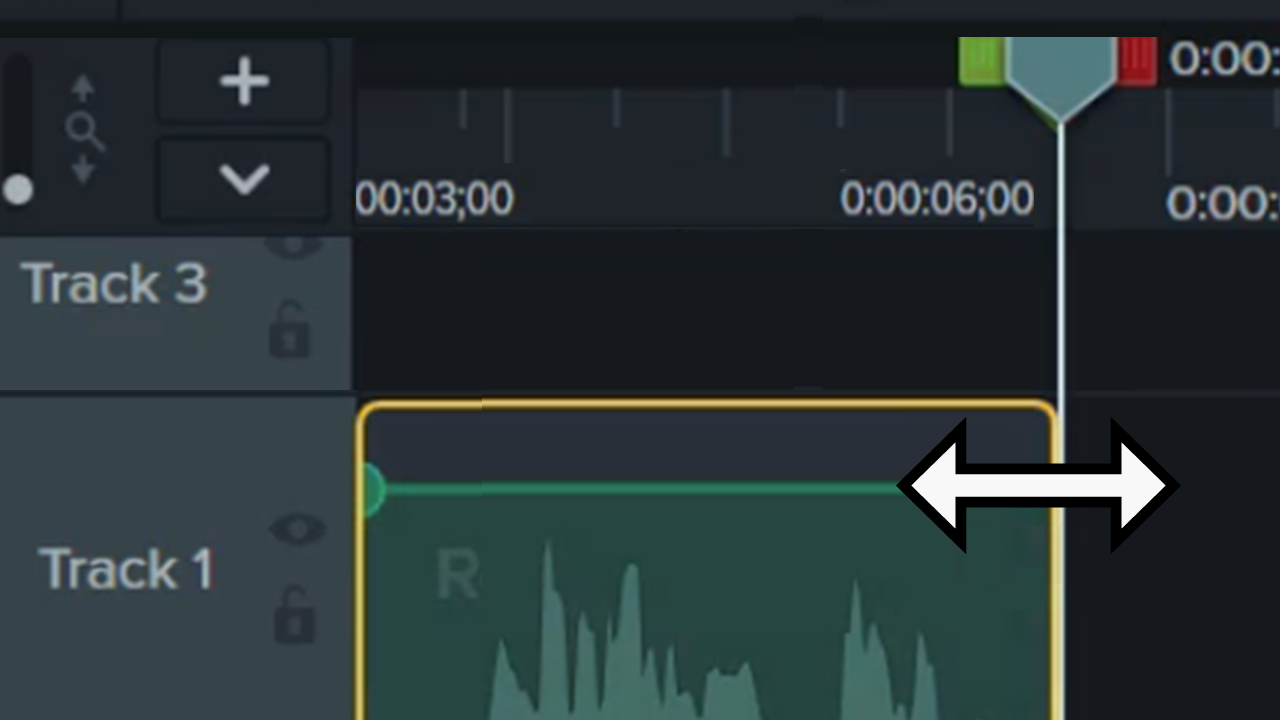
See Basic Edits After Recording for recommended additional edits in Camtasia Editor.
In Snagit Editor, you can combine videos and trim out unwanted portions. See Edit a Video.
For more flexible and robust editing, however, set your Snagit recording to open in Camtasia Editor. Snagit records your screen, camera, cursor, and audio as separate streams so you can:
- Add intros, outros, and transitions between clips.
- Add background music or edit audio.
- Change the layout of your screen and camera recordings throughout your video.
- Change or remove your cursor, edit the cursor path, or add cursor effects.
- Apply precise edits, with text-based and waveform editing.
Try Camtasia Editor
No credit card needed. Videos exported without a Camtasia Essentials, Create, or Pro subscription include a watermark.
Download Now
Record in Snagit
On the Video capture tab, select Camtasia Editor from the Open In dropdown.
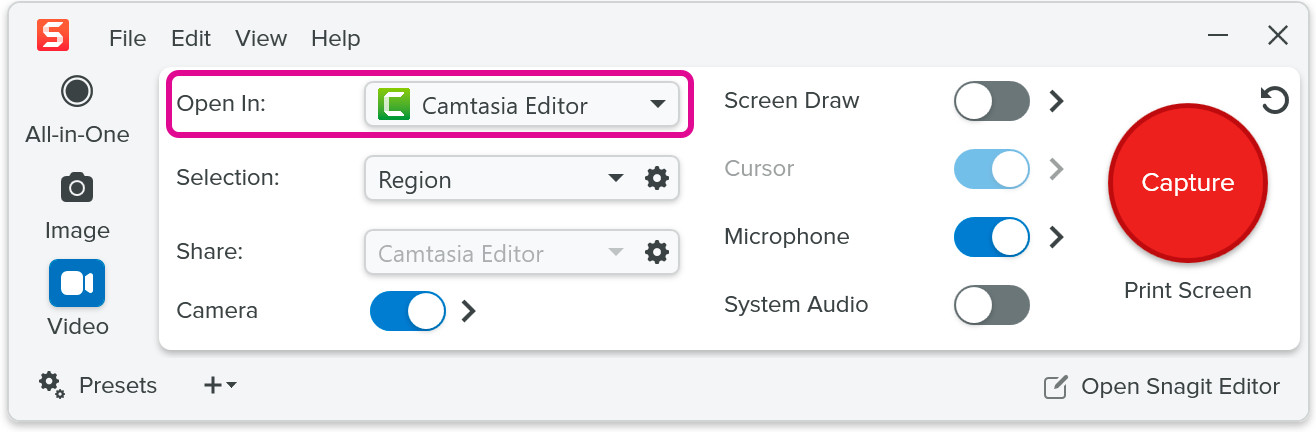
Adjust the other video capture settings, click Capture, and record your video. To learn more, see Record a Video with Snagit.
Good to Know
- Videos exported from Camtasia Editor without a Camtasia Essentials, Create, or Pro subscription include a watermark.
- Multitrack recordings from Snagit are not saved to the Snagit Library. To save a video project:
- In Camtasia Rev, select Edit in Camtasia > File menu > Save.
- In Camtasia Editor, select File menu > Save.
Apply Layouts and Effects in Camtasia Rev
When you finish recording, your video opens in Camtasia Rev where you can apply professionally-designed layouts and quick effects with just a few clicks. See Introduction to Rev Media.
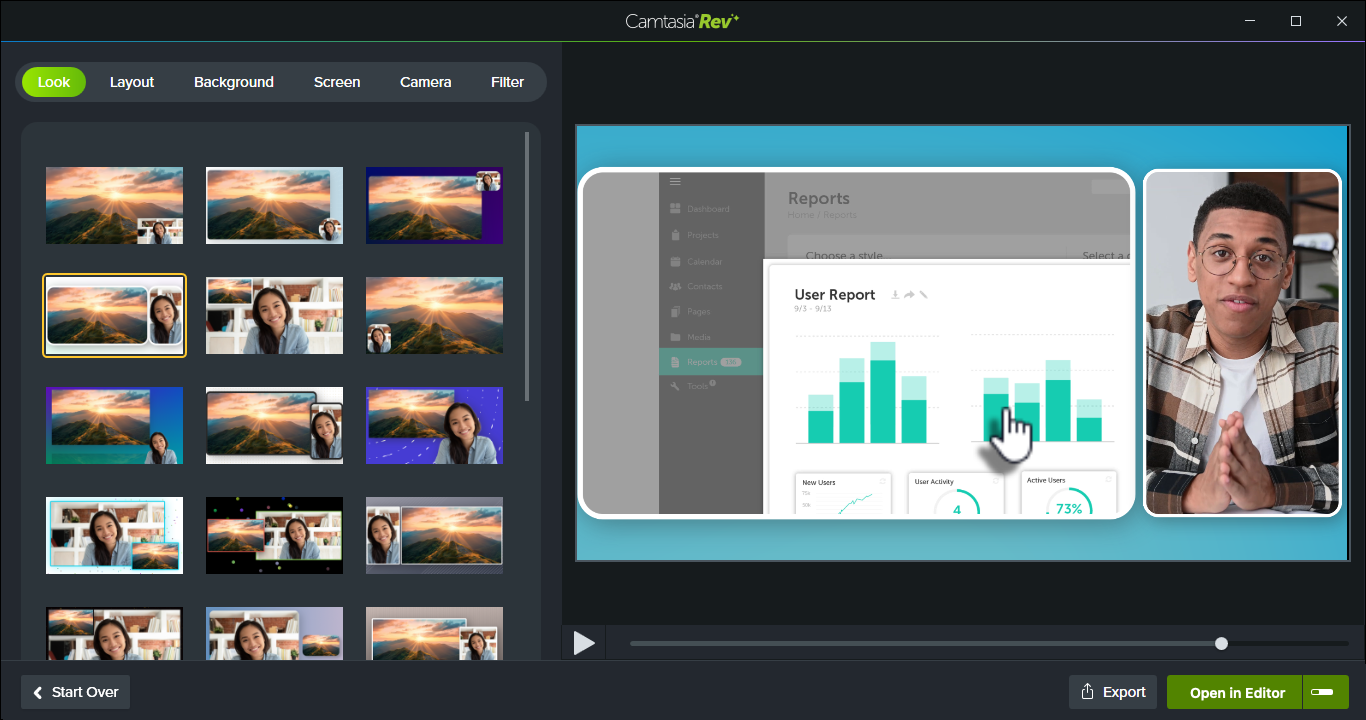
After applying the layout and effects in Camtasia Rev, you can:
- Export from Camtasia Rev: Click Export to export your video to Screencast, YouTube, or as an MP4, GIF, M4A (Windows), or MOV (Mac).
- Edit in Camtasia Editor: Click Open in Editor to take advantage of Camtasia Editor’s full editing capabilities. Add transitions, captions, assets such as background music and titles, cursor edits, effects, and more. See Basic Edits After Recording.
Get Snagit
The best screen capture software for professionals
All Snagit Tutorials