Automatically Open AirDrop Files in Snagit
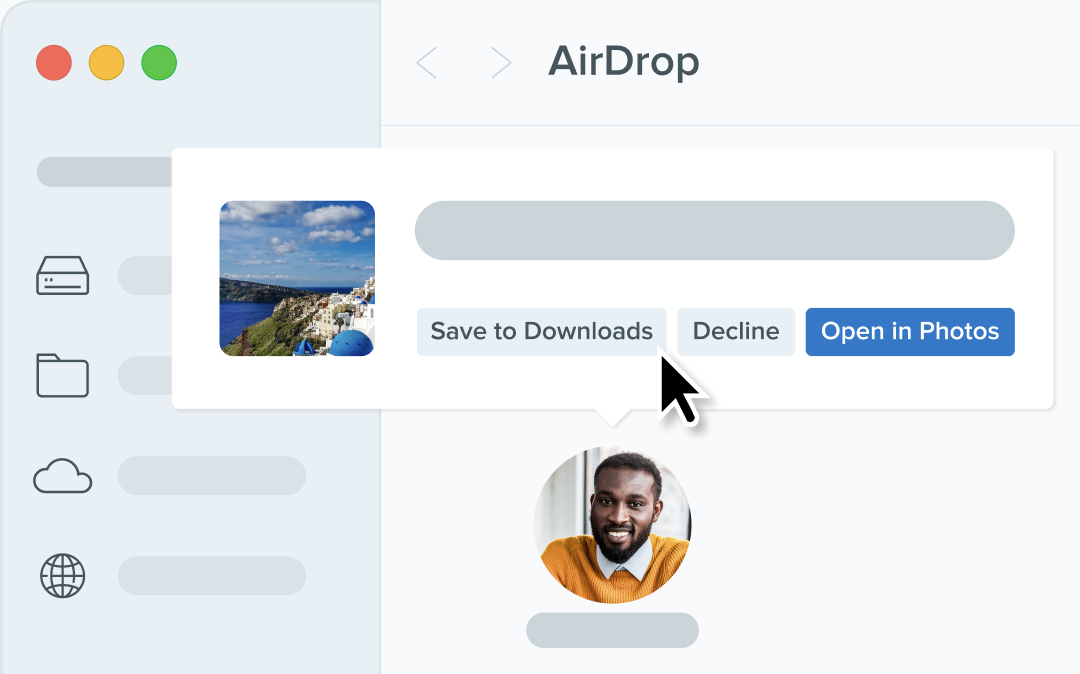
Snagit can now automatically open AirDrop files, letting you start editing or annotating right away.
Snagit now makes it easier than ever to work with files shared via AirDrop. When you receive images or videos through AirDrop, Snagit can automatically open them, so you can get straight to editing or annotating.
💙Why you’ll love using AirDrop and Snagit:
Save time by skipping manual file transfers.Streamline your workflow for quick edits and sharing.Ensure AirDrop files are ready to use the moment they arrive.
To enable this feature, go to the Capture tab in Snagit Settings and turn on Automatically open AirDrop files.
Keep Your Screen Clean with Hidden Desktop Icons
Hide desktop icons during video capture with Snagit for cleaner, distraction-free recordings.
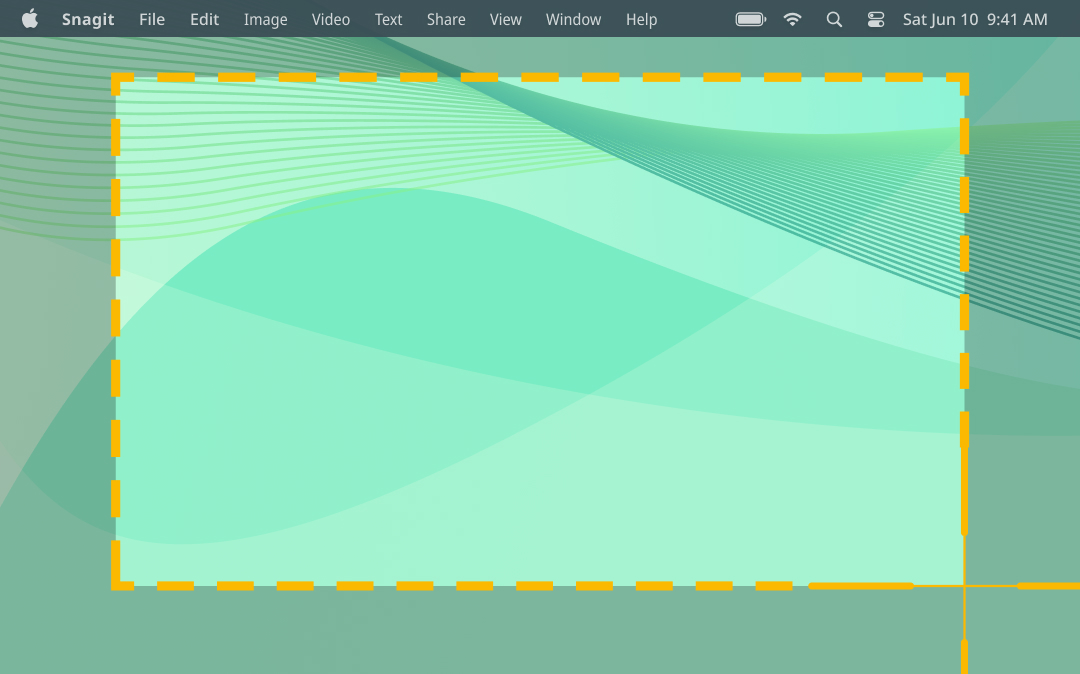
Snagit now lets you hide desktop icons during video capture, helping you create cleaner, distraction-free recordings. Whether you’re sharing a tutorial, presentation, or demo, your screen stays focused on what matters most.
💙Why you’ll love this new feature:
Eliminate visual clutter for more polished recordings.Keep your workflow organized while presenting or sharing your screen.Quickly toggle the setting as needed for different recording scenarios.
To enable this feature, go to the Capture tab in Snagit Settings or right-click the Snagit icon in the menu bar during recording.
Access Snagit Features Faster with the New Right-Click Menu
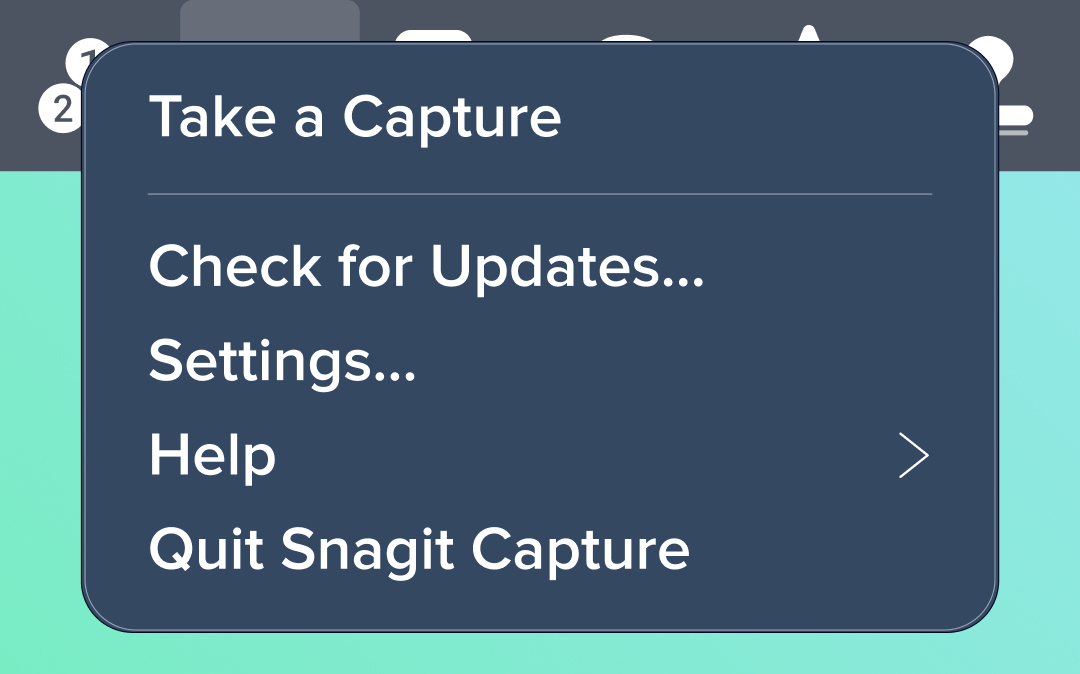
Snagit now offers a right-click menu on the menu bar icon, giving you quick access to key features like all-in-one capture, updates, settings, and help. Navigating Snagit has never been easier or more efficient!
💙 Why you’ll love this update:
Save time by accessing frequently used tools with a single click.Quickly adjust settings or check for updates without interrupting your workflow.Access helpful resources or capture options right from the menu bar.
Try it out by right-clicking the Snagit icon in the menu bar to see how it simplifies your workflow.
Snagit now offers a right-click menu on the menu bar icon, giving you quick access to key features like All-in-One capture, updates, settings, and help. Navigating Snagit has never been easier or more efficient!
💙 Why you’ll love this update:
Save time by accessing frequently used tools with a single click.Quickly adjust settings or check for updates without interrupting your workflow.Access helpful resources or capture options right from the menu bar.
Try it out by right-clicking the Snagit icon in the menu bar to see how it simplifies your workflow.
New Sign-In Options, Optimized Sharing, and .jpg Standardization
Snagit now saves JPG files with .jpg extension instead of .jpeg.Adjusted the sensitivity of the muted mic alert when the option to remove background noise is enabled.Added the ability to sign in to a subscription under a different email address once the free trial expires.Added the option to cancel optimization when sharing video to Screencast.
Faster Cloud Libraries and Clearer Sharing Feedback
Improved responsiveness of large Snagit libraries stored in cloud locations.Improved error messaging when Snagit cannot share to a Microsoft application in some circumstances.Improved the display of the share link progress bar and link copied message.
Resolved Crashes, Tooltip Glitches, and Audio Track Issues
Fixed a crash that could occur if you make a selection on a video timeline and then click Copy All.Fixed a crash that could occur when switching quick styles themes in Japanese installations of Snagit.Fixed an issue where Snagit tooltips could sometimes appear in completed scrolling and video captures.Fixed an issue where the “Automatically adjust input” microphone option was not included when capture settings were reset to defaults.Fixed an issue where deselecting “Combine audio tracks” in capture settings did not disable the setting.Fixed an issue where opening Snagit offline could result in inaccurate trial period messaging.