Add a Blur to Your Camera’s Background
Focus on what matters most by blurring your background during camera recordings in Snagit.
Keep your audience engaged with your content, not distracted by your surroundings. Whether you’re creating professional tutorials, training materials, or team updates, a blurred background helps maintain a polished and professional appearance.
💡 Ways to use background blur in Snagit:
Record professional on-screen demonstrations while minimizing background distractions.Enhance privacy when filming from a shared or home workspace.Create a consistent, clean aesthetic across video projects.
Seamlessly integrate this feature into your workflow by enabling it through Snagit’s camera settings.
Switch Seamlessly Between Full-Screen Camera and Picture-in-Picture Mode
Toggle between full-screen camera mode and picture-in-picture (PiP) while recording.
Take full control of your recordings with Snagit’s new feature that lets you easily toggle between full-screen camera mode and picture-in-picture (PiP) while recording. Highlight your camera presence when you need to connect personally, then effortlessly shift focus back to your screen content for detailed demonstrations or walkthroughs.
💡 Ways to use camera mode swapping in Snagit:
Start with a full-screen introduction to captivate your audience before transitioning to PiP for on-screen instructions.Emphasize key moments or reactions by switching to a full-screen camera view during live recordings.Balance face-to-face engagement and screen sharing in training or instructional videos.
This intuitive feature ensures your content flows naturally and stays engaging. Activate it directly from the recording toolbar—no post-editing required!
Ready to try it for yourself?
View Tutorial
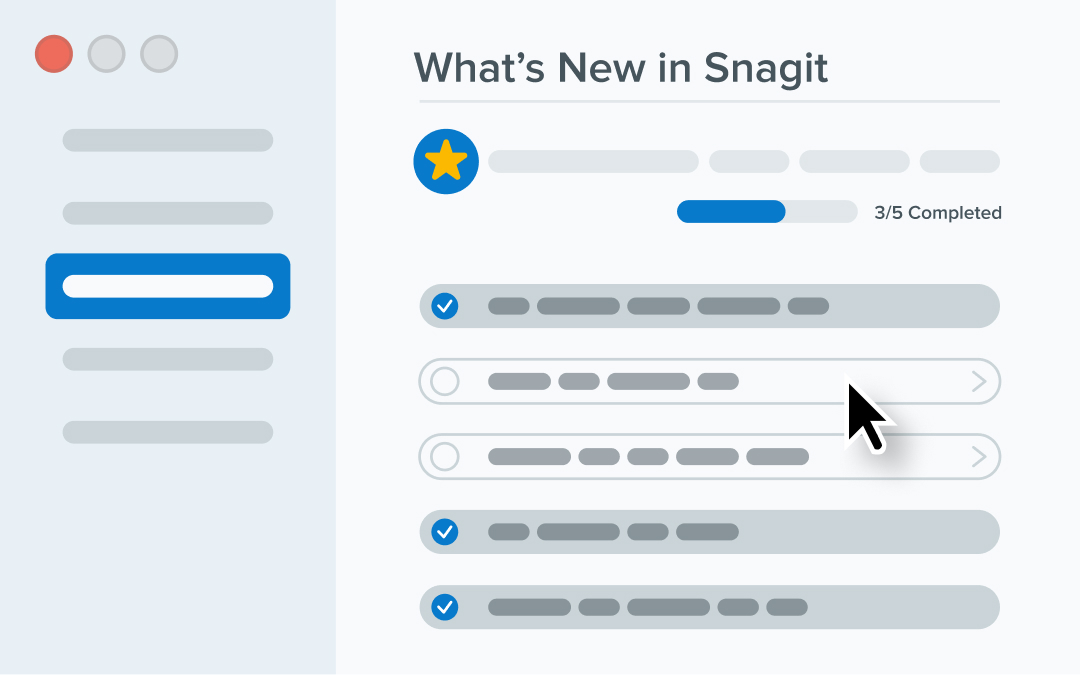
Find What You Need Faster in the Improved Learning Center
Get started quickly, explore new features, and level up your skills with step-by-step tutorials and expert tips—all in one place.
Snagit’s revamped learning center is your go-to resource for mastering the tool and staying updated on the latest features. With step-by-step getting-started tutorials and curated highlights of what’s new, it’s never been easier to unlock Snagit’s full potential. Whether you are a beginner or a seasoned user, the learning center ensures you have the guidance you need at every step.
💙 Why you’ll love the new learning center experience:
Quickly get up to speed with easy-to-follow tutorials designed for new users.Stay informed about updates and enhancements tailored to improve your workflow.Access tips and best practices to take your video and image creation skills to the next level.
Ready to explore? Navigate to the learning center directly from Snagit and start discovering!
Streamline Collaboration with Microsoft Teams Integration
Share your Snagit captures directly to Teams channels or chats for seamless communication and teamwork.
Easily share your Snagit captures directly to Microsoft Teams, keeping your workflow seamless and your team aligned. Collaboration has never been more efficient, whether it’s a screenshot, video, or annotated image.
💡 Ways to use the Microsoft Teams Integration in Snagit:
Share quick feedback or visuals in your team channels without leaving Snagit.Send annotated screenshots directly to colleagues to clarify tasks or questions.Post instructional videos in Teams to ensure everyone stays on the same page.
Connect Snagit to Microsoft Teams today and simplify how you share content.
Ready to try it for yourself?
View Tutorial
Stay Updated with Notifications for Shared Links
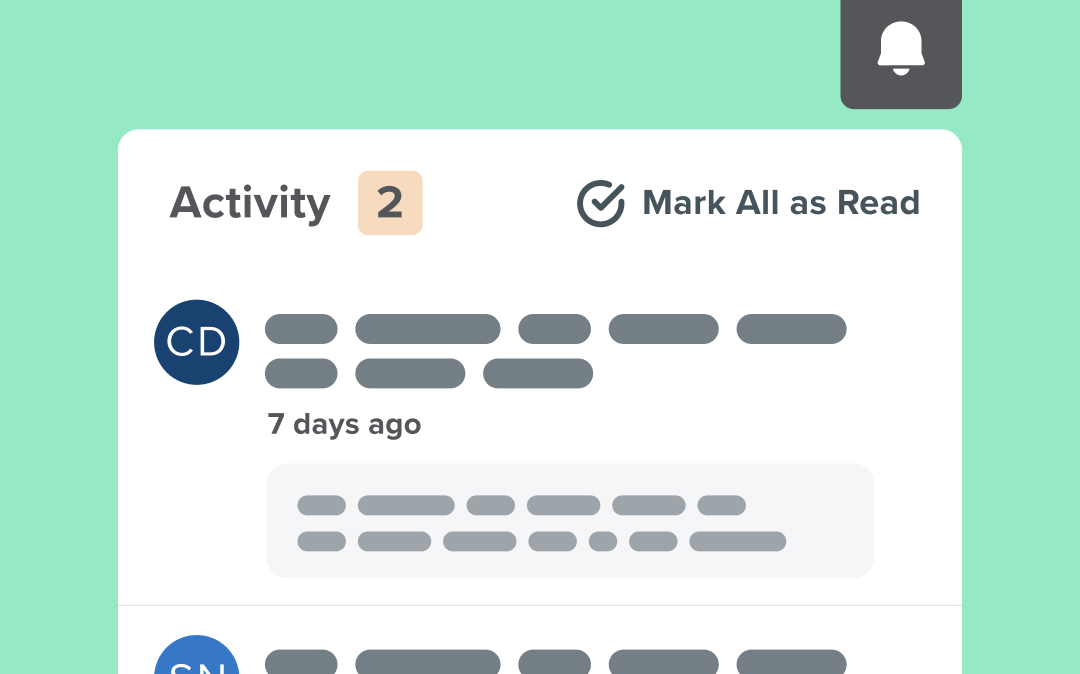
Get real-time updates when your shared Snagit content is commented on or interacted with.
Never miss an update with Screencast’s new notification feature. Get real-time alerts when your shared Snagit content is commented on or interacted with, keeping you informed and connected to your audience.
💙 Why you’ll love Screencast notifications:
Stay updated when collaborators leave feedback on shared content.Respond faster to comments or questions on your Screencast-hosted files.Ensure you’re always aware of activity on your shared links.
This feature enhances collaboration and streamlines your content-sharing experience. Learn more about Screencast notifications.
Ready to try it for yourself?
View Tutorial
Add Animations to Each of Your Mouse Clicks
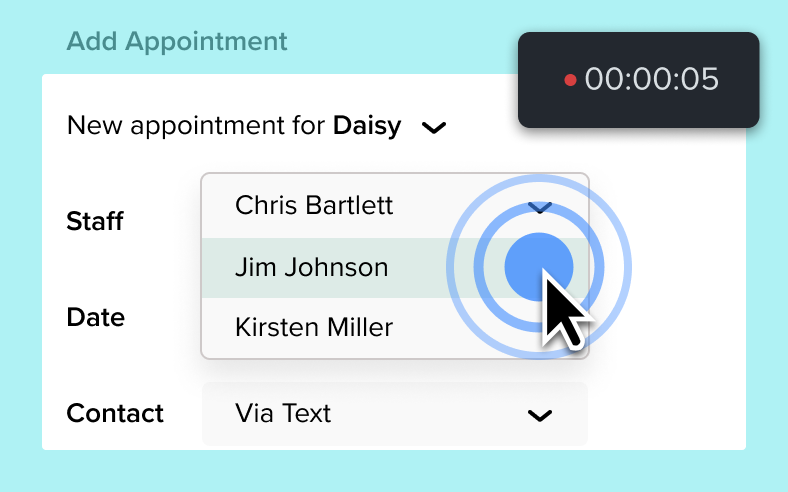
Draw attention to your clicks effortlessly and create engaging instructional videos with Snagit’s click animations feature.
Snagit’s click animations make it easy to visually amplify your mouse clicks during recordings, providing clear guidance without the need for narration. Customize animation colors for better visibility or to match your brand, and toggle the feature on or off as needed directly from the video toolbar.
💡 Ways to use click animations in Snagit:
Highlight mouse clicks in software tutorials or workflow demonstrations to direct attention and reduce confusion.Emphasize specific actions or selections during recorded presentations.Make feedback clearer by visually marking exact actions in screen recordings shared with your team.Help students or trainees easily follow along by showcasing clicks with clear animations.Add click animations for viewers who benefit from extra visual guidance in video tutorials.
Discover Snagit’s Features with New Guided Tours and Learning Center
Explore helpful resources in Snagit’s new learning center.
Snagit now features in-product tours to help you get up to speed quickly. These guided experiences walk you through Snagit’s powerful tools, making it easy to achieve your goals step by step. Plus, the redesigned learning center makes it simple to find what’s new, explore tutorials, and access tours whenever you need them.
💙 Why you’ll love the new learning center:
Learn Snagit’s tools through hands-on, guided walkthroughs.Quickly find tutorials and resources to support your workflow.Stay updated with new features and tips in one convenient place.
Visit the learning center to access tours and resources anytime!
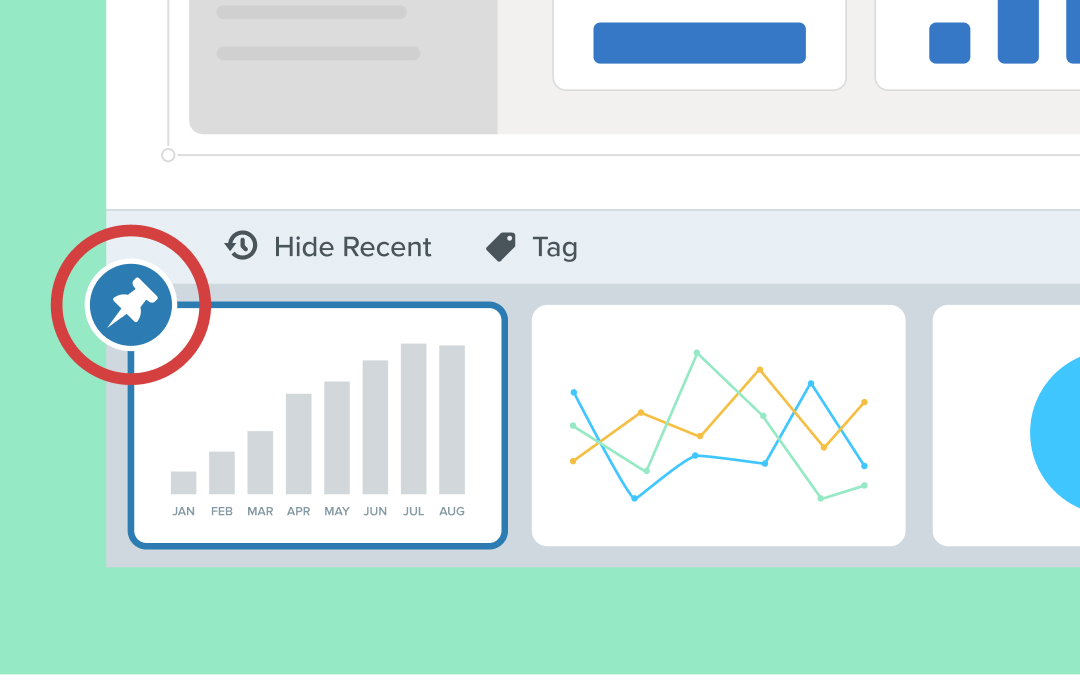
Pin and Organize Your Content in the Recent Captures Tray
Pin and reorder captures in Snagit’s recent captures tray to organize and quickly access important project assets.
Snagit now lets you pin image and video captures in the recent captures tray for quick and easy access. You can also reorder pinned captures to organize your project assets, keeping everything exactly where you need it. When you’re done, simply unpin them to keep your tray clutter-free.
💡 Ways to use this feature:
Save time by pinning important assets for quick reference.Stay organized by reordering captures for better project management.Keep your workflow streamlined by unpinning assets when they’re no longer needed.
Try pinning your captures today to take control of your recent captures tray!
Ready to try it for yourself?
View Tutorial