









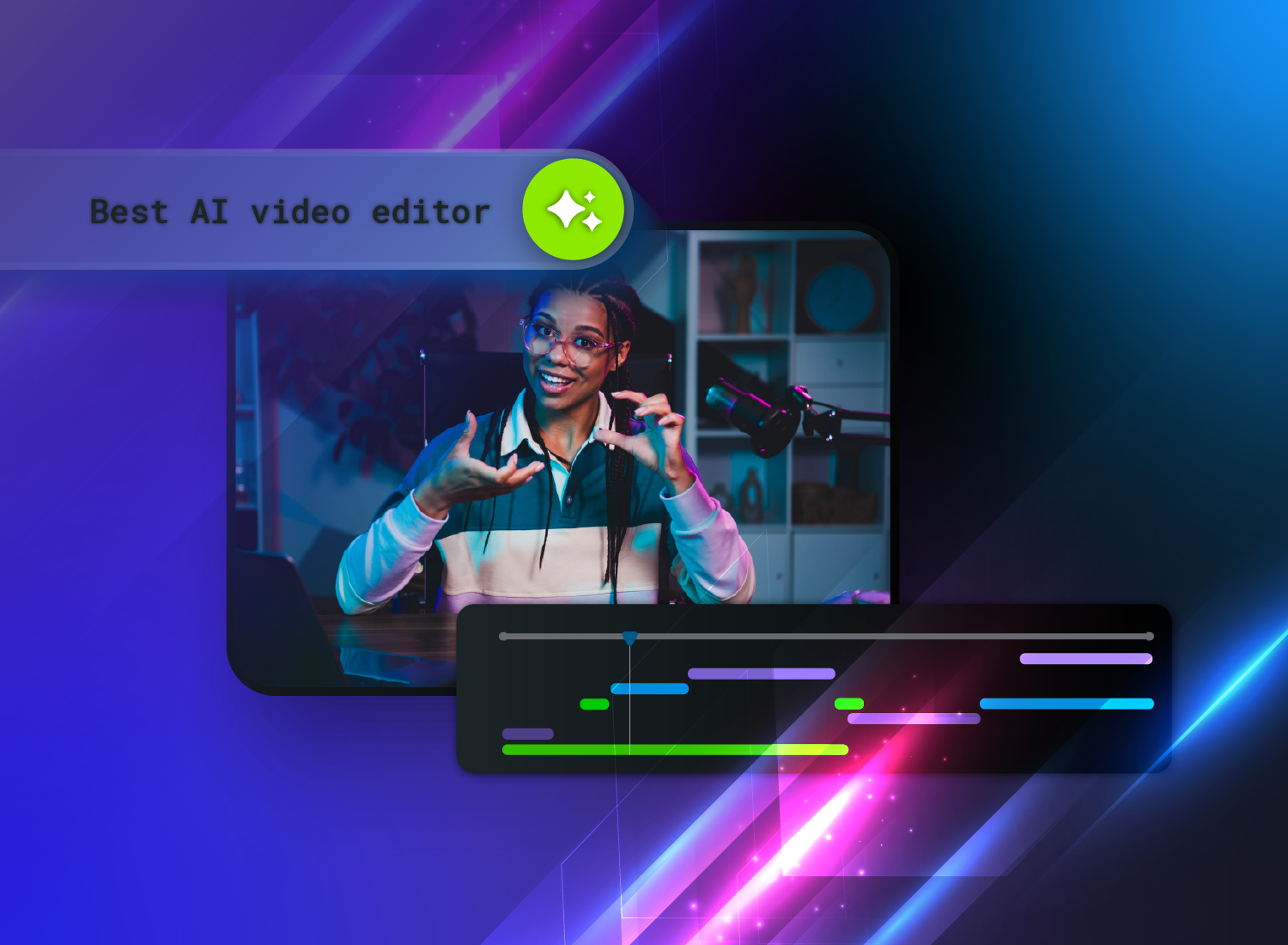
Video is one of the most effective ways to share information at work. But creating it hasn’t always been simple. With AI-powered tools, you no longer need a background in video production to create clear, professional content.
These tools can speed up editing by generating captions, cleaning up audio, and handling basic cuts automatically. Not every AI video editor delivers the same results, though — especially for workplace needs like training, tutorials, and internal communication.
That’s where things get tricky. Many tools promise automation, but still leave you making manual fixes or navigating editing workflows that take time to learn.
For workplace video, the right tool should reduce effort, not add to it. In this guide, we compare five of the best AI tools for video editing, with a focus on what actually helps teams create high-quality content faster.
Key takeaways
- AI-powered video editors remove time-consuming tasks like captioning, noise cleanup, and basic corrections, so non-editors can produce polished videos faster.
- The best AI video editor depends on your main use case: Camtasia fits training and tutorials, while tools like CapCut are built for social-first speed.
- Text-based editing is a major shift because it lets you edit video through a transcript, avoiding complex timeline work for many everyday edits.
- Brand consistency features such as templates, fonts, and logo assets often matter more than flashy effects for corporate, enablement, and L&D content.
- Desktop editors tend to offer stronger security and deeper control, while cloud tools often prioritize speed and collaboration for distributed teams.
What to look for in AI video editing tools
When choosing a video tool for your team, focus on how well it supports your goals. The most effective options save time by handling manual editing tasks, which is especially important for teams on tight schedules.
Strong AI video editing platforms also make it possible to create polished, professional content without prior editing experience. And when your videos look clear and intentional, people are more likely to stay engaged: In our AI Avatars and Voices Study, we found that viewers retain information more effectively from videos with high-quality AI avatars and voices versus those with low quality.
Do AI Voices and Avatars Improve Learning?
Discover what the data reveals about learning outcomes.
Get the Full Report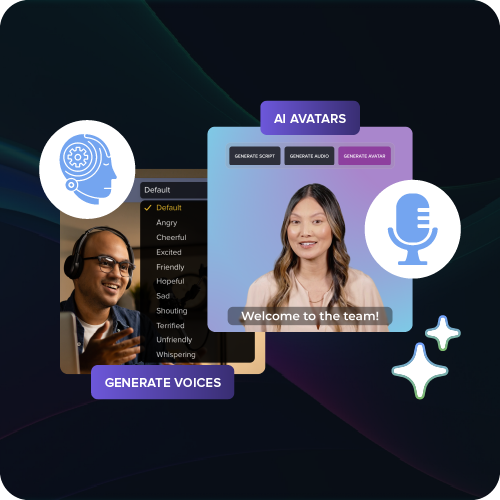
Here are the features that matter most when evaluating an AI video editor.
Ease of use for non-editors
Ideally, your video editing software should work for your entire team, whether they’re experienced or complete beginners. If a platform requires extensive onboarding or relies on complex timelines, it’s likely not the right fit for teams with limited video experience.
Instead, look for platforms with an intuitive, user-friendly interface. Guided workflows help people get started quickly, regardless of skill level. A library of templates is another valuable feature, making it easier to create quality videos without starting from scratch.
AI depth and automation
Some video creation platforms claim to offer AI features, but in practice, only provide automated subtitles. If a tool has limited automation, you may still spend hours on manual editing tasks.
To avoid that, look for platforms with meaningful AI capabilities. Focus on what actually saves time in the editing process, rather than effects that aren’t necessary or practical for your organization.
Key features to look for include AI avatars and voiceovers, scene detection, accurate captions without filler words, and background noise removal. Many platforms also support text-to-video editing, which lets you describe the changes you want and applies them automatically.
Brand control, accessibility, and collaboration
Brand consistency matters. 95% of marketers say the ability to use their own branding is essential when creating videos with AI. Your brand identity should come through in every piece of content, whether it’s internal instructional videos or public-facing social content. Look for a platform that supports this with reusable templates and an asset library for fonts, colors, and logos.
Accessibility is just as important. Choose a platform with reliable automated captions and transcripts so your videos are easier for everyone to follow. You should also be able to edit captions directly and export transcripts for repurposing.
The 5 best AI video editors
There’s no shortage of AI video editing tools, but they’re not all built for the same kind of work. Some are designed for quick social clips, while others are better suited for structured content like step-by-step walkthroughs, product demos, or internal updates.
To make the choice easier, we’ve narrowed it down to five platforms that stand out for different use cases. Each one is evaluated based on ease of use, time-saving automation, and how well it supports consistent, professional output.
1. Camtasia
Best for: Creating professional internal video content like tutorials, training videos, and workplace announcements.
Camtasia is built for teams that need to create clear, professional videos without a complicated setup. When you need to share information quickly, Camtasia’s AI-powered editing features help you produce quality video without hours of manual work. Camtasia Editor handles visuals, captions, and audio, while Camtasia Audiate supports script creation, voiceovers, and talking-head AI avatars.
The interface is intuitive, with guided workflows that make it easy to get started, even if you’re not an experienced editor. Built-in resources and templates help teams create consistent, professional content without starting from scratch.
Camtasia is also desktop-first, which works well in corporate environments where file control matters. You can keep recordings organized, manage access, and reuse brand assets across projects to maintain consistency.
Camtasia Editor AI features:
- Smart Focus: Automatically zooms and pans based on cursor movement to guide attention.
- Cursor effects: Enhances and smooths cursor movement in screen recordings.
- Background noise removal: Reduces unwanted noise while keeping speech clear.
- AI-generated captions: Creates closed or dynamic captions based on your audio.
Camtasia Audiate AI features:
- AI script generation: Create scripts in your preferred style and language.
- AI voiceovers: Generates voice narration from your script with a range of voice options.
- AI avatars: Uses a talking-head avatar to present your content without recording yourself.
- AI translation: Translates scripts for global teams.
- Text-based editing: Lets you edit video by editing the script.
If you can edit a doc, you can edit a video
Stop fearing the timeline. Camtasia Audiate transcribes your recording so you can edit your video just by editing the text.
Free Download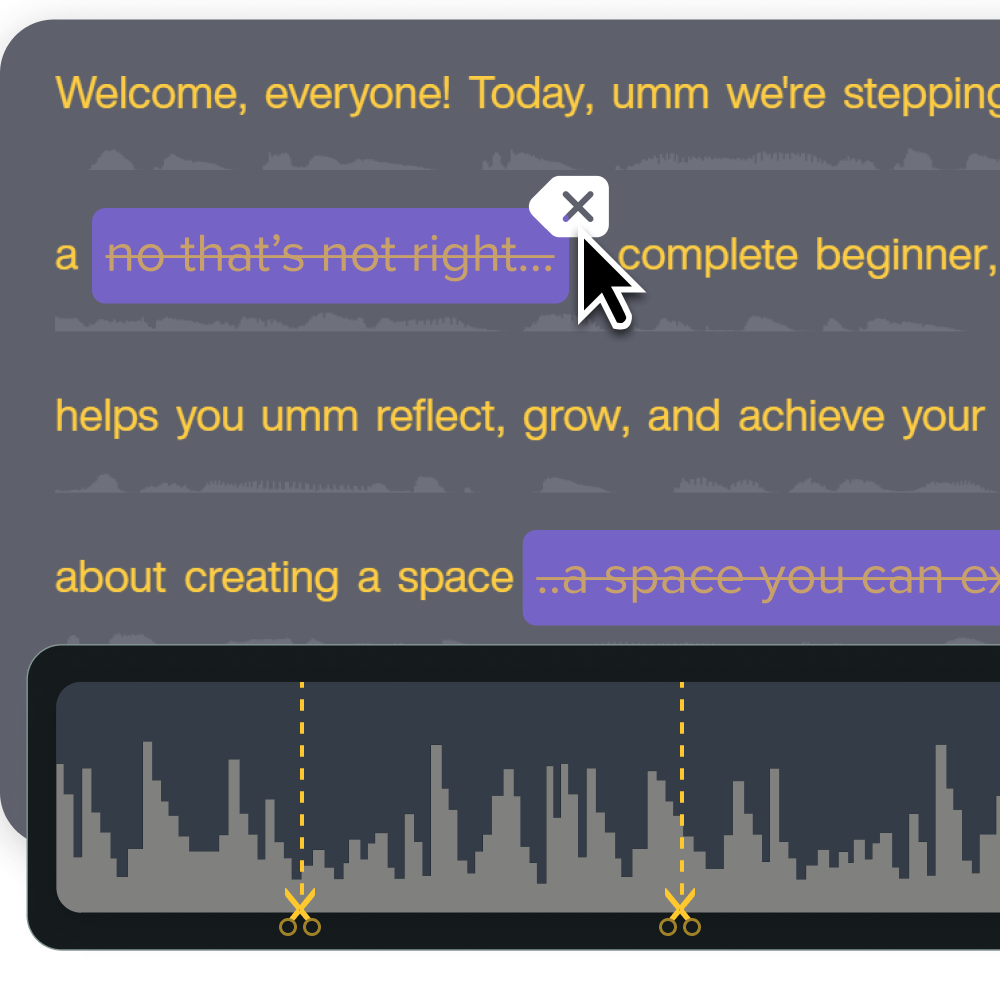
2. Descript
Best for: Editing podcasts or interview-style videos with a text-based editor.
Descript is a video editing platform built around text-based editing features. When you upload a video, it generates a transcript automatically. You can then edit the content by updating the text instead of working through a complex timeline.
It also supports collaboration, making it easy for multiple stakeholders to review videos and give feedback before publishing.
If you don’t want to record footage of yourself, Descript includes AI avatars and media generation tools to support your content creation workflows. While it does offer a screen recorder, its editing capabilities are more limited for screen-recording-heavy projects, which can make it a less ideal fit for internal training content.
AI features:
- AI assistant: Underlord removes filler words, reduces background noise, adjusts eye contact, and repurposes long-form content into social media videos.
- Automated captions and transcription: Generates a transcript, then adds captions based on your preferences.
- AI avatars and voiceovers: Adds a customizable avatar or voiceover based on your script.
- B-roll generation: Creates clips or effects from text prompts.
- AI translation: Translates videos or podcasts into more than 20 languages.
- AI video descriptions: Generates podcast show notes or descriptions for your YouTube channel.
3. Adobe Premiere Pro
Best for: Experienced video editors who need advanced features and complete control over the final product.
Adobe Premiere Pro is a widely used editing tool for creating studio-quality video content. Features like AI color grading, audio mixing, and scene detection help refine details for a polished final result. It also includes a large library of transitions and animations that support more creative, high-production work.
Premiere Pro integrates with the broader Adobe ecosystem, which can be useful if your team already uses tools like Photoshop or Illustrator. However, it comes with a steep learning curve. Without prior editing experience, onboarding can take time.
Costs can also add up for larger teams. For many workplace use cases, especially when speed and collaboration matter, it may be more than you need.
AI features:
- Text-based editing: Refines long videos by adjusting the transcript and using text prompts.
- Scene detection and media intelligence: Splits footage into scenes and helps surface relevant clips as you edit.
- AI color grading: Automatically adjusts color on raw footage.
- AI audio mixing: Reduces background noise, enhances speech, and balances audio.
- Object mask: Removes or hides unwanted elements in footage.
- Generative extend: Extends short clips using generative AI.
4. CapCut
Best for: Quickly creating content for social media platforms.
CapCut is a video editing platform designed for short-form content. If you need to produce videos at scale for TikTok, Instagram Reels, or YouTube Shorts, it’s an accessible option. The free tier also makes it easy to test ideas and experiment with new formats.
While CapCut includes a range of creative tools, it’s less suited for internal workplace videos. It doesn’t offer strong brand asset management, which can make it harder to maintain consistency across a video library. It’s also most effective for short-form editing rather than longer, structured content.
AI features:
- AI content generator: Creates clips, images, and characters from prompts.
- Auto-generated captions: Generates captions with support for more than 20 languages.
- AI voiceovers: Produces voice narration using text-to-speech.
- AI image removal: Removes backgrounds or unwanted elements from visuals.
- Noise reduction: Cleans up background audio.
- Quality enhancement: Improves clarity and brightness automatically.
5. Runway
Best for: Experimenting with generative AI for innovation and creative projects.
Runway is a generative AI tool for creating video content from text prompts. It allows users to generate and refine visuals quickly, making it useful for exploring new concepts or styles. The platform also includes AI video agents, which act as customizable avatars you can interact with directly.
Because it runs on a web browser, Runway is easy to access and quick to experiment with. However, it can be harder to maintain brand consistency across projects. Output can vary from one video to the next, which makes it less reliable for repeatable, polished content like training or internal communication.
AI features:
- AI video generation: Creates videos from text prompts.
- AI avatars: Builds interactive AI agents for presenting or guiding content.
Choosing the right editor for training, marketing, or social clips
The right AI video editor depends on the type of content you’re creating and how your team works day to day. A tool that’s ideal for training may not be the right fit for fast-moving social content.
Here’s how to think about your choice based on your video editing goals.
Workflow for L&D teams
For learning and development teams, clear communication is a top priority. Training videos and internal announcements need to be polished and accessible, and they rarely require flashy effects.
When choosing a tool, focus on features that help you create and edit instructional content quickly. Automated captions make videos accessible in just a few clicks, while features like Camtasia Editor’s Smart Focus guide attention without requiring complex animations. Brand libraries and templates also help teams move faster when creating content at scale.
It’s also important to record your screen, camera, and audio on separate tracks. This gives you more control during editing, without the need to manually split files later.
Camtasia’s text-based editing can further simplify the workflow. Instead of navigating a timeline, you can update the transcript to make changes. This also makes review easier, since team members can read and edit content directly.
Workflow for social marketers
For social media teams, content creators, and marketing pros, creating engaging content at scale is a constant challenge. You need tools that support fast production and make it easy to tailor videos for different platforms.
When choosing an AI video editor, look for features that simplify common tasks like generating captions, removing backgrounds, and cleaning up audio. You should also be able to resize videos quickly and export them in formats optimized for multiple platforms. A strong library of effects and templates can help you keep up with trends without needing advanced editing skills.
CapCut works well for quick social clips, while Runway supports on-demand, AI-generated visuals. But if you’re creating longer videos that require consistency and brand controls, a tool like Camtasia may be a better match.
Go from screen recording to polished video
A screen recording is just the start. Camtasia’s editor helps you add the callouts, animations, and edits you need to create a truly professional video.
Free Download
Integrate Camtasia into your workflow
AI video editing tools make it possible to create high-quality video content across a range of use cases, but the right choice depends on what you’re producing and how your team works. Some tools prioritize speed and experimentation, while others are built for clarity, consistency, and repeatable workflows.
Camtasia is designed for teams creating training videos, tutorials, and internal communication. It brings together screen recording, intuitive editing, and AI-powered features so beginners and experienced editors can produce clear, polished content without a steep learning curve.
Explore the Camtasia Product Suite to see how it supports faster production and stronger, on-brand results.
FAQs
Can I record my screen and camera and still use AI editing?
Yes. Camtasia Editor records your screen, camera, system audio, and microphone on separate tracks, then supports AI features like automated captions, noise removal, and Smart Focus to speed up editing.
Do AI video editors keep my brand fonts and colors consistent?
Some do, but not all. Camtasia Editor supports reusable templates and saved assets that help teams keep fonts, colors, and logos consistent across a full video library.
Will AI captions meet accessibility guidelines?
AI captions are a strong starting point, but they should be reviewed and corrected before publishing to meet accessibility guidelines. Camtasia Editor lets you edit caption text directly and export standard caption formats for compliance workflows.
Are desktop or cloud AI editors better for corporate security?
Desktop editors like Camtasia Editor often provide stronger control because project files can stay on local machines or approved storage. Cloud tools can still work, but teams should review data handling and access policies for sensitive content.
Share