









If you’re looking for the best AI video generator, start with the right question: what exactly do you want to generate with it?
Some tools generate video from text prompts, while others automate aspects of video creation like captions, noise removal, and transitions. These tools are evolving rapidly: in 2026, many can produce realistic motion, audio, and even photorealistic humans.
Text-to-video and image-to-video tools like Google Veo are great for creating detailed, visual-rich video from just a simple text prompt. But they aren’t great for editing and don’t handle technical and text-based visuals all that well.
If you’re trying to create detail-heavy content like tutorials, training, and how-to content, AI-enhanced screen recording tools help you keep those details accurate.
This article will show you five of the best tools available that cover these use cases. By the end you’ll be equipped with practical steps that help you start making AI videos faster.
Key takeaways
- Google Veo leads for text-to-video generation with strong prompt adherence and cinematic realism, making it a top pick for marketing and creative projects.
- Runway stands out for creators who need advanced editing control and professional-grade motion for cinematic results.
- Free AI video generators often add watermarks, restrict commercial use, or limit length, resolution, or quantity, so always confirm the terms before publishing.
- For training videos, tutorials, and screen recordings, AI-powered editing tools found in the Camtasia Suite usually deliver faster, clearer results than text-to-video generators.
- A hybrid workflow (AI-generated footage plus screen recording and branded templates) can produce polished videos in minutes instead of hours.
How to choose an AI video generator for training videos
Most of the lists and listicles you’ll find for “best AI video generator” focus almost exclusively on text-to-video tools, either for personal use or for marketing and social media purposes. But if you need to make training videos, those tools don’t accomplish what you need.
Text-to-video tools generate video from scratch, but you already have content in some form that needs to be in those videos (and still be accurate).
Choosing the right type of tool starts with defining your use case:
- Text-to-video generators: Best for creating visuals for explainer intros, creative b-roll, or scenarios you can’t easily record (animated concepts, unavailable locations, sensitive settings).
- AI-powered screen recording and editing: Best for detailed, specific information like software tutorials, onboarding walkthroughs, compliance training, and anything where showing real workflows matters.
- Hybrid approach: Best for high production values without sacrificing accuracy. Combines AI-generated intros/transitions with screen-recorded demonstrations for polished, efficient training videos.
Especially if you’re creating learning content, clarity and comprehension should be your top priorities. Choose the tool that helps your audience learn most effectively.
The 5 best AI video generator tools
In the 5 sections below we’ll show you what each tool excels at, where you may run into limitations, and the use cases that make the most sense for each tool.
Because AI video needs vary pretty widely, we’re including both text-to-video generators and AI-powered video editing platforms in this review.
Camtasia
Camtasia is a leading software suite for training videos, tutorials, and screen-recorded content. It doesn’t generate footage from scratch or from text prompts; instead it uses AI to accelerate editing in powerful ways.
- Strengths: With Camtasia Editor, you get the ability to simultaneously record screen, camera, system audio, and mic inputs on separate tracks, AI captions, noise removal, and text-based editing tools (with Audiate, which is included in Essentials, Create, and Pro plans).
Another key feature is SmartFocus, which automatically zooms and pans your media to keep the right elements in view. Camtasia also includes audio generation, avatar generation, and AI-powered translations of audio, scripts, and captions.
- Limitations: Focus scope. It’s not for generating cinematic clips with text-to-video prompts — it’s an AI-powered platform for creating and editing workplace communication and training videos.
While there’s no better platform for showing real software and real workflows with polish and consistent branding, you’ll need to pair it with another tool if you need to generate video from scratch.
Pricing: Plans start at $39/year. Full video editing and Camtasia Audiate unlock at $179.88/year (Essentials). AI voice generation and script creation start at $249/year (Create).
Best for: Corporate trainers, L&D professionals, instructional designers, and anyone building tutorials and training content without a production team.
Looking for professional screen recording software?
From simple screen captures to polished video editing, TechSmith has everything you need to create professional-quality content.
Learn More
Google Veo
Veo is one of the strongest options in text-to-video creation. Users love its consistent, high-fidelity output that sticks closely to provided prompts.
- Strengths: Realistic motion and audio, cinematic quality, and strong prompt adherence (one review put it at 8.1/10). Unlike competitors, Google Veo 3.1 supports full dialog and SFX, not just video content. If you need realistic visuals with high production value and high polish, Google Veo may impress you.
- Limitations: Access and cost. Other platforms have (paid) access to Veo models via developer APIs, but individuals and businesses that want access without going the dev route will find it only in upgraded plans. Most realistic business use cases would require the Google AI Ultra plan.
Veo also makes you choose between speed and quality. It also isn’t a great option if you need specific text- or image-based details (like software screenshots or training workflows) recreated faithfully.
Pricing: Access to Veo through Google’s consumer products requires a Google AI subscription. Google AI Pro is $19.99/month and includes expanded access to video generation tools. Google AI Ultra (the plan with the highest Veo usage limits) starts at $99.99/month.
Best for: Realistic generative AI video, marketing content, creative projects, AI-generated footage that needs to harmonize with real-world visuals.
Runway
Runway is a prompt-based AI video generation tool that offers high-quality video outputs with strong visual fidelity and good prompt adherence. Characters move with high-quality motion that’s virtually as believable as you want it to be.
- Strengths: What sets Runway apart is its editing and integration capabilities. Runway calls it “precise control over every aspect of generation,” with tools for professional-quality editing and cinematic effects.
Virtually any genAI function appears as available in the interface, including recent additions like a Runway Characters, a Synthesia alternative that creates virtual video agents ranging from fantastical to photoreal.
- Limitations: Complexity. Dozens of tools, models (including AI video models Sora, Kling AI, and Veo), integrations, and output forms can be a lot to navigate. If you’re a pro editor or filmmaker, this complexity could be a plus. But Runway can be overkill for office work and training content.
Also note that many functions outside core video generation rely on outside tools and models (Topaz.ai for photo upscaling, Elevenlabs for AI voice generation, etc.) and may require additional accounts.
Pricing: The first paid tier (Standard) starts at $12/month billed annually ($144/year), or $15/month on monthly billing. This plan includes watermark-free exports, 625 credits/month, and access to all video and image models including Gen-4.5, Veo 3.1, and Kling 3.0 Pro.
Best for: Pro editors, video producers, filmmakers, and creators who need granular control throughout video generation.
InVideo AI
InVideo AI is a more accessible option for quickly creating and editing AI-generated video content. This AI tool is a great option for creating social media content and quick marketing videos. With script-to-video automation, InVideo can turn a script (not just a prompt) into a series of quick-hit videos with a degree of consistency.
- Strengths: A large template library makes Invideo attractive for beginners and volume content creators. And beginners and nontechnical users will appreciate the comparatively simple interface. The accompanying InVideo Studio provides a suite of basic editing tools to go along with the AI creation tools.
- Limitations: InVideo AI excels at quick-hit content, but you’ll risk trading uniqueness and customization. The template approach can feel generic without customization, and the platform may falter when given technical or complex content.
Pricing: Paid plans start at $17/month with their Plus plan, which includes limited watermark-free, higher-resolution output.
Best for: Marketers, social media managers, small teams, and anyone else that needs quick turnaround and high polish with minimal required technical or editing skills.
Luma AI (Formerly Luma Dream Machine)
Luma Dream Machine was a powerful tool for rapid ideation and creative prototyping, enabling stunning cinematic video creation with keyframe controls that support iteration. It still exists, but now it’s tucked away inside Luma AI, a creative agent product that promises to plan, generate, iterate, and refine creative concepts.
- Strengths: Luma AI’s strength is its breadth. It orchestrates its own video models alongside third-party models including Veo 3, Veo 3.1, and Kling 2.6, all within one platform. The Luma Agents layer handles routing across models automatically, which can be useful for multi-asset creative campaigns.
- Limitations: Rapid prototyping. The interface is powerful yet complex, and the learning curve may not be ideal for teams that need to move fast. Costs can also escalate quickly: video generation is credit-based, and rates vary significantly by model, resolution, and whether audio is included.
Pricing: Individual plans start at $30/month (Plus, or $300/year), which includes commercial use and access to all Luma and third-party video models. Heads up: all plan types come with “free trial credits,” which suggests you may have to pay for generative credits on top of your subscription.
Best for: Creative teams, storyboard artists, and organizations looking for agentic creative support.
Are “free” AI video generators really free?
Not really. Most “free” AI video generators talk about signing up for free or creating a free account, not actually generating video for free. But when you go to generate your first video, you’re either greeted with a billing screen or a small handful of trial credits.
But in professional marketing, training, or even general business, you’ll almost certainly have to pay to get value out of AI video generator tools.
In our testing, the tools that did enable a limited number of free generated videos limited users to short clips rendered at lower resolution with older models, and most bore watermarks. Some services even explicitly prohibit commercial use of video created on free tiers.
“Free” AI video generators rarely output content you can use for business purposes. You may get some value out of a quick test or a side-by-side tool evaluation (give two tools an identical prompt and see what happens).
Before you go all-in on a tool that claims to be free, read the terms carefully (and try to generate several pieces of real-world usable content). If you’re planning to create content that represents a business or organization, it’s a good idea to budget for a paid tier.
3 steps to improve your AI videos
No matter what kind of videos you’re making, a quality finished product takes more than a prompt and a click. And your process matters: developing a repeatable process goes a lot further than chasing the latest feature or model.
Here’s a simple three-step workflow that helps you nail your execution whether you’re generating footage or enhancing recordings with an AI-powered video editor.
1. Draft a clear prompt or script
If AI has proven anything, it’s that output quality depends on input quality.
To nail the finished product, make sure you start with a video script or video prompt that’s clear, detailed, and specific. Ask AI for something vague, and it tends to give you something generic (or it guesses at what you meant, often leading to weird outcomes).
- Text-to-video: Try to cover subject, setting, action, mood, style, camera angle, and pacing in your prompt.
- Tutorials/training content/screen recording: Decide what you want to say before you begin. Draft an outline or even a verbatim script you can follow so you can reduce edits and retakes.
No time to draft a script? Camtasia’s Audiate can generate a narration draft that helps speed up the process and overcome writer’s block. Edit and refine that draft until it sounds like you or your brand. Nervous on the mic? You can even use Audiate to generate realistic-sounding voiceovers of that script.
Do AI Voices and Avatars Improve Learning?
Discover what the data reveals about learning outcomes.
Get the Full Report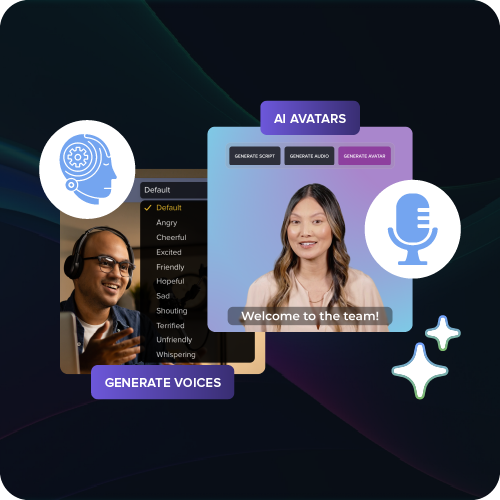
2. Generate or record your core footage
Next it’s time to create the core footage. Use the method that makes sense for the kind of content you need:
- Text-to-video is perfect for visuals you can’t create or record (concept scenes, abstract b-roll, stylized sequences, cinematic clips).
- Screen recording is better for materials that include screen-based content (software demos, walkthroughs, onboarding, process training).
For generated content, if your first results don’t hit the mark, go back to your prompt and adjust whichever elements (from the list in step 1) didn’t come through correctly.
For screen recording, look for a solution that enables you to capture screen, camera, and audio separately but simultaneously. When these elements are separate, you can edit out mistakes in one without retaking the whole thing. And by recording inputs simultaneously, you avoid time-consuming sync issues during editing.
Camtasia Editor captures inputs simultaneously but keeps them distinct. During editing you can even switch between talking-head and screen views with just a click or two.
3. Polish, caption, brand, and export
Whether generated or screen-recorded, raw footage typically needs to be edited before it will hit the right standards of clarity, quality, and credibility.
Elements to consider during polishing and editing:
- For content with dialog, add captions for accessibility and sound-off viewing.
- Enforce consistent branding across business and marketing content (logo, colors, and typography should be consistent).
- For serialized training, consider creating reusable intro/outro templates.
Camtasia offers powerful speed enhancements during this phase. Reusable templates speed up workflows and enforce consistency. Automated captions and background noise removal improve listenability and accessibility. Audiate gives users text-based editing options (generate a script, edit for voice and details, then generate audio from that script if desired).
Last, make sure to align export settings with your video’s destination (e.g., social, LMS, internal sharing), and then you’re ready to export and unleash your video on your audience!
Create on-brand videos in minutes with Camtasia
The big takeaway here: The best AI video tool depends on what you’re seeking to create. If you need cinematic, high-concept, or photoreal clips, then a text-to-video generator is the place to start. But if you’re creating tutorials, how-tos, or training material, AI-powered editing tools like those in the Camtasia suite are a better fit.
When you need to create content based on existing material (documents, software, websites, etc.) instead of from scratch, Camtasia is your AI-powered ally.
Camtasia brings together tons of features that turn raw footage into polished content. Screen recording, multi-track editing, noise removal, AI captions, AI scripting and voice generation, SmartFocus, and branded templates all come together in a cohesive suite of powerful tools that will help you reimagine your approach to creating content.
Try Camtasia today to see how much faster you can be at turning expertise into polished video: Explore products and plans
Go from screen recording to polished video
A screen recording is just the start. Camtasia’s editor helps you add the callouts, animations, and edits you need to create a truly professional video.
Free Download
FAQs
Which AI video generator is safest for corporate use?
For corporate training and internal communications, AI-powered editing tools like Camtasia Editor offer more control over accuracy, on-screen content, and branding than text-to-video generators that can produce unpredictable outputs.
Can I combine screen recording with text-to-video output?
Yes. Use text-to-video tools for intros or b-roll, then edit them alongside screen recordings in Camtasia Editor to produce a cohesive final video.
Which AI program is best for training videos?
Camtasia Editor is built for training content, combining screen recording with AI-powered captions, noise removal, and Smart Focus to create clear, professional tutorials quickly.
How does Camtasia Audiate help with AI video creation?
In addition to AI-generated voices and avatars, Camtasia Audiate lets you edit audio by editing text, which makes it much faster to clean up narration before or after recording. You can generate scripts, remove filler words, and adjust pacing without working directly on a timeline. This is especially useful for training videos where clarity and accuracy matter more than visual effects.
When should I use Snagit instead of a full video recorder?
Snagit is best for quick captures like screenshots, short screen recordings, or step-by-step visuals you want to include in documentation or lightweight training content. It’s faster and simpler than a full video workflow, making it ideal for creating quick explainers or supporting materials that can later be combined into videos in Camtasia.
Share