









Your team needs to document a software change by Friday, but the request could become a quick walkthrough, a polished lesson, a step-by-step job aid, or a video that needs stakeholder approval. Choosing the wrong workflow adds editing time, slows review, and leaves learners with the wrong format.
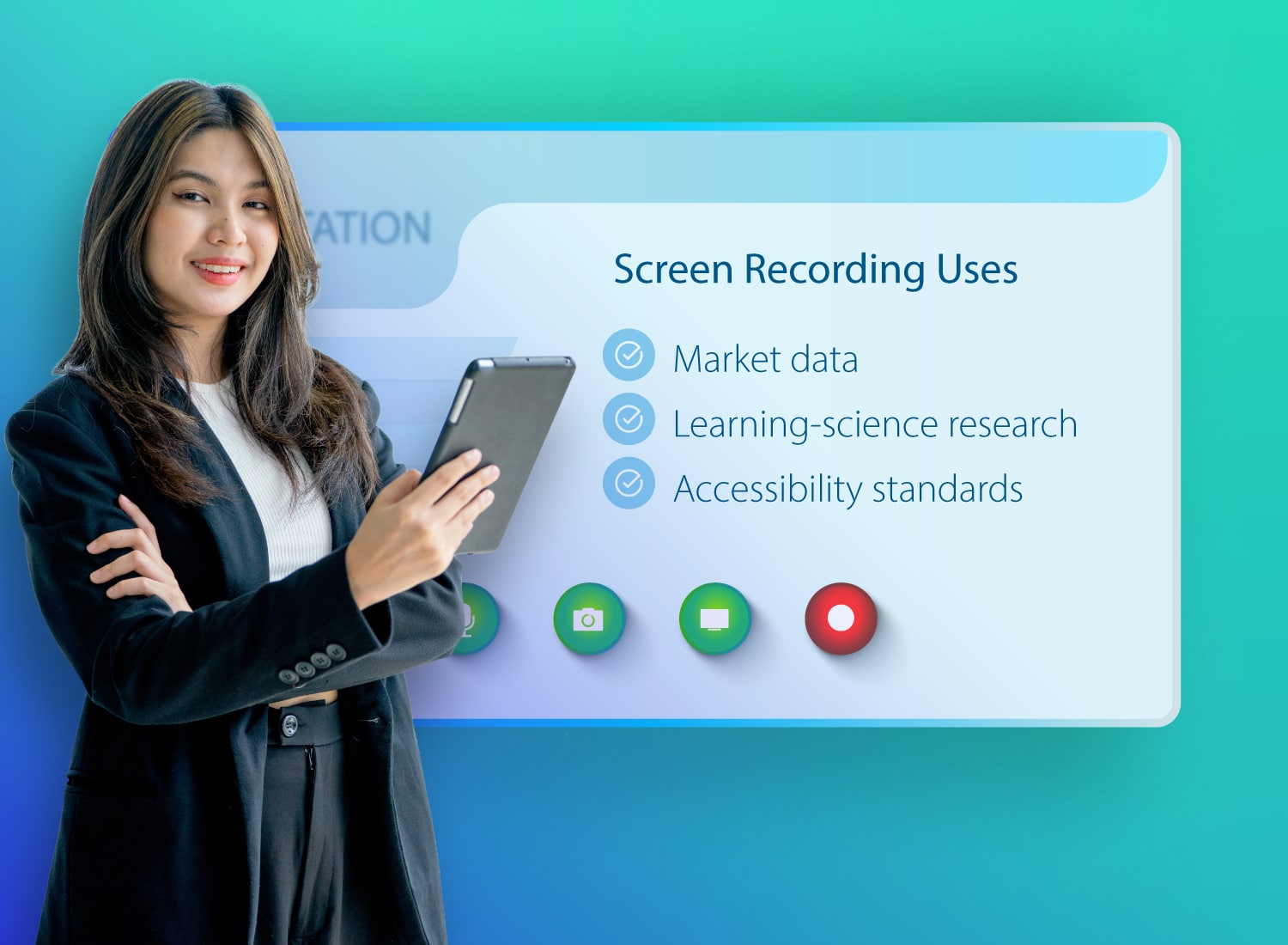
Screen recording uses for corporate learning and development (L&D) include capturing on-screen workflows for training, onboarding, software demonstrations, troubleshooting, asynchronous communication, documentation, review, and compliance.
The right choice depends on whether you need a quick capture, durable learning asset, static guide, or structured approval. This guide will help you match each request to a format and Camtasia workflow.
Key takeaways
- Screen recording helps L&D teams turn repeatable training, onboarding, and process walkthroughs into reusable resources employees can revisit anytime.
- Quick screen recordings can reduce meeting overload by giving teams clear, asynchronous updates without asking everyone to join another live call.
- Different screen recording uses need different workflows, from fast captures and step-by-step guides to polished training videos and structured review.
- Corporate screen recordings need governance around consent, security, captions, and accessibility so teams can share knowledge responsibly.
- The strongest screen recording strategy pairs video with screenshots, guides, and feedback workflows so each message uses the clearest format.
1. Employee training and onboarding videos
L&D teams can turn repeatable onboarding and training workflows into reusable modules employees can pause and revisit, providing consistent guidance without requiring another live session.
Training and onboarding held 40.29% of the screen recording software market by application in 2024, according to Mordor Intelligence.
Use Camtasia Editor to capture the screen, camera, and audio in one session, then edit each track independently. Start with a template, add captions for accessibility, and apply cursor effects where learners need help following a click path. When a process changes, replace only the affected track or segment instead of rebuilding the module.
Need to show your screen?
Skip the downloads. Use Camtasia online to record your screen, camera, and microphone right in your browser for free.
Start Recording
2. IT troubleshooting and technical documentation
IT troubleshooting recordings should show an issue and the steps needed to reproduce it so L&D and support teams can diagnose problems and document handoffs without creating a full training video. Prioritize clear proof over production polish.
Match the format to the issue. Record the shortest path that reproduces a bug, annotate a screenshot to identify an error, or capture a workflow so the next technician can continue the ticket without repeating discovery work.
Use Camtasia Snagit for short recordings and annotated screenshots. Step Capture creates static, numbered workflow guides, while Scrolling Capture documents long pages. Before sharing a screenshot, use Smart Redact to protect sensitive information. Smart Redact applies to screenshots only, not video recordings.
3. Software demos and product walkthroughs
Software demos work best when you record one focused task path and use Camtasia Online for speed or Camtasia Editor for deeper timeline control. A focused recording turns a complex software flow into a reusable walkthrough for buyers, customers, and internal teams.
Record only the clicks needed to complete the task, then remove pauses, detours, and setup steps. Add callouts for key controls, zooms for small interface details, and captions for accessible viewing.
4. Meeting recording and knowledge capture
L&D teams should turn meeting recordings into useful knowledge by obtaining appropriate consent and converting raw calls into short takeaways with clear owners. A recording captures a temporary conversation, not a finished training asset.
Address consent before you record. About 11 U.S. states require all-party consent before recording conversations. Use your meeting platform’s recording notification or consent process, and confirm organizational requirements before the call begins.
After the meeting, trim the recording to each decision, demonstration, or action item. Give every clip a clear title and owner, then place it in the relevant learning resource. Retain the raw call according to your organization’s retention policy.
5. Asynchronous team communication
L&D teams should use asynchronous screen recordings for updates, walkthroughs, and coaching that need visual context but don’t require a live decision. Recordings preserve tone and on-screen detail without adding another call.
According to Atlassian’s research on Loom’s Modern Work Report, workers join up to 12 one-on-one calls daily, while unnecessary meetings and scheduling tasks cost U.S. businesses $1.85 billion weekly.
Use Camtasia Online for these clips. Keep each recording focused on one message, then share it with a clear requested action. Explore more screen-capture collaboration practices.
6. Customer support and self-service help content
Support teams should use screenshots for simple fixes and short recordings when steps must happen in order. In Camtasia Snagit, add a callout to a screenshot for one button or setting, or record a short video when menus open or controls move. This can reduce repeat tickets and give customers an answer they can scan or replay without waiting for live help.
7. Sales enablement and coaching clips
L&D teams can use sales screen recordings to give reps specific, time-stamped coaching on demos while keeping product messaging consistent. These clips help reps practice, personalize demos, and share timely product context without another live coaching session.
Record a representative product demo, then share it through Screencast. Reviewers can add time-stamped, frame-specific comments where a rep should clarify a handoff, adjust an explanation, or follow the approved message.
Ask the rep to revise only the marked moments and reshare the clip. This creates a focused practice loop and makes handoffs clearer.
8. Standard operating procedures and internal wikis
For recurring standard operating procedures (SOPs) and internal wikis, L&D teams should pair skimmable numbered guides with short recordings only when motion is necessary to complete the workflow. This format makes instructions easier to follow, update, and audit.
Use Camtasia Snagit Step Capture while completing the process. It creates a static, numbered guide rather than a video. Add it to your internal wiki or use it as a job aid employees can scan quickly.
Record only steps where movement matters, such as dragging an item or navigating a changing menu. When a process needs motion, narration, or both, the Step Capture guide doesn’t have to stay static: you can bring those numbered screenshots into Camtasia Editor and build a video walkthrough from the same sequence, giving you both a skimmable guide and a narrated video from one recording pass. See more guidance on screen capture for knowledge sharing.
Stop wasting time in pointless meetings
See how small changes to the way you share information can help you reclaim your time at work.
Get the Guide
9. Stakeholder and client review workflows
Teams move screen recordings to approval faster when reviewers leave time-stamped, frame-specific feedback in one structured workspace. Clear comments support editing decisions and prevent stalled approvals.
Upload each video or image to Screencast, share the review link, and ask reviewers to comment and leave specific feedback. Keeping comments in one place helps creators address each request.
Use this workflow to approve an L&D module, review a technical documentation visual, or sign off on a client demo. Assign one owner to resolve comments, then ask the reviewer to confirm final approval in Screencast.
10. Compliance and accessibility documentation
Corporate screen recordings need captions, appropriate media controls, consent checks, sensitive-data review, retention rules, and documented approval before distribution.
For content subject to Section 508, synchronized training media needs captions, audio descriptions, and appropriate user controls to support people with media-access disabilities.
Build these controls into your Camtasia workflow. Add and review captions in Camtasia Editor, then use Camtasia Audiate to export a SubRip Text (SRT) file. Before publishing, inspect every frame for personal data, confidential tabs, notifications, and participant names. Record consent, the approver’s name, approved audience, retention period, and deletion owner in your content register.
11. Microlearning and short-form skill refreshers
Microlearning uses short, focused screen recordings to teach one skill, task, or reminder at a time. Learners can quickly find, replay, and revisit the exact skill they need, which makes it well suited to skills that don’t require live instruction.
In one controlled study of corporate training, video-driven, web-based instruction produced knowledge gains comparable to face-to-face instruction.
In Camtasia, create one recording per task and cut directly between necessary steps. Jump cuts are fine. Update a refresher only when learners can no longer follow the workflow.
Comparison at a glance
A quick comparison helps L&D teams choose quick capture for speed, structured production for durable learning assets, and review or approval workflows when a recording must support a decision. Use this table to match the asset’s purpose to the right production path.
| Quick capture | Structured production | Review or approval |
| Need: Share information immediately. | Need: Teach a repeatable process. | Need: Collect feedback or a decision. |
| Durability: Short-term or easy to replace. | Durability: Reusable and maintained over time. | Durability: Kept through review and sign-off. |
| Workflow: Record lightweight video in Camtasia Online. | Workflow: Edit tracks, visuals, and captions in Camtasia Editor. | Workflow: Share through Screencast for time-stamped, frame-specific comments. |
| Best fit: Updates and quick explanations. | Best fit: Training modules and recurring instruction. | Best fit: Stakeholder review and formal approval. |
Choose the workflow that matches the use case, rather than the option with the most features. Start with the asset’s purpose, confirm how long it must remain useful, and then select the lightest workflow that meets those requirements.
Match your next screen recording to the right Camtasia tool
That onboarding update doesn’t need the same workflow as a polished compliance course. Start by identifying what the asset needs, whether that’s quick capture, structured production, reusable documentation, stakeholder review, or compliance evidence. That decision prevents unnecessary editing and makes approval easier.
Take one planned asset, such as a training video a manager must review, and choose its workflow before recording. Use Camtasia Online for fast browser capture, Camtasia Snagit for screenshots and guides, Camtasia Editor for produced training, and Screencast for time-stamped, frame-specific feedback. A connected Camtasia workflow keeps capture, editing, documentation, and review aligned.
Compare Camtasia options against your requirements to give each asset the production effort it needs, then get started with Camtasia for free.
Frequently asked questions
What is the difference between screen recording and screen sharing?
Screen recording creates a reusable video of on-screen activity, often with narration, camera video, or system audio. Screen sharing shows the screen live and works best when participants need real-time discussion or decisions. For training, record the workflow so learners can pause, replay, and review it later.
What should teams do before recording sensitive employee or customer data?
Remove or hide any sensitive information that learners don’t need before recording. Close private tabs, disable notifications, use test accounts, and confirm that the capture area excludes unrelated data. When a still image is sufficient, crop or redact the screenshot before sharing it; Camtasia Snagit supports redaction for screenshots.
Will someone know if I record a Zoom or Teams meeting?
Many meeting platforms notify hosts or participants when their built-in recording feature is used. A separate screen recorder may not trigger the same notice, but workplace policy and applicable consent rules still apply. Announce the recording, obtain any required consent, and capture only the material the team needs.
How long should an L&D screen recording be?
Keep an L&D screen recording as short as the task allows and give each video one clear outcome. Many workflow refreshers work well in five minutes or less, while a complex lesson may need several short chapters.
What should a screen recording pilot include before a team rollout?
A useful pilot includes one reusable training video, one quick process update, and one structured review workflow. Evaluate recording quality, captions, approval steps, sensitive-data handling, and the time required to revise each asset. The pilot should show whether the team can move smoothly from quick capture to polished editing, audio cleanup, and collaborative feedback.
Share