









You may think that your organization’s knowledge base holds all of the information your team needs to succeed, but that would be wrong. Your team’s most valuable knowledge lives within their brains and daily workflows. Documents and slide decks can only hold so much value, and the team holds the key to the rest.
So, how can your team find and share this knowledge with the other members without setting up face-to-face meetings every time? That’s where screen capture comes in. Whether it’s a quick video walkthrough, a series of annotated screenshots, or a narrated screen recording, visual communication bridges the gap between institutional knowledge and scalable documentation. Screen capture is one of the fastest, clearest ways to transfer know-how across teams—especially in fast-paced, remote, or cross-functional environments.
Screen capture for knowledge sharing means using screenshots or screen recordings to show how work gets done, then sharing those visuals so other people can learn without a live meeting. Screen capture helps teams document real workflows, reduce repeat questions, and create training that is easier to update than text-only instructions.
Key Takeaways
Camtasia supports fast capture, editing, and sharing.
Screen capture for knowledge sharing helps teams turn everyday workflows into visual guides other people can reuse.
It works well for onboarding, SOPs, troubleshooting, and cross-functional support.
Screenshots are useful for quick clarification, while screen recordings help when motion, timing, or narration matter.
What screen capture means at work
- Screenshot: a single still image of your screen. It works well for quick clarification, labeled steps, or troubleshooting notes.
- Screen capture: a broad term for capturing what is on your screen, including both screenshots and recordings.
- Screen recording: a video of your screen, often with narration, used for walkthroughs, demos, and training.
- Screen sharing: showing your screen live in a meeting. It helps in the moment, but it does not create a reusable asset unless you record it.
Record your screen with Snagit
Snagit makes it easy to share quick updates and how-to’s by capturing exactly what’s happening on your screen.
Get Snagit
Why knowledge sharing breaks down in most teams
Even teams with strong documentation practices hit a wall when it comes to sharing real-world knowledge. Written content can’t always capture the nuance of a software tool or explain a task’s specific context. Visual knowledge often gets left out, leaving team members guessing or asking someone directly, which interrupts their workflow.
Key processes rely on institutional knowledge
So much of what makes people effective at their jobs isn’t found in standard operating procedures (SOPs) or wikis. It’s the keyboard shortcut that saves 30 minutes a week, the workaround for a system limitation, or the step in a setup flow that only the IT lead knows to double-check. These details live in people’s heads and come out only when someone asks or when something breaks.
Without a way to capture and share that context visually, companies risk losing critical knowledge whenever someone switches teams, leaves, or becomes too busy to explain things repeatedly.
Repeat questions are a real productivity killer, too. TechSmith’s 2024 Workplace Flexibility Trends Report found that six unwanted interruptions a day cost a company with 1,000 employees $1.3 million in lost productivity. That adds up to real cost — and most of those interruptions can be answered with a short recording.
Record your screen with Snagit
Camtasia Snagit makes it easy to share quick updates and how-tos by capturing exactly what’s happening on your screen. Get Camtasia Snagit
Documentation is too slow to keep up with change
Many teams struggle to keep their documentation up to date. Product updates, new tools, and shifting workflows make it hard for written SOPs and wikis to stay relevant.
Text documents can quickly fall out of date, making them harder to maintain than a short screen recording that shows the current state.
A quick screen capture typically takes minutes to create and shows the current state of a tool or workflow. Updating it later means replacing one image or re-recording one clip — not rewriting a multi-section document.
Asking for help becomes the default workflow
When documentation isn’t visual, fast, or contextual enough, people default to pinging teammates, jumping on Slack threads, or scheduling unnecessary meetings. That’s not just inefficient — it drains time from subject matter experts and creates bottlenecks everywhere.
Screen recordings and annotated screenshots reduce the need for real-time assistance. Instead of explaining the same process 10 times, you can create a high-quality tutorial once, share it with the entire team, and embed it in a knowledge base for future use.
Step capture is one of Camtasia Snagit’s stand-out features for this specific issue. With step capture, you can click through a process once, and Camtasia Snagit records every click, then turns it into an editable step-by-step tutorial template. The document can be edited at any time (even a year later!), so you’re sure to keep your documentation up to date.
How screen capture turns knowledge into reusable assets
Screen capture tools allow teams to turn what was once one-off advice into durable, shareable knowledge assets. With just a few clicks, anyone can start recording, annotate key moments, or capture the entire screen to walk through a process.
How to create a screen capture guide that people can reuse
- Capture the task as it happens. Record your screen for a walkthrough, or grab screenshots if a still image is enough.
- Add context. Use annotations, callouts, or quick edits so viewers know what to click, what changed, and what matters most.
- Share it where people already look for help. Send the file to Screencast, share a link, or add it to your knowledge base so the next person can find it without having to ask again.
Record quick demos on how to complete tasks
Imagine showing someone how to configure a browser extension or troubleshoot a Mac-specific setting. A screen recording can often do in 2 minutes what might take a 10-step email or a half-hour call to explain. And the recording is reusable for the next person who runs into the same issue!
Many teams use Camtasia Editor to create polished walkthroughs for internal training, onboarding, or cross-functional support. Others lean on Camtasia Snagit for quick, informal recordings they can share instantly over Slack or embed into a knowledge base. Creating a screen recording once can eliminate dozens of repetitive questions.
Another option is Camtasia Online, a free, browser-based video recorder that is perfect for quick walkthroughs that don’t require much editing but still need to look professional. Like other Camtasia products, the videos are shareable through Screencast, so you still get the benefits of collaboration.
Need to show your screen?
Skip the downloads. Use Camtasia Online to record your screen, camera, and microphone right in your browser for free.
Capture one-off answers and turn them into lasting references
Every team has a go-to expert who gets the same questions again and again. Instead of retyping or repeating the same answers, they can record their screen once and use that clip whenever the question comes up.
The real efficiency gain is simple: instead of answering the same question repeatedly, the expert can point someone to the recording. These video recordings often become the building blocks for employee training libraries or process documentation templates.
Whether you use Camtasia Editor or Camtasia Snagit to create your video walkthroughs, you can send them directly to Screencast for sharing and safekeeping. With a simple link, you can send your video to your team member, who can leave time-stamped comments if further clarification is needed.
Screencast also has collections that keep your videos organized by topic and audience, so you only share them with the people who need it. For example, you can share a single video with your team member who is struggling with a software login, or you can send them a collection of common troubleshooting answers so they have everything they need in one place.
Looking for professional screen recording software?
From simple screen captures to polished video editing, Camtasia has everything you need to create professional-quality content.
Pair screen capture with screenshots for fast clarification
Sometimes, a full video isn’t necessary. Annotated screenshots—especially with arrows, callouts, and highlights—are perfect for step-by-step tutorials or troubleshooting tips. With tools like Snagit, users can quickly capture a screenshot, annotate it, and share it via email, Slack, or embed it in a knowledge base.
Combining video recording with static images offers the best of both worlds: fast context with minimal effort. In many cases, a 30-second video paired with a few annotated screenshots replaces hours of back-and-forth conversation.
Need to show your screen?
Skip the downloads. Use Camtasia online to record your screen, camera, and microphone right in your browser for free.
Start Recording
When and where screen capture works best for sharing knowledge
Screen capture isn’t just for tech support or IT teams. Its speed, clarity, and reusability make it a powerful asset across departments—whether you’re training new hires, documenting evolving processes, or supporting customers.
- Onboarding new hires
- Cross-training teammates
- Documenting SOPs and tool changes
- Answering recurring support questions
New hire ramp-up and cross-training
New employees need more than instructions. They need context. A short video showing how a tool is used in the real world can significantly accelerate onboarding.
Instead of just reading a list of steps, new hires can see how a task is done. Screen recordings also help with cross-training, letting team members learn each other’s workflows without live shadowing sessions.
Process documentation and tool walkthroughs
Documenting how to use internal tools or explaining SOPs is much easier with visuals. Many teams start with Camtasia Snagit to storyboard a workflow using screenshots, then turn to Camtasia Editor for creating full SOP tutorials with polished transitions and templates.
This is especially helpful when tools are updated regularly or when multiple departments interact with the same system. With screen capture, documentation stays relevant and clear—even as functionality shifts.
Answering support questions or recurring requests
Customer support and internal help desks benefit enormously from video recordings. Instead of typing out long troubleshooting instructions, agents can record a quick screen capture showing how to fix an issue or configure a setting.
These videos not only speed up responses but can be added to a knowledge base, turning one-off solutions into company-wide resources. With webcam and microphone support, even remote-first teams can add a human touch to technical responses.
Build a habit of knowledge sharing with the right tools
Great knowledge management isn’t about writing more docs. It’s about making information easier to create, understand, and share. Screen capture lowers the barrier to documenting what people know, transforming everyday know-how into assets the whole organization can use.
Tools like Camtasia make it easy for anyone to create tutorials, walkthroughs, and support videos without needing a background in video editing. With AI-powered features, prebuilt templates, and support for full-screen or specific app recording, even first-time users can produce high-quality results in minutes.
Build your next training video with Camtasia
Record your screen or camera. Then, use the video editor to add polish and clarity.
Whether you’re capturing your entire screen for a full demo or just grabbing a quick screenshot, the key is to make screen capture a daily part of your workflow. When teams build a culture of showing, not just telling, they reduce repeated questions, speed up onboarding, and unlock scalable collaboration.
Make screen capture part of your team’s knowledge-sharing toolkit. With tools like Camtasia Snagit for quick screenshots and video recordings, or Camtasia Editor for more polished tutorials, you can start turning everyday knowledge into training your whole team can reuse.
Explore the Camtasia Product Suite and see how they fit into your workflow.
Looking for professional screen recording software?
From simple screen captures to polished video editing, TechSmith has everything you need to create professional-quality content.
Learn More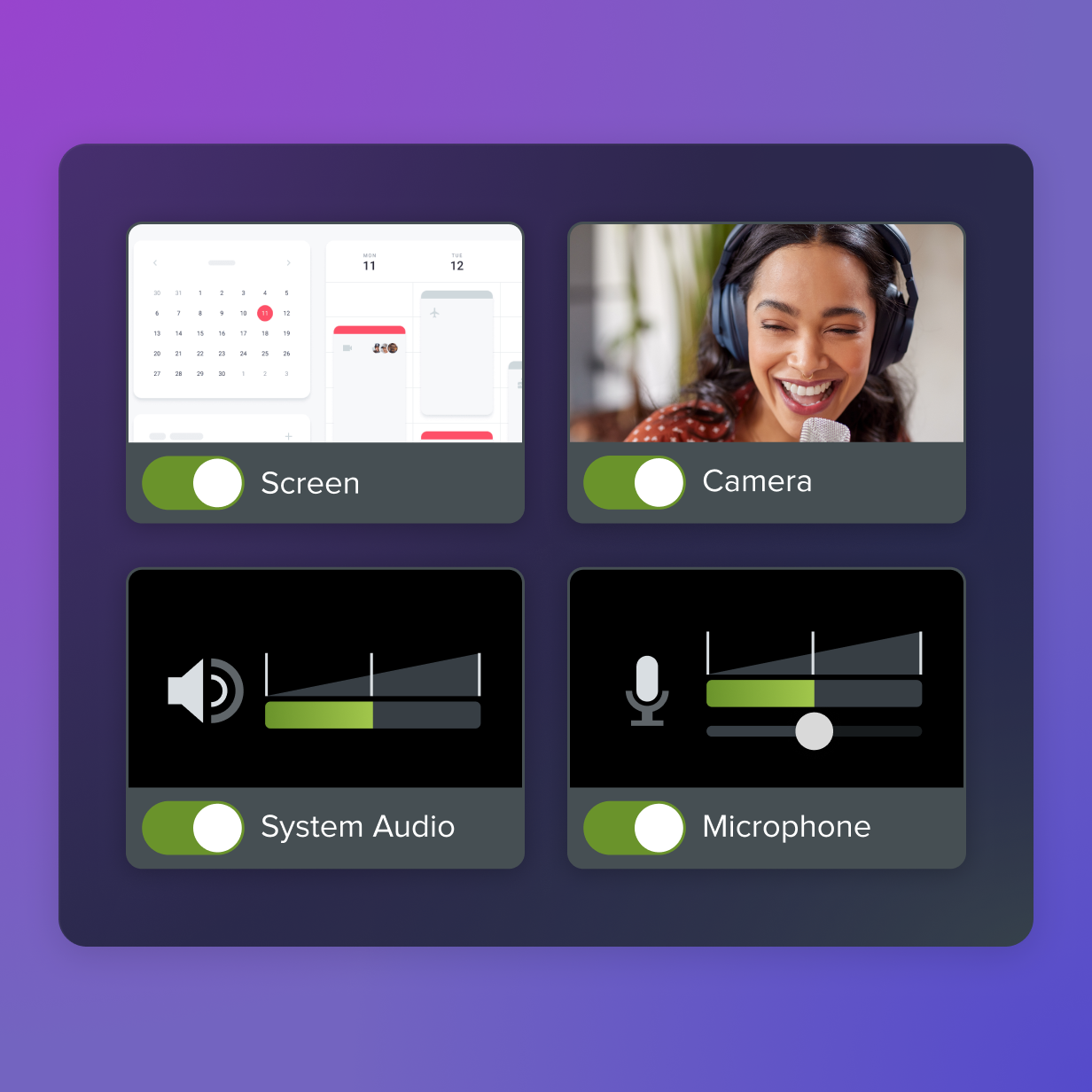
FAQs
What is screen capture for knowledge sharing?
Screen capture for knowledge sharing means saving what happens on your screen as a screenshot or recording so someone else can learn from it later. It works well when a written description leaves out timing, context, or visual detail. Teams use it to document workflows, explain decisions, and answer repeated questions without another meeting.
When should teams use a screenshot instead of a screen recording?
Use a screenshot when one still image can explain the point. It is a good choice for labeled steps, quick clarifications, and simple troubleshooting notes. Use a screen recording when motion, sequence, narration, or timing matter.
Which Camtasia tools are best suited to different knowledge-sharing tasks?
Camtasia Snagit works well for quick captures, annotated screenshots, and short screen recordings. Camtasia Editor is a better fit for polished walkthroughs or training videos, and Camtasia Online is ideal for recording in the browser without a full editing workflow. Screencast makes sharing easier by giving teams a simple link and a place to keep related videos together.
Share