









Are you looking for the best tool to capture your screen, but aren’t sure which one to choose? Camtasia makes two software products that are perfect for capturing what you see on your computer. Which one is right for you — Camtasia Snagit vs Camtasia Editor — depends a lot on whether you want to create images or videos.
Camtasia Snagit lets you take screenshots, edit your images, and record lightweight screen recordings. It’s perfect for giving feedback, creating clear documentation and training materials, and showing others exactly how to do something.
Camtasia, on the other hand, doesn’t let you take screenshots but has a powerful screen recorder and built-in video editor. This makes it great for training and tutorial
Key Takeaways
- If your work requires both quick visual documentation and polished training videos, you need both tools. Every Camtasia plan bundles Camtasia Snagit and Camtasia Editor together. This eliminates the hassle of buying and managing separate software applications.
- Choose Camtasia Snagit if you need screenshots, scrolling capture, image annotation, or quick videos with minimal editing.
- Choose Camtasia Editor if you need screen recording plus a built-in video editor for tutorials, demos, and presentation-style content.
- Camtasia Snagit is often the better fit for fast team communication, documentation, and feedback.
- Camtasia Editor is often the better fit for planned videos with captions, effects, templates, and more production control.

Images and screenshots: Which tool is best for capturing, creating, or editing images?
If you want to work with images, go with Camtasia Snagit. Camtasia Editor really only does video.
What can Camtasia Snagit do with images?
Not only can you grab pretty much any type of screenshot – a region, window, and full-screen (and easily adjust margins as you go), Snagit also lets you capture what extends beyond your screen.
Capture content that scrolls up and down, including scrolling webpages, and panoramic content that extends beyond your screen—up, down, and side-to-side. This is priceless when you’re trying to capture online maps, interestingly shaped images, and nested tables commonly seen in programs like Excel or Sheets.
Camtasia Snagit is the clear choice when you need to capture, create, and edit images.
Most importantly, Camtasia Snagit makes it easy to edit screenshots the way you want.
Add notes and comments with callouts, or add text directly on the capture. Point important details out with arrows and fun stamps. Blur your screenshot or simplify complicated UI. Then, resize and crop your image to the right size.
That being said, Snagit has a lot of lesser-known features that can make huge changes to your images too.
You can even move elements around in your capture and edit or replace text for easy modifications.
Record your screen with Snagit
Snagit makes it easy to share quick updates and how-to’s by capturing exactly what’s happening on your screen. Get Snagit
Because Camtasia Snagit combines image capture and image editing, it is a practical choice for documentation, elearning materials, written tutorials, and similar tasks. It also makes it easier to create consistently themed images and share them to popular destinations.You can even move elements around in your capture and edit or replace text for easy modifications.
Record your screen with Snagit
Snagit makes it easy to share quick updates and how-to’s by capturing exactly what’s happening on your screen.
Get Snagit
Videos and screen recordings: Do you need basic recording or more polished editing?
For simple screen recordings, Camtasia Snagit is usually the best fit.
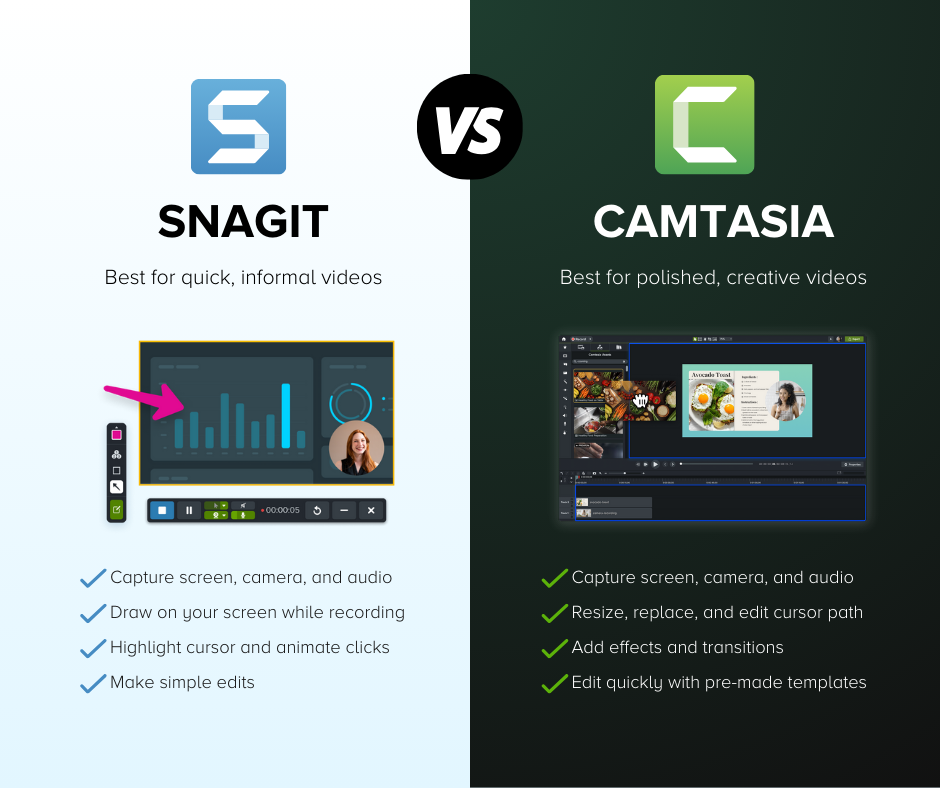
With Camtasia Snagit, you can record your screen, camera, and audio simultaneously, which is perfect for tutorials! While you record, Camtasia Snagit offers a Screen Draw option which means you can point out important details and highlight information in real-time.
Camtasia Snagit has basic editing features like trimming, cutting out content, and combining multiple videos into one.
Plus, Camtasia Snagit has a click animation and a cursor highlight feature for your mouse. This way your viewers will always follow what you want them to see.
The recording and editing workflow is straightforward, Camtasia Snagit has a low learning curve and makes it easy to create a complete video in just a few clicks.
For more polished video, choose Camtasia Editor.
CamtasiaEditor can also record your screen and camera but offers higher-resolution recording, as well as more advanced video editing features. It goes beyond cutting and splicing content with drag-and-drop animations, transitions, effects, backgrounds, and more.
Camtasia Editor’s Rev workflow lets you edit your videos quicker than ever before. The workflow enables you to resize and format videos with different optimal layouts for any screen size. You can also quickly add intuitive backgrounds, effects, and intuitive templates.
For accessibility, Camtasia Editor offers closed captioning. That is useful for ADA compliance and for giving viewers the option to watch with the sound turned off on social media.
Whether you go with Camtasias Snagit or Camtasia Editor for video creation and editing, making videos yourself saves you time and money. When you hire an outside company, the average cost for a 60-second explainer video is $7,972, and takes around five and a half weeks to complete.
In contrast, you can make and share your own videos for a fraction of the price, on a much faster timeline.
Lindy Belley, Marketing Coordinator at Integrity Data, explains how her department is able to save resources by making videos in-house:
“I know if I have to turn something out quickly, I can pull it into Camtasia and make all of my changes within minutes,” said Lindy. “I don’t know that I could have done that with any other video production tool.”
What do you want to do?
Another way to decide between Camtasia Snagit and Camtasia Editor is to look at your goal, audience, and timeline.
If you need images and screenshots, Camtasia Snagit is still the clear choice. Since both products can record video, the biggest differences come down to how much editing you need and how long the content needs to last.
People typically choose Camtasia Snagit for quick, spontaneous videos with a relatively short shelf life. This often fits workplace communicators, support teams, and anyone who needs to explain something fast.
Use cases include:
- Quick videos to show a colleague something
- One-take videos that walk through a process
- Record your screen to share information
- Capturing screen footage of IT-related issues
- Send personalized feedback to someone
- Import video for basic editing
Or any other video that needs minimal editing and features.
People choose Camtasia Editor for videos that are planned, scripted, and made for a larger audience over a longer period of time. This is often a better fit for trainers, educators, instructional designers, and teams creating repeatable learning content.
Popular types of videos include:
- Tutorials, demos, and how-to videos for training
- YouTube videos, marketing content, including social media
- Engaging video lessons for online and blended learning
- Accessible videos with captions for silent viewing
- Rich videos with music, system sounds, and backgrounds
- Interactive videos with clickable links
Or any other video that needs substantial editing and professional features.
Either tool can help you create useful videos, but the purpose of the project usually makes the decision clearer.
Go from screen recording to polished video
A screen recording is just the start. Camtasia’s editor helps you add the callouts, animations, and edits you need to create a truly professional video. Free Download
Is price a consideration?
Ultimately you want the best tool for the job. Choose a screen capture tool based on your project goals, not based on price.
Both tools offer non-profit and education discounts, along with volume discounts and enterprise pricing, that can help you get these tools for your team or company.
When evaluating Camtasia Snagit vs Camtasia Editor, remember that you do not need to pick just one tool. Camtasia plans bundle both applications to cover every screen recording and capture need. This combination provides a low learning curve for daily screenshots, clear step-by-step guides, and professional video editing. editing and professional features.
Both Camtasia Snagit and Camtasia Editor are valuable tools
Since they do different things, Camtasia Snagit and Camtasia Editor are both valuable tools to have at your fingertips. Both work on Windows and Mac and have a host of sharing options like Screencast, Google Drive, Microsoft Word, YouTube, and more.
Camtasia Snagit is a quick and easy way to communicate information with screenshots and simple recordings. Camtasia Editor is a strong choice when you need a tutorial video with more editing control.
Even people who have never made a video before can learn to use Camtasia Editor, so having it available across a team can help when video needs come up.
When you want to share information, it’s important to have the right tools in your toolbox when you need them. Whether you choose Camtasia Snagit, Camtasia Editor, or both, having quality screen capture solutions will help you share knowledge and save time.
FAQs
What is the main difference between Camtasia Snagit and Camtasia Editor?
The main difference is the type of content each tool is built to create. Camtasia Snagit is focused on screenshots, image editing, and quick screen recordings, while Camtasia Editor is focused on screen recording plus built-in video editing for more polished videos.
Should I use Camtasia Snagit or Camtasia Editor for screenshots?
Use Camtasia Snagit for screenshots. It can capture regions, windows, full screen, scrolling content, and panoramic content, and it includes tools to annotate, blur, simplify, resize, crop, and edit text in images.
Should I use Camtasia Snagit or Camtasia Editor for training videos?
Use Camtasia Editor when your training video needs more editing, polish, and structure. It is better suited for tutorials, demos, presentation recordings, captions, and videos that need effects, backgrounds, templates, and other editing tools.
Can Camtasia Snagit record video too?
Yes. Camtasia Snagit can record your screen, camera, and audio at the same time, and it includes basic editing features like trimming, cutting content, combining videos, click animation, and cursor highlighting.
Can teams use both Camtasia Snagit and Camtasia Editor?
Yes, and you do not have to purchase them separately because Camtasia plans package both tools together. This standardizes your workplace communication by giving everyone Camtasia Snagit for daily screenshot workflows. At the same time, your team gets immediate access to Camtasia Editor whenever they need to create structured training content.
Share