









The person who built the process is out this week, and nobody else knows how it runs. That single situation, repeated across teams and organizations everywhere, is why workflow documentation is worth getting right the first time.
Workflow documentation is a structured record of how a specific process gets done, written in enough detail that someone unfamiliar with it can follow every step without asking the person who built it for help.
If you’ve been asked to document a process that other employees, new hires, or colleagues across teams will depend on, this guide covers the approach that holds up when the workflow changes or the team does.
Key takeaways
- Workflow documentation fails at scale when the person who built the process is also the only one who can explain it.
- Scoping three decisions before recording anything (who uses it, how often it changes, and who owns updates) determines whether documentation stays reusable or becomes fragile.
- Modular documentation design (recording each step as a discrete, replaceable segment) may let teams update one part without rebuilding the entire guide.
- Assuming the reader shares the expert’s context is the most common reason workflow documentation breaks down for new team members.
- Documentation that skips a structured review step before publication can become a source of errors teams follow without realizing the content is outdated.
When only one person can explain the process
Undocumented expertise creates a single point of failure. Every absence, departure, or role change becomes an operational risk the team can’t work around.
When an expert holds tacit knowledge the team can’t access without them, the workflow becomes dependent on them. With documented expertise, team members can open a guide, follow the steps, and finish the work on their own.
For L&D professionals, technical writers, and corporate trainers, the challenge is that you’re often documenting processes you didn’t build. The handoff from subject matter expert (SME) to documenter is its own operational problem. Recording a workflow once, in a reusable format, breaks that single-expert dependency before it becomes a crisis.
Scope the documentation before you record anything
Three questions determine every format and recording decision downstream:
- Who will use this documentation?
- How often does the process change?
- Who owns updates after it’s published?
A stable process used by one team rarely needs more than an annotated screenshot guide. A cross-department workflow that changes quarterly needs modular video segments recorded in small, independent chunks so one updated step doesn’t require rebuilding the whole piece.
Skipping this step is why documentation often goes stale or unusable the moment a team or process shifts.
Ownership is a key part of the knowledge management strategy that most teams skip entirely. Assign a named person before publishing for every piece of documentation. They’re responsible for updating the content throughout its lifecycle so it stays accurate and accessible.
See how Camtasia Snagit’s Step Capture turns screenshots into a step-by-step guide.
Choose a format built for reuse
The right format depends on two questions: how many people need to follow this process without the original author present, and how often individual steps will change. Those two factors (audience reach and change frequency) determine whether a screenshot guide, a walkthrough video, or an embedded visual guide fits best.
Annotated screenshot guides for repeatable tasks
Annotated screenshot guides work best for stable, repeatable tasks where readers need a visible checkpoint at every step, like submitting an expense report or provisioning a new user account.
Camtasia Snagit’s Step Capture records each screen state automatically as the SME performs the workflow, producing a numbered, static guide without anyone needing to reconstruct steps from memory afterward.
This format is also the easiest to maintain. When a UI changes, you replace only the affected screenshot. Because each step exists as its own image, targeted updates take minutes.
Walkthrough videos for complex multi-step processes
Video is the right format when a process depends on motion, sequence, or judgment calls that a static screenshot can’t show. If the order of clicks matters or timing affects the outcome, a walkthrough video communicates what an annotated guide can’t.
When you create your process documentation with Camtasia Editor, cursor effects, callouts, and transitions guide the viewer’s attention at each step, so they can follow along. Record each major step as its own segment, so one changed step can be re-recorded without rebuilding the full video.
Cursor position and movement can be adjusted in post-production, so the SME doesn’t need perfect cursor control during the original recording session. The Camtasia Rev look you select also affects cursor size and click animations, so those two choices work together.
Embedded visual guides for shared knowledge bases
Embedding visual documentation in a shared knowledge base works best when multiple teams need async access to one source of truth. Platforms like Confluence, Notion, and SharePoint are natural destinations.
With video documentation that supports self-serve knowledge sharing across teams, employees can find and follow the process without asking the expert.
But one long video embedded in a page is hard to maintain. When a single step changes, you replace the whole recording. Short, step-specific recordings are easier to manage. Each clip covers one task, so you can swap out only what changed without disrupting the rest of the page or breaking the surrounding context.
Annotate and edit screenshots with Snagit
Professional mark-up tools and powerful features make it easy to create helpful images.
Try it Free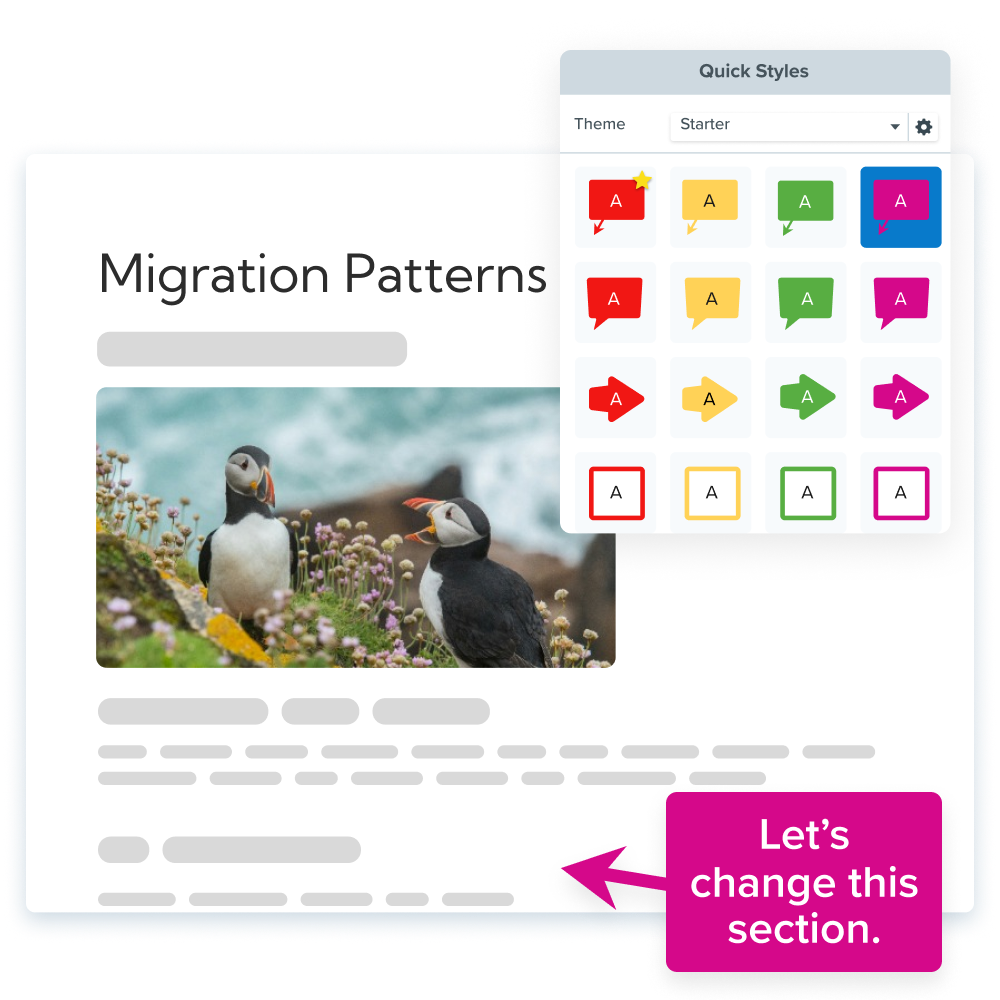
3 mistakes that make documentation fragile
Workflow documentation breaks down when another employee can’t follow it without tracking down the original author. That single dependency is the root of every fragility problem. Three failure modes drive it:
- Missing context the author assumed readers already had
- Weak or absent visuals
- Content nobody updates when the process changes
1. Assuming the reader knows what the expert knows
Experts leave out the steps that feel obvious to them, and those are often the steps where new employees get stuck.
Before you publish, have someone unfamiliar with the process review it. This catches assumption gaps before new hires run into them, helping reduce SME dependency.
2. Writing walls of text with no visuals
Text-only documentation forces readers to translate prose into screen actions while they’re trying to complete the workflow, which slows them down and raises the chance they miss a step. A screenshot with a callout pointing to the right button removes that interpretation burden entirely.
The organizational cost adds up fast. TechSmith’s Value of Visuals research found that effective visual communication could unlock roughly $1,200 in productivity per affected employee per year. When documentation gets reused across teams, that figure compounds.
3. Skipping a plan for keeping documentation current
Documentation without a maintenance plan becomes a liability. Teams follow outdated steps, produce incorrect outcomes, and often don’t realize the instructions are wrong until something breaks.
A maintenance plan covers the responsibilities of the owner you assigned before publication, plus defined review triggers (a process change, a tool update, a standing quarterly review date). Without a trigger, reviews never happen.
Use the modular structure described above, so you can update one step without rebuilding the whole guide.
Record once, distribute to any team
When a subject matter expert runs a process that several teams need to follow, record it once in Camtasia Pro and package it so any team member can follow it on their own, from the first screenshot through stakeholder review and distribution. That way, you’re not scheduling a live walkthrough for each team that needs the process.
Step 1: Capture each step with Camtasia Snagit
Camtasia Snagit’s Step Capture records each step as the SME performs it, so the documenter can move straight to distribution without reconstructing steps from memory or scheduling a second shadowing session.
The guide is ready to embed in a knowledge base right after the session ends, and from there, two independent workflows are available.
In the first, you import the Step Capture project file (.snagx) directly into Camtasia Editor’s timeline through the Share menu, where transitions, callouts, and image animations get applied automatically, turning that same session into a narrated training video.
In the second, you record the walkthrough separately in Camtasia Editor while keeping the static guide as its own deliverable.
Step 2: Record a walkthrough with Camtasia Editor
Camtasia Editor records the SME’s screen, camera, and audio in one session and places each on a separate, independently editable track. That means you can trim the narration, adjust cursor movement, or cut a camera clip without touching the screen recording.
Use the modular recording approach described above to create your training videos, and apply annotations and transitions to guide the learner’s eye. Callouts help you label what matters on screen, while transitions signal a step change.
Step 3: Embed the guide into your knowledge base
Publish your guides directly in the knowledge base your team already opens every day, like Confluence, Notion, or SharePoint. That’s the distribution step that turns a one-off recording into something the whole team can draw on.
Camtasia Snagit screenshots export as standalone image files, so you can drop them into any of these platforms without restriction. That portability matters because some documentation tools keep guides locked inside their own environment, which means your content is only as accessible as that platform’s uptime. With standalone image files, the guide lives wherever your team works.
Embed the step-by-step guide and the walkthrough video on the same page so employees get both formats in one place. For a closer look at building guides that hold up in a shared knowledge base, see our guide to creating a how-to guide that’s built to last.
Step 4: Review, approve, and share with Screencast
A review step catches errors and outdated steps before they reach the team that will rely on the guide. With Screencast, you upload your finished recording or guide, share the link with reviewers, and let them leave time-stamped comments directly on the content before anything publishes.
You control who can view or comment on each upload, and file size isn’t a limitation when sharing through Screencast links, which makes it practical for distributed and async teams reviewing full walkthrough recordings.
Screencast supports review and commentary. It doesn’t include a formal approval workflow, approve/reject states, or sign-off logs. Keep your official approval records and audit trail in whatever external system your team already uses for that, and treat Screencast as the step that catches issues before content becomes your team’s source of truth.
Go from screen recording to polished video
A screen recording is just the start. Camtasia’s editor helps you add the callouts, animations, and edits you need to create a truly professional video.
Free Download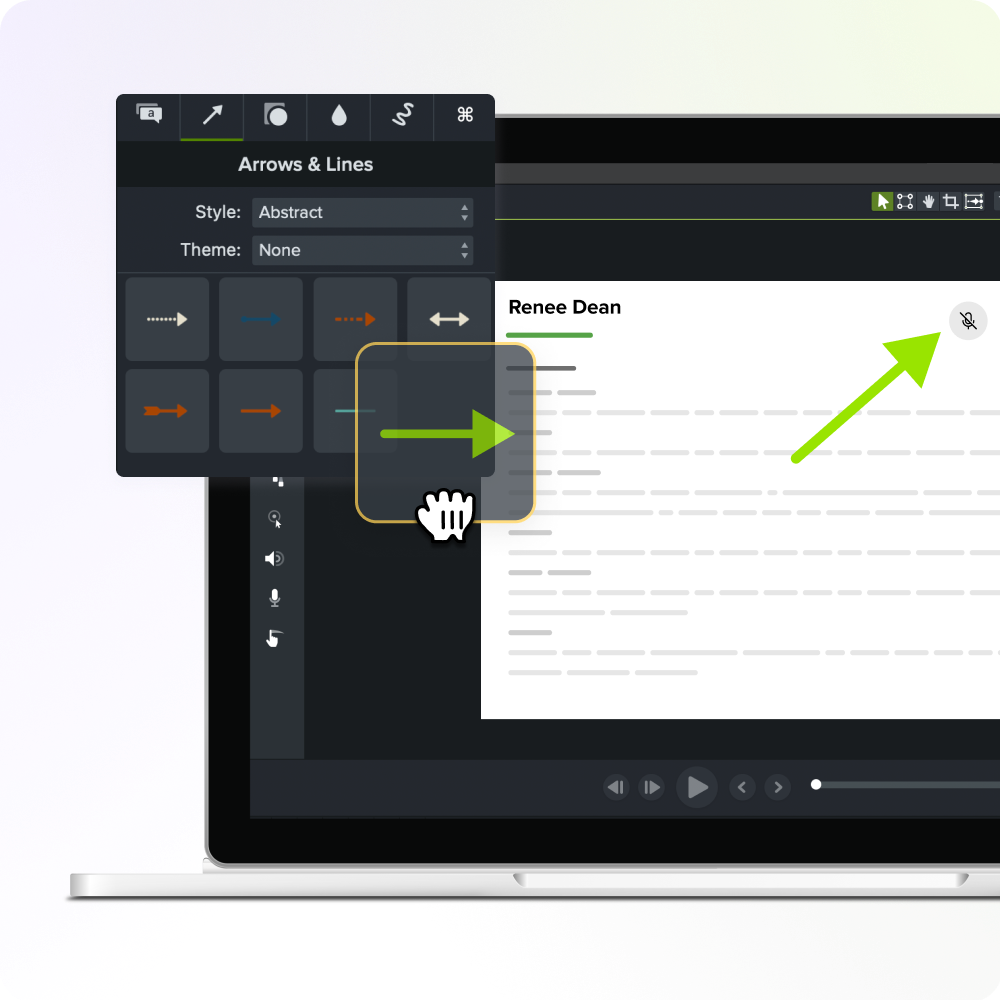
Build documentation that survives team changes
When a workflow lives in a format anyone can follow independently, the team stops depending on one person’s availability to answer the same question over and over. That’s the maintenance problem most documentation efforts fail to solve, and it’s the one worth designing around from the start.
Pick one workflow your team relies on most and record it this week in a format built for reuse. Camtasia Pro gives you the capture, editing, and review tools to do that in one connected workflow, using a modular approach that extends the life and value of your documentation.
A workflow shouldn’t depend on one expert. Turn that knowledge into usable documentation with Camtasia Pro.
Record your screen with Snagit
Snagit makes it easy to share quick updates and how-to’s by capturing exactly what’s happening on your screen.
Get Snagit
Frequently asked questions
What’s the best way to document a process so new employees can actually follow it?
Record the subject matter expert performing the task, so every step reflects what’s on screen. Break the recording or guide into discrete steps a newcomer can follow in order, add context for anything that assumes prior knowledge, and have someone unfamiliar with the process test it before publishing. That review step catches the assumption gaps experts don’t realize they’ve left in.
What is the difference between a process document, a standard operating procedure, and a workflow guide?
A process document describes what happens and who’s responsible at each stage. A standard operating procedure (SOP) adds compliance-level specificity, including required inputs, acceptable outputs, and regulatory context. A workflow guide sits between the two: detailed enough for someone to follow independently, but focused on getting the task done rather than policy compliance.
How do you document a workflow when you’re not the subject matter expert who runs it?
The most reliable approach is to have the subject matter expert perform the process while you record it. Camtasia Snagit’s Step Capture records each screen step as the expert works through it, which takes some of the burden off the SME and eliminates the reconstruction gaps that create errors in finished documentation.
Once recorded, a structured review step, where someone unfamiliar with the process tests the guide before it’s published, catches the assumption gaps the expert didn’t realize they left.
How do you keep workflow documentation useful for both new employees and experienced team members at the same time?
Modular documentation design handles this better than a single long document or video. It lets readers jump straight to the step they need. Recording each major step as a discrete, independently accessible segment means an experienced team member can jump to step 7 without sitting through steps 1–6. Embedding those segments in a shared knowledge base like Confluence or Notion, with clear step-level headings, supports both onboarding and on-the-job reference without needing two separate versions.
What should you do when a workflow changes and the documentation is already published?
The practical answer depends on how the documentation was originally structured. If it was built as modular segments, one step per recording or annotated screenshot, only the affected step needs updating. Documentation built as one continuous video or a single long document needs a more disruptive update cycle, which is why modular design from the start makes maintenance significantly faster when processes change.
Can a single Camtasia Snagit Step Capture session produce both a static guide and a training video, or do those require separate recordings?
A single Step Capture session can produce both outputs through two distinct paths. In the first, the Step Capture guide gets imported directly into Camtasia Editor’s timeline, where transitions, callouts, and image animations get applied automatically, producing a video from that same session. In the second, the documenter records the walkthrough separately in Camtasia Editor for video and uses Step Capture independently for the static guide, which gives more editorial control over each output format.
Share