Pre-recording your presentation is a helpful tool for those who want to ensure there are no errors in the presentation, prefer to not present live, or can’t be there for the presentation.
There are two ways to pre-record a presentation:
- Import presentation slides from PowerPoint, Canva, Google Slides, or Keynote, then add narration. To learn more, see Import Presentation Slides.
- Record both your slideshow and your narration at the same time by using Camtasia Recorder. To learn more, see Pre-Record Your Presentation.
Import Presentation Slides
Import slides from other applications like PowerPoint, Canva, Google Slides, or Keynote, then add narration over each slide.
Tip: Set the default image duration before importing slides.
- Windows: Select Edit > Preferences > Timing tab and set the Images duration to the desired length.
- Mac: Select Camtasia > Settings > Timeline tab and set the Default image duration to the desired length.
To learn how to extend and shorten media on the timeline, see Video Editing Quick Guide.
- Complete one of the following based on the application::
- PowerPoint: Select File > Save As, and save as a PPTX file.
- Canva: Select File > Download and save the presentation as JPG or PNG images.
- Google Slides: Select File > Download and save the presentation as JPG or PNG images.
- Keynote: Select File > Export To > Export as Images.
- In Camtasia Editor, select the Media tab > Media Bin subtab.
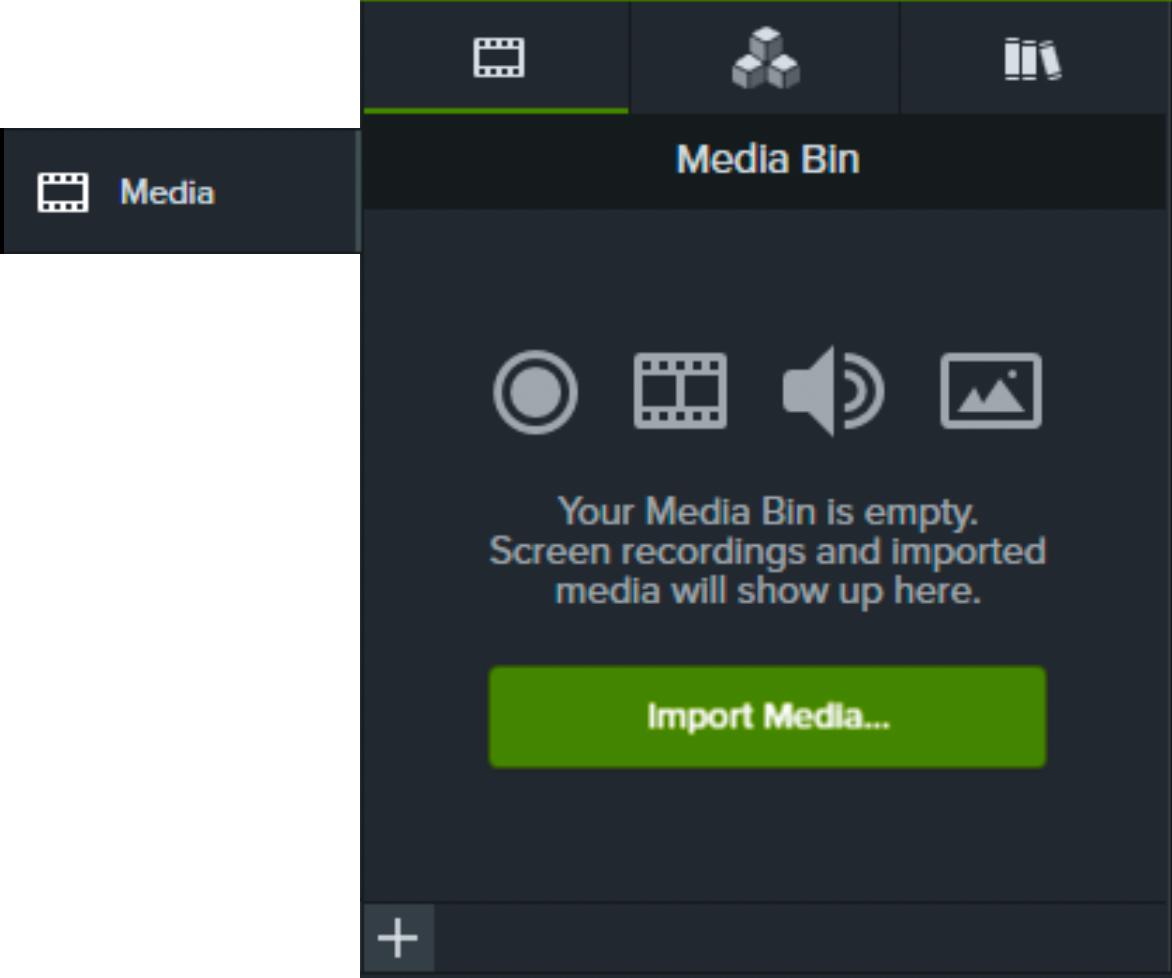
- Click
 > Import Media or double-click in the Media Bin.
- Select the media to import. Control+click (Windows) or Command+click (Mac) to select multiple files.
- Click Open (Windows) or Import (Mac).
- Select the downloaded presentation files and click Open (Windows) or Import (Mac).
If you downloaded the presentation slides as individual JPG or PNG files, Shift+click to select the desired slides to import.
- Drag the slides from the Media Bin onto the timeline.
- Add voiceover to complete the presentation. See Record or Generate Voice Narration.
Tip: Record a voiceover for each slide.
To make editing your project easier, record a narration for each slide. Then, adjust the slide length according to the length of your voiceovers.
Pre-Record Your Presentation
Record your slides and narration together with Camtasia Recorder as you present in PowerPoint, Canva, Google Slides, Keynote, or another application. This is perfect for those looking to record the presentation in one take and then edit it afterwards.
- From the Camtasia Editor Home window, click New Recording, or click Record from an open project.

- In the Camtasia Recorder, click the Screen Recording and Microphone toggle buttons to turn them on. Optionally toggle on your camera and system audio.
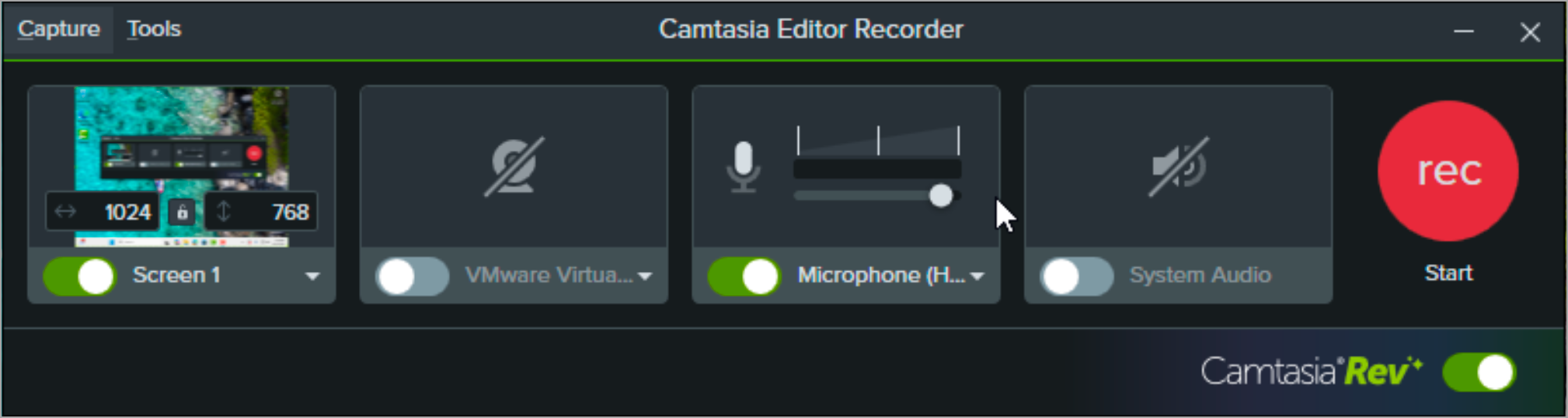
- Click the Record button or press the F9 key (Windows) or Command+Shift+2 (Mac).
- In the presentation application, open your presentation in fullscreen or slideshow mode.
- When you are finished recording, complete one of the following:
- Click the Stop button
- Press the F10 key (Windows) or Command+Option+2 (Mac).
- On Windows, click the Camtasia Recorder icon in the taskbar and then click the Stop button.

- On Mac, click the Camtasia icon in the menu bar and select Stop Recording.

- Your recording opens in Camtasia Rev. Complete any of the following:
- Apply one of our professionally-designed layouts, backgrounds, or screen effects.
- Click Open in Editor to add your video to the timeline to continue editing.
- Click Export to save as a local file or send directly to YouTube or Screencast.
Tip: Enhance Your Video
Add a transition, effect, background, or look to further polish your presentation and make it more engaging. To learn more, see Basic Edits After Recording.
Export Your Video
You can export your video directly from Camtasia Rev or after editing in Camtasia. Choose to export as a local file or send directly to YouTube or Screencast.
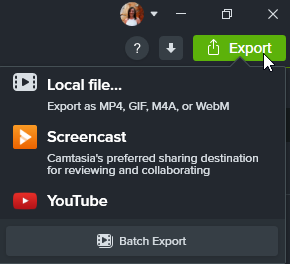
See Export & Share Your Video.
Get Camtasia
Unleash the world’s most powerful screen recorder and video editor.
All Tutorials