









Video Editing Quick Guide
Learn how to complete common video edits on the timeline in Camtasia Editor.

Learn how to complete common video edits on the timeline in Camtasia Editor.

For a beginner’s guide of the timeline, see 3 Keys to the Timeline.
Complete any of the following video edits to remove unwanted parts or mistakes in your video.
Trim
Remove extra content from the beginning or end of a clip.
To restore the trimmed content, drag the end of the clip back out.
Cut
Remove an individual clip or a selection across tracks on the timeline
 Cut button.
Camtasia Editor removes the selected media.
To paste the cut selection on the timeline, drag the playhead to a new location and click the  Paste button.
 Lock Track button to the right of the track name to lock any tracks that contain media you do not want to cut. Cut button.
The selection is removed from the timeline.
To paste the cut selection on the timeline, drag the playhead to a new location and click the Paste button.
Delete
Delete media or a selection on the timeline.
Lock Track button to the right of the track name to lock any tracks that contain media you do not want to delete.Camtasia Editor deletes the selection from the timeline.
Ripple Delete
Delete a selection on the timeline and shift all media to the left to remove the gap.
Lock Track button to the right of the track name to lock any tracks that contain media you do not want to delete.Edit as Text
Camtasia Audiate transcribes your narration into plain text, making any issues easy to spot and remove.
Delete words, mistakes, or sections of your video. The edits are automatically synced to your Camtasia Editor timeline.

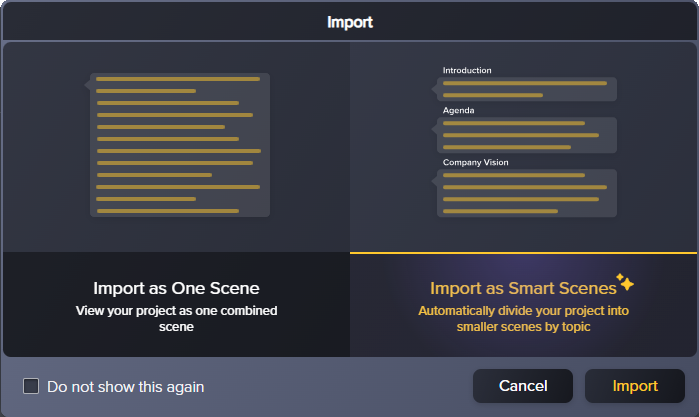
Audiate automatically syncs your edits to the linked media on the Camtasia Editor timeline.
Complete any of the following to insert, move, or rearrange media on the timeline.
Split
Separate media into multiple clips to:
 Split button or press the S key (Windows) or Command+T (Mac).
The selected media splits into two separate clips.
Move Media
Select media and move to a new position on the timeline.
Hold the Shift key and drag the media on the track.
Camtasia Editor moves all media to the right of the selected clip and maintains the spacing.
Camtasia Editor moves all media to the right of the selected clip on each of the selected tracks.
Camtasia Editor moves all media on the timeline and maintains the spacing.
Insert Space at a Specific Point
Ripple split inserts a space at a specific point across all timeline tracks.
Camtasia Editor splits the media across all tracks and moves everything to the right of the playhead to create space.
Remove Space
The Magnetic Track option automatically removes the gaps between media on a track.
Click the  Magnetic Track icon to the right of the track name to enable this option for the desired tracks.
Stitch
Join two clips together to move or edit as one single media. Only clips from the same original media can be stitched together.
Note: This option is not available for Rev media. You must unpack the media to apply this option. See Introduction to Rev Media.
Complete any of the following edits to sync your audio with the action in the video.
Note: These options are not available for Rev media. You must unpack the media to apply these sync options. See Introduction to Rev Media.
Auto Sync Media
Automatically align two pieces of media based on the audio.
Camtasia Editor syncs the two clips based on the audio.
Extend Frame
Extend a single frame in the video to match the voiceover or to provide more time for viewers to process the onscreen visuals or text.
Speed Up or Slow Down Media
Speed up or slow down video clips. This option is great to speed up long processes, such as process dialogs, or to slow down key sections for viewer comprehension.
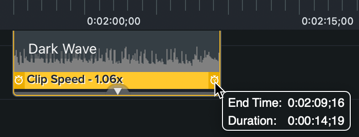
If you only want to change the clip speed for a section of the media, split the media first.
Unleash the world’s most powerful screen recorder and video editor.
* Already a Camtasia Editor user? Learn how to update to the latest version.
