Apply a Gradient (Mac)
Learn how to create and save gradients to add visual interest to images and picture-in-picture videos.

Learn how to create and save gradients to add visual interest to images and picture-in-picture videos.

Apply gradients to your images or picture-in-picture video recordings to add visual interest or to incorporate multiple brand colors.

You can apply gradients to:
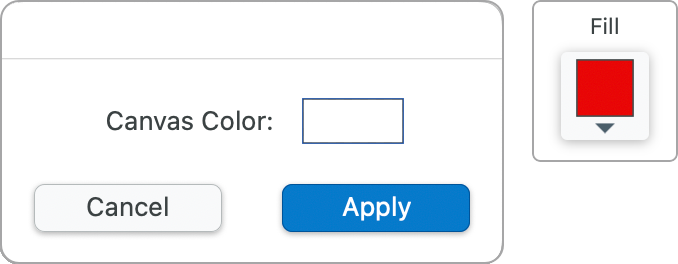
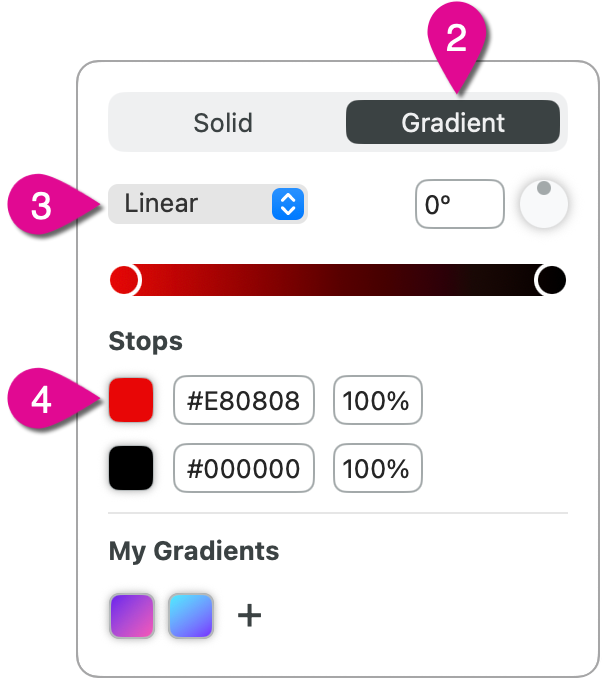
Select Gradient Colors
In the stop color picker, complete one of the following to select a color:

Click the color preview for the second gradient stop and select a color.
Tip: Save your gradient to reuse.
In the color picker, click the + under My Gradients to save your gradient.
The best screen capture software for professionals
* Have Snagit 2024 or earlier? Check out our previous version help.