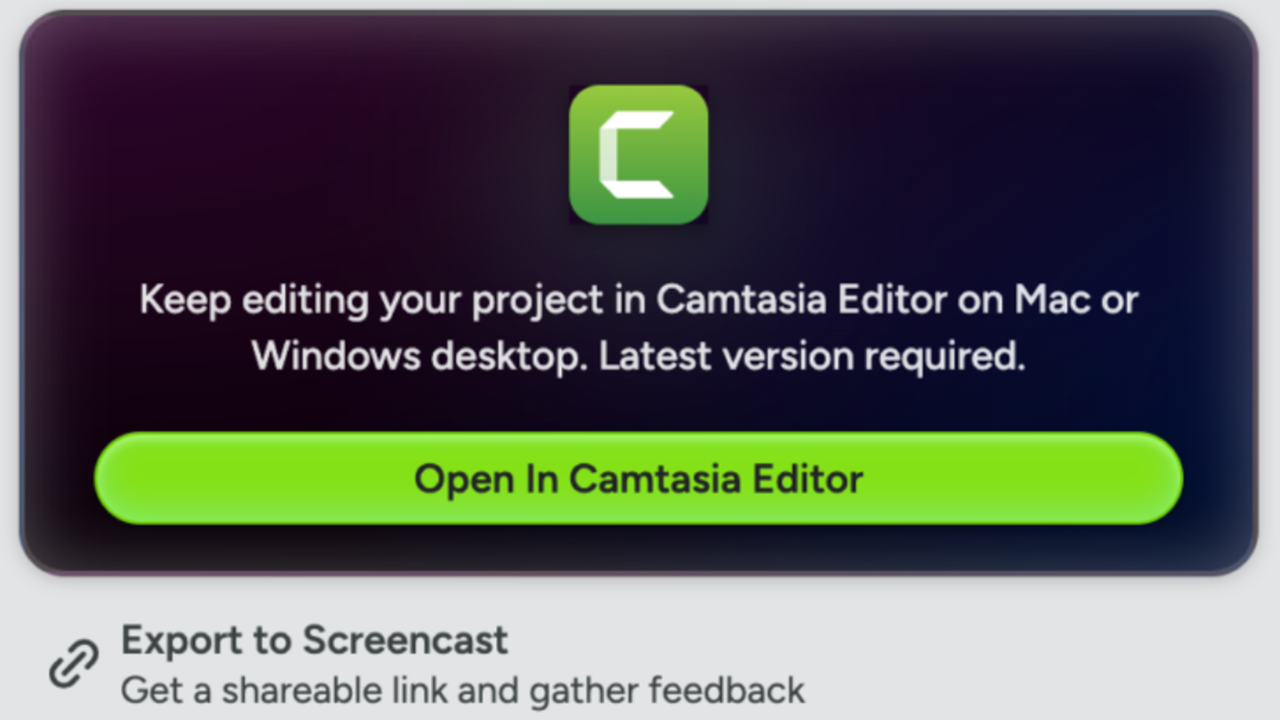
Record directly from Snagit to Camtasia Online, our web-based video creation and collaboration tool, to:
- Apply professionally-designed layouts and looks with animated backgrounds.
- Collaborate on video projects with multiple contributors.
- Share your clip with your team’s video coordinator for further editing in Camtasia Editor.
Record in Snagit
On the Video capture tab, select Camtasia Online from the Open In dropdown.
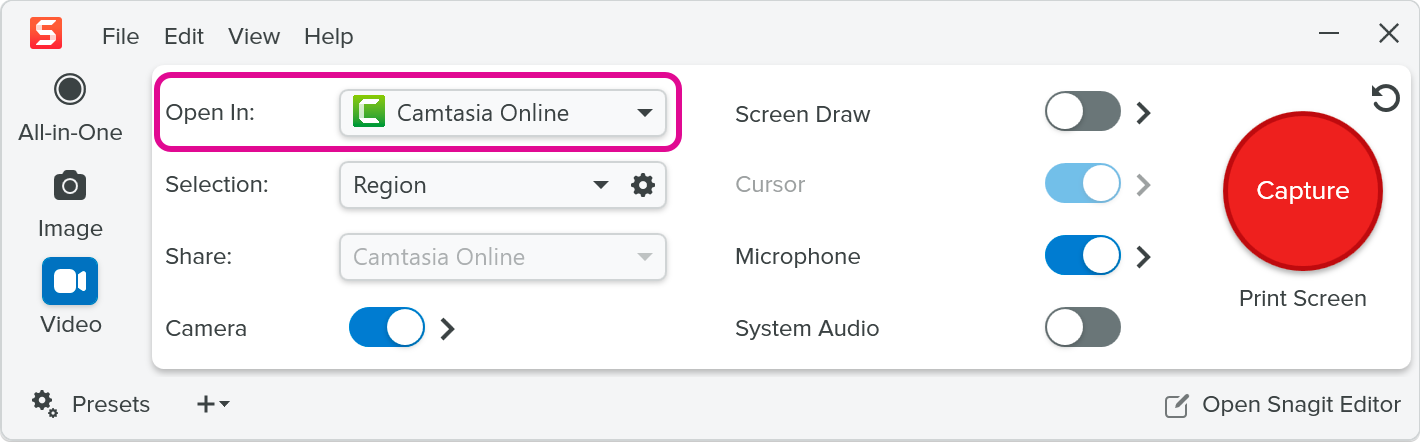
Adjust the other video capture settings, click Capture, and record your video. To learn more, see Record a Video with Snagit.
After recording, Snagit automatically sends the recording to Camtasia Online and copies a link to your clipboard. See Open the Video Project in Camtasia Online.
- Camtasia Online web browser support:
- Google Chrome and Microsoft Edge are fully supported.
- Camtasia Online may work in Chromium-based browsers (such as Arc and Opera) but are not fully supported.
- For more information, see Camtasia Online Supported Web Browsers.
- Video recordings sent directly from Snagit are not saved to the Snagit Library.
- Camtasia Online automatically splits recordings longer than 5 minutes into scenes of 5 minutes each. Individual scenes play seamlessly back-to-back when you preview or export the video project.
Open the Video Project in Camtasia Online
When you finish recording, Camtasia Online opens in a web browser.
- In Camtasia Online, select a project from the dropdown or select Create New Project.
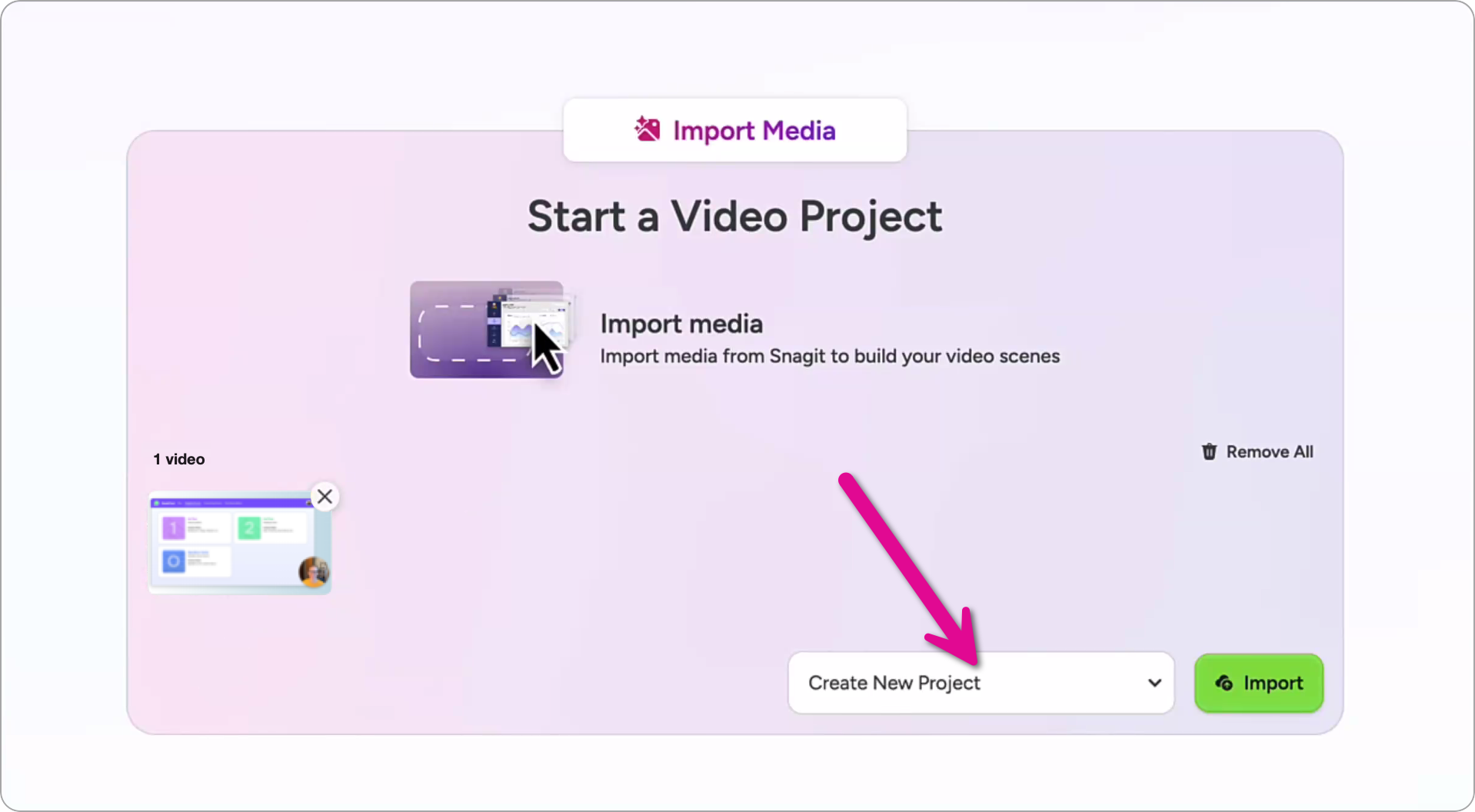
- Click Import
- If you selected to create a new project, click Untitled Project and enter a name for the video project.

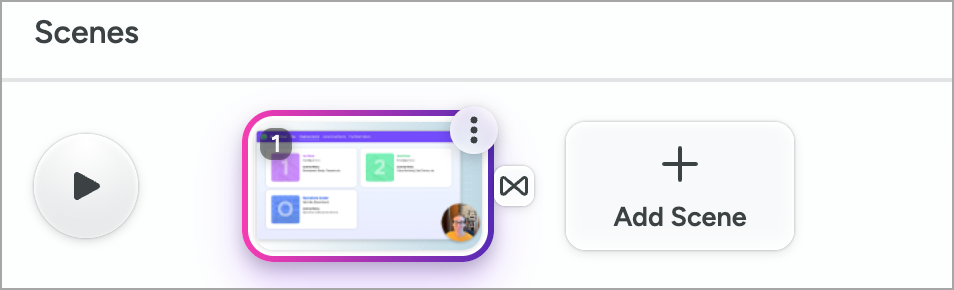
- Your video appears as a scene at the bottom of the project window.
Edit Your Scene
Complete any of the following to adjust the way your scene looks and sounds:
- Select Edit tab > Looks, Effects, and Background subtabs to change the layout, look, and background of the scene. See Edit a Scene.
- Select Edit tab > Cursor subtab to change the size of the cursor. See Cursor Edits.
- Select the Audio tab to adjust the microphone and system audio volume levels, or to apply Volume Leveler and Noise Removal Effects.
- Click Trim to remove unwanted media from the beginning or end of a scene. See Trim a Scene.
- To remove mistakes from the middle of a scene, position the playhead in a section you want to remove and click Split. Then trim the unwanted media from the beginning or end of the individual scenes.
Collaborate and Export
When you are finished with edits to your scene:
Get Snagit
The best screen capture software for professionals
All Snagit Tutorials