









A new hire asks how to submit a reimbursement request, and the only answer anyone can find is a three-year-old screenshot deck from a coworker who left the company last spring.
Process documentation is the ongoing practice of recording and sharing the steps, roles, inputs, outputs, decisions, and exceptions involved in completing a recurring process so the next person who runs it knows what to do.
Too often, teams write it once, publish it, and move on. The documentation then quietly goes stale as software, policies, and workflows change.
This guide offers a repeatable system for creating, testing, and maintaining process documentation, plus a clear understanding of which Camtasia tool handles each stage.
Key takeaways
- Process documentation works best as a lifecycle: create, test, and maintain, not a one-time project.
- Choosing screenshots or video for process documentation depends on whether a step is static or dynamic.
- Structured, time-stamped feedback can replace scattered email threads when testing process documentation with real users.
- Assigning an owner and a regular review cadence helps process documentation stay accurate as workflows change.
- Updating narration through text edits rather than rerecording can make it much faster to maintain video process documentation.
What is process documentation?
Process documentation is the ongoing act of recording and sharing the steps involved in a process. It can take the form of process maps, checklists, policies, tutorials, screenshots, forms, static guides, video walkthroughs, or other types of technical writing.
An SOP standardizes one recurring procedure. A process map visualizes its sequence, decisions, and handoffs.
The create, test, maintain lifecycle
A complete process documentation lifecycle moves through three recurring stages: create, test, and maintain. Skip the format decision during creation, and you may end up with a video where a screenshot would do, or the reverse. Skip testing, and gaps surface after publication, when someone is already stuck mid-task. Skip maintenance, and accurate documentation quietly goes stale as tools and workflows change.
The sequence starts with creating the documentation and choosing its format, followed by testing it with reviewers and a real user, then maintaining it through ownership, version control, and scheduled reviews.
A workflow or tool change doesn’t end the project. It restarts the cycle at ‘create.’
Creating documentation for a new process
The creation stage should define the process first and choose screenshots or video only after its complexity and change frequency are clear. Before opening Camtasia Snagit or Camtasia Editor, L&D, technical writing, and IT teams need to define the process, its boundaries, and how often it’s likely to change.
The steps below move from scope to format choice, then to sequencing steps and flagging exceptions.
Scope the process and its outputs
Scoping a process means identifying its goal, inputs, outputs, audience, and responsible stakeholders. Start with a short description of what the process accomplishes, why it matters, and who relies on the result, such as onboarding a new hire in an HR system or approving a vendor invoice.
Mark exactly where the process starts and ends, and name who decides and who executes each task. Clear boundaries prevent adjacent tasks and other departments’ responsibilities from getting folded into one confusing document.
List the required inputs, such as software access, approvals, forms, or data. Then define the expected output and check it against your original goal before moving into capture.
Choose screenshots or video for steps
Use a screenshot when a step is stable and discrete, and switch to video when motion, timing, narration, or branching decisions carry the meaning. A single setting change, like toggling a permission or checking a box, fits in one annotated screenshot with a callout pointing to the exact control. A multistep software walkthrough in which a menu opens, a cursor drags, or a result depends on timing needs video because a still frame can’t show the motion.
Match the format to how often the reader will use it and how often the interface changes. A screenshot is faster to update when a button moves, while a video may better serve a frequently repeated process that benefits from narration.
Camtasia Snagit handles annotated screenshots and numbered static guides, while Camtasia Editor produces fuller walkthroughs for motion-dependent steps. For more on choosing between these formats, check out this guide to creating instructions using visuals.

Map the sequence and note exceptions
A process map can show the sequence, decisions, handoffs, and exception conditions, with video added when a flowchart can’t show the action clearly. Start by marking the process start and end points, then arrange every task, input, output, decision, and handoff in the order they occur.
Check whether that sequence fits cleanly into a flowchart. If it does, build one. If branching decisions or timing make the chart cluttered or confusing, supplement or replace it with a short video walkthrough.
Label every exception directly on the map. State the exact condition that triggers the alternate path so anyone following the documentation knows when to leave the main route.
Testing documentation before you publish
Testing before publication reveals inaccurate instructions and missing context while the draft is still easy to revise. A draft checked only by its author may still contain unclear steps and gaps that a fresh reader would notice immediately.
Reviewer comments help confirm accuracy, while a real user attempting the process exposes usability problems reviewers may miss. The two methods below cover both before publication.
Gather structured feedback with Screencast
Screencast turns draft review into an actionable workflow by attaching reviewer comments to the exact timestamp or image frame that needs attention. Instead of sending a vague email that says, “The third step is confusing,” a reviewer can mark the precise moment or region and describe the issue.
The workflow has four steps: share the draft video or image through a Screencast link, have reviewers leave comments on the relevant frame or timestamp, group and resolve those comments before approval, and share the revised version for final confirmation.
Reviewers can typically leave comments through a shared link without a paid license, though you should confirm current account requirements before rolling this out to external teams.
This replaces confusing reply-all threads and gives cross-team reviewers, such as subject matter experts and compliance staff, one clear place to respond.
Run the process with a real user
A valid test means having a representative user complete the draft exactly as documented, without coaching. Pick someone unfamiliar with the task, give them only the documentation, and step back.
Watch for three signals: a pause before an unclear step, a wrong choice at a decision point, or a question about information the draft never provided. Each one may mark a gap in the documentation rather than a flaw in the underlying process.
Revise the specific step that caused the problem, then test it again with a new user before publishing. If the process changes later, route the documentation back through the same test as part of maintenance rather than waiting for complaints.
Maintaining documentation without starting over
Teams can maintain process documentation without rebuilding it by assigning ownership, controlling versions, and updating only the media that changed. Maintenance succeeds when you plan for targeted fixes instead of recreating an entire guide every time a tool or policy shifts.
The practices below cover four jobs, including naming an owner, keeping one current version, updating narration efficiently, and checking accessibility during every review.
Create how-to guides in seconds with Snagit
Document any internal process as you do it. Step capture organizes the screenshots, numbers, and steps into a clear, shareable visual.
Learn More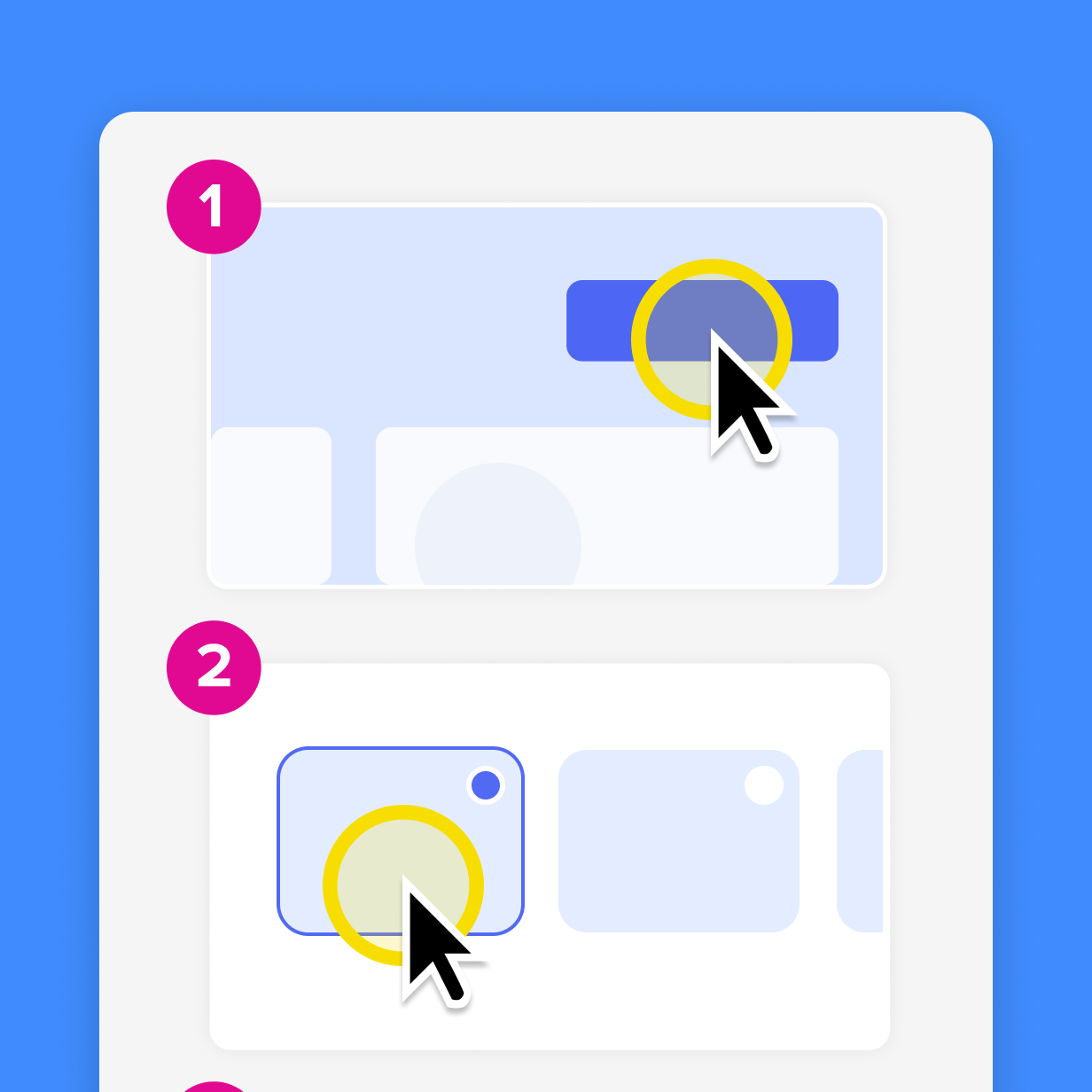
Assign ownership and a review cadence
Every documented process needs one named owner recorded directly in the source file or knowledge-base entry, not scattered across email threads or left in someone’s memory.
Set a quarterly review as the default schedule, and trigger an additional review immediately after any change to the tool, workflow, interface, or policy the documentation covers.
Give that owner a short audit checklist to run during each review. Confirm that the steps still match the live process, test every link, compare screenshots with the current interface, verify narration and captions, note remaining exceptions, and record final approval status before republishing.
Keep one current version instead of scattered copies
One canonical guide or video should remain current while outdated versions are clearly archived rather than left live. Pick a single source file for each process, store it in one known location, and treat every other copy as a pointer back to it.
When you update that file, redirect or replace every live link that pointed to the old copy. Add a visible revision date or status label so no one mistakes a draft for the current version. This is the same discipline behind a well-run standard operating procedure.
Move superseded versions into a labeled archive folder instead of deleting or leaving them accessible where employees search for current instructions.
Update narration in Camtasia Audiate instead of rerecording
Camtasia Audiate can replace outdated narration by letting you edit the transcript text instead of rerecording your screen walkthrough. Update the narration this way:
- Open the narration transcript in Audiate.
- Find the outdated line flagged during your scheduled review.
- Delete or rewrite that text.
- Regenerate or replace only that audio segment. Your screen recording stays untouched.
- Check synchronization against the visuals before publishing.
This text-based approach saves you from rerecording an entire video because of one outdated sentence.
If you use Audiate’s AI voiceover to generate the replacement line, disclose that the audio is AI-generated before publishing. This keeps the documentation transparent and consistent with your organization’s disclosure standards.
Narration edits fix what’s said, not what’s shown. A changed button, menu, or screen layout still requires an updated recording.
Annotate and edit screenshots with Snagit
Professional mark-up tools and powerful features make it easy to create helpful images.
Try it Free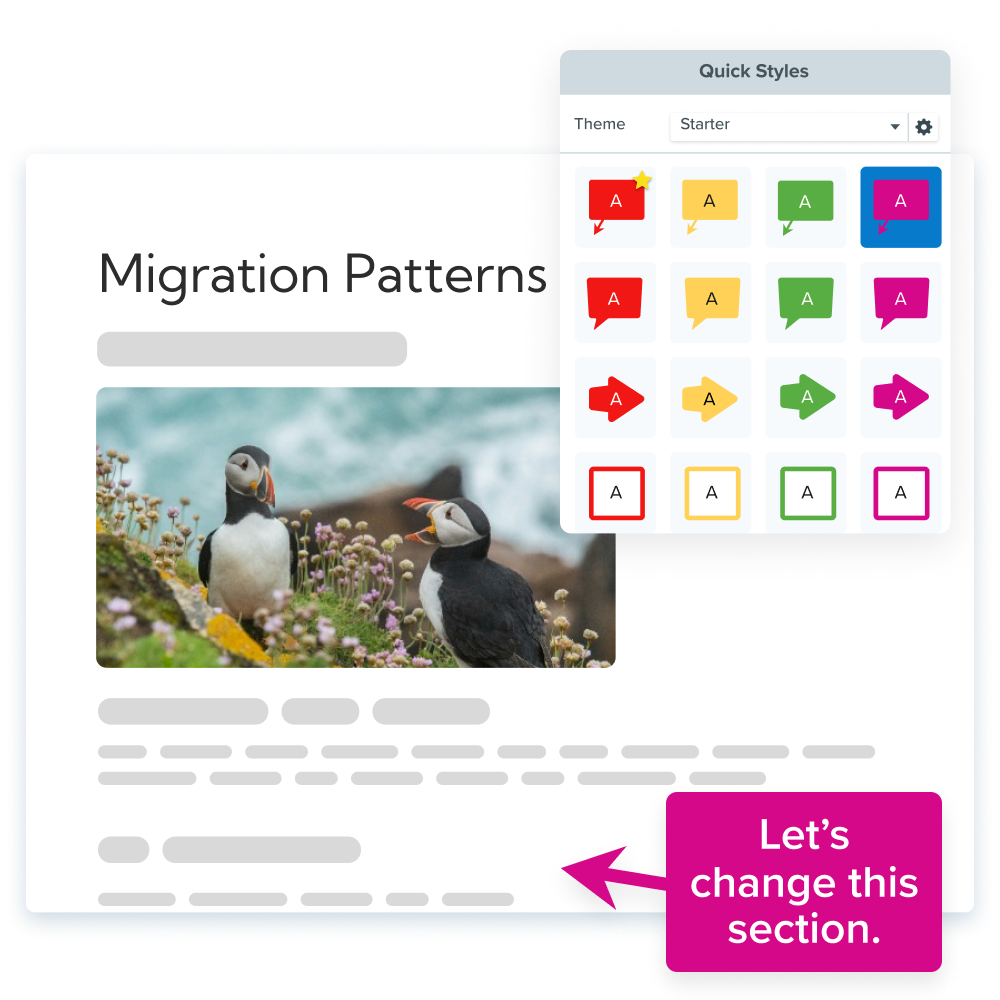
Keep videos accessible with captions
Accessible process videos need accurate captions and a transcript available alongside the video. Include both from the start.
Review caption timing and terminology whenever narration or on-screen steps change. A caption that lags behind the action or still references a renamed button or menu can confuse the viewers who rely on it.
Export a reusable SRT file from Camtasia Editor whenever captions need to travel with the video or be reused in a knowledge base or LMS. Build this check into every scheduled documentation review.
Which Camtasia tool fits each stage
The right Camtasia tool depends on whether your immediate task is static capture, polished production, quick recording, structured review, or narration maintenance. Match the tool to the task.
| Stage | Best tool | Output | Selection trigger |
| Create | Camtasia Snagit or Camtasia Editor | Static guide or video | Motion vs. a one-frame step |
| Record | Camtasia Online | Quick clip | No install and fast turnaround |
| Test | Camtasia Screencast | Approved draft | Cross-team feedback needed |
| Maintain | Camtasia Audiate | Updated narration | Only the narration is outdated |
Camtasia Snagit for capturing steps
Camtasia Snagit is a strong fit for capturing stable steps as annotated screenshots or an editable numbered guide. Reach for it when a process holds still long enough to capture in one frame, such as a settings menu, form field, approval screen, or other action a reader can understand from a single image.
Use Step Capture to record your clicks as you move through the process. It organizes each screenshot into a sequential, editable guide with arrows, callouts, and numbered annotations you can adjust afterward.
That guide is a static document and a solid foundation you can bring into Camtasia Editor later if the process turns out to need motion or narration.
Camtasia Editor for polished walkthroughs
Camtasia Editor is the right choice for complex process walkthroughs that need templates, multitrack recording, polished editing, and automated captions. Reach for it when a process has multiple steps, decision branches, or a shelf life long enough to justify additional editing time.
Start from a template to keep intros, callouts, and outros consistent across every video in your library. Record webcam, screen, and audio on separate tracks so you can adjust one element without redoing the entire take, then generate captions automatically to reduce transcription time.
Because each element sits on its own track, you can replace outdated screens or narration later without rebuilding the whole video. Updated captions also help keep the walkthrough accessible after each revision.
Camtasia Online for quick recordings
Camtasia Online is the best fit when you need a short process recording quickly and don’t want to install software first. It runs in your browser and captures your screen, camera, and microphone, so you can record a quick coaching clip or internal update from the tab you’re already using.
Save the fuller editing pass for Camtasia Editor. Camtasia Online handles the quick capture. Ready to try it? Try Camtasia free.
Camtasia Screencast for review and approval
Camtasia Screencast is for sharing draft images and videos with reviewers who need to leave precise, actionable feedback. It’s especially useful for structured cross-team reviews when stakeholders in other departments need to weigh in before you publish.
Its defining capability is allowing reviewers to comment directly on a shared draft rather than describing issues in a separate email or message.
Send a screenshot from Camtasia Snagit or a video from Camtasia Editor through Screencast, collect frame-specific notes, then revise the source file and share it again for approval.
The best snipping tool for Windows and Mac
Don’t let clumsy built-in tools hold you back. Take and edit screenshots with Snagit!
Get Snagit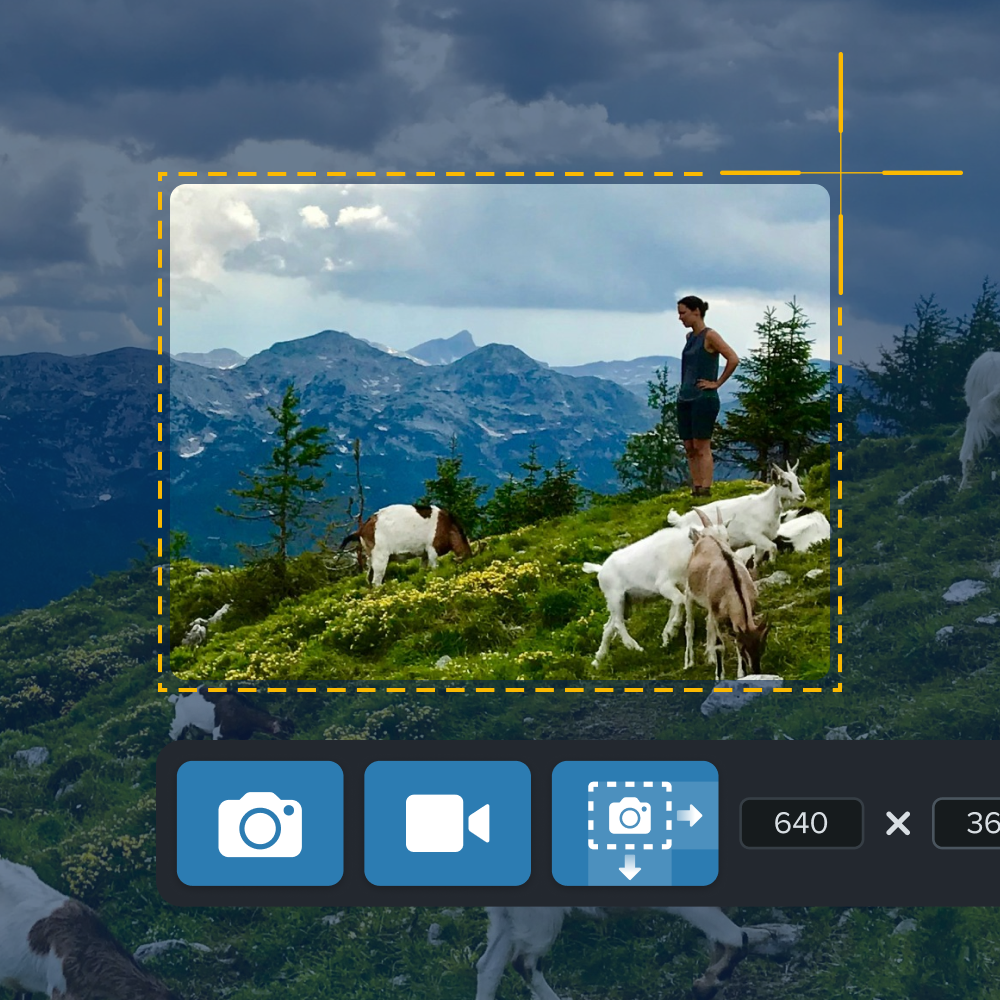
Camtasia Audiate for maintenance updates
Audiate is a strong fit when a process video needs corrected, shortened, or replaced narration and nothing else about the walkthrough has changed. You edit the transcript text instead of the audio waveform, so fixing an incorrect step name or trimming a wordy line takes less time than rerecording.
Two capabilities matter here: text-based editing for precise corrections and AI voiceover for replacing or generating narration when the original speaker is unavailable.
Disclose any AI-generated voice before publishing to maintain transparency.
Make process documentation a living asset
Process documentation stays useful when someone owns it, one version remains current, and employees can find it. Keeping it updated also supports smoother onboarding and feature adoption.
Choose one existing process video, assign an owner, and set a recurring 90-day review to confirm the steps still match the software. That small habit can prevent outdated documentation from creating hours of confusion.
Camtasia fits this rhythm because the Camtasia Product Suite gives each stage a purpose-built tool for fast capture, polished production with reusable callout styles, timestamped review, and script updates without a full reshoot. That lets teams route each task to the right tool within one connected workflow.
If you’re ready to apply this lifecycle to your own process videos, start your free 30-day trial of Camtasia and build documentation that stays useful.
Frequently asked questions
What is process documentation, and what should it include?
Process documentation is the record of steps, roles, inputs, outputs, decisions, handoffs, and exceptions involved in completing a recurring task. A complete document should also identify who owns each step and show where alternate paths or approvals occur. Treat the content as part of a lifecycle that includes creation, real-user testing, and ongoing maintenance.
When should you use screenshots instead of a video walkthrough?
Screenshots work best when a step is static, discrete, and easy to explain in one image. Use video when the process depends on motion, timing, narration, a longer sequence, or decision branches that are difficult to capture in a single frame. Camtasia Snagit supports quick screenshots and numbered static guides, while Camtasia Editor supports fuller video walkthroughs.
How do you test process documentation before publishing it?
Testing process documentation means having a representative user follow the draft exactly as written, without receiving extra guidance. Record where the user pauses, makes an incorrect choice, or asks for missing information, then revise and repeat the test as needed. Screencast can also collect time-stamped or frame-specific reviewer comments directly on draft videos and images.
How often should process documentation be reviewed and updated?
Process documentation should be reviewed on a set cadence, such as quarterly, and checked again whenever a relevant tool, workflow, interface, or policy changes. Assign one accountable owner to each documented process so responsibility for reviews and updates remains clear. The review should check steps, links, visuals, narration, captions, exceptions, and approval status.
What’s the best way to maintain video process documentation without rerecording everything?
Update only the outdated part of the video whenever the source files and workflow allow it. In Camtasia Audiate, a creator can revise narration by editing the transcript text and replacing the affected audio without rerecording the full screen walkthrough. Check the updated audio against the visuals, and disclose any AI-generated voice used in the final version.
Share