






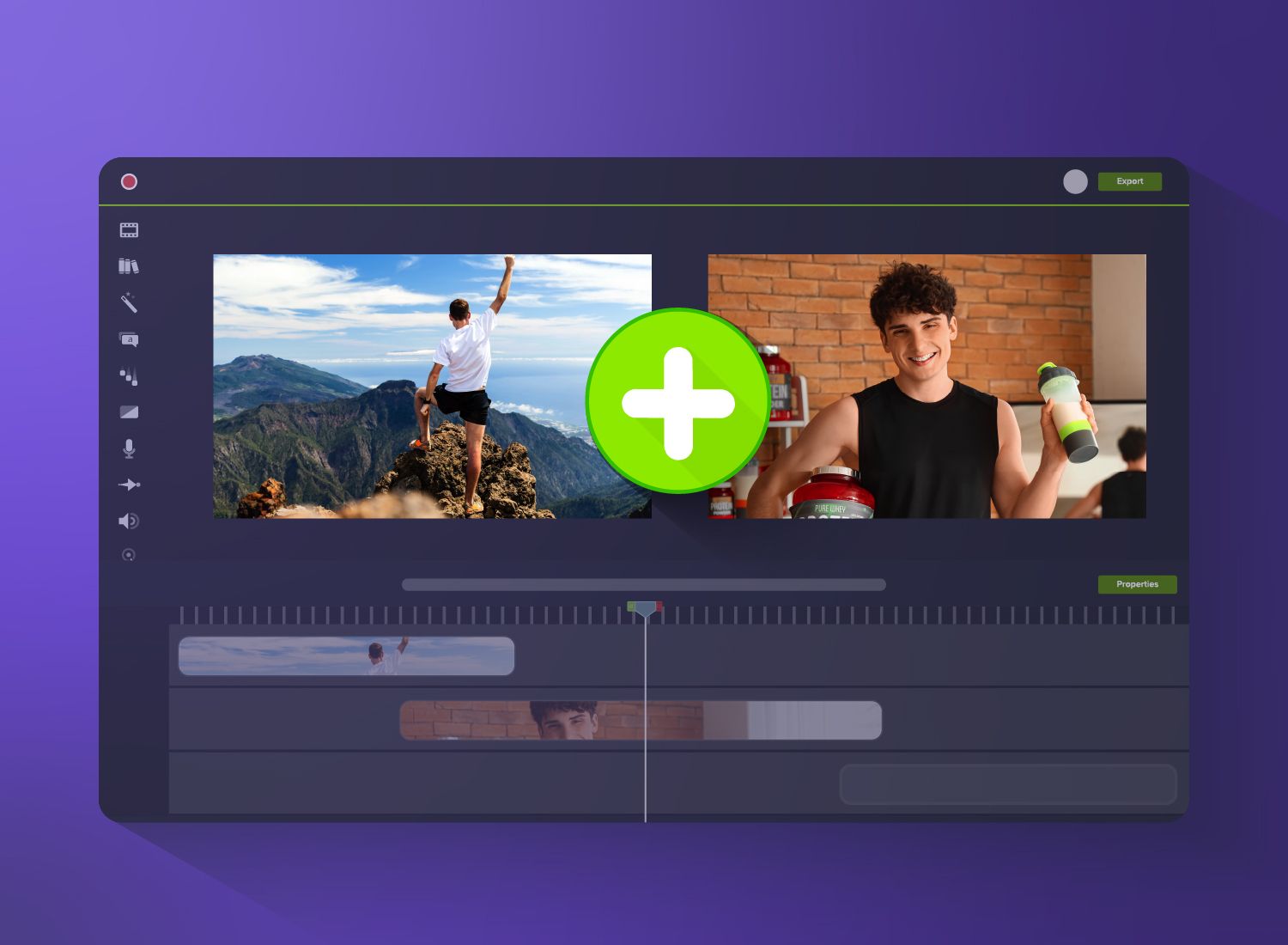
Ever wanted to put together a video montage — maybe for onboarding, training, or even an employee’s goodbye party — but stopped in your tracks because you had no idea how to even start? It’s totally normal.
But in reality, you don’t need to know how to merge videos, use complicated editing platforms, or even own fancy “videographer-level” tools to create montages. With modern solutions like Camtasia you can create emotion-evoking, laugh-out-loud, or informative yet engaging videos without advanced tech skills or specialized software.
Whether you’re a trainer, educator, or professional content creator looking to turn your images and short clips into a slick video, we’ve got you covered.
What is a video montage?
A video montage is a compilation of short video clips, images, and audio woven together to tell a story, capture a mood, or evoke emotion from audiences, kind of like a digital scrapbook.
It’s typically shorter and snappier than a full-length video or a basic slideshow, as it focuses on highlighting key moments. You’ll typically see details like music syncing, quick cuts and, in some cases, zooms in or out, all intended to keep audiences emotionally engaged.
A montage can be a powerful tool for both professional and personal use, as it’s typically straight to the point and hits emotionally, fast. If your goal is to connect deeply with your audience, it’s definitely one of the best video formats for you.
Do montage videos created online look professional enough?
The short answer? Yes! There’s more to creating “professional” montages than using the fancy editing tricks traditional (and expensive) video editing software offers.
Professional videos are about capturing the right moments, using the right pacing and audio, and making natural transitions — things online video creation tools already help with.
Online tools also streamline collaboration. With Camtasia, for example, you can easily get input from multiple subject matter experts (SMEs) for a training or informative video montage. Just have them record from their screen or camera and share the clips with you on the platform.
Need to show your screen?
Skip the downloads. Use Camtasia online to record your screen, camera, and microphone right in your browser for free.
Start Recording
Choosing online tools doesn’t just make video creation easier. It makes it better, and here’s why:
- Get started in minutes: No need to download, install, or watch a bunch of tutorials to get online tools working.
- Templates will do the heavy lifting: Some tools come with pre-designed video styles, so you don’t have to guess which transitions to use or how long to keep images on screen.
- Easy creation and sharing: You can create video montages right from your computer, then download or share them with convenient links.
- Everything works online: Modern video montage makers use cloud processing, so you don’t have to worry about your computer limiting video quality or losing your files.
Ready to create your own montage videos? Get started with Camtasia today!
How to make a video montage without technical skills
Thanks to AI-powered tools, anyone can make high-quality video montages in just a few steps. It doesn’t matter whether you’re new to video editing or have years of experience under your belt. Just follow this step-by-step guide, and you’ll have a professional-looking montage ready to show off before you know it!
1. Gather images and clips
Creating a goodbye video for a colleague? Want to generate training montages? Need an eye-catching wrap-up of this year’s Sales Superstars trip? It all starts with gathering your content, and this should be pretty easy if you already have what you need on your phone or in cloud storage.
For attention-capturing video montages, collect a variety of photos and images, then organize them by type. Using a wide range of curated imagery featuring different settings, time periods, and/or styles will keep your video visually dynamic and make it easy for your audience to follow along.
2. Choose a simple montage editor
Once you get your content ready, choose a solid video generator to bring it all together. As we said earlier, you don’t have to go all out and install traditional or pro-level software. Modern online tools are more than enough.
Camtasia Online is a top choice for beginners looking to create quick montages featuring screen recordings. It’s completely browser-based and lets you:
- Record your screen and audio.
- Collaborate with other team members by allowing you to invite them to add their own recordings.
- Trim the start or end of your clips to remove unnecessary parts.
- Use templates in your designs for a professional look.
Need a more robust solution? Camtasia’s desktop editor gives you even more flexibility, with AI-powered voice narration, automated caption generation, drag-and-drop editing, and simultaneous audio and video editing.
If you can edit a doc, you can edit a video
Stop fearing the timeline. Camtasia Audiate transcribes your recording so you can edit your video just by editing the text.
Free Download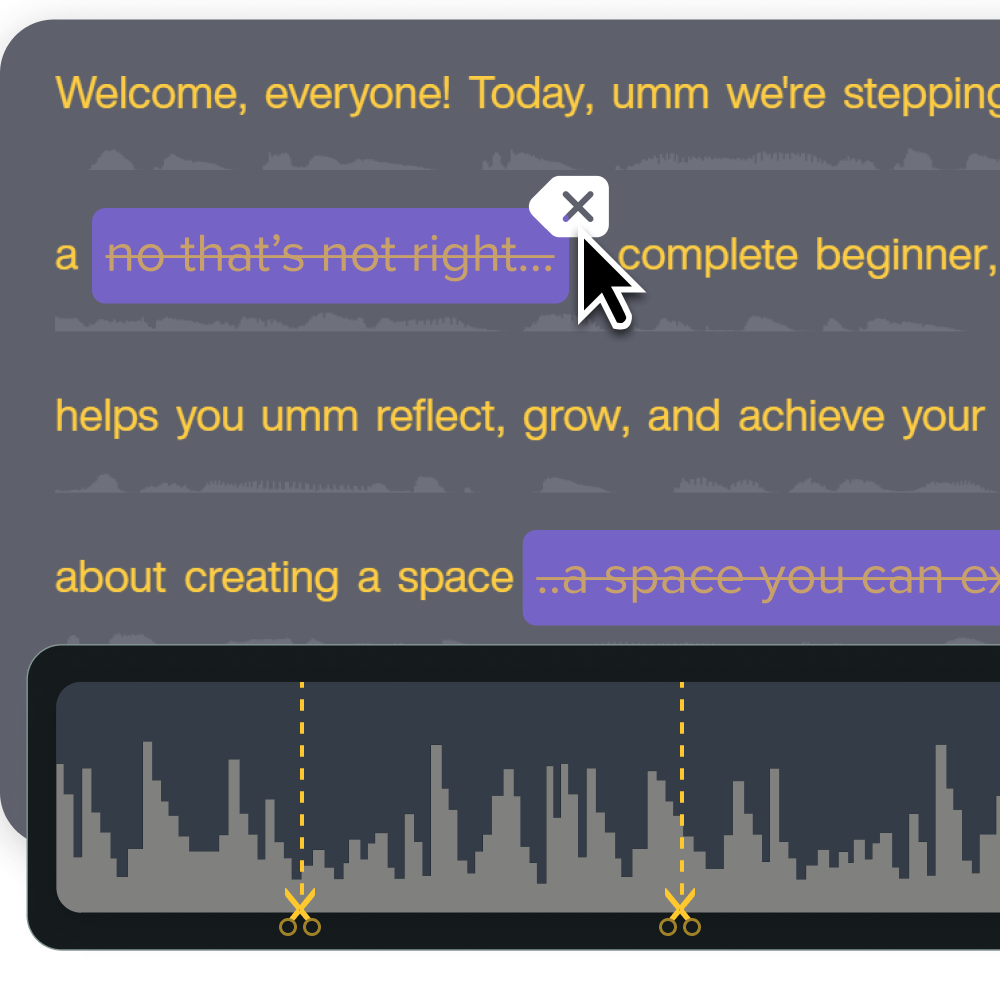
3. Arrange your media on the timeline
Next, you’ll need to arrange your images and clips on the timeline in the order you want your story to unfold. You may want to use an “intro” clip or branded opening that includes text to give viewers an idea of what to expect, something like “Looking back at Bob’s 25 years of service” or “Here’s what you need to succeed at [company].”
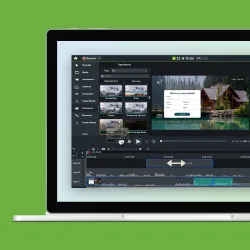
Then you can group the rest of your clips by moments or content, ensuring everything flows smoothly. This should be pretty easy to do since modern video editors can present timelines as visual storyboards.
To keep your video montage engaging, trim your clip edges and remove unnecessary images, then watch your preview to test your pacing. If your mind drifts on a single shot, speed it up or cut it. With the human attention span declining, a slow pace could see you lose your audience before your video montage ends.
4. Enhance with transitions and effects
After cutting out the fluff, it’s time to spice up your video montage — but that doesn’t mean you should add effects and transitions after every image or clip! Keep them purposeful, only using them when they enhance the storytelling. Remember, you still want viewers to focus on your core content.
Some transitions and effects you can use include:
- Whip pans and glitch transitions for dramatic reveals
- Crossfades when switching scenes
- Slow motion for emotion-evoking moments
- Zooms for highlights
- Filters to align mixed footage
- Jump cuts for action sequences
To give your videos some extra oomph, use animations alongside effects and transitions. Something as simple as an animated logo reveal can bring a lot of excitement.
Camtasia offers plenty of effects and customizable transitions to help you boost your video engagement, including cursor effects, motion path animations, and a Smart Focus feature that uses AI to automatically zoom in on key areas.
Go from screen recording to polished video
A screen recording is just the start. Camtasia’s editor helps you add the callouts, animations, and edits you need to create a truly professional video.
Free Download
5. Add audio or voiceover
A montage without audio might be watchable, but it won’t be memorable. Capture viewers’ attention from start to finish by elevating your video with music or narration.
As with content, choose your music tracks carefully to make sure they align with the overall vibe you’re going for:
- Nostalgic music for a goodbye or retirement video
- Upbeat, energetic tunes for product launch videos or pitch decks
- Lo-fi or instrumental music for tutorial or how-to content
- Dramatic, cinematic tracks for case studies or brand stories
You don’t really need to go for over-the-top audio. Simple choices can be just as impactful if they match your footage.
Pro tip: Reduce your volume levels during voiceovers and only ramp it back up when you’re done narrating so you’re audible throughout your recording.
Need help adding and editing audio? Camtasia Audiate offers AI-powered script generation and voice narration to take the guesswork and frustration out of recording audio yourself. You can even normalize volume to sound more professional, clean up your audio file, and remove the “ums” and “ahs,” all in the same place.
6. Export your final montage
Once your video is ready, export and share it — montages work well on many platforms, including TikTok, LinkedIn, YouTube, and email. Most modern tools automatically handle the technical specs for different platforms, so this step is relatively straightforward.
After sharing the video with your audience, be sure to save a backup copy for review or edits later on.
Our top editing tips for video montages
Want to make your video montages even more watchable and memorable? Use these pro-level editing tips.
Keep the video montage short
It’s no secret that short videos perform better, especially on social media platforms. So keep your montages as brief as possible while still offering value by reviewing and removing any fluff (clip edges and images you can do without).
If you’re still concerned about length, consider breaking it up into multiple montages, each with a specific focus.
Use any filters or overlays wisely
While it may be tempting to wow viewers with a barrage of special effects, overdoing it could overwhelm them, affecting your completion and engagement rates. Not to mention, effects that are trendy now might be outdated tomorrow.
To maintain viewer attention, use simple filters, overlays, and video transitions. We recommend sticking with one visual style to maintain consistency and reduce cognitive load.
Balance music and voiceover
Again, simplicity will always win vs. over-the-top sound effects. Use a clean, balanced sound that aligns with your overall vibe and video content.
You can also take it a step further and edit your music so it enriches rather than overpowers your recording. Many editors offer a “ducking” feature, which lowers music volume when your voiceover kicks in. With this feature, you can automatically dip your music volume from, say, 80% to 20% when you’re talking.
Camtasia also offers an “emphasize audio” feature that automatically adjusts music volume when the narration kicks in, helping you stay audible.
Examples of how to use AI and TechSmith’s tools for a montage
Thanks to AI-powered tools like TechSmith’s Camtasia and Audiate, you can create high-quality video montages quickly without sacrificing your creative control.
AI automation for faster editing
With TechSmith, you won’t spend hours editing videos or reviewing guidelines. Camtasia’s AI features, like automated script, caption, and translation generation, AI noise removal, and AI avatars, allow you to quickly edit footage like a pro, even if you’re a total beginner.
Auto-adjusting audio and color
In Audiate, you can automatically balance audio and adjust background volume during voiceovers to promote clarity.
Text-based editing options
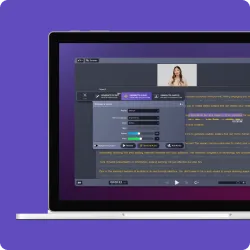
With Audiate, you can edit montages like you would a document. Instead of working with timelines, you can rearrange images or clips and remove unnecessary words just by editing text on a transcript.
Personal branding
When it comes to corporate training videos and public-facing content like YouTube videos, consistency is essential for building credibility.
Camtasia helps you align montages with your personal or business brand by adding logos, using brand colors, and even creating reusable video templates to keep everything consistent across projects, teams, and departments.
Captions and annotations
TechSmith’s tools also help you promote video accessibility and engagement among sound-off viewers by letting you add clean text to your videos. In fact, the built-in AI tools can generate captions and other text for you, saving you a whole lot of time. You can also highlight key details with annotations like arrows and callouts.
Looking for professional screen recording software?
From simple screen captures to polished video editing, TechSmith has everything you need to create professional-quality content.
Learn More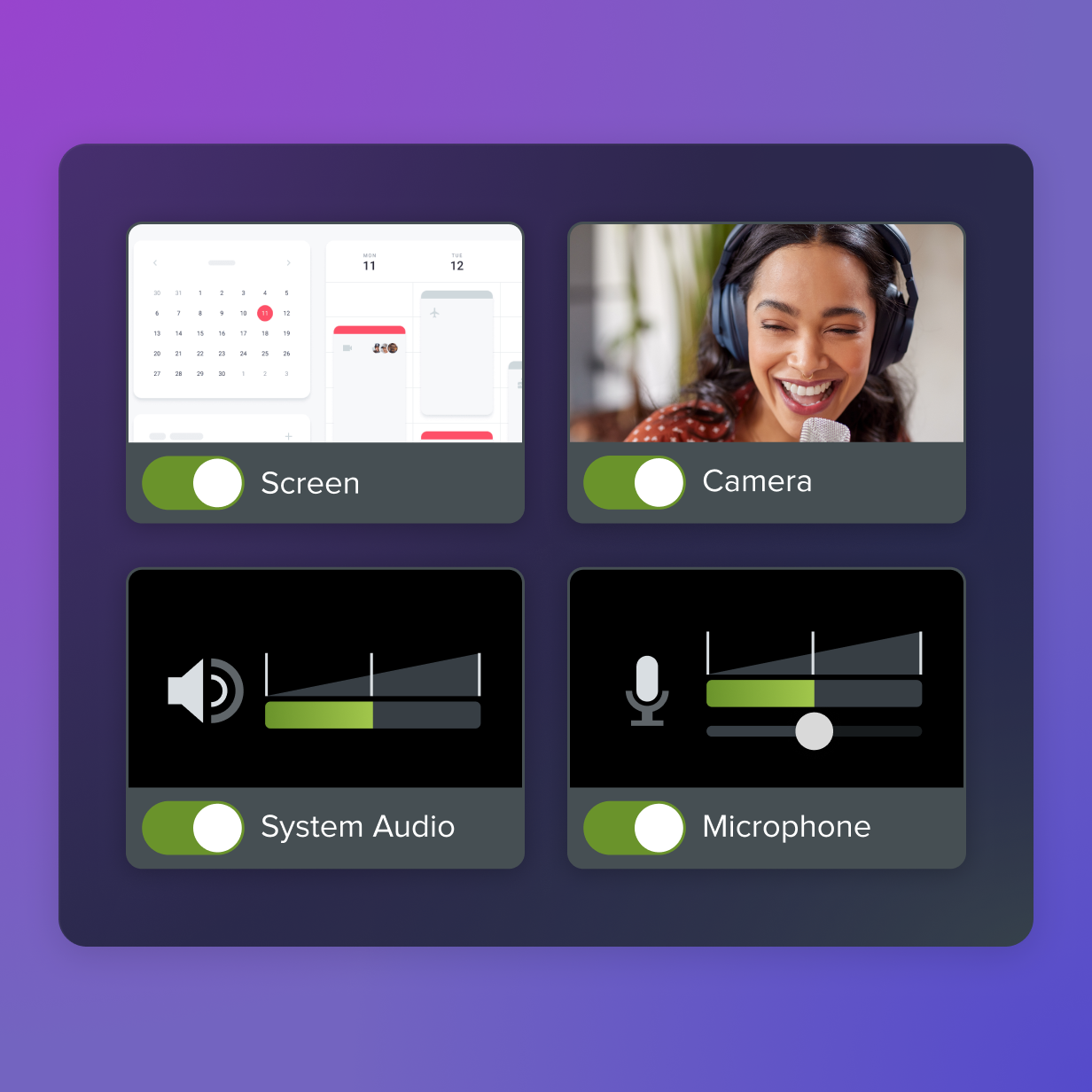
Create a video montage that makes waves with TechSmith
You don’t need to be a professional filmmaker to make a memorable video montage. With the right editing tools, anyone, including beginners, can make montages that wow their audiences and keep them hooked from start to finish.
Built with beginners in mind, TechSmith’s tools simplify not just screen and camera capture but also video editing, potentially saving you hours of work — and a lot of frustration. And with AI features like automated captioning and audio balancing, you can create professional-looking montages with minimal effort.
Try TechSmith’s tools today to see just how easy video montage creation can be!
Share