









Most Learning and Development (L&D) teams know that AI can help create training videos — the question is whether it can do so at the standard their organization requires. The honest answer is that AI speeds up scripting, narration, editing, captions, and localization, but only when a human stays in control of learning goals, accuracy, accessibility, and final review.
Consider a common scenario: Your organization just rolled out a new HR system, and you need an onboarding module ready in two weeks, reviewed by compliance, and accessible across three regions. A generic AI tool can draft that script in minutes, but it can’t record the real interface, sync narration to on-screen steps, or generate accessibility-ready captions on its own.
This post maps exactly where AI earns its place in a training video workflow, and where human judgment and purpose-built tools still have to carry the load. You’ll leave with a practical framework for matching tools to production stages, whether you’re building onboarding modules, software walkthroughs, or policy updates.
Key takeaways
- Creating training videos with AI works best when you treat AI as support, not a replacement for instructional design, subject matter expert (SME) review, or compliance checks.
- Generic large language models (LLMs) can help draft scripts, but they can’t create a complete training video without tools for narration, editing, localization, and final production.
- AI can speed up each stage of training video production, from structuring the lesson to cleaning narration, generating captions, and translating updates.
- For software and process training, screen-recording-based AI tools are often a better fit than avatar tools because learners need to see the real workflow.
- In many L&D teams, AI-assisted scripts, voiceovers, and text-based edits can make training videos faster to update as tools and policies change.
What do L&D professionals need from AI video tools?
AI can help create training videos, but only when human instructional design and purpose-built production tools stay in the workflow. L&D teams own accuracy, outcomes, and consistency — AI doesn’t change that responsibility.
Busy training teams evaluate AI video tools on how well they support instructional quality, update speed, accessibility, localization, review control, and branded output. Novelty features don’t move the needle.
Consider a software onboarding module that needs quarterly updates across three regional teams. The real requirement isn’t generating a first draft, but producing an accurate, approved, maintainable asset that meets accessibility standards and reflects current UI every time it changes.
That’s the bar AI video tools must clear to earn a place in a real L&D workflow.
Why production quality and instructional quality are not the same thing
A polished video can still fail as training. Smooth animations and professional narration mean nothing if the pacing skips steps, the examples don’t match the learner’s real task, or there’s no reinforcement.
Picture a sleek avatar-led customer relationship management (CRM) overview versus a real screen recording that shows every click through an actual lead-entry workflow. The first looks finished. The second teaches the task.
Can a learner watch your video and complete the task without outside help? If not, production quality isn’t the problem to solve.
Keep training videos accurate. Avoid “AI slop.”
Build training content faster without sacrificing quality. The HUMAN Framework is a 5-step strategy for integrating AI effectively.
Get the Guide
The organizational context most AI video content ignores
Most AI video demos skip the constraints that determine whether training content is usable, including brand approvals, SME review cycles, learning management system (LMS) publishing requirements, accessibility standards, and version control.
Take a multilingual safety module as an example. The first draft is rarely the bottleneck. Getting accurate, approved, maintainable content through compliance sign-off and regional review is where timelines slip.
The practical implication: Before choosing any AI video workflow, map it against your approval chain. If the tool can’t support that process, the output stays a draft indefinitely.
Why can’t generic LLMs create a complete training video?
ChatGPT can draft a solid training script. It can’t ship a finished training video.
Consider an internal dashboard tutorial. A language model can write the steps, but your team still needs screen capture, synchronized narration, timed captions, and a review-ready file before anyone learns anything.
What remains unresolved after a text draft:
- Screen recording and cursor emphasis
- Audio production and timing
- Accessible captions
- Reviewer feedback and publishing control
Words are one input. A complete training asset requires the full production chain around them.
What ChatGPT can and cannot do in a training video workflow
In a training video workflow, that split looks like this.
- Can help with: drafting an outline for a cybersecurity onboarding module, generating quiz questions, suggesting SME interview questions, and simplifying technical language
- Cannot produce: a screen recording of a Salesforce workflow, synchronized narration, rendered video output, or captions tied to on-screen steps
Use ChatGPT to accelerate planning, then bring purpose-built tools in to finish the job.
The three capability gaps that stop general-purpose AI short
General-purpose AI has three concrete gaps that prevent it from delivering a finished training video.
- No video rendering. A product update script may be accurate, but without synchronized screen capture and a timeline, your team still rebuilds the visuals manually, adding days of rework.
- No integrated narration workflow. Text output can’t generate, time, or caption audio. That leaves inaccessible output and approval delays when captions must be added separately.
- No instructional design judgment. AI can’t decide whether a step needs a callout, whether the pacing matches beginner learners, or whether a screenshot is outdated. These inconsistencies compound across an entire training library.
Each gap requires a human decision or a purpose-built tool to close it before the asset is publishable.
What purpose-built tools handle instead
Camtasia Audiate handles scripting, AI voice generation, transcription, and text-based edits. Camtasia Editor handles screen recording, timeline control, cursor emphasis, captions, and final polish.
Together, they close the production gap. Draft your narration script in Camtasia Audiate, review the AI-generated voiceover line by line, then bring the approved audio into Camtasia Editor to sync with your screen-recorded walkthrough.
Disclosure reminder: Whenever you use AI voices or translations, follow your organization’s disclosure rules and label AI-generated content accordingly.
What is AI’s role across the training video production lifecycle?
AI delivers the most value when L&D teams assign it to specific production stages rather than treating it as a single-prompt solution. Ownership at each handoff still belongs to a human.
Map AI to four stages in sequence: scripting, narration, editing, and localization. A software onboarding module, for example, needs human-defined objectives before any AI drafts a word.
Stage 1: Scripting and content structuring
AI can draft a script outline in minutes, but that draft only becomes training-ready after a human defines what the learner must do and why.
Before prompting any AI tool, define one to three learning outcomes. For a beginner Human Resources Information System (HRIS) onboarding tutorial, that might be: “Learners can submit a time-off request without assistance.”
Then structure your prompt around four inputs:
- Audience: role, experience level
- Task: the exact workflow step
- Prerequisites: what they already know
- Common errors: where learners typically fail
AI can simplify SME language and suggest branching paths. Humans still set the examples, pacing cues, and assessment checkpoints that make the script teachable.
Let Audiate write your script!
No more blank pages! Instantly generate amazing, customizable scripts in any length, tone, and style!
Get Audiate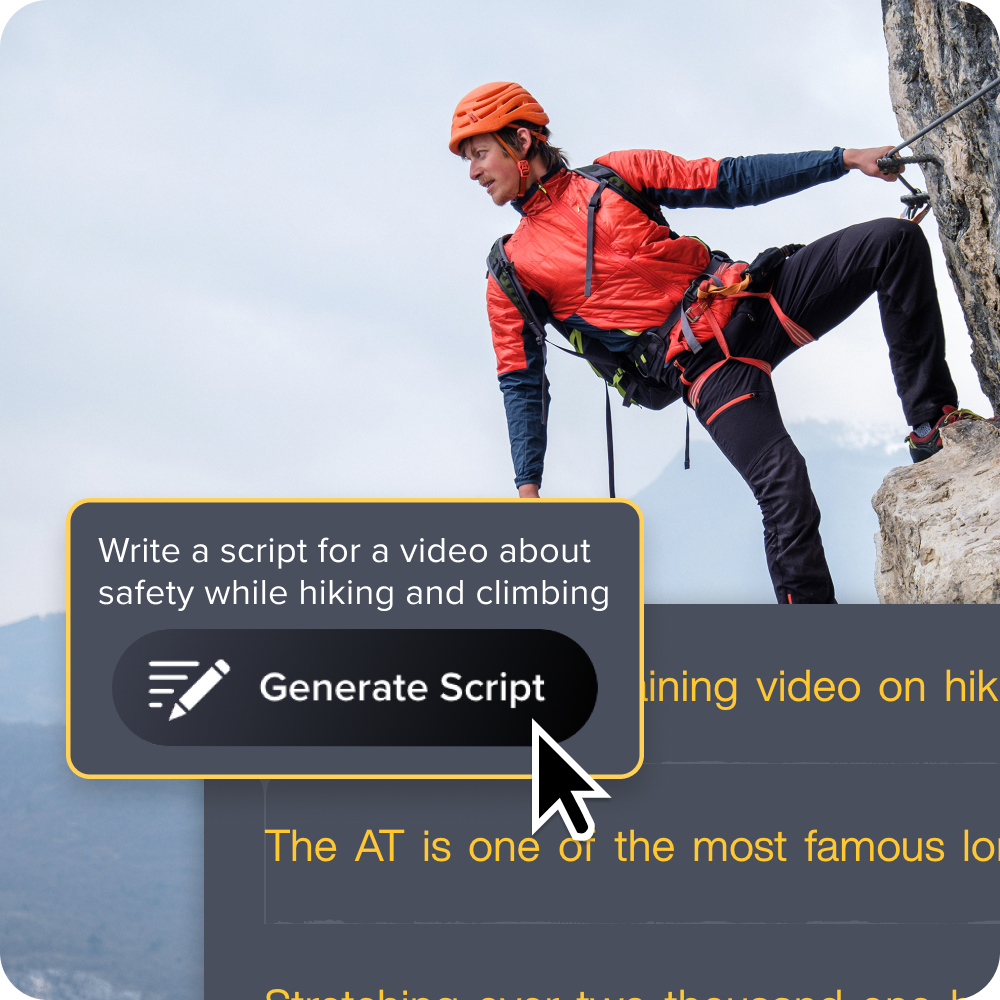
Stage 2: Narration and voiceover
Camtasia Audiate makes audio editing faster by letting you work directly in the transcript. Delete a word in the text, and the audio removes itself — no waveform hunting required.
A non-native SME recording a software demo often has filler words, hesitations, and phrasing they want to revise. In Camtasia Audiate, they clean the script like a document, regenerate any changed line with an AI voice, and skip the re-recording session entirely.
AI narration vs. human narration at a glance:
- Update speed: AI wins — change one line, regenerate in seconds
- Tone: Human narration still feels warmer for sensitive or complex content
- Consistency: AI voice stays identical across every module update
When a compliance refresher needs a policy term corrected, AI narration means no studio booking, no scheduling delay. One edit, one regenerated clip.
Always disclose when a voice is AI-generated, following your organization’s disclosure policy.
Stage 3: Editing and post-production
Once narration and screen footage are assembled on the timeline in Camtasia Editor, editing transforms raw material into instruction that works.
This is where comprehension gets built. Add cursor emphasis to highlight an approval button in an internal dashboard. Drop callout annotations on a required CRM field. Apply background noise removal to clean up the audio track.
Reusable templates and branded styles matter here, too. They keep every module visually consistent without rebuilding formatting from scratch each time.
Captions belong at this stage as well. Accurate, synchronized captions improve accessibility and strengthen retention for every learner.
If you can edit a doc, you can edit a video
Stop fearing the timeline. Camtasia Audiate transcribes your recording so you can edit your video just by editing the text.
Free Download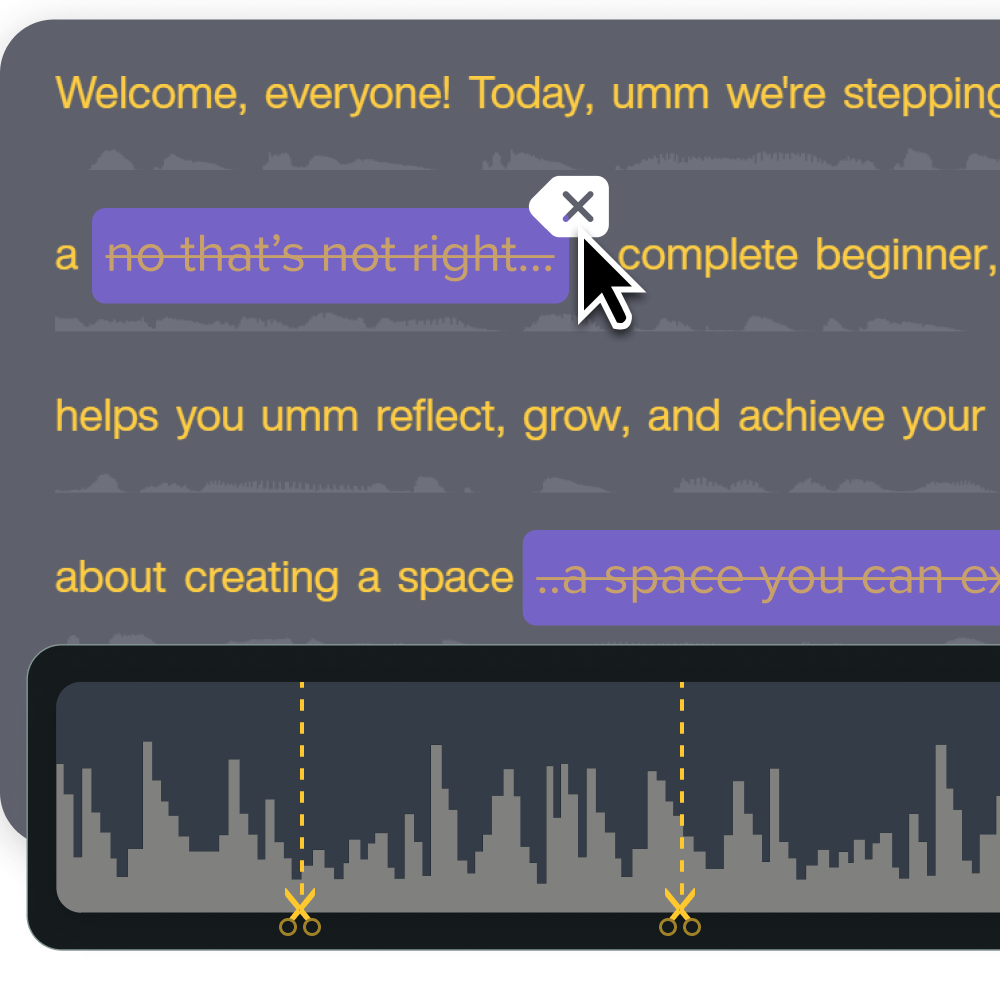
Stage 4: Translation and localization
AI translation can compress a localization cycle from weeks to days, but speed alone doesn’t make translated training accurate or compliant.
In Camtasia Audiate, you can generate translated scripts and apply multilingual AI voices to produce Spanish and German versions of an English onboarding update. Always disclose when translated audio is AI-generated.
Regional human review is still required. A translated script may preserve surface meaning while missing approved product terminology or regulated policy language entirely. That gap can create compliance and trust risk that’s hard to undo.
Before publishing any localized version, route the translated script to a regional reviewer who can confirm terminology, cultural fit, and compliance accuracy.
Screen recording vs. avatar tools: Which approach fits the training task?
Tool choice depends on the training task. Showing a real interface teaches differently than a virtual presenter explaining a concept.
Match your format to these criteria:
- Learning goal: Task performance vs. concept awareness
- Content type: Software workflow vs. policy or announcement
- Maintenance: Frequent UI updates vs. stable narrative content
When learners must copy exact steps in a CRM or HR system, screen-recorded training delivers stronger task transfer and higher credibility than avatar-led alternatives.
When screen-recording-based AI tools are the right fit
Software training, process walkthroughs, and job-aid videos almost always need real screen capture. Learners must see the exact interface, the exact sequence, and the exact cues they’ll encounter on the job.
Consider an HR system task like submitting a time-off request, or an internal dashboard approval process with a specific button sequence. A synthetic stand-in can’t show the actual field labels, error states, or cursor path a learner needs to replicate.
Practical rule: If the learner must repeat exact clicks later, capture the real screen in Camtasia Editor rather than generating an approximation.
When avatar and text-to-video tools make more sense
Avatar and text-to-video tools fit best when the training content is conceptual rather than procedural, such as policy refreshers, announcements, or compliance overviews where showing a live interface adds nothing.
A code-of-conduct refresher, for example, might open with an avatar introduction before moving into supporting slides. That combination works well. Avatar and screen content are often paired, not treated as competing choices.
If you use an avatar, keep its on-screen footprint small so it doesn’t compete with your instructional content.
Avatars can feel generic, and they still require a solid script, SME review, and clear disclosure that the presenter is AI-generated.
What AI still can’t replace in instructional design
AI can accelerate production work, but it can’t own learning strategy. The decisions that keep training credible, like setting the right objective, sequencing tasks correctly, and anticipating where learners will struggle, still belong to your team.
Before prompting any AI tool, write down the exact task the learner must perform after watching. That single step forces the instructional judgment AI can’t provide and keeps your content aligned to a concrete outcome.
Setting learning objectives and managing cognitive load
AI can’t set the right learning objective for your audience. It doesn’t know what learners already understand, what they must do after watching, or how to manage cognitive load for a specific audience.
Before you prompt any AI tool, define who the learner is, what task they must complete, and the minimum visuals needed for comprehension.
A beginner account-setup tutorial and an advanced reporting workflow belong in separate videos. Combining them overloads both audiences and teaches neither group effectively.
SME review, brand oversight, and compliance sign-off
Human review is the control point that keeps AI-assisted training accurate, compliant, and credible. AI tools can draft scripts and generate narration quickly, but they can’t verify whether a safety procedure uses the current approved terminology or whether a screenshot reflects the live system.
A single outdated screenshot in a regulated onboarding module can create compliance risk. Route all stakeholder feedback through Screencast’s time-stamped commenting rather than email threads, so SMEs, brand reviewers, and compliance owners leave notes directly on the video without breaking version control.
Before publishing any AI-assisted module, confirm that claims, captions, and narration have passed SME, brand, and compliance review.
Why updating content is the operational advantage most L&D teams overlook
Updating existing training often costs more time than the original build, and that’s where AI-assisted workflows deliver their clearest return.
Your organization renames a software button from “Submit Request” to “Send for Approval.” Without AI tools, that change means re-recording narration, re-editing the timeline, and re-exporting the module. With Camtasia Audiate, you edit one line of text and regenerate that sentence. Then swap the single screenshot in Camtasia Editor. Done in minutes, not hours.
Maintainability determines whether a training library stays current or quietly decays. Teams that build for easy updates ship accurate content consistently. Those that don’t stop updating altogether.
As training predictions for L&D teams confirm, content velocity is becoming a competitive differentiator, and update speed is a core part of that.
Go from screen recording to polished video
A screen recording is just the start. Camtasia’s editor helps you add the callouts, animations, and edits you need to create a truly professional video.
Free Download
Start building AI-assisted training videos with Camtasia
Camtasia Audiate and Camtasia Editor keep your entire workflow connected — from first script draft through narration, screen recording, captions, and final review — so updates mean editing a line of text and swapping a screenshot, not rebuilding a module from scratch.
The question was never whether AI belongs in your training video workflow; it’s whether your workflow is built to catch what AI gets wrong, like a script that nails the structure but misnames a field in your actual UI. Keep instructional designers on scripts, route videos through accessibility and SME review, and let Camtasia connect the process instead of stitching together tools that don’t talk to each other.
Get Camtasia and put your next training module through a workflow built to catch what AI gets wrong.
FAQs
Can I use AI to create a training video?
Yes. AI can help create training videos by speeding up scripting, narration, editing, captions, and localization, but it works best as support rather than a replacement for instructional design. L&D teams still need humans to define the learning objective, review the accuracy of steps and terminology, check accessibility, and approve the final version before publishing.
Can ChatGPT make instructional videos?
ChatGPT can help with the writing side of instructional video production, but it can’t make a finished instructional video on its own. It’s useful for outlines, learning objectives, quiz prompts, SME interview questions, and rough scripts, yet it can’t record your screen, synchronize narration to on-screen actions, manage timeline edits, or deliver a publish-ready training asset with review controls and accessible production elements.
How do you write a training video script with AI?
Start by defining the audience, the task, and the success criteria before you ask AI for anything. Then use AI to generate a structured outline, tighten each section around one learning objective, and make sure the narration matches the exact on-screen actions the learner needs to follow. A subject matter expert should review every draft, because fluent wording doesn’t guarantee correct steps, useful pacing, or accessible instruction.
What is the difference between AI avatar tools and screen recording tools?
AI avatar tools are better for presenter-led explainers, policy refreshers, and announcement-style content where a human-like guide adds context but the learner doesn’t need to study a live interface. Screen recording tools are the stronger choice for software walkthroughs, process training, and job aids because learners need to see the actual interface, exact cursor movement, and precise sequence of steps. Many L&D teams combine both formats, using a small avatar for guidance and the live screen for the core instruction.
How can AI help update and localize training videos at scale?
AI can make updates and localization much faster by letting teams revise the script, regenerate narration, and replace only the sections that changed instead of rebuilding the whole module. In Camtasia Audiate, teams can handle transcription, translation, and AI-generated voiceover, then finish the visual edits in Camtasia Editor. Even with that speed, localized versions still need SME and regional review, and AI-generated voices or translated audio should be labeled according to internal disclosure rules.
Share