









Your production quote came in at $3,000 for a five-minute software tutorial, and your budget approval assumed that number was the finish line. Six months later, the interface changed, three SMEs spent a week reviewing the new script, localization added two languages, and the video needed captions nobody scoped upfront.
The hidden costs of training videos show up in the internal labor, review delays, accessibility work, localization, maintenance, learner time, and retraining expenses that sit outside that original quote, and they determine a video’s total cost of ownership.
If you manage a training library, this pattern probably sounds familiar.
You need a way to see those costs coming before they hit your budget, not after a stakeholder asks why a “finished” project needs more money. This piece gives you that framework, along with specific ways generative AI tools can cut labor and rework at each stage of the lifecycle.
Key takeaways
- A training video’s true cost includes internal labor, distribution, administration, and learner time, not just the initial production quote.
- SME reviews and scattered stakeholder feedback can quietly add labor, delays, and rework before a training video ships.
- Outdated training videos can increase search time, lead to repeated questions, require relearning, and increase update costs across an entire content library.
- Adding captions, transcripts, translation, or audio description late can raise costs and force teams to revise finished training videos.
- Generative AI can make scripts, narration, and localized versions easier to revise, reducing rerecording and maintenance work across a training video’s lifecycle.
The true cost of a training video goes beyond the production budget
Labor, revisions, maintenance, distribution, and learner time across a training video’s full lifecycle determine its real cost, not the production quote you receive up front. That quote only captures visible spending: vendor fees, equipment, software licenses. It says nothing about internal labor or learner impact.
Build your next training video with Camtasia
Record your screen or camera. Then, use the video editor to add polish and clarity.
Learn More
The next sections separate direct costs from hidden ones and show why per-finished-minute estimates leave out most of what you’ll actually pay across planning, production, review, distribution, maintenance, localization, and accessibility.
Direct costs versus hidden costs: A framework for L&D teams
L&D teams can expose the real cost of a training video by separating what appears on a vendor invoice from what accumulates through internal labor, rework, maintenance, and learner time. Direct costs are easy to spot: production quotes, software licenses, camera and audio equipment, and on-camera talent. Hidden costs hide in your own team’s calendar instead.
Build a two-column table specific to video production and maintenance, not general training expenses.
| Direct costs | Hidden costs |
| Production vendor invoice | SME preparation and review hours |
| Video editing software license | Script and storyboard revisions |
| Camera, mic, lighting | Stakeholder approval rounds |
| Voice talent fee | Localization and caption updates |
| Stock assets | Republishing after content changes |
For every hidden-cost row, document four fields before the next project starts:
- An hourly rate for the person doing the work
- Expected hours per cycle
- How often that task repeats
- A named owner accountable for it
Without an owner, hidden costs stay invisible until a budget review forces the question.
Why per-minute production estimates hide the real number
Per-finished-minute estimates hide the real number because they price only the video you receive, not the coordination, approvals, accessibility work, localization, distribution, and future revisions surrounding it. That quote reflects editing and rendering time. It leaves out everything that happens before the camera rolls and after the file ships.
The excluded lifecycle tasks include SME scheduling and coordination, stakeholder approval rounds, caption and transcript work, translated versions, and hosting or distribution setup.
The five-minute software tutorial from the opening example shows why: One interface change cascades into a script revision, new narration, another stakeholder review, and republishing before the video is usable again. None of that labor appears in the original per-minute quote, and this example illustrates the pattern rather than predicting your exact cost.
How production costs quietly compound before a video ships
Production costs compound when each unclear handoff or approval round pulls specialists back into work they thought was finished. A vague comment in an email thread can reactivate a SME, editor, accessibility reviewer, and project manager for a single unclear frame.
Camtasia Screencast gives you a way to replace that scattered feedback with time-stamped, frame-specific comments through a share link, so reviewers can respond for free.
The next sections isolate exactly where that pre-production labor and late accessibility work drive costs up.
SME time and pre-production planning nobody puts on the invoice
SME cost equals the subject matter expert’s loaded hourly compensation multiplied by every hour spent planning, reviewing, or correcting the video, since that hour is diverted from their paid role.
Needs analysis, outlining, scripting, storyboarding, fact-checking, rehearsal, legal review, approval meetings, and revision rounds all draw on that same paid expertise. If you’re not tracking those hours, you’re not seeing your real production cost.
Calculate it in three steps:
- Add up the total time spent on preparation, meeting, SME review, and revision.
- Multiply that total by their loaded hourly compensation.
- Add the result to your production budget as its own line item, alongside filming, editing, and vendor fees.
Start tracking before your next project kicks off, not after it wraps. Treating SME time as free internal participation is how L&D budgets end up underestimating true video cost. A structured pre-production planning process makes these hours easier to log as you go.
Keep training videos accurate. Avoid “AI slop.”
Build training content faster without sacrificing quality. The HUMAN Framework is a 5-step strategy for integrating AI effectively.
Get the Guide
Localization and accessibility requirements added late in the process
Late accessibility and localization requirements increase training-video costs because teams have to reopen scripts, audio, timing, and layouts that everyone considered finished.
A caption request that arrives after recording means retiming every cue against locked footage. A translation request that arrives after narration is locked means rescripting, rerecording, and resyncing audio in every target language, then repeating quality checks you already completed once.
Avoid this by documenting requirements before scripting: which languages you need, whether captions and transcripts are required, whether the content needs audio descriptions, and who signs off on translated scripts.
Once those requirements are set, route the work through Camtasia Audiate for transcription, translation, AI voice generation, and SRT export in one workflow, so a wording fix takes seconds instead of a full rerecord. Every AI-generated transcript, translation, or voice track still needs a human reviewer for accuracy, and any AI-generated output should carry a clear disclosure to viewers.
The cost of training content that goes stale
Publication starts a new cost cycle because every process, policy, or interface change can turn an accurate video into a source of rework and lost productivity. You maintain a growing library while software interfaces, policies, and workflows keep changing underneath it. Outdated instructions generate repeated questions, slower task completion, and compliance exposure the moment reality drifts from what’s on screen.
Assign every video an owner, source project, review date, change trigger, and archive status. Editable, modular production limits this risk far better than static videos that demand a full rerecord.
The forgetting curve and what retraining costs
Retraining cost is the combined value of learner time, facilitator support, and the replacement or reinforcement content you have to build when knowledge fades. Retention decay is real, but you don’t need a universal forgetting percentage to justify reinforcement. You need a number tied to your own audience and content.
Calculate it in order:
- Count how many learners need a repeat session.
- Multiply that by the minutes required to rewatch or redo the module.
- Multiply by each learner’s loaded hourly rate.
- Add facilitator or support-desk time spent answering questions the original video should have prevented.
- Add the production cost of any replacement or refresher content.
That total is your reinforcement budget line. Track it separately for every video with a change trigger, so frequency of reinforcement stays tied to measurable cost, not guesswork.
Why one outdated video can undermine an entire library
One outdated video can raise support and verification costs across your whole library by making learners doubt whether related content is accurate. Once a learner catches one workflow showing the wrong steps, they stop trusting the library and start double-checking everything else against documentation, coworkers, or a manager.
That verification habit spreads costs quickly: more support tickets, more repeated searches through your video library, and more duplicated checks against the same documentation.
Four controls protect library-wide trust. Add a visible version date or “last updated” stamp to every video. Build every video from the same template so learners recognize current content on sight. Route all updates through one centralized reviewer instead of scattered owners. Schedule recurring audits, quarterly at minimum, to catch drift before learners do.
Trust is an asset that belongs to the library as a whole.
Learner time lost to searching for or relearning outdated material
The cost of outdated material equals the search, verification, and repeat-training time it creates across learners and managers, multiplied by their loaded hourly rates. That math turns a vague productivity complaint into a line item you can actually budget.
A software rollout shows the pattern clearly. An employee finds two training videos with conflicting steps, stops to compare them, then messages a manager to ask which one is current. The manager answers from memory, the employee follows the outdated version anyway, and the task gets redone once someone catches the error.
Calculate learning time lost with these steps:
- Add both sides of the exchange.
- Multiply affected learners by the minutes spent searching, comparing, and repeating the task at their loaded hourly rate.
- Add the manager or support-desk minutes spent answering clarification questions at their own loaded rate.
Log both totals every time this pattern repeats.
Where generative AI removes cost from the video lifecycle
Generative AI lowers lifecycle cost when it keeps scripts, narration, localized versions, and visual assets editable after publication instead of locked inside a finished render. That editability is what determines whether a small correction costs you minutes or triggers a full reshoot.
The sections below map specific tools to that goal:
- Camtasia Audiate for narration updates
- Camtasia Online for lightweight capture
- Camtasia Editor for timeline control
- Camtasia Screencast for review
- Camtasia Snagit when a written guide beats video entirely
Every workflow still requires human accuracy checks, accessibility review, approved voices, source tracking, and clear AI-content disclosure. See how to create training videos with AI for the full production sequence.
Instant lifelike AI voice over
No voice over? No problem. Audiate generates incredibly life-like voice over right from your script!
Get Audiate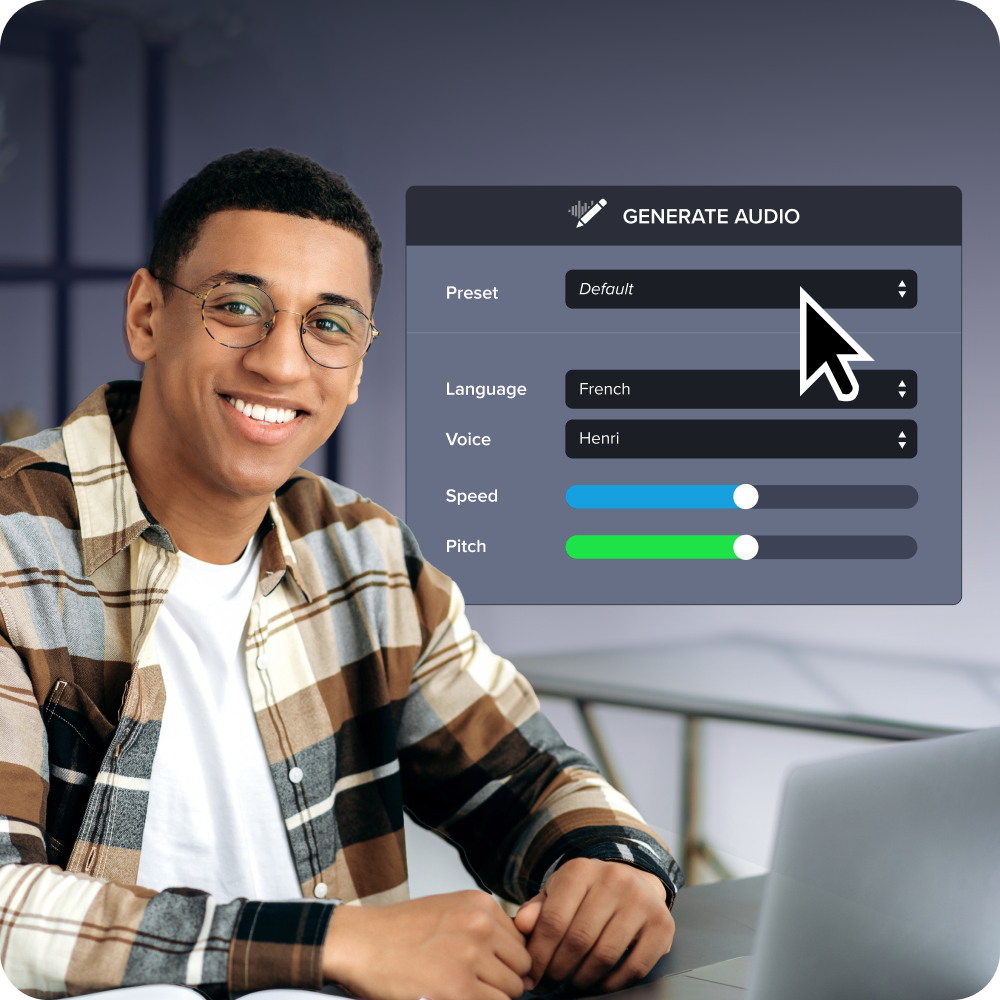
Camtasia Audiate and the cost of keeping narration current
Camtasia Audiate lowers narration maintenance costs by letting creators revise transcribed audio through text instead of rerecording or manually editing the full voice over. It transcribes your narration automatically and displays it as editable text, so you fix the audio by fixing the words on the page. It also flags and removes filler words like “um” and “uh” without you touching the waveform.
Correcting one changed sentence means deleting the old text, typing the new line, and letting Camtasia Audiate regenerate that clip. Rerecording the full voice over means booking studio time, matching tone and pacing to the original take, and rescrubbing the timeline to fit the new length.
The same time savings extend further. Camtasia Audiate can generate AI voices, produce multilingual output, and export SRT files for captions, then flow directly into Camtasia Editor for final assembly. Every AI-generated voice, translation, or transcript still needs a human accuracy check and a clear AI-generated content disclosure before publishing.
Camtasia Online and lowering the barrier for non-video teams
Camtasia Online lowers setup and skill costs by letting non-video teams record short, layered 1080p content in a browser and move advanced projects into Camtasia Editor when the work demands it.
Anyone on your team can open a browser (no installation or production background required) and start recording a walkthrough, coaching clip, or internal update in minutes.
The tool captures screen, camera, and microphone on separate layers, so you can adjust each one without reshooting. Recording runs at 1080p, scenes cap at five minutes, and you can record unlimited scenes for multi-part updates. One-click AI layout arranges screen and camera automatically, cutting the manual framing work that usually slows down first-time recorders.
When a project needs advanced timeline control, branding, or multi-scene editing, export it directly to Camtasia Editor and keep building from there.
Combining avatar and screen recording without adding cost
Combining an AI avatar from Camtasia Audiate with screen capture in Camtasia Editor reduces presenter and studio logistics while keeping the instructional screen content central. Generate the avatar and voice track in Camtasia Audiate, then drop it onto a layer above your screen recording in Camtasia Editor. You skip presenter booking, studio time, and lighting or camera setup coordination for a shoot schedule.
Keep the avatar footprint small: sized like a webcam overlay, positioned in a corner so it never blocks the interface you’re demonstrating. The screen action is the lesson, and the avatar plays a supporting role.
Do AI Voices and Avatars Improve Learning?
Discover what the data reveals about learning outcomes.
Get the Full Report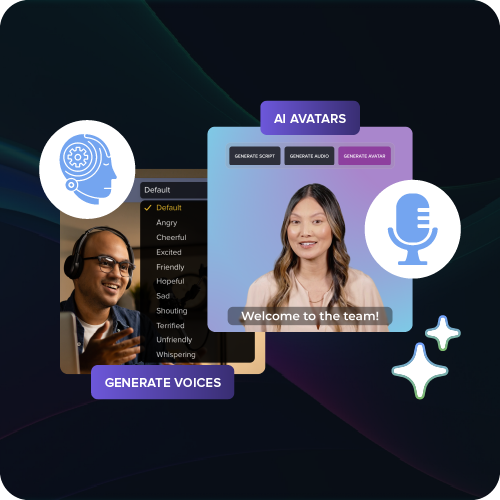
This workflow cuts scheduling and logistics costs. Editing time, script review, and quality checks still apply. Any AI-generated avatar or voice must carry a clear disclosure to viewers.
Calculating your training video total cost of ownership
Training-video total cost of ownership adds upfront production costs to every internal, recurring, and learner-impact cost the video generates over its useful life. That includes internal labor, review, localization, accessibility, hosting, maintenance, retraining, and learner opportunity cost.
The checklist below turns each category into a comparable line item, so you can run identical assumptions against your current workflow and an AI-assisted one before choosing either.
The line items most L&D budgets miss
A defensible training-video budget includes SME hours, project management, approval rounds, source-file storage, captions, localization, maintenance, archiving, support questions, and learner time. Most quotes stop at production, so these categories get absorbed into someone’s already-full week instead of a line in the budget.
Build a checklist and fill in a number for each item before you compare vendors or tools:
- SME and project management hourly rates
- Expected approval rounds and revisions
- Source-file storage and archiving costs
- Caption and localization requirements, by language count
- Audience size affected by each update
- Update frequency and expected support questions
- Useful content life before the video needs revision
You have a production quote in hand, but not the revision count, language count, audience size, update frequency, or useful life those numbers depend on. Document each one now, while the project is fresh.
Then run the identical checklist against an AI-assisted workflow, using the same revision assumptions, languages, and audience size. That side-by-side comparison, not the original quote, is what makes your budget defensible.
Choosing a lower-cost path forward with generative AI
The lowest-cost path forward is a side-by-side pilot that compares your current training-video workflow against an AI-assisted one before you commit budget to either.
The module rebuild you keep dreading (the one where a compliance change forces three SMEs back into a shared calendar for two weeks of reshoots) is exactly the cost that a vendor quote never shows you. The number on the invoice measures the wrong moment in the lifecycle. Real cost shows up later, in review cycles, in update requests, in the accessibility work nobody budgeted for, and in the minutes learners lose to a video that’s harder to follow than it should be.
Camtasia fits into your next project without asking you to change how your team already thinks about instructional design. Camtasia Audiate’s text-based editing and automatic caption export cut the update and accessibility work that usually stalls a revision, while Camtasia Editor’s saved annotation styles keep every module looking consistent even when three different people are building it. The tool supports your judgment about what learners need instead of replacing it.
Try Camtasia free to see how it can take your next module from draft to reality.
Frequently asked questions
What are the hidden costs of training videos?
Hidden costs include SME time, script reviews, stakeholder approvals, accessibility work, localization, distribution, learner time, and recurring updates. Track these expenses alongside recording, editing, software, equipment, and vendor fees to calculate the video’s total cost of ownership.
How do hidden costs affect training video budgets?
Hidden costs create budget overruns when teams account only for recording and editing. Late captions, translation, SME corrections, and repeated approvals add labor before release, while outdated videos can create reshoots, retraining, support questions, and lost productivity after publication. Itemize every lifecycle stage before comparing an agency, freelancer, or in-house workflow.
What should a training video TCO calculation include?
A training-video TCO calculation should include needs analysis, scripting, storyboarding, recording, editing, software, equipment, captions, localization, hosting, and internal labor. It should also estimate approval rounds, future updates, learner time, reinforcement content, support demand, and the cost of correcting inaccurate or noncompliant material. Use the same assumptions for every production option you compare.
How can review and approval cycles increase training video costs?
Unstructured review cycles increase costs by creating duplicate comments, conflicting priorities, unclear revision requests, and extra editing rounds. Screencast centralizes review with time-stamped, frame-specific feedback so creators can turn stakeholder comments into actionable revisions. Set approvers, deadlines, and revision limits before production begins to control rework.
How can generative AI reduce the hidden costs of training videos?
Generative AI can reduce hidden costs by making scripts, narration, translations, captions, and presentation assets faster to revise. Camtasia Audiate supports text-based editing, filler-word removal, AI voices, translations, and avatars. Camtasia Online can reduce recording setup. Camtasia Editor provides detailed timeline control. Camtasia Snagit can replace video with a step-by-step visual guide when that format is more efficient. Human accuracy checks, accessibility review, source tracking, and clear disclosure of AI-generated output are still required.
Share